Search the Community
Showing results for tags 'tutorial'.
Found 2 results
-
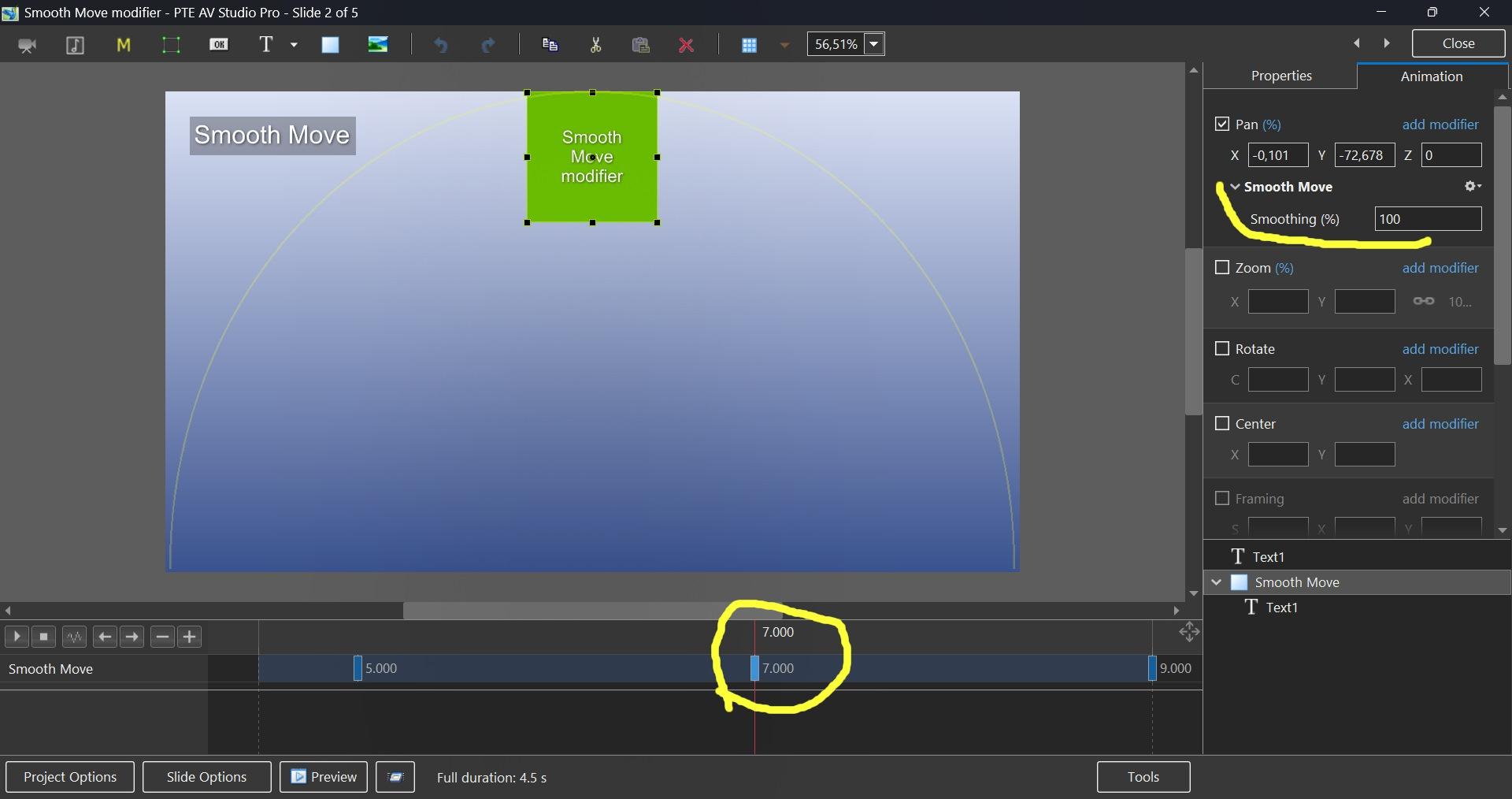
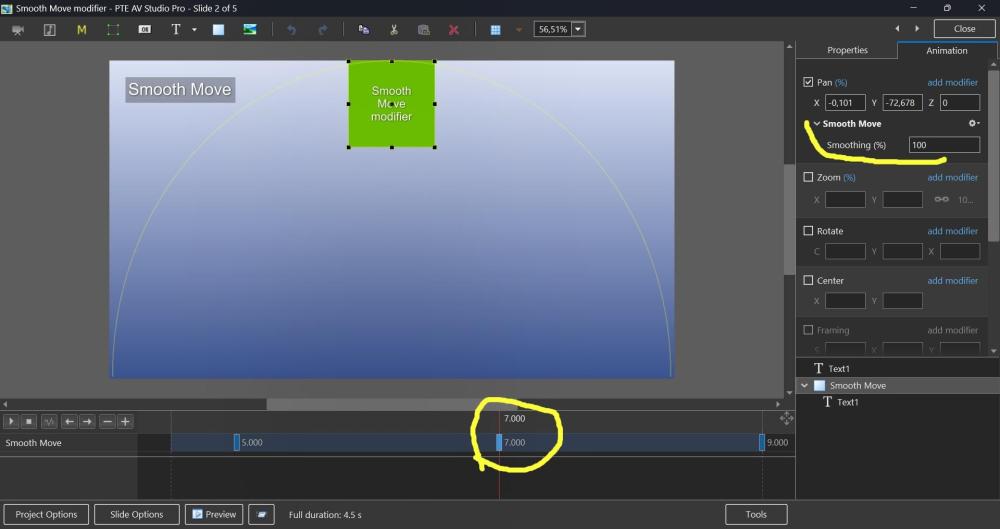
Hi, Smooth Move modifier was introduced in V11, but probably not everyone may know how useful it can be. This demo shows how the Smooth Move modifier improves animated panoramas when you change a direction of motion at a middle keyframe. Without the Smooth Move modifier, you'll see a sharp, unnatural break in the movement direction. With the Smooth Move modifier, the image smoothly changes trajectory with natural momentum, gently rounding the sharp corner. If you have 3 keyframes and a direction of motion changes at the 2nd keyframe (in the middle), you need to add the Smooth Move modifier to that 2nd keyframe. The "Smoothing (%)" parameter controls how much the motion is smoothed. I recommend to keep the default value 100%. Note that Smooth Move also creates smooth starts and stops, giving the motion a natural, momentum-based feel. If you're using simple motion between just 2 keyframes, use the Smooth speed modifier on the 1st keyframe instead. In this case, don't use Smooth Move. Download the demo project: Smooth Move modifier.zip Video example: Smooth Move modifier.webm Screenshot:
-
Hi folks, I decided to create a cube style and in doing so, I realized that we really never discussed all the different things possible with this type thing. Igor and the developers gave us a cube style in the Experimental Styles category and my style is created in an almost identical way. Only the controlling frame animation is different so what I show you in this video applies to both my new style and the PTE default cube style. What I explain in this video is that you can not only put still images on your cube, but you can also put up to six videos as sides. You can mix still images, animated gif images and videos on the various sides. I also show you how the adjust the position and/or size of the video or still image. It's just something some may want to play with and can be a fun thing for an introduction to a show, etc. Best regards, Lin Lin's Cube Style For Images or Videos.ptestyle