goddi
-
Posts
3,596 -
Joined
-
Last visited
-
Days Won
27
Everything posted by goddi
-
==================== Igor... Yes, thanks for clearing this up. I did tests in Custom, with and without the "Pan and scan" ticked. When the "Pan and scan" was unticked, the text in the slideshow came out as it did in the original exe. It was not cut off. So, I don't understand why you should have to go into Custom to make the slideshow come out as you would expect it to be (same as the original). Don't you think the 'default' preset should do this??? I think that when someone chooses a non-Custom preset, it should come out the way you might expect it to...same as the original exe. Maybe I am missing something here, but I think that the default for the non-Custom presets should have the "Pan and scan" unticked. If someone wants to make it different than the original look, then they should have to go into the Custom settings to make the change. (And I have no idea what "Pan and scan" means or why one would choose it.) Gary
-
================== DaveG, I am not sure what you are asking. I only did a simple Create HD Video to produce the mp4's. The PTE show that I was using was produced making sure that the text that I included was within the TV Safe Zone. My point was that the text that was within the TV Safe Zone (in the exe version) was cut off when I made the 1280x720 version, as opposed to the 800x600 version where the text was not cut off. The text was just above the TV Safe Zone at the lower part of the image. As far as size goes, the final size of the 1280x720 was 116 mb and the 800x600 was 32 mb (the exe was 44 mb). So I don't see any problem burning them to a DVD, which I have done, and I have played them on my PC. They will not play on regular DVD player. Gary
-
=============== Igor, Good news. I was able to create, in Beta 5, an HD of the slideshow that I was having difficulties with in Beta 4. I made a 1280x720HQ and an 800x600LQ. Both looked just fine. One thing I noticed is that I have some text at bottom of one slide. In the 800x600, it showed correctly. However, in the 1280x720, this text was cut off. It was created in 4:3. It might just be the nature of the 1280x720 conversion. But I had the text within the 'safe TV zone' and the Screen was set to 94%. I figured that would be enough not to cut off any part of the slideshow. Is this what should be expected? Thanks... Gary P.S. I noticed also that the Grid features were not improved yet. Hopefully, next go-round, when the C is pressed the orange cross-hairs will automatically be placed in the center of the image window. And the outside orange lines are still not equi-distant from the edges of the image window when 'C' is hit. I do see that only when pixels are set to 102, the left, top and right orange lines do surround the image window. Maybe 102 should be the default?
-
================ No problem. It sounded like it could solve the problem. Sergey asked for some files and screen prints so he is taking a look at these things. The HD worked with the previous Beta. I'll just wait to see what he comes up with. I've tried several times to make different HD's with this Beta4 but no luck yet. Gary
-
===================== Peter... Gee, thanks for making some sense out of it. But it really is non-intuitive! I hope Igor will make it so when the 'C' is pressed (with or without the "In pixels" box being ticked), the orange cross-hairs will move to the center. The way it works now, just does not make much sense. And it really seems to only work when you have the "In pixels" box unticked and set at 10. Then the orange lines are on the outside edges of the image window, but no cross-hair lines in the vertical and horizontal centers, as I would like. Otherwise, the orange lines do not mean anything. ("0" gives no grids). I do think it is a 'bug' because it is not doing what a user (like me) expects it to do. And why would you want the effects of unticking the "In pixels" box? What is the measurement if not in pixels? And there should be a box between the two drop-down boxes to sync both boxes simultaneously when you want to enter the same number in each box. Gary
-
Igor.... Getting away for the moment from the 'original mode' debate, how about a fresh 'bug'? I see that the problem in moving and setting the Grid Lines manually to the center of the image window has improved. However, when I press the 'C' button, I presume that the orange lines will be brought to the center of the image window. It still does not. It is still too far down and a bit to the left of center. Yes, I can use the Offset buttons to re-align it but it would be very nice if the 'C' button would actually bring the orange lines to the center of the image window, if that is what it is designed to do. Thanks, Gary
-
============= Peter, Yes, I had all the Beta versions installed in their own folders. However, a previous post recommended to remove all Betas and reinstall Beta4. I tried this but it did not help. I tried to download and install the link that Igor says is Beta 3 (in this subgroup), but it seems to link to Beta4,instead. I can't find previous Beta versions to download for testing purposes. Gary
-
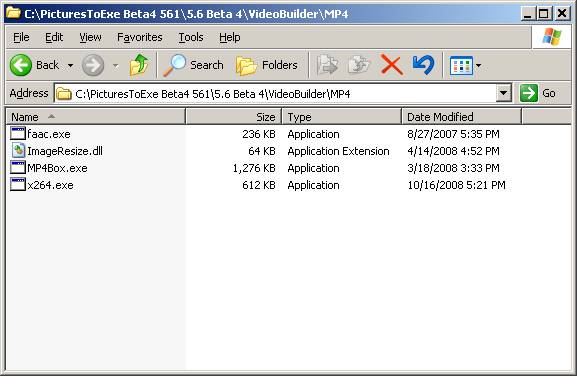
===================== Sergey, I've attached the x264.exe as a zip file. I did create an mp4 with an earlier Beta version, probably Beta3. But I have removed that version so I can not try to create an mp4 with Beta3. Gary x264.zip
-
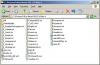
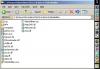
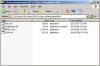
================ Sergey... Here are my screen shots of what you requested. Thanks for your help. Gary
-
============== Peter, Thanks for the info. I now see why there is so much commotion about this feature. I could never really grasp exactly why it would be so useful. Now I see. I don't know how to use it yet but I see that it can be a very helpful tool. I will wait to see the outcome of this debate. Thanks... Gary
-
=============== Ray... I uninstalled all 5.6 Betas, including Beta 4. Reinstalled Beta4. I reduced a slideshow that worked before down to 10 slides and no music. I tried an SD 800x600 low. Same result. I got all four 'Done' indications; there was no 'Time to end' displayed. Got nothing. Gary
-
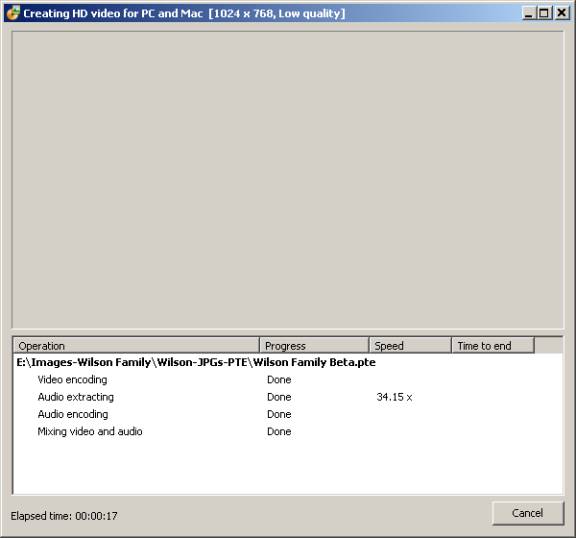
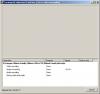
Greetings, I have been successful in making an HD file with one of the previous 5.6Beta versions. I just tried to make an HD file with a new slideshow with Beta4 and I am not sure if it is working as it should. This show has about 90 slides and 2 music files (about 44mb). I get the Progress Window and it shows the audio extracting going but then I see all Done's and then only the Elapsed Time meter going. I attached an image of what the progress window looks like. I let it run for almost 3 hours but then I stopped it since it did not seem it was really doing anything. A similar show (maybe a bit smaller) only took 10 minutes before. Is 3 hours too short to wait or should the progress window be telling me something more that it is? Gary
-
================= Greetings, I have been reading all of the "original mode" postings and have been trying to understand them, without much luck. When I read JPD's postings, I think my head exploded. I have always used the default setting, "fit to slide" so I have no experience using "original mode" and don't really comprehend why it is useful. I would appreciate if someone could give me a very simply and as non-technical explanation as possible why and when someone needs it. I am trying not to be too dense but I am missing something. I think it has to do with playing the show on a PC or projector that would have a different screen size than the original, but it escapes me what the problem is and what the solution is when all of you are saying we need the "original mode". Many thanks in advance if someone can educate me... Gary
-
How to make PicturesToExe more simple and intuitive?
goddi replied to Igor's topic in Suggestions for Next Versions
================ Peter, Your above post made me just learn something and resolve another confusing menu item. Customize slide When I see this menu item, it has always made me think that I have to customize one slide at a time. I now see from Peter's comments above that if I highlight a bunch of slides, I can apply the customization to a group of slides all at one time. So...my suggestion to clarify this is to change name to Customize slide(s). This would let a user know that he can customize more than one slide at a time. Gary -
How to make PicturesToExe more simple and intuitive?
goddi replied to Igor's topic in Suggestions for Next Versions
Igor... Main menu's Slide vs. Slide List's right-click menu items. Here is one suggestion that I have not see mentioned before. It has always been a confusing menu setup. The Slide choice at the main menu level has only some of the menu items that you find when you right-click on a slide in the Slide List. And some of the menu items that you see when you right-click on a slide in the Slide List appear in the Slide choice in the main menu level. I think that all of the choices you have when you would right-click on a slide in the Slide List should be in the Slide main menu list. This would make it easier for a new user to find such menu items as Start Preview from the current slide. And upon further thought, shouldn't the menu items in the Slide menu affect only the slides in the Slide List, as opposed to the slides in the Directory List? If so, the name of Slide in the main menu level should be changed to Slide List and all actions should be directed to only the Slide List. Gary -
How to make PicturesToExe more simple and intuitive?
goddi replied to Igor's topic in Suggestions for Next Versions
Igor... Rename Synchronize Music and Slides. This is a confusing menu item. Not use exactly what the best way to rename it, but here is one suggestion: Keep music spread over Slide List when 'Start Preview From The Current Slide' is used. Gary -
How to make PicturesToExe more simple and intuitive?
goddi replied to Igor's topic in Suggestions for Next Versions
Set Defaults button: I have put this in the New Ideas forum but it really is a confusing button: Currently, when in Project Options, the Set Defaults button resets every setting you have made in every tab back to the default settings. (Peter pointed out that there can be Factory Defaults and User Template Set Defaults. This needs to be addressed too). I suggest that the Set Defaults button be changed to Set All Defaults and a second button, Set This Tab's Defaults Only, be added so that it will only reset the setting in the tab the user is currently in. (Not sure how to handle Peter's Factory Defaults and User Template Set Defaults). Gary -
How to make PicturesToExe more simple and intuitive?
goddi replied to Igor's topic in Suggestions for Next Versions
Igor... (For the current Beta 561) Here is one of the confusing buttons of PTE that has bothered me from my first use of the program: Set for existing slides The button Set for existing slides is in the Main, Comments and Screen tabs. When I see this button, I ask myself, "...existing slides?...what other slides could it be for?". Redundant? It makes me think I have a choice of existing slides vs. maybe one slide. I suggest that it should be changed to Update Project. This tells me that after I input my choices, the entire project will be updated when I press the Update Project button. Also, in the Screen Tab's Additional Options section, separate the 3 possible actions with thin lines. The Color outside slide area does not need the existing Set for existing slides button to be pressed. So Color... needs to be separated from the other choices that need the Set for existing slides to be pressed. And, by the way, I can not figure out what Color outside slide area does, as opposed to the choice for setting the Background, in the same tab. What's the difference??? Gary -
How to make PicturesToExe more simple and intuitive?
goddi replied to Igor's topic in Suggestions for Next Versions
================= Igor... Just for clarification, if we have already posted a suggestion in the "Ideas...for next version" forum, do you want us to restate and consolidate them here, or only new, different ideas? Thanks... Gary -
Greetings, With Beta2, I successfully created a 3 minute HD video at SD(800x600), low quality. Worked out just fine. Then, I just tried creating a 15 minute HD video at HD(1280x720), high quality. Work out just fine, too. Looks great. When I play the SD(800x600) version in Quicktime, I see the entire video on my PC's screen. However, when I play the HD(1280x720) on my PC's screen, the top and the bottom are cut off. No matter what View I choose. I am trying to understand if this is what is to be expected. They were both created at 4:3 PC/DVD. Is this what is causing this problem? Do I have to create the original exe at something different than 4:3? If this is true, can someone give me an explanation about this? Thanks... Gary
-
Igor... This is not a bug but just a suggestion: Would it be possible to put the 'preset' that has been chosen for HD encoding in the progress window? After it has been running for over an hour, I forget what I set it at. It would be nice to have reassurance what I am encoding at. This is especially helpful when I am testing various 'presets'. Thanks... Gary P.S. Can any of the mp4 HD Video presets be played on a DVD player? The SD I first tried would not play.
-
================== I used to have the ACE pack installed but it gave me a problem that I just can not remember now. I dumped it. So it is interesting that the 'Homecinema' version worked. Gary
-
================== Ken... I had downloaded the 'Media Player Classic Homecinema' from the Sourceforge site, I got the V1.1.604.0. It plays the mp4 just fine. After seeing your link, which looked like a more recent version, I downloaded the V6.4.9.1. However, it is called 'Media Player Classic (no 'Homecinema') and it DOES NOT play the video part of the mp4, only the music. Below is the first part of an error message: - - - - - - - - - - - - - - - - - - - - - - -- - - - - - - - - - - - - - - - - - - - - - - E:\PTE-2004 France Soaring\France-Soaring.mp4::GPAC ISO Video Handler Media Type 0: Video: MPEG4 Video (H264) 800x600 AM_MEDIA_TYPE: majortype: MEDIATYPE_Video {73646976-0000-0010-8000-00AA00389B71} subtype: Unknown GUID Name {31637661-0000-0010-8000-00AA00389B71} formattype: FORMAT_MPEG2_VIDEO {E06D80E3-DB46-11CF-B4D1-00805F6CBBEA} bFixedSizeSamples: 1 bTemporalCompression: 0 lSampleSize: 1 cbFormat: 164 ....etc. - - - - - - - - - - - - - - - - - - - - - - - - - - - - - - - - - - - - - - - - - - - - - - - Are you sure your version works with mp4's??? Gary Added later... here is where I found the 'Homecinema' version: http://sourceforge.net/project/showfiles.php?group_id=170561
-
========= DaveG... Yes, the only player that I can get to play the mp4 is QuickTime and the player Igor recommended, Media Player Classic HomeCinema. I like this Media Player Classic because the slideshow starts by itself and the last slide stays opened at the end of the show. I also tried WinAmp and it will only play the music part, not the video. Gary
-
================== Igor... I just tried the Beta 2. Tried the Create HD Video at the low settings. Super!!! I got the very nice progress bar. I played the mp4 file and it looked terrific. Thanks. It took about 10 minutes to encode a 3 minute show to an mp4. I am impressed that the size of the mp4 is just a bit larger than the exe file. The original exe file is 17.7mb. The mp4 is about 20.4mb. An AVI of the same show is 192mb, and not nearly as sharp as the mp4. I'll keep poking around with the new Beta. Nice work... Thanks Gary