goddi
-
Posts
3,596 -
Joined
-
Last visited
-
Days Won
27
Everything posted by goddi
-
How to move an extracted audio clip to another track?
goddi replied to goddi's topic in General Discussion
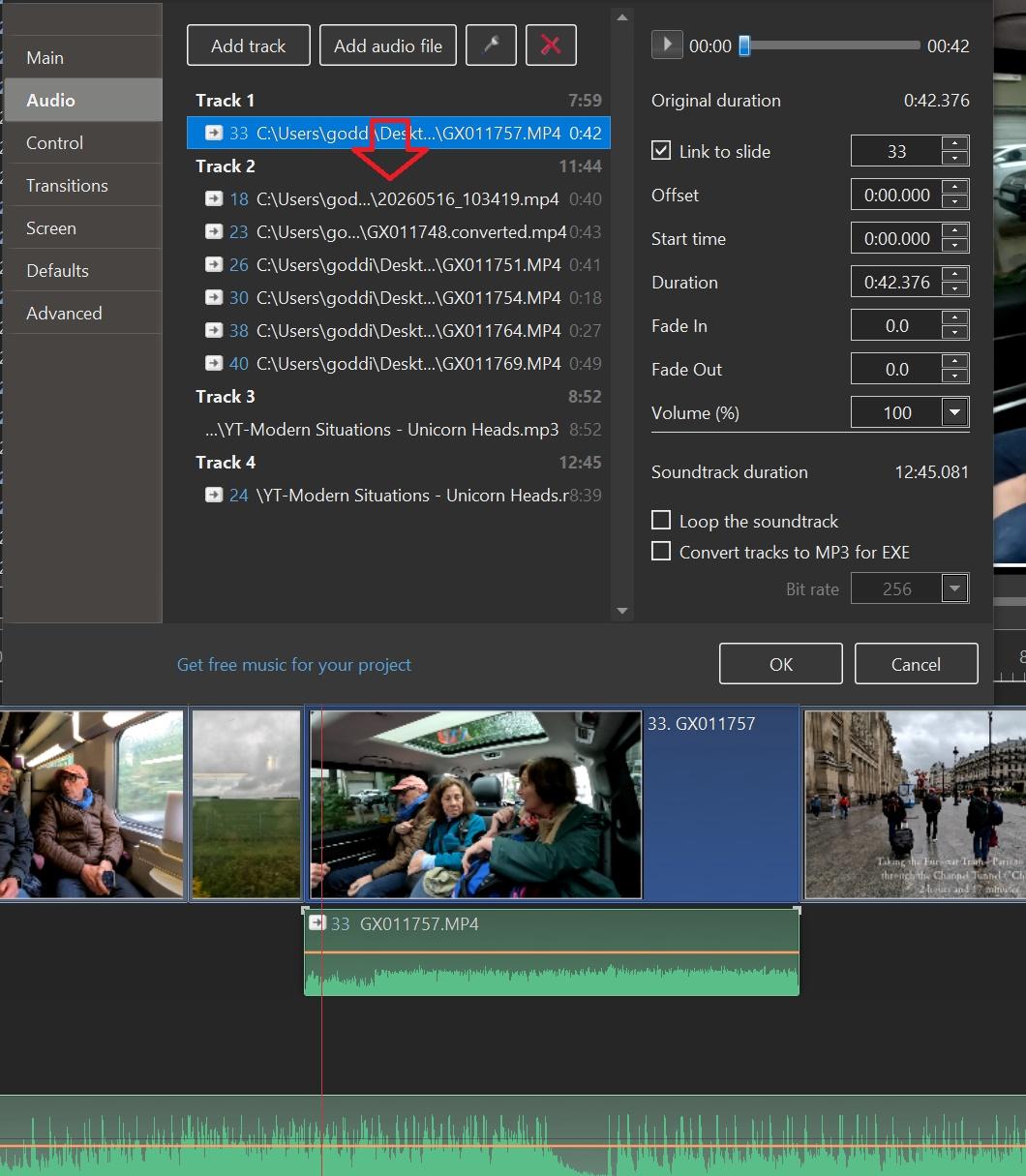
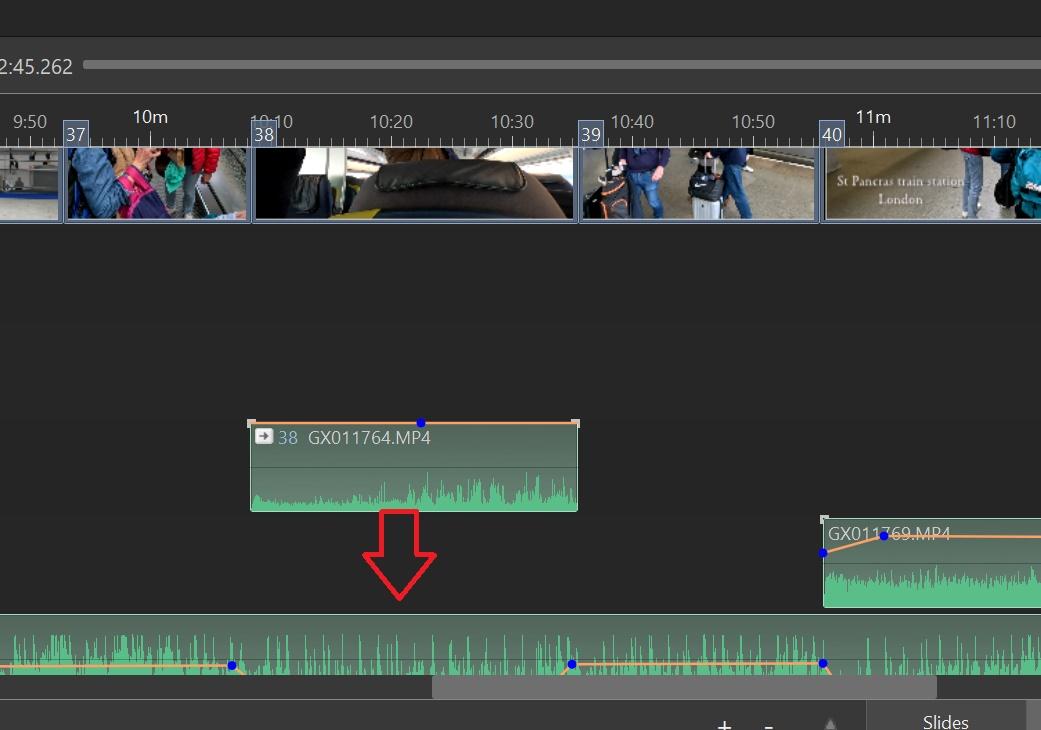
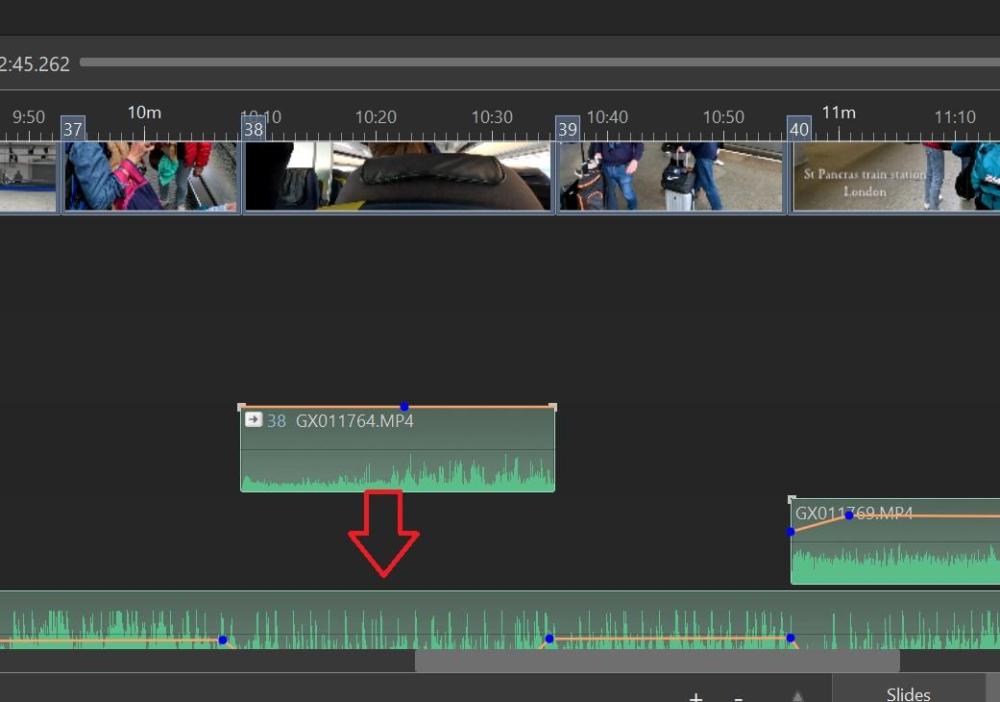
Greetings, Thanks, I like the way of left-clicking on the Audio Clip in the Timeline and all the Tracks show up. I, then, can just drag down the separated audio clip in Track 1 down into Track 2. And then delete the empty Track 1. This helps to consolidate the audio clips. When you Separate Audio from Video, it puts the audio clip in its own Track and that can become messy when you do a lot of them. Thanks for the tip, Gary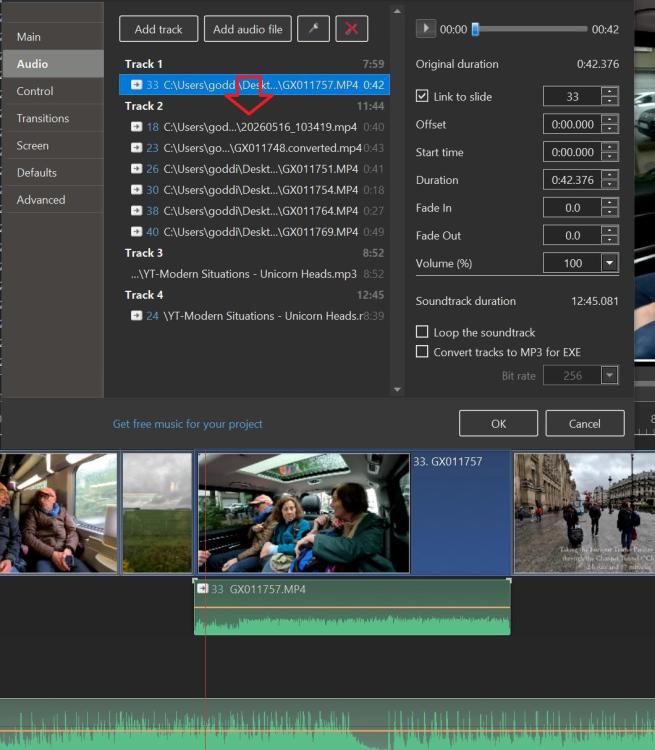
-
Greetings, I want to move the extracted audio clip to another existing track. I know I can drag it down but if if I am not exact, the audio clip will not match up with the lips of the person talking. Is there a way to move it so it stays in the correct position with a key stroke? Gary
-
Digitizing Slides with a Kodak Slide Projector
goddi replied to goddi's topic in Equipment & Software
Greetings, If you are referring to the SlideSnap Pro setup, I don't know what they used. However, for my setup here is what I used for the camera mount: Decade mini Tripod Base (but does not seem to be available as far as I can tell). I paid $39.99. https://www.amazon.com/Lightweight-Universal-Mounting-Olympus-Mirrorless/dp/B071ZNTWJF?s=gateway&tag=visadventures-20&language=en_US For the rail, Neewer Pro 4-way Rail, I paid$29.49, also hard to find. www.newegg.com/p/1W7-00T2-00NT9?item=9SIB2TTJUK1095&utm_source=google&utm_medium=organic+shopping&utm_campaign=knc-googleadwords-_-cables - internal power cables-_-ruth's sister-_-9SIB2TTJUK1095&source=region&srsltid=AfmBOopR7OGGqdzUdSMpmuwjI12VApvz2iRikDDJifnLyyDQVl3--iGuNoI Or, this one: https://neewer.com/products/neewer-4-way-macro-focusing-rail-slider-66601385?variant=42346971398337&country=US¤cy=USD My setup did not have a 'cover' for the lens. Hope this helps... Gary -
Sorry for the late reply. I did not get a notification. I have Windows 10. Gary
-
Greetings Igor, Is this to have an effect on the entire video clip, or can just a portion of the video clip be affected by the 'Interpolate frames'? I'll wait for a tutorial...too many questions.🤔 Gary
-
Ok...But what is the 'Start Time' used for? If the 'Offset' is the time where the 'Sound Object' starts, I'm not sure what the 'Start Time' is used for. Gary
-
(Beta 3) Ok... I just set only the Offset to 12 seconds and it played at 12 seconds. Good. I was also setting the Start Time to 12 seconds but that did not work. But...the sound does not appear in the Timeline for any adjustments. Should it? Gary
-
Greetings, I am trying out the new 'Sound Object'. I put in a 'Bells Only' sound clip. And then I set the Start Time to be at 12 seconds. However, it does not play the sound at all. Also, when viewing in the Timeline, I don't see the wave form to make any audio level adjustments. What am I doing wrong??? Gary


-
Igor, Thanks. the two additional buttons for trimming will be very useful. But I still don't understand how to use the Interpolate Frames and Speed Key points and Speed. I can get it to do something but have no idea what I'm doing. A tutorial would be helpful.😂 Gary
-
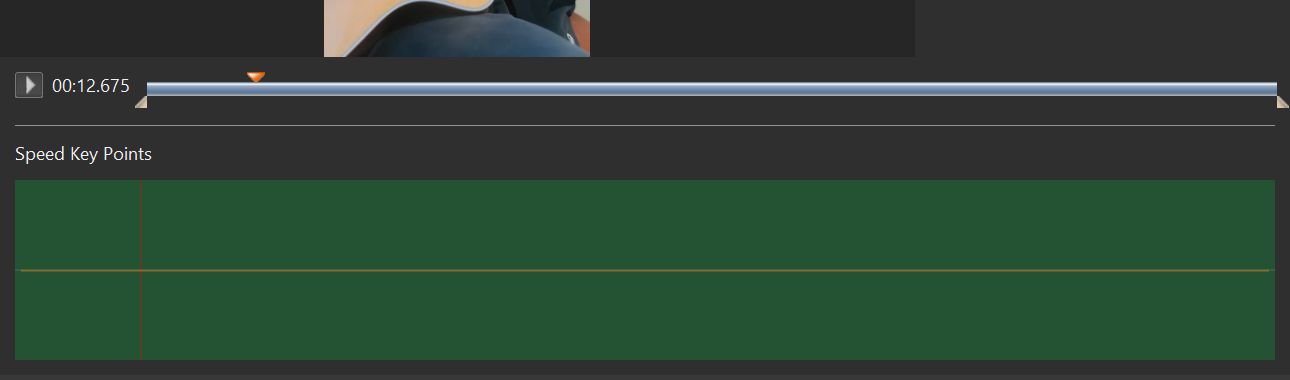
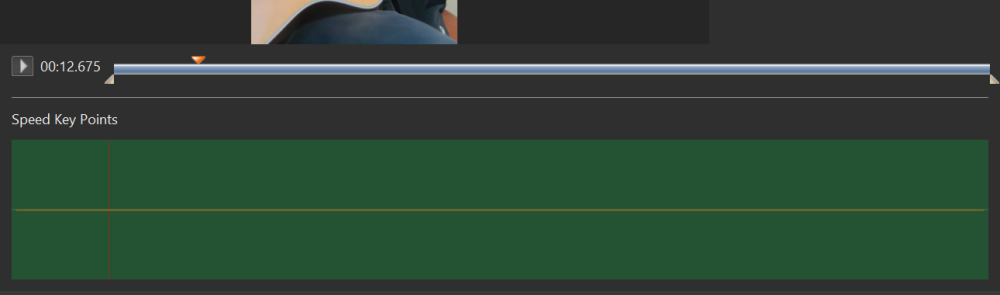
Greetings, Trying to figure the Trim function in this menu. As I play the video, I want to pause it to establish the beginning trim point. So the red triangle is at the point of the beginning trim position. How can I move the lower white triangle to where the red triangle is at? This has been the problem with the previous version. If I click on the white triangle to move it to the position of the red triangle, the red triangle will reposition back to the white triangle and I lose that set trim position. How do I get the white triangle to move to where I placed the red triangle? And I have no idea how to use the other items, like Interpolate Frames, Speed Key Points and Speed. Is there a video on how to use them? Gary
-
Greetings Igor, I never thought of trying a different player. I normally use Windows Media Player, which is showing this audio sync problem. So I just tried playing it with VLC and MPC-HC and they do NOT show the sync problem, as you pointed out. Quicktime also plays the video correctly. I also tried it with Media Player, and it also shows the sync problem. This audio sync issue shows up from the very beginning of the video when played in these other two players (Windows Media Player and Media Player). I just uploaded it to my Facebook page and it is playing correctly, in sync. Interesting that the Windows Media Player (and Media Player) is handling it differently. If you happen to figure out why this is happening, let me know. Seems to happen only to YouTube videos that have been downloaded and played with Windows Media Player. Just more noticeable when the lips don't match the audio! Thanks for checking this out. Gary
-
Greetings, I have downloaded a YouTube video and am using it in PTE. When I play the original downloaded video outside of PTE, the audio is in sync with the video. When I put it in PTE, and play it, the audio is still in sync with the video. However, after I have Published it, the audio is out of sync. This happens in Version 11 and in the new Version 12. Any fix for this? I put the downloaded YouTube video on Mediafire, if you want to give it a try. https://www.mediafire.com/file/i3sdlc02xou5pve/Minneapolis.mp4/file Here is the Published version, with audio out of sync. https://www.mediafire.com/file/xvg52w35binuf41/Minneapolis-Final.mp4/file Gary
-
Digitizing Slides with a Kodak Slide Projector
goddi replied to goddi's topic in Equipment & Software
Greetings, I used the NewHouse Lighting MR11-2530, which is "MR11 2.5W 250 Lumen, 3000K LED Bulb". I had to dig them out from the left-over parts from this project. No improvements because I am finished with digitizing all of my slides. Now just have to get rid of what is left of the project, like the slide projector, the stand, etc. Hope this helps... Gary -
See if this works... I exported the style... Gary (DS) Confetti spray.ptestyle
-
Greetings Jill, What I was talking about is to shorten the beginning of a video clip while in the Timeline, not getting into the Trim function (dragging the beginning of the clip to the right to shorten it as you can do to the end of the clip, dragging it to the left to shorten it). As I mentioned, I want to play the clip (red triangle) to the point of where I can hear where I want to make the trim. So the red triangle will stop at that point. However, when I click on the bottom triangle to move it to the red triangle's position, the red triangle jumps to the bottom triangle's position...losing the selected trim point. This is not logical and useless. There are ways around this process but it seems that the established method in the Trim function should be made to work effectively without having to do work-arounds. I am trying to teach the Trim process to a newbie so it has not been easy when the logical steps don't work. When the red triangle snaps back to the bottom triangle and you lose the position of your trim point (red triangle), it just does not make sense. This should be an easy fix. Gary
-
Greetings, Yes, anything would be nice to improve the current Trim process. When it comes to a little 'more/less', I know I can drag the following slide to the left to shorten the previous video clip. But I can't do it to shorten the beginning of a video clip. I have to go into the Adjust Time Range to do that. Is there a way to just drag the beginning of a video clip to tweak it in the Timeline? (Besides using the Trim Beginning of Video). Gary
-
Greetings Jill, Yes, I understand this method and have used it. For short video clips, it works well. However, I was helping a friend that has a very long video...about an hour long. He wants to trim out many short clips from this video. To have to scroll around to find the next trim points in such a long video is a pain. And, when your method is used, each clip would have the same filename so that would also cause a problem. Using the Trim process, each clip can be saved as a different name to keep better track of the many multiple clips. I just think that the current process of using the Convert/Trim is really backwards when trying to use the triangles to establish the trim points. I'd like to make it logical and useful. Gary
-
Greetings, When I want to Trim a video, I play the video and stop it (red triangle) at the point that will be the beginning trim point. But I have to type in that time position (from the play line) where I stopped playing the video into the Start Time box to get the grey triangle to match up with the red triangle to establish the beginning trim point. The same process is needed to set the end trim point. It seems that this is a bit backwards. It would be more helpful if, after you set the red triangle where you want the beginning trim point to be established, all you should need to do is click in the Start Time box to bring the grey triangle to meet the red triangle’s position. And the same function should be made for the end trim point. The trim points, beginning and end, are usually positioned by sound when the video is played. The current way of setting the trim points seems backwards and more difficult than it needs to be. Am I missing anything…? Gary
-
Greetings, Ha! Couldn't see the forest for the trees! (And I don't use Dark Mode). Thanks... But do you know what the maximum size of an upload is? Seems like it is still 125 mb. Gary
-
Greetings, Ok...I give up. Where is it? I've looked around but don't see any link. Gary
-
Greetings Dirk, Thanks for the reply but you might notice the original post was made back in 2017. I don't think there is a Slideshow Club anymore. I think the confusion in my post back then is I used 'mbs' when it should have been just 'mb'. The problem was with the size of the video file, not the data rate. But thanks anyway. Gary
-
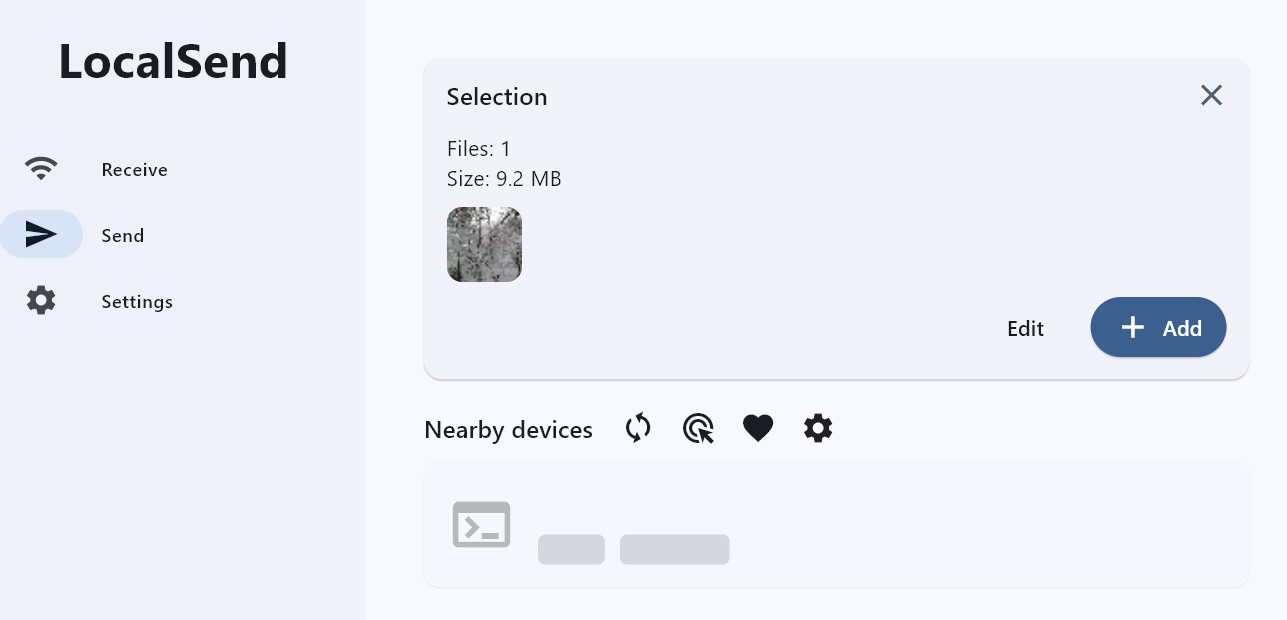
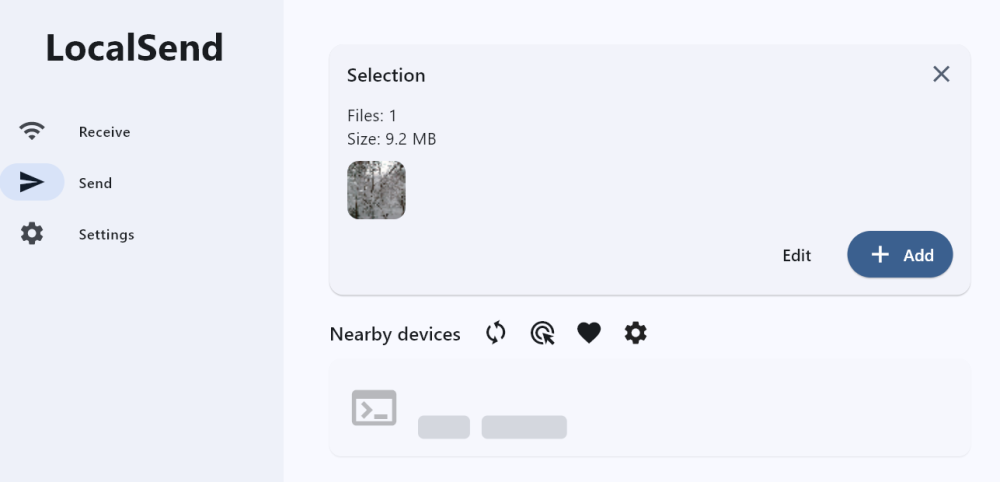
Greetings Tom, I am trying this out. But I want to send a file from my PC to my wife's PC, which is on the same network. But my search for 'Nearby devices' does not get a list as you get. What am I doing wrong? Gary
-
How can I add a map to my AV presentation?
goddi replied to postcards_from_nowhere's topic in General Discussion
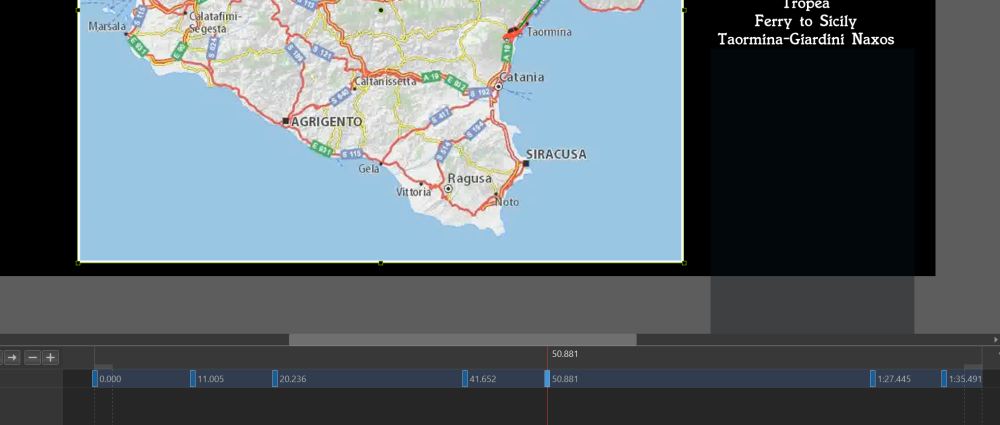
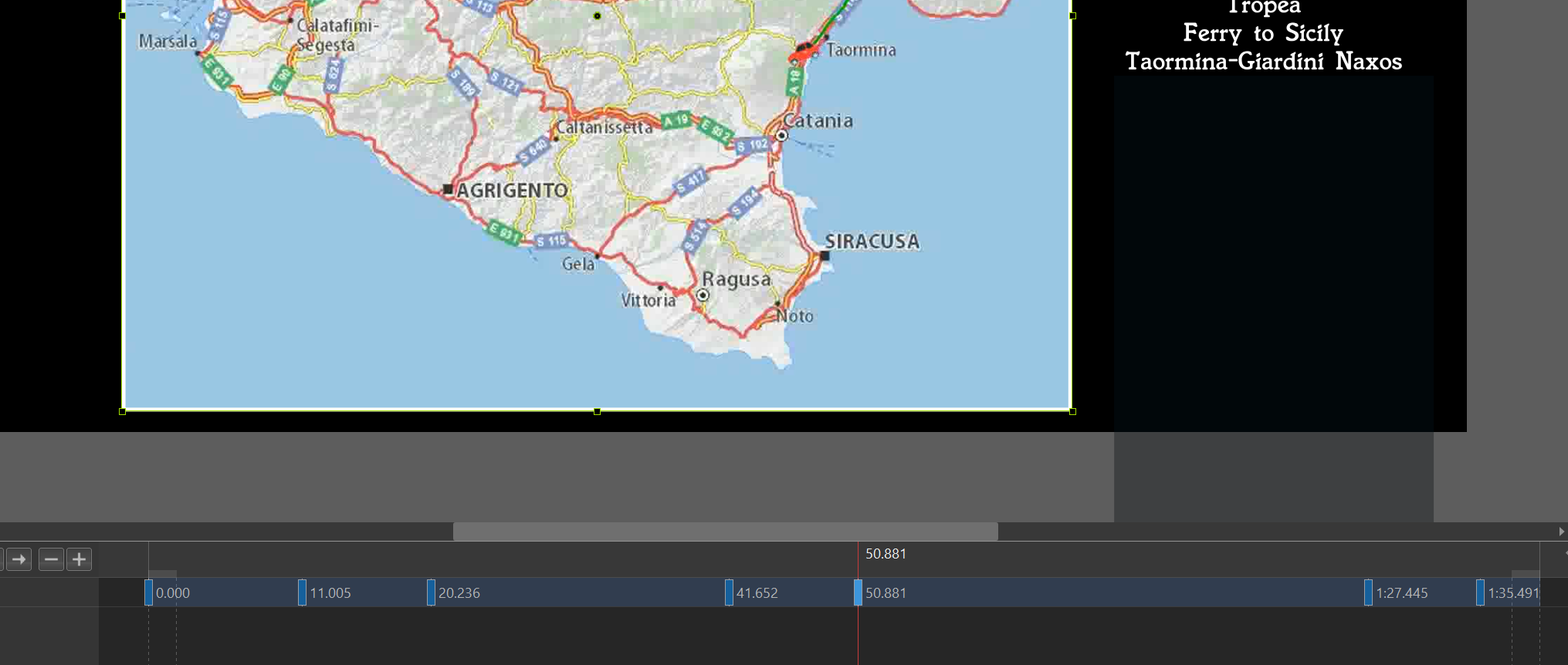
Greetings Nelson, Yes, this was one of the first methods I used a long time ago to show a driving route on a map. Maybe I got the idea from you. But, my driving route was so zig-zag, it was way too difficult to really do it easily. But it did work OK. But this method only shows the actual route. I like, with RouteGenerator, I can put an object...car, boat, plane, hiker... on the route. More fun... Gary -
How can I add a map to my AV presentation?
goddi replied to postcards_from_nowhere's topic in General Discussion
Greetings, Framing lets you animate (S, X, Y) within the borders of the image. For example, I like to Zoom my images to, say, 95% and put a thin border around it. Then, with Framing, I can animate the image within the thin border. Gary -
How can I add a map to my AV presentation?
goddi replied to postcards_from_nowhere's topic in General Discussion
Greetings Paul, I just re-positioned the map created with the RouteGenerator each time using Framing and adding a Keyframe for each new position. Hope this helps. Not sure if I did anything else since I did it a long time ago. Let me know if you have any other questions... Gary