goddi
-
Posts
3,596 -
Joined
-
Last visited
-
Days Won
27
Everything posted by goddi
-
Greetings Jill, I am surprised that I had not run across this issue before. But, I just keyframed the 'Lisbon' text to track with the pan/zoom. It worked. I'll look into the modifier thing. Never really understood them. Thanks... Gary Lisbon-MapTest_Jun10-2024_20-58-45.zip
-
Will this do? I dumped everything else in the project except this one image in a Zip. But I did try to do the same thing in a new project with only this map and it did work correctly. So not sure what I've done here to not have the text track with the pan/zoom. Gary Lisbon-MapTest_Jun10-2024_18-06-28.zip
-
Greetings, Here is a single slide example. The text, Lisbon, should stay where it was initially made a child of the image, as the map pans/zooms. Gary Capture_2.converted.mp4
-
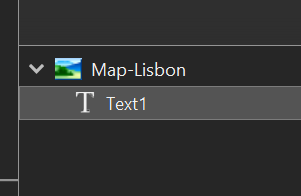
Greetings, Normally, when text is a child of an image, the text would move with the Panning/Zooming of the image. But, now, I can't seem to get this to work. What am I doing wrong? The text just stays where it is originally placed on the image and does not stick with the original position when panning/zooming of the image. Gary
-
Greetings, On a new project, I'm getting used to using the Create Quick Style. Works great. However, I added the same video clip a second time and trimmed it using the Adjust Time Range (ATR). When I applied a style I made from using the Create Quick Style, it did not accept the trim I had made using the ATR. Kinda strange because it worked with the initial use of the same video clip. This seemed to happen only when I used the same video clip the second time, which had been trimmed it with ATR. Can the Create Quick Style be made to include any trimming made with ATR, when using the Create Quick Style on the same clip a second time? Gary
-
Greetings, I know that Adjust Time Range is not physically altering the clips length. That's why I like to use it on the original clip while in the Slides. We will agree to disagree on the 'complicating' thing. My way is so much less complicated. It would delete the larger original file that you don't need anymore with one click, and should replace the larger file in the Slides. Your way leaves the original file in the project folder and then you have to them delete that file you don't need (since it is saved elsewhere) and not having duplicate large files. But you didn't answer why it apparently is allowing you to overwrite the file with the '.convert' removed...but it corrupts it, even though we can do Renaming elsewhere. Convert allows me to add an 'x' to filename (GX011552.convertx.mp4), but not remove the '.convert'. The converted file is corrupted. Does not make sense. Gary

-
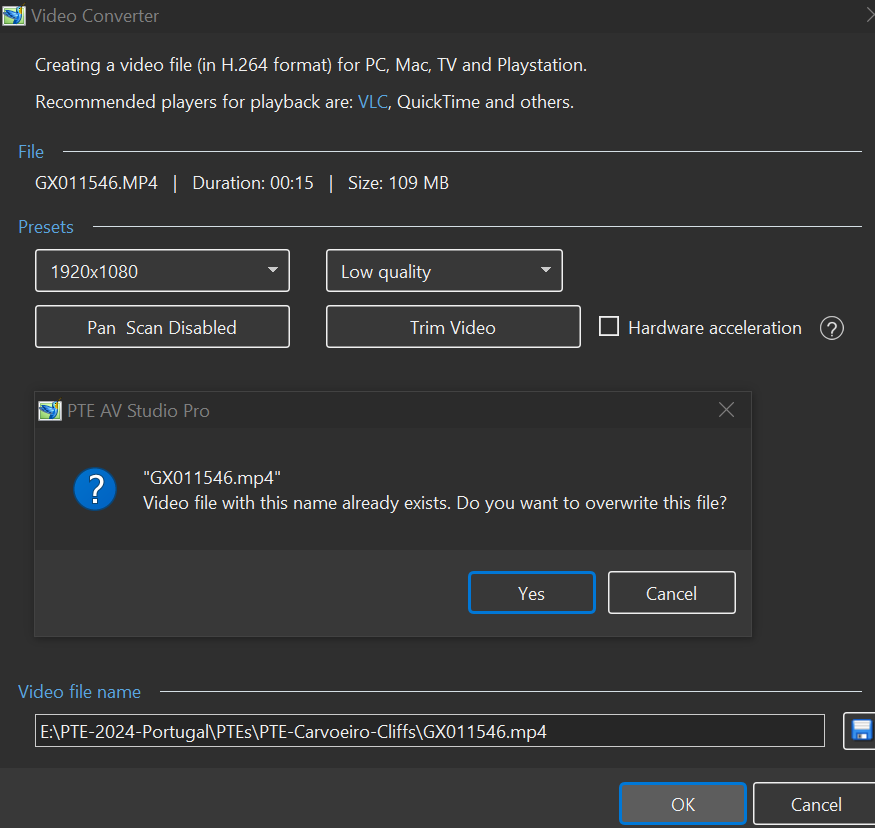
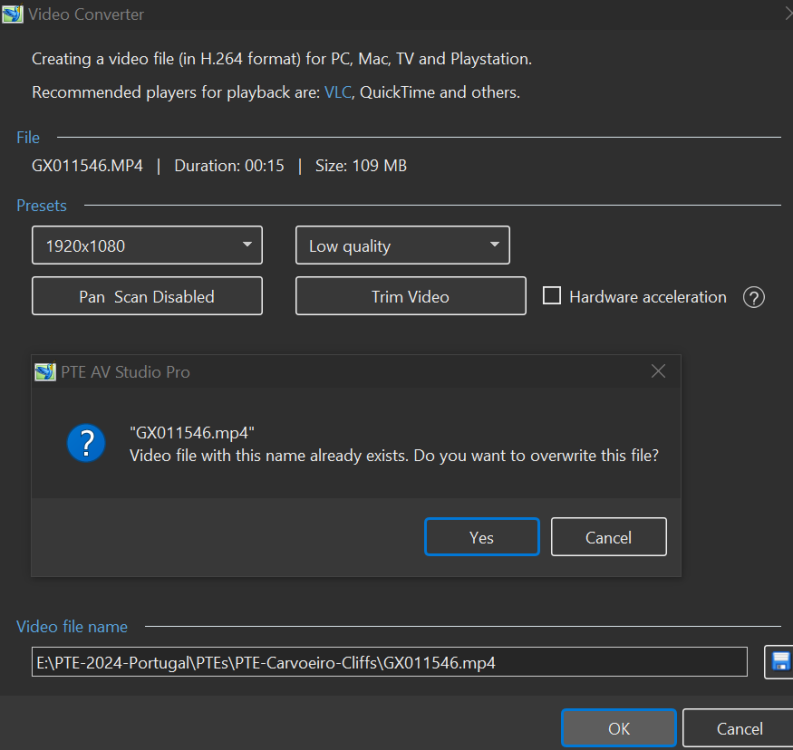
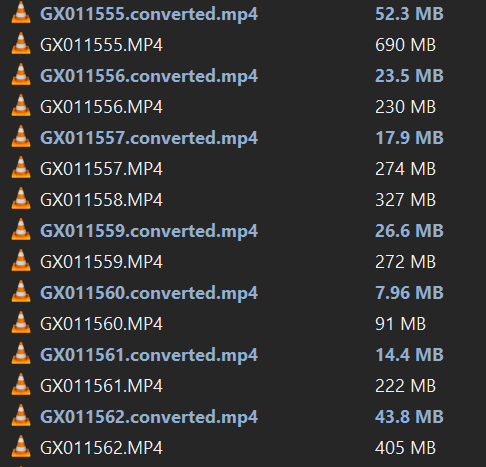
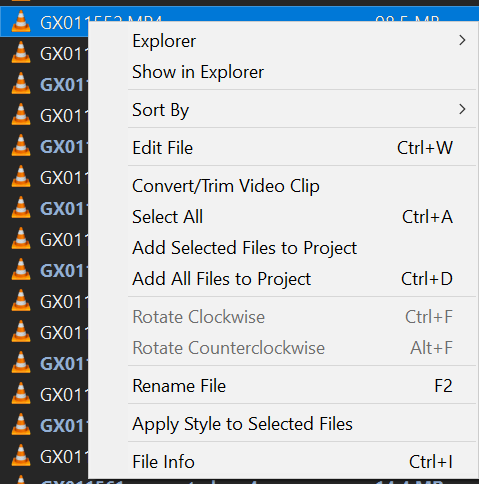
Greetings, Ok...but why does it ask if you want to overwrite the filename when I remove the '.convert'? I am trying to retain the original filename by removing the '.convert' when I do the Convert, so in my mind, I am not 'changing' the original filename...just keeping it. Also, PTE does have a Rename File choice and it works. Slide Options also lets me change the name of a slide in the Slides: Yes, I have the original files saved elsewhere. The purpose of this is to save some steps. If I can overwrite (or save) the converted file (smaller sized) over the original (larger sized) file, without the '.convert' in the filename, that saves me several steps. I sometimes drag down the original larger sized file into the Slides and do some trimming with the Adjust Time Range. So this has now set the length of the video clip. By doing this, I have set the final length of the video clip in the Slides...but now I want to just replace it with a a reduced file size by the Convert. By overwriting the larger sized file in the Slides with the Convert, and removing the '.convert', I have (I try to) removed the original larger file with the overwrite, replacing it with the smaller sized file. So I have the original larger sized file automatically replaced in the Slides with the smaller sized file. I don't need the larger sized file in my project folder anymore. But doing this will corrupt the file. Why? There is significant savings in space by doing a Convert. I see no loss in quality. It would be more efficient if we could do the Convert and overwrite the original file with the converted file, while removing the '.convert'. Some examples of file size differences: Gary

-
Greetings Jill, No, I think you're missing the point. I don't want to change the filename. In fact, I want to keep the original filename without putting the '.convert' put in the filename when I convert it. I do keep the original clip in a separate folder. The Convert process does ask if I want to overwrite the file if I try to remove the '.convert', so it should just overwrite the file without the '.convert' being added, without corrupting it. Yes, normally, if I have the original file in the Slides, I can first just convert the clip in the File List and then replace the original clip that's in the Slides with the '.convert' clip. Then delete the original clip in the File List. If I have the original clip saved elsewhere, I don't need the original clip anymore so it would save key clicks if I can just overwrite the clip in the File List in one move and it is reflected in the Slides. But for sure, if I say yes to 'overwrite, it should not corrupt the file. And, then, if I try to Rename the converted file, using PTE, to remove the '.convert', the filename with the '.convert', leaves only the '.mp4' part. Something is not right here. Gary
-
Greetings, I dragged down a video clip into the Slides. But then I want to Convert that clip to reduce its size. But I want to have the '.convert' removed from the filename when I do this and just overwrite the file. So I edited out the '.convert' part. It asks if I want to overwrite it and I say Yes. But after the Converting, the filename keeps the '.converted' and I get 'Video not found', even though the filename in the File List and the Slides has the '.converted' in the clip's name. It does not keep the '.converted' out of the filename. So it seems the Convert process is not overwriting the clip's name without the '.convert' as I had tried to do. And it corrupts the file. It would be nice if Convert would actually overwrite the filename without the '.convert'. And not cause the corruption of the file. Gary
-
Greetings Mark, Yes, they could have been an issue if the shows would not actually play. But that was not the case. I was only interested in the final file size and quality results from the Publish process. But I don't see any difference between the 'high' quality and the 'low' quality setting's results. Maybe if I were to play them on big screen, it would make a difference. I only upload my shows to my Facebook or YouTube channel. Good enough for me. Thanks... Gary
-
Greetings Igor and others, In the end, I want to see if I can actually see any difference using different settings when I Publish an MP4 show. I Published the same show 3 times at 60p at different other settings. I really could not tell the difference between the highest 'HQ 3840x2169 at 34 Mb/s' compared with lowest 'LQ 1920x1080 at 4.485 kb/s'. And, since they are viewed on my Facebook or my YouTube channel, where I think they would even get reduced to the same resolution, I don't see any advantage of the additional time and file size needed to Publish at the highest settings. Just what I see but I can be persuaded to do it differently if I could see a difference. Thanks, Gary

-
Greetings, Ok, that is interesting. But since Mark used the word 'problem', I was not sure what he was getting at. I guess that my monitor and video card are good enough to make everything look good! That's nice. I was really just concerned about the file settings and ultimate viewing quality and file sizes. Thanks, Gary
-
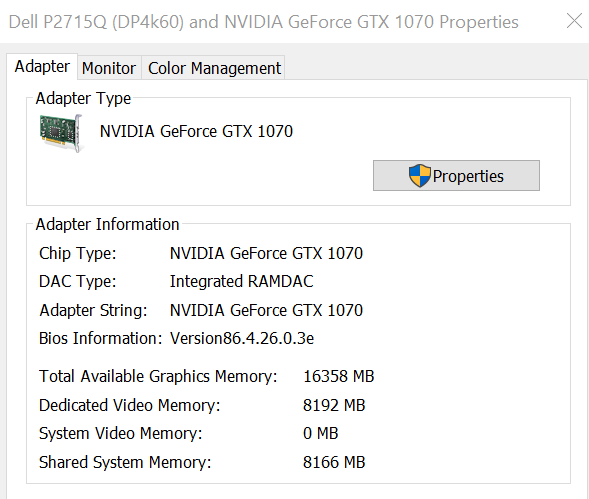
Greetings Mark Nd Jill, Not sure why you suggest I have a problem with my monitor or video card. I don't have any problem viewing any of the video files. I am only concerned with the large video files filling up my harddrive. My monitor's display resolution is 3840x2160, Dell P2715Q. All the video play just fine. I don't see any oversharpening or difference in viewing the same clip as 3840x2160 or 1920x1080, regardless of the bit rate. If I don't see a difference in the quality between these aspect ratios or bit rates, I'll keep to the smaller sized files. Gary
-
Greetings, Yep...with these large video files, my hard drives are filling up. So, if you don't see any difference in the files, I'll be converting them to 1920x1080, 60 fps, and dumping or moving the exported Insta360 MP4 files (which can easily be recreated). Just weird to go from 3840x2160 (102 Mbs/s) to 1920x1080 (3.879 kb/s) and not see a difference. Gary
-
Greetings, I'll have to do some test to see what the difference is. But, when you say 'Publish as MP4 at the default values set by PTE', are you referring to '1920x1080 at 60 fps'? Not the 'default' but seems what Igor has recommended. But when the original size of a clip is 368 MBs and I can reduce it down to 14.5 MBs, and not see a difference in quality, I don't mind going through that process. Especially when I've got tons of video clips. Gary
-
Greetings, I'm working on a show with some video clips that came from my Insta360 X3 camera. The clips are exported from their software at 3840x2160. I've ran the original clip through the PTE converter, mainly to just reduce the size of the clips, at different aspect ratios. The original clip, which is 3840x2160, 368 MBs, has a bit rate of 102 Mb/s Then, converted it at 3840x2160, 52.3 MB, has a bit rate of 14.4 Mb/s. Then, converted it at 1920x1080, 14.5 MB, has a bit rate of 3.879 kb/s. The big difference is the bit rates. However, when I view them in PTE preview, I don't 'see' a difference between the clips at the different bit rates or aspect ratios. Should I see a difference? I have lots of clips do I want to reduce the size of the files but not sure what I am missing if I convert all of them to 1920x1080 with the lower bit rate. I publish the shows to MP4s. Gary

-
Greetings, Yes, this is something that has bugged me for a long time. Having the current working position always in the middle of the screen is an obvious change that needs to be implemented. Gary
-
Greetings, I just got the 'Insta360 X3' action camera. Looks like a lot of fun to produce video clips. I am just getting to understand its use. But I am wondering if, after 'reframing' their video clips in their desktop Studio program, will there be any problems using them in PTE. I plan on using their Studio program to do the 'reframing' and output the files as .mp4 (H.264). (I know their .insp or .insv files can not be read by PTE.) Any people with experience with this camera? Gary
-
Difficulty moving sound passages accurately
goddi replied to vbl2007's topic in Suggestions for Next Versions
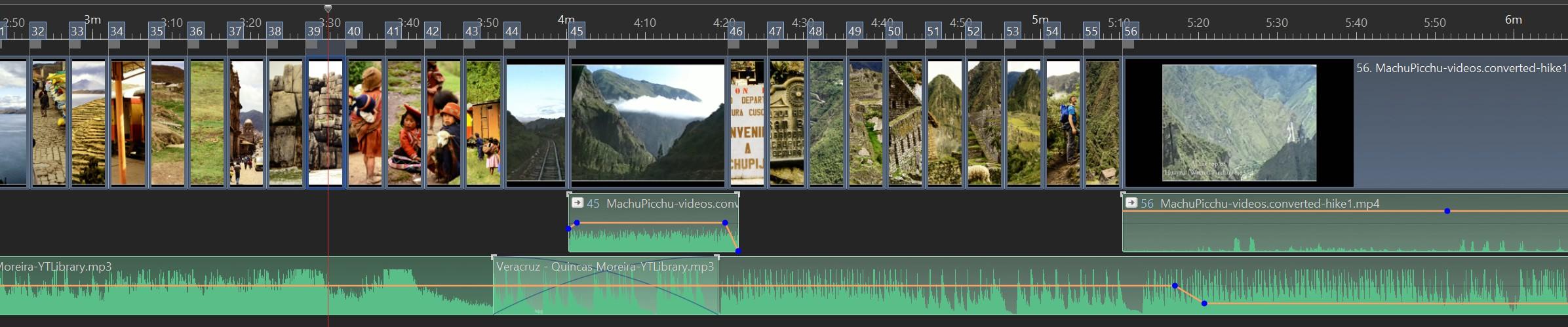
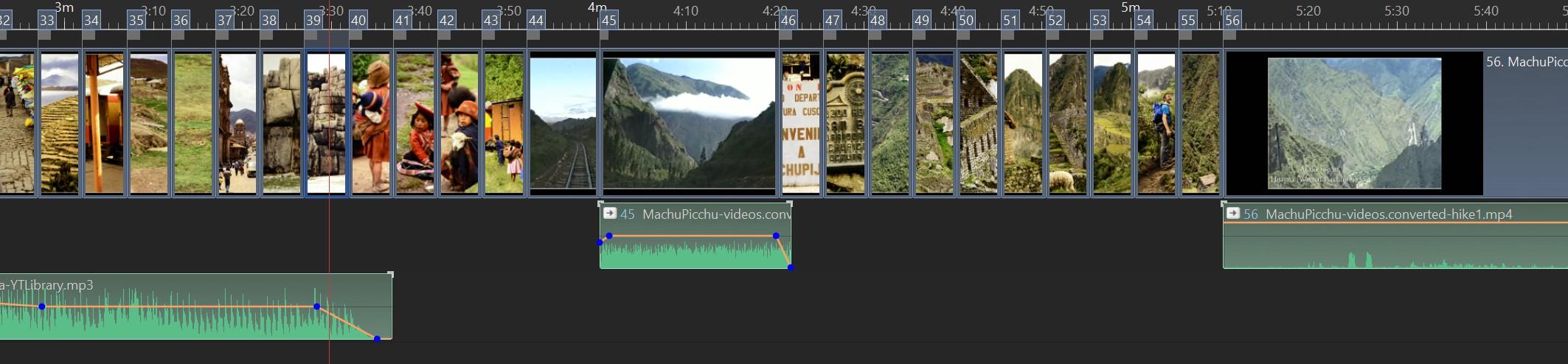
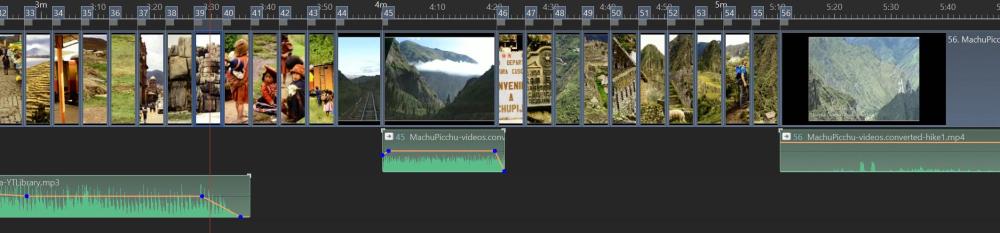
Greetings, I've had concerns about this issue, too. And, yes,it works...but not always. Here is the original audio track. I want to move the audio track #2 to track #1, expecting it to move what is in track #1 to track #2. But when I do it (as Jill suggests), the second part of the original track #2 disappears and its first section stays in track #2. Seems like the area where you want to move the track to, in this case, has to be completely empty. So you have to be careful. Gary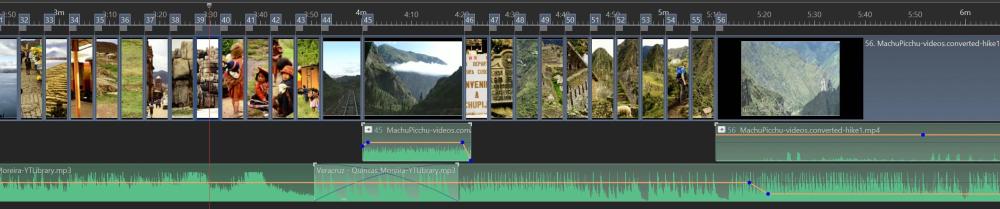
-
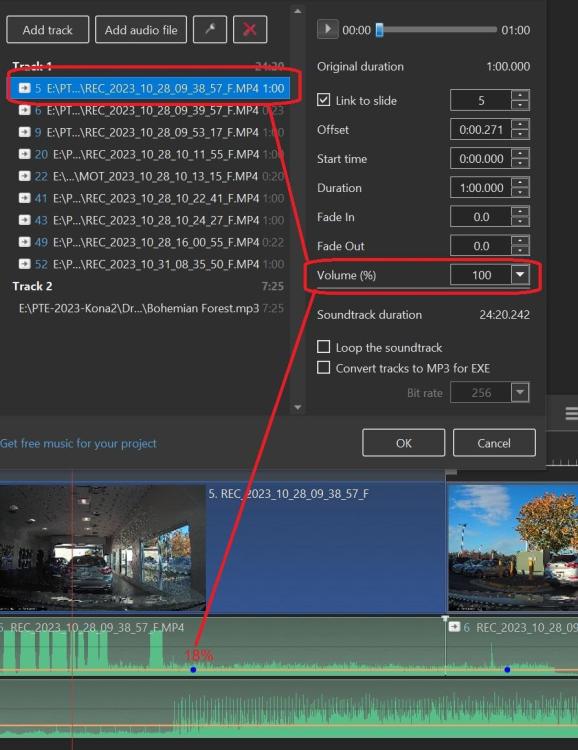
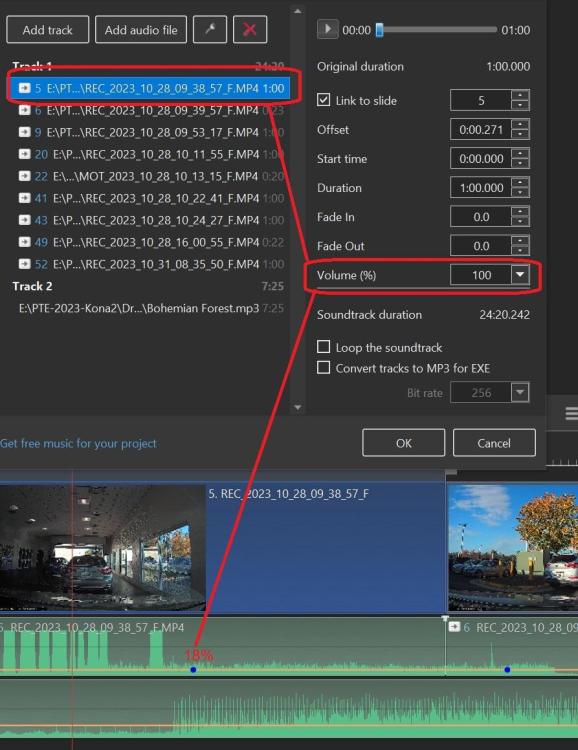
Greetings, It would be helpful if the Volume % in the Timeline and the Audio Volume (%) are in sync. When one is changed, it is automatically reflected in the other. Also, it would be helpful if we were able to type in the % when we are changing the % in the Volume % in the Timeline. Gary
-
Greetings, Thanks...looks like I need to make a suggestion. Seems like they should be in sync and be able to type in a %. It would be nice if the Volume Line is reflected in Audio Tab or Vice Versa. Gary
-
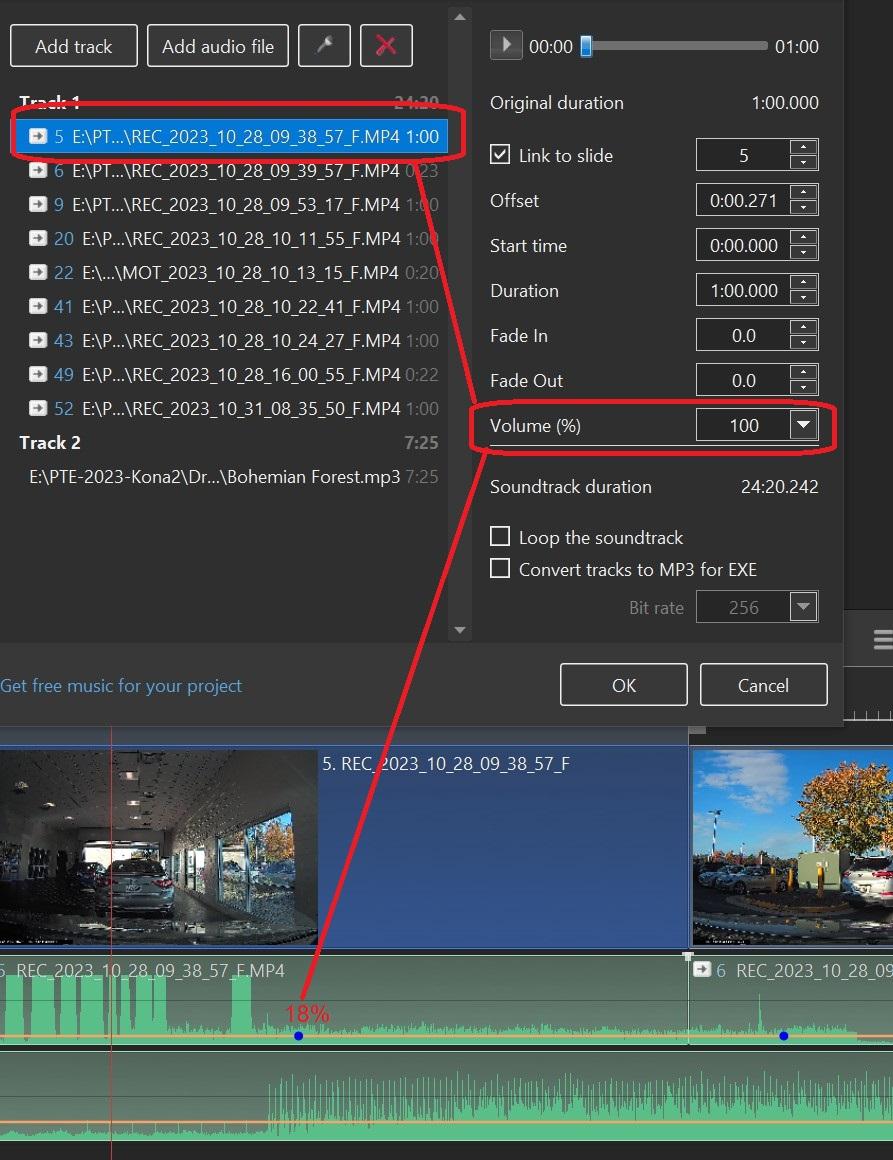
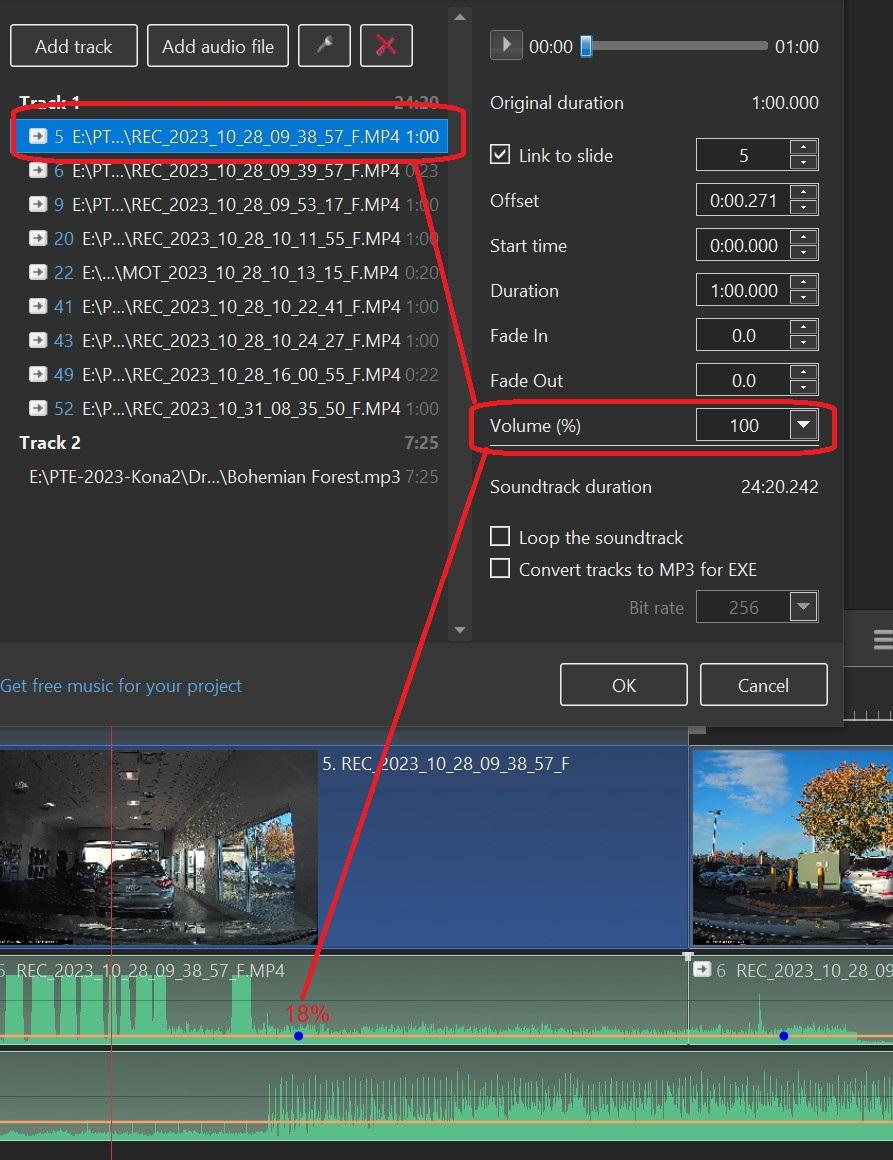
Greetings, I have some background sounds that I have separated from the video so that I can reduce their volume levels. I want to reduce each video clip that has its background sound to about 18%. First, is there a way to type in the % that I want to use? It can be difficult to move the mouse to put it at an exact %. Second, I thought I could make this adjustment using the Audio window. However, even though I have dragged down the audio level to 18%, the Volume (%) still shows 100%. I expected to see the Volume (%) to show the 18% that I have already set when I dragged down the audio line. However, that does not seem to work like that. Seems that I have to keep the audio level at 100% and then change the Volume (%) to the 18%. But, the audio level line does not reflect the new reduced level, it stays at 100%. Am I missing something? Seems that the Volume (%) and the audio level line should be sync'd so if you change one it will be reflected in the other, and visa versa. Should it? Gary
-
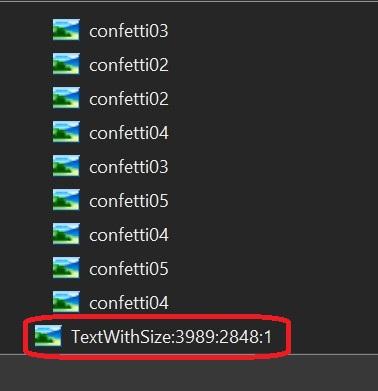
Greetings, Everyone might already know this but I just figured it out. Sometimes when I want to use the Confetti Spray style, I don't want an image in the background, only text. So I have been putting in a dummy image and just reducing the opacity to '0' and then put in the text. But I discovered all you have to do is to reduce the opacity of the last item in the style to '0' and add your text. Gary HappyBirthday-confetti.mp4
-
Experimental Style with Quick Transition and Shutter Click
goddi replied to davegee's topic in Styles & Templates
Greeting Dave, Yes, it is better. Thanks. Gary -
Experimental Style with Quick Transition and Shutter Click
goddi replied to davegee's topic in Styles & Templates
Greetings Dave, Is there a way to increase the sound of the Shutter Click? Hard to hear it with the added background music set at a 'normal' level. Gary