goddi
-
Posts
3,596 -
Joined
-
Last visited
-
Days Won
27
Everything posted by goddi
-
Greetings, I just finished creating a show using 6.5.2. I included the Nav bar, as I usually do. During this process, I noticed that when I click on the Next Slide icon, it actually does a Previous Slide. It sends me back one slide. I was about to upload my final show to Beechbrook but I noticed it again in the final run-through. Can anyone duplicate this problem? Gary PS Sometimes it works correctly, but mostly it seems to do the Previous Slide.
-
================== Jan, Here is one that I just made. My first successful(?) attempt. After you have played it, change the Order of the map, in O&A, so that the map is sent to the back. Then you will see the 3 red rectangles (KotorRed) that actually fill in the route. The route was so wiggly, it was difficult to not have the red rectangles appear when they shouldn't have. So I needed to have the 3 separate red rectangles to get the job done. Getting them timed to flow properly was the difficult part...trial and error. The other thing that I did was dealing with the background color. The map did not cover the entire frame and the background of the slide was black. So this made the route, before the animation started, to be black (it showed through the transparent route). I changed the background to a yellow to more closely match the other yellow routes on the map. To hide the now yellow background, I had to add 2 black rectangles (KotorBlackSlide) to overlay and block out the yellow background that was showing at the top and the bottom of the map image. I hope this helps. I made it in 6.5.2 (the latest version). It might not play in earlier versions. Gary Kotor Map Route_Sep1-2010_7-39-23.zip
-
================= Ken, Thanks for the pointer to Lin's tutorial. I have to really thank Lin for this tutorial. I have been wondering how this 'trick' was done. I just gave it a try and I actually made a map with a moving route. It turned out fairly well. It is really fantastic that members of this forum take the time to help us that need the help. Sincerely, Gary
-
Greetings, I just was schooled in how the 'Sound Editor' (View/Advanced Options/Set Sound Editor) functions works (...or does not work). It only works after you have inputted a sound file using the 'Add Sound' icon (upper right hand corner of main screen). Then, the 'Edit Sound Comment' choice works, but only for any sound 'comments' added. So let me add my suggestion: Make it so the music files that are put in the Project Options/Music tab have the same ability to be opened in the selected sound editor as it does for music added with the 'Add Sound' function. And change 'Add Sound' to 'Add Sound to Current Slide' (yes, the mouseover is there but it would be better, I think, to add the full description on screen). Also, the word 'comment' has little meaning to me, in the audio sense. Perhaps, change the 'Edit Sound Comment to 'Edit Sound Added to Current Slide'? Thanks... Gary
-
Set 'Sound Editor' - How do you get it to work?-Solved
goddi replied to goddi's topic in General Discussion
============== Peter.... Aaaaaaaahhh.... . That dang little button, I have used it before but my bifocals just didn't let me notice it again. Thanks. And I see now that the Edit Sound Comment will take me into Audacity!!! Beautiful. And if I click on 'Don't interrupt sound comment...' the sound effect continues even if the slide advances to the next slide...super!!! Thanks for the help. Now wouldn't it be even neater if the 'Add Sound' menu had the 'offset' capability to be more precise in placement of the sound during the display of the image??? Why was it left out in this menu??? Much thanks, nobeefstu and Peter, for solving my questions. Gary -
Set 'Sound Editor' - How do you get it to work?-Solved
goddi replied to goddi's topic in General Discussion
================ nobeefstu, I am still confused, of course. I don't see any choice to "Add Sound". I only see "Add Music". And my "Edit Sound Comment" is greyed-out, I guess until I figure out how to do the "Add Sound". What does "...Comment" mean?? Can you tell me where the "Add Sound" selection is? When the word "Sound" is used, I am assuming that it is referring to a 'sound effects',such as a wav, not music. And are you saying that setting the Sound Editor is there for no reason? Why can't it be made to actually pull up your sound editor, as would be a neat function??? Here is a more direct question, in the same topic. Say I want to add a sound effect (wav file) at a particular slide. The only way I can figure out how to add this sound effect file is to put it in the Music tab, using Add Music, in its separate Track. Then I have to go into the custom menu and set the "offset" to 'push' the sound to the point where I want it to play. That takes a bit of trial and error. Got to be a better way??? If this can be done, with the 'Synchronize Music and Slides' choice selected, why can't this simply be done in the more logical place of the Customize Slide menu, with the ability to 'push' or 'pull' that sound from the beginning of that selected slide,to be able to place it more precisely? Thanks for your help. Gary -
Greetings, I set the "Sound Editor" to Audacity in the "View/Advanced Options". However, I can not figure out how to actually active the sound editing function. Can someone point me in the right direction? I am expecting to be able to click on something and the sound file will open up directly in Audacity, as it works for the Graphical Editor. Thanks... Gary
-
=============== Igor, Sorry it has taken so long to respond. Either I was traveling or my friend was traveling. I finally was able to test out your request on his plasma TV. I created an MP4 video file using the 'iPhone preset', as you stated. I tried to play the show from a thumbdrive (flashdrive) directly inserted into the USB port of his plasma TV. It did not recognize the file. Maybe it does not recognize any video file. I then tried to play it using my 'WD media player' box and it was plugged into the same USB port and it did play just fine. Gary
-
============ Or the right mouse button. Gary
-
Bug in 6.5? Problem with Screen's '% of the slide'.
goddi replied to goddi's topic in General Discussion
============ Peter, Of course, I am talking about how my brain works. You can have a completely different intuitive experience. But if you happened to go through my workflow, you might see it differently. However, I see that the current way it works can cause problems (see my reply above to nobeefstu). When something can cause problems by simply trying a function and I have to go back and redo each image, I don't think that is a good thing. Gary Gary -
Bug in 6.5? Problem with Screen's '% of the slide'.
goddi replied to goddi's topic in General Discussion
============ Nobeefstu, I am not too clear on what you think I am doing, so let me explain it in more detail. I have been know to get my apples and oranges mixed up. I am now making my slideshows in the 16:9 aspect ratio to play on an LCD TV. So I bring in my images and I have to crop (expand) each image manually in O&A to bring the left and right edges of each image to match the left/right edges of the 16:9 frame in O&A. This gives me the opportunity to manually move the image up or down to lose whichever portion of the top or bottom of the image that is least interesting or makes a better crop. So this gives me a full 16:9 image of the cropped area. Then, say, I play with the '% of the Slide' function and input 80% just to see what happens. And if I don't like it, I put it back to 100%. Now, every image that I have previously adjusted to fit the 16:9 frame has not been returned to its previous position. I have to go back to each and every image and reposition it. This does not make sense to me. Each of the images that I initially cropped (zoomed) could have had a difference zoom setting so I'd have to address each and every image again to get it back to where I had it. Does this make any more sense to why I think the current way it works can cause problems? I just did a little more testing with this '% of the Slide' function. I now realize that the % change is from the original size, not the size I had resized it to. So if I had resized an image to 10%, and then changed the '% of the Slide' to 50%, it actually got larger (50% of the original size), not 50% of my 10% image. Maybe there is a good reason for not working the way I'd like it to work, but this has been a good learning process. Thanks for your input. Gary Gary -
Bug in 6.5? Problem with Screen's '% of the slide'.
goddi replied to goddi's topic in General Discussion
========================== Peter, It just does not make sense to me that, if you change a value of the '% of the Slide' to other than 100% and select "Set for existing slides", you can not go back to what you had by re-inputting 100%. I understand that these are complex matters and I don't know how people like Igor does what he does, but if something does not work intuitively, it needs fixing. Just my observation. Thanks for the explanation. Gary -
Bug in 6.5? Problem with Screen's '% of the slide'.
goddi replied to goddi's topic in General Discussion
=============== Peter, I now see what you are saying. However, I don't like how it works. Lets say I have set a Zoom value of, say, 121.585 and the '% of the slide...' is at 100%. What happens now is that if you change the '% of the slide...' to 80%, the Zoom value also changes to 80%. What I expect to happen is the image size in the frame should change to 80%, while keeping the Zoom value of 121.585. So if you want to change it back to the original size, you don't have to remember the 121.585 figure, you just put in the 100% value in the '% of the slide'. The Zoom value should be independent of the '% of the slide' setting. Wouldn't this give us more flexibility??? Gary -
Bug in 6.5? Problem with Screen's '% of the slide'.
goddi replied to goddi's topic in General Discussion
================= nobeefstu... I get it now. Thanks. I never figured out that was the way it worked (not that I like the way it works). It always seemed to make sense that since you were in O&A with the single image viewed, that the 'OK' would apply to that one single image; and the 'Set for existing slides' meant all the other slides, except that one, would be affected. Thanks for the help. I hope you can clarify my other question as to why it does not return to its original position when set back to 100%. Thanks much. Gary -
Bug in 6.5? Problem with Screen's '% of the slide'.
goddi replied to goddi's topic in General Discussion
See replys below: --------------- Gary -
==================== Mark, Let me add one more point...one of my pet-peeves that I have with PTE. If you select the Auto-spread function, the slideshow will not play correctly in the mini-viewer. In order to see it play correctly (images spread correctly over the length of the music) in the mini-viewer, you HAVE to go through the selection of Timed Points/Arrange All Points (each time you add or remove images). I have tried numerous time to bring this to the attention of Igor. I believe that the selection of 'Timed Points/Arrange All Point' should be automatically linked to when the Auto-spread function is selected. I think questions like the one you raised will continue unless this is addressed. It was confusing to me, and it will continue to be confusing to especially new users who just want to automatically spread their images over the length of the music (and expect it to play correctly in the mini-viewer and see the images correctly spread in the waveform). Gary
-
=========== Peter, I also get the Messenger/My Conversations page. Gary (ordinary user)
-
Bug in 6.5? Problem with Screen's '% of the slide'.
goddi replied to goddi's topic in General Discussion
================ Peter, Ah...after a nights rest, I think I just saw the error of my ways. When I was returning the image from the 80% back to the original approximately 121%, I was putting in only 100%, thinking (not-thinking) that it would return to what the original position was. I should have input the 121% Sorry. But now I see what else was bothering me. When you choose the '% of the slide to show...', it only affects the Zoom, not the Pan. Would it not be better to have the '% of the slide to show...' affect both the Zoom and the Pan? That would keep the image in the center of the frame. Also, let me ask another question. When you as inputting a value for the '% of the slide to show' and click on OK (but not 'Set for Existing Slides'), I thought it would affect only the current slide you are looking at. It does not. The 'Set For Existing Slides' does affect all the images but you can not affect just the one image by clicking just 'OK'. Should you be able to affect just the one slide if you only click on 'OK'? Gary -
Bug in 6.5? Problem with Screen's '% of the slide'.
goddi replied to goddi's topic in General Discussion
=============== Peter, Sorry I was not too clear about what I meant by "cropped" or "zoomed". I did not apply any animation or motion. No keyframes added. All I did was expand the image using the 'handles' of the image to fit the left/right edges of the 16:9 frame. I have attached a screenshot of the O&A Animation screen. There are some Pan and Zoom values but only as a result of repositioning the image. Thanks for taking a look at this. Gary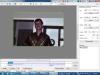
-
Greetings, I have noticed what I think is a bug or at least something that needs attention to improve the Screen's '% of the slide to show main image' choice. (V6.5) I created a file (attached) that recorded my steps (opens in IE) with a set of screen shots that displays what I am talking about. I have also inserted text boxes with my own comments, as needed. The problem is that when the % is changed from 100% to 80%, the image is not maintained centered in the frame. Then, when I reset the 80% back to 100%, the image does not return back to its original position. I don't know if the fact that I am using the 16:9 aspect ratio and cropped (zoomed) the image is creating the problem. Gary PTE Bug.zip
-
================== Ian, Will it be possible for his presentation to be video taped or at least audio taped, and posted it here??? Hmmmm...make a PTE slideshow???????????!!!!!!!!!!!!!! Gary
-
============= Mark, 'Sync music to slides' means that the music will stop when you pause the show. The slides stick with the music as you have set the Time Interval for the slides, on the same menu page. To have the slides evenly spaced out over whatever music you added to the show, you have to click on the 'Auto spread...' choice that is just below the 'Sync music...' choice, on the same menu page. But a word of warning. If you use the 'Auto spread...' function and then expect to see the correct spreading of the slides in the Timeline, you won't. It will not look like the slides have been spread along the music. To visually see the results of the 'Auto spread' selection in the Timeline, you have to click on 'Timed Points', then 'Arrange All Points'. Then, magically the Timeline will actually show what the 'Auto spread' is actually doing. I have suggested that this action should be done automatically but there is resistance to these actions being linked in an automatic fashion. I hope this helps and I hope I got that right... Gary Added later: And, by the way, you have to go through the 'Timed Points' and 'Arrange...' process each time you add or remove slides if you want to visually see the Timeline corrected for your change in the number of slides.
-
Show created for Mac-will it play with wav sound files?
goddi replied to goddi's topic in General Discussion
======================== nobeefstu... I don't remember having seen any caution that wav files would not play in Macs. But since I am a PC person, I am not surprised. I was just experimenting and discovered the problem. It did not dawn on me that there would be any compatibility problems. Most of the wavs that I would use in PTE shows would be small sound effects files. It has been difficult to find a good free program that converts wavs to mp3s but I think I just found one. For anyone who might be interested, here is the link to the free download. I tried it and it works very well: http://www.nch.com.au/switch/mp3.html?gclid=CIrErMrit6MCFZxo5Qod4gOiag Thanks, Gary -
Earlier this year (March), I was having a problem playing an Executable show that was created to play on a Mac. I discovered that if I removed the wav sound files, the problem went away and it then played fine on a Mac. I don't have a Mac handy to do more testing but, at the time, I suggested that this is a 'problem' and hoped that it could be corrected. I did not receive any further responses so I am not sure where this stands. So my question is will a show now created as an Executable for a Mac that contains wav sound files play without a problem now on a Mac? Thanks... Gary
-
======================= Peter, I have Googled a few sites that mention that PSR.exe is in Vista. Maybe not. I did find this site below that tells how to repair a non-working PSR.exe in Windows7 and Vista. You might give this a try to see if it can be revived. It is a cool program. http://www.filerepair.ca/DLL-EXE-downloads/p/ps/psr.exe-Download-File-psr.exe.html Gary Added later: I just found this (so I guess it is not available in Vista): "The Problem Steps Recorder in the Windows 7 operating system is a feature that enables users to record their interactions with an application and provide a detailed screen-by-screen view with accompanying information. Note: Problem Steps Recorder is not available for down level Vista or XP Hope it helps Thanks and regards Dinesh-Microsoft Support"