All Activity
- Today
-
Yes, it's true, I'm blind, I haven't seen it, even though it's first on the list, I was surprised not to have that option.
-
Right Click & Select Mute or use CTRL+M Jill
-
I'm sending you a transition for you to try editing. The two masks it contains exceed the time limit. The question is, how can I fix this so that the masks finish playing? https://transfer.it/t/CeXF1dkHBDRb
-
Hi, when you're in “timeline” mode, is there an option to mute the audio track, or one of the audio files on the timeline? If not, it would be great to add this option. Thank you.
-
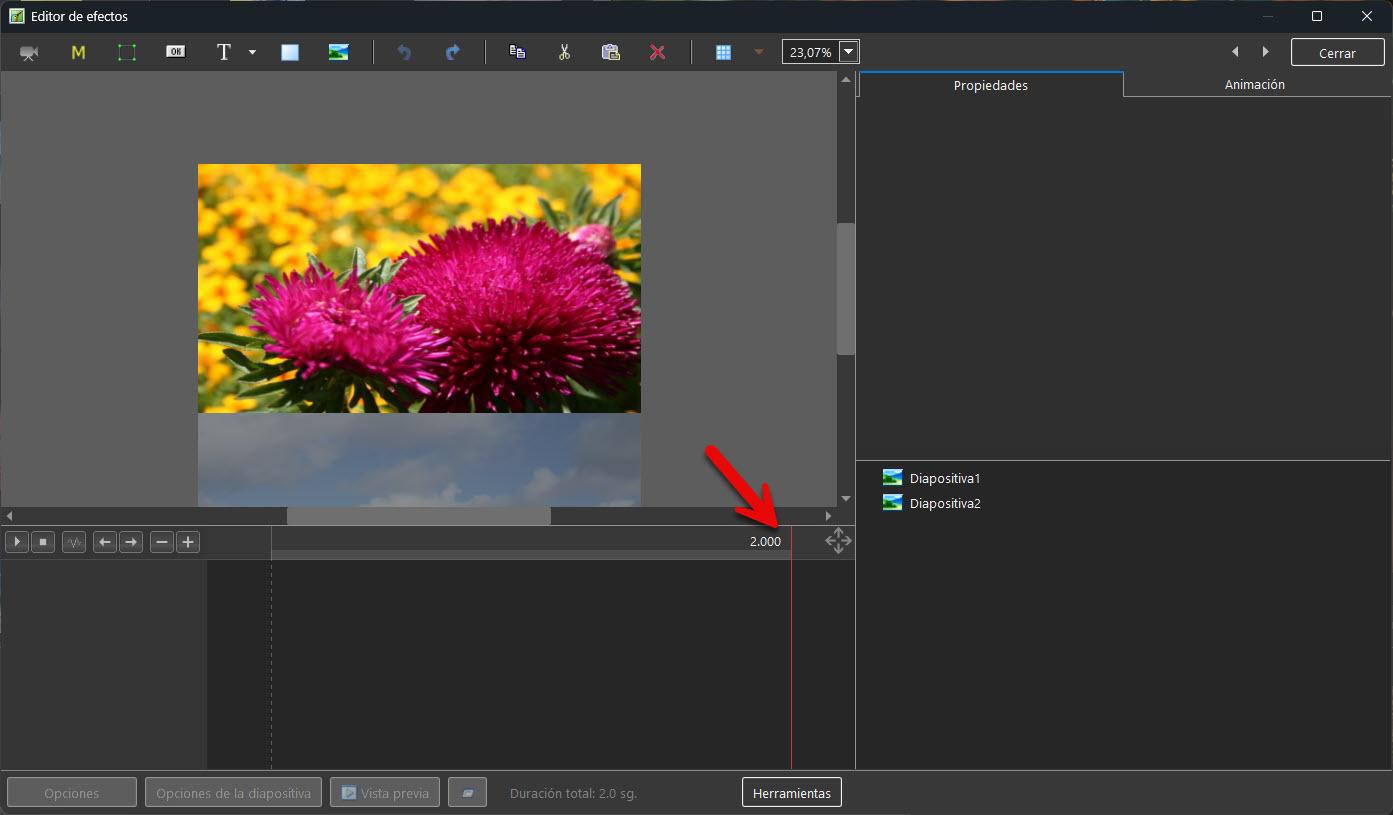
Yes, if the goal is to create a 9-second transition, when creating the transition, you should be able to edit the timings to ensure the transition has the necessary seconds to function correctly, preventing it from ending up with only 2 seconds.
-
About 6 years ago, I was still using ProShow Producer (before I found PTE) and made a video using a multiple photo selection (see attached video) but can't remember the name of the style and I certainly don't want to reinvent the wheel so to speak in doing it from scratch. I have searched high and low for something similar but not having any luck. Would anybody here be able to PLEASE point me in the right direction to obtaining something like it? Portfolio for Photography Studies College.converted (1).mp4
-
I think I'm confused Am I correct in understanding that you need to change the duration for editing and preview in the new custom transition editor? I just want to remind you that in any case, the end user will see your transition with the duration set in Project Options (Slide Options). Typically, this is 2 seconds. Of course, user can change this duration. If you want a fixed transition duration (9s, for example), it's better to include the transition in the slide style.
-
Hi, Thanks for checking the new Chroma Key. Glad that it works better now. You can choose any frame of a video in the Chroma Key window to select a chroma key color, using the scrubber in the video player. Usually the chroma key color doesn't change in short video footages. It's enough to pick one background color once.
- Yesterday
-
Hello, The Chroma Key function works now and is very responsive, especially with white backgrounds. I like the way it can even remove unwanted color-casts on some video files. The images are as sharp and clear as my physically cut-out airbrush stencils. The Speed Adjustment Window functions are working correctly. The pause function is right-on-time. However, the Chroma Key function only works on the first frame of each video object, when used in conjunction with the Speed Adjustment Window. Tested with mp4, vp8 and old flv video files. Thanks. AllDrawn
- Last week
-
Como dice "Socu", el problema surge al crear una nueva transición; si la máscara de vídeo tiene una duración de 7 segundos, es imposible crear la transición porque no se reproducirá en su totalidad dentro de los 2 segundos que tiene como máximo la transición.
-
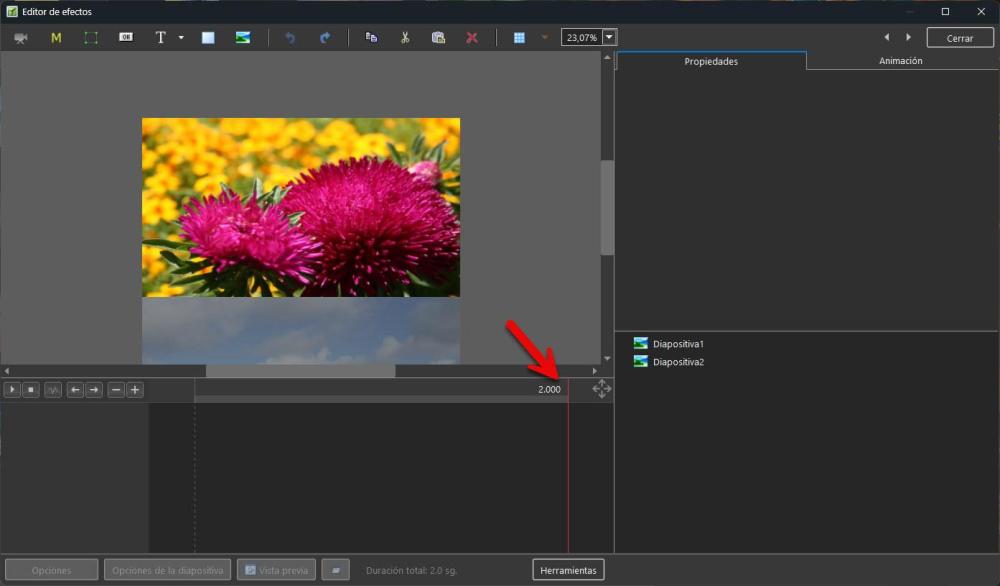
I'm not sure if Google Translate got it right, but I'm not asking for a preview to see how the transition looks at different speeds. As I mentioned in my first message, what I'm asking is that the transitions not be limited to two seconds. Those two seconds are fine when you add an image, but when you add videos longer than two seconds, those fixed two seconds are no longer effective. If I add a 9-second video, the transition will never look right. Ideally, we should be able to create a transition and set it to any length we want, not be limited to two seconds.
-
Just to make sure I understand you correctly - are you saying that in the custom transition editor you need the ability to change the preview duration (to see how current custom transition looks at different speeds)? Or is the issue that when user apply this custom transition, it uses the default duration from Project Options (Slide Options), usually 2 seconds?
-
Hi, In PTE AV Studio 12 the Chroma Key function for video clips has been completely rewritten. It now works reliably with all popular background colors: green, blue, red, and more. Background removal quality is significantly improved. Edge handling is especially enhanced: color spill is eliminated and object outlines are clean and sharp. Try the new Beta 12. Click to play: ChromaKey-V11-vs-V12.mp4
-
Hi, Try new Beta 12. Chroma Key works again. Also we the chroma key function for video clips has been completely rewritten. It now works reliably with all popular background colors: green, blue, red, and more. Background removal quality is significantly improved. Edge handling is especially enhanced: color spill is eliminated and object outlines are clean and sharp: https://www.pteavstudio.com/forums/topic/52130-pte-av-studio-12-beta-12/#findComment-196412
-
Beta 12 is available See the download links above. Improved Chroma Key for Video Clips. The chroma key function for video clips has been completely rewritten. It now works reliably with all popular background colors: green, blue, red, and more. Background removal quality is significantly improved. Edge handling is especially enhanced: color spill is eliminated and object outlines are clean and sharp. Video example Improved the Trim and Adjust Speed window (for a video object). Timeline scale is now preserved. Added hints for “+”, “-”, “[“ and “]” buttons.
-
 A complex style from a group of images can create a series of slides. These slides must be grouped together (for example, the Collage style or Photo Story style), so the program combines them into a group after applying them. Initially, we didn't anticipate a simple case (1 image style creates 1 slide). This general behavior existed from version 8.0 up to 10.5. To avoid changing the program's behavior, we added a new option "Keep slide order" option starting in version 11.0 for simple 1 picture styles.
 -
Hi, We'll show a new improved Chroma Key for video objects today (V12 Beta 12).
- 1 reply
-
- 3
-

-

-
 OK thanks. Just out of curiosity: what is the reason to change the slide order when applying a single image style to multiple slides?
 -
Free Music / SFX Resource - Over 2000 Tracks
Eric Matyas replied to Eric Matyas's topic in General Discussion
Need some custom music created special for your game or project? I'd love to help out! I've worked with around 100 game developers so far...mostly small indie game studios and solo developers. You can read about their experiences working with me here: https://soundimage.org/custom-work/ That said, my quest continues to make every single looping music track on my website available in Ogg format. This week's tracks are: "QUIRKY RUNNER" https://soundimage.org/wp-content/uploads/2026/05/Quirky-Runner_Looping.ogg "NEON RUNNER" https://soundimage.org/wp-content/uploads/2026/05/Neon-Runner_Looping.ogg You can freely download them here: https://soundimage.org/dance-techno/ So why do this? Because Ogg tracks loop a lot better in game engines. Plus they sound more rich and full than Mp3. (I deliver all client work in Ogg format.) WHAT ABOUT THE MUSIC PACKS? If you're wondering, all of the looping tracks in my music packs are already in Ogg format. These genres are: Fantasy Sci-Fi Action Funny Chiptunes Dark/Ominous Horror/Surreal Puzzle Music You can check out my packs here: https://soundimage.org/ogg-game-music-mega-pack/ https://soundimage.org/ogg-music-packs-2/ Eventually, I'd like to add genres like "techno" to the packs (once all the looping tracks in those genres are in Ogg format.) Other genres will be "Quiet," "Nature/Science," "Technology," and hopefully, "Epic/Battle." Anyhow, that's the rational behind the madness. 😉 Finally, I want to thank the kind content creators who help with the fundraising dimension of what I do. If you'd like to help out, you can contribute here: https://soundimage.org/donate/ As always, enjoy, please stay safe and keep creating! 🙂 -
Hi, This is the correct behavior of PTE AV Studio, as designed. However, you can preserve the original slide order if you apply a style that requires 1 image. In the style settings, tick the option "Keep slide order" option and click the Apply button.
-
When applying a style to multiple slides that are not a contiguous series, the order of the slides will be changed by PTE. To reproduce: - add 4 slides to the timeline: S1, S2, S3 and S4 in this order - select only S2 and S4 - apply a style to this selection PTE will apply the style to S2 and S4, but will also change the order of the slides to S1, S2, S4, S3.
-
Hi everyone, When creating a new transition, if it only contains images, it's perfect. The problem arises when using video masks in a transition. If the video is, for example, 6 seconds long, there's no way to make it play completely. I'm currently working on some transitions where the video mask is 9 seconds long. I sped it up in another external program to make it 4 seconds long, then sped it up again to 200% to fit within the 2-second limit, and then applied it, setting the transition to 6 seconds on the timeline. The result is a bit jarring. Having to speed up the video only to slow it down again once the transition is applied isn't a desirable solution, in my opinion.
-
If the transition, when I create it, I cannot give it the time that I want, for example, 10 seconds of transition, when I apply it, if I remember the seconds that that transition has, I can give it the time that the video of the transition has, but if that transition is used by someone else, it will not know the real time that the transition has, it assumes that it is two seconds, so if it has to be playing with the times, it is a waste of time, apart from the fact that if it is not given the real time, it will not be seen good.
-
If you add a video which is longer than the 2 second default when creating a transition, Igor is indicating that it it is not cut off and can be recovered when applied by extending the transition duration. However, if some editing of the video between 2 sec and the end of the video is required, how is that achieved ?? DG
-
Hi, Transition duration is always determined by the user (via Project Options or Slide Options). When author creates a new transition, he works with a virtual duration of 2 seconds (this is simply a convention, it's not a fixed duration). In reality, the transition and keyframes of all objects will be compressed or expanded in time depending on the transition duration chosen by the user. We've intentionally designed this so that the transition creator isn't tied to a specific transition duration, but can design it universally for any reasonable duration subsequently selected by the user (0.5 seconds, 2 seconds, 5 seconds, 10 seconds, etc).