All Activity
- Today
-
Free Music / SFX Resource - Over 2000 Tracks
Eric Matyas replied to Eric Matyas's topic in General Discussion
Greetings Creatives! Here's a brand new looping track that might sound cool under the menus for a sci-fi game. Maybe something industrial that takes place in space: "RUSTY HULLS IN ORBIT" You can listen to it here: https://soundimage.org/wp-content/uploads/2026/06/Rusty-Hulls-in-Orbit.ogg And download it here: https://soundimage.org/sci-fi-14/ As always, it's 100% free to use in your projects with attribution, just like my thousands of other music tracks and sounds. OTHER USEFUL LINKS: My Game Music Mega Pack: https://soundimage.org/ogg-game-music-mega-pack/ Supporting my Website: https://soundimage.org/donate/ Custom Music for Your Project: https://soundimage.org/custom-work/ Enjoy, please stay safe and keep creating! 🙂 -
Thanks Jill, I'll be going from V11 pro to V12 Pro Geoff
-
Igor said the prices will remain the same as V11. So if you are going from V11 pro to V12 pro it will be $49 If you are going from V11 Studio to V12 Pro it will be $75 Don't know what it will be if you are going from an earlier version, you may have to pay the full price Jill
-
Hi Igor Upgrades Upgrade from PTE AV Studio 10 Pro (or Deluxe 9.0) to PTE AV Studio 11 Pro — $49 Upgrade from PTE AV Studio 10 (or Essentials 9.0) to PTE AV Studio 11 — $36 Upgrade from PTE AV Studio 11 to PTE AV Studio 11 Pro — $75 Will the upgrade from Version 11 pro be $49 or $75, just for clarity Many thanks Best regards Geoff
- Yesterday
-
Hi, We plan to release the final version 12.0 in June 2026. Prices will remain the same as for version 11.0. Check our website for details.
- Last week
-
Sorry—when exactly will the final version of Version 12 be available? How much will it cost as an upgrade? Thanks in advance. Best regards
-

How to compress and save in a smaller sized slide show
SeismicGuy replied to BenHerrmann's topic in Slideshows & AV Shows
Depending on how long your slide show is and if it contains video clips as well as jpg's, 140mb doesn't seem all that large. My travelogue shows are from about 20 minutes to 30 minutes and the resulting mp4 files are from 2GB to 4+GB in size. -

How to move an extracted audio clip to another track?
goddi replied to goddi's topic in General Discussion
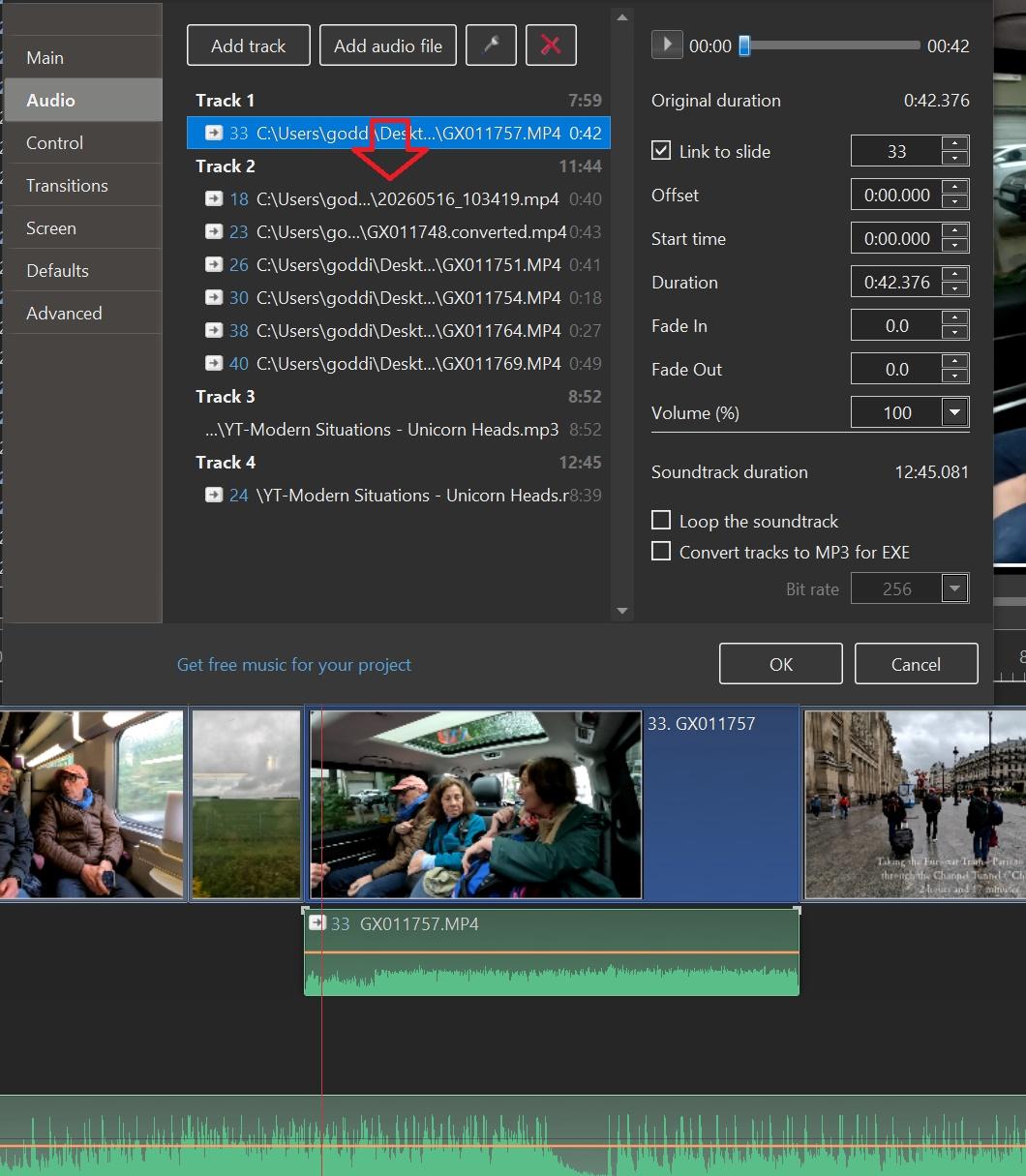
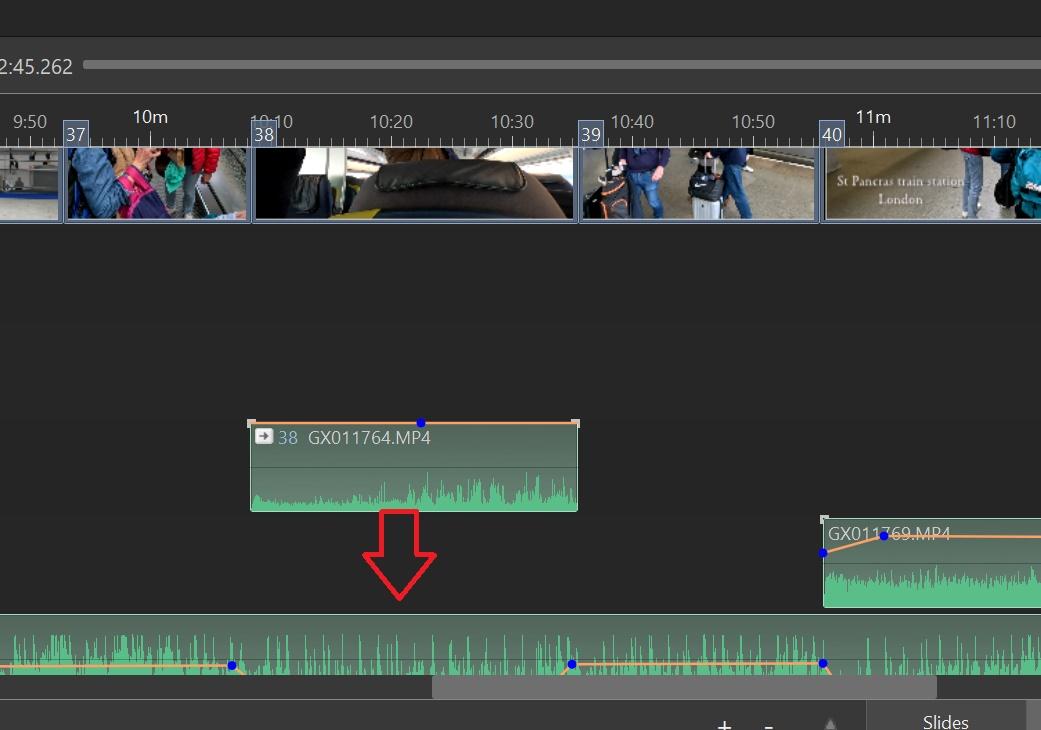
Greetings, Thanks, I like the way of left-clicking on the Audio Clip in the Timeline and all the Tracks show up. I, then, can just drag down the separated audio clip in Track 1 down into Track 2. And then delete the empty Track 1. This helps to consolidate the audio clips. When you Separate Audio from Video, it puts the audio clip in its own Track and that can become messy when you do a lot of them. Thanks for the tip, Gary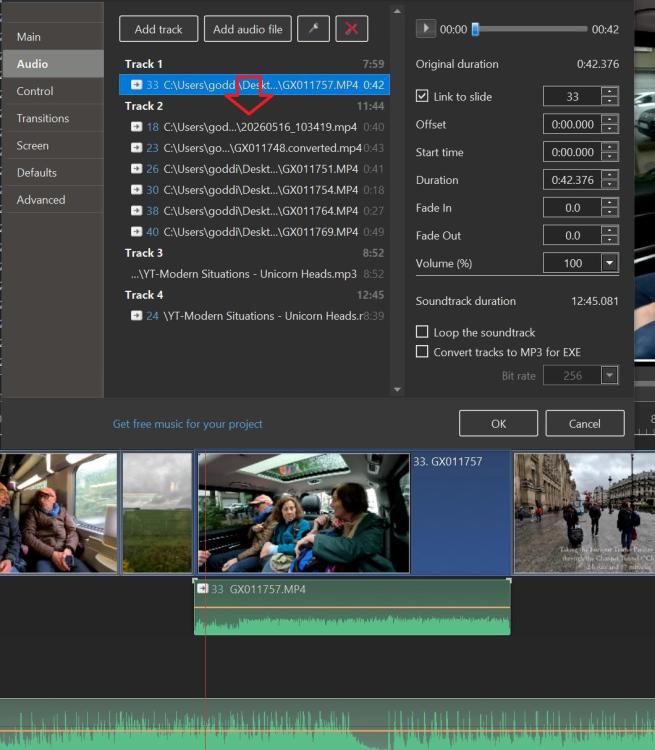
-

How to compress and save in a smaller sized slide show
BenHerrmann replied to BenHerrmann's topic in Slideshows & AV Shows
Yes, that was the MP size I was talking about. -
How to move an extracted audio clip to another track?
jkb replied to goddi's topic in General Discussion
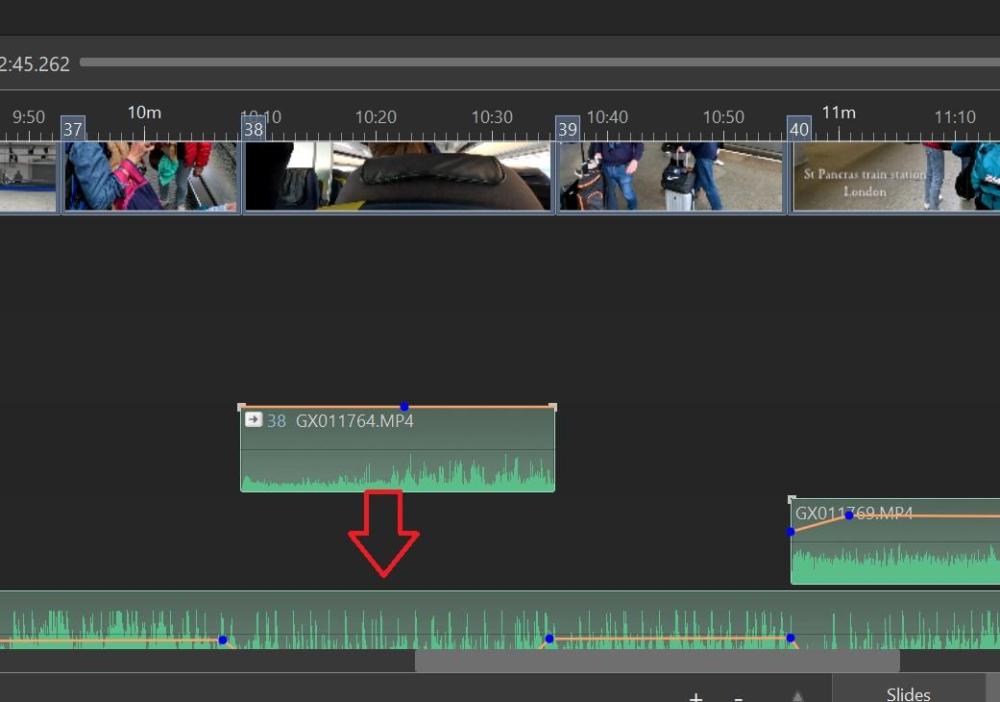
Hi Dave, Thanks. I know several of the Hotkeys, but there are so many options it is difficult to remember them all. I knew there was a Shift+Left Click to Constrain Vertically but I see that is for a KeyPoint. I think these two would be better swapped over Shift + Left Mouse Click on a Key Point- Constrain movement of Keypoint to Vertical Plane It would be better if we could keep the Volume level but move the Keypoint horizontally - So constrain the movement horizontally Trying to get 2 KeyPoints to have the same Volume level is tricky, even when the Track height has been maximised. Shift + Left Mouse Click on an Audio Track- Constrain movement of Track to Horizontal Plane This would be better if we could Constrain the position of the Sound clip and just move it to a different Track - So Constrain it Vertically Jill -
How to move an extracted audio clip to another track?
davegee replied to goddi's topic in General Discussion
Hi Jill, The entry in the OH / Hotkeys is Shift + Left Mouse Click on an Audio Track- Constrain movement of Track to Horizontal Plane It is difficult to remember where and when these Hotkeys originated - maybe Igor can help when he returns. https://docs.pteavstudio.com/en-us/11.0/hotkeys/main DG -
How to compress and save in a smaller sized slide show
SeismicGuy replied to BenHerrmann's topic in Slideshows & AV Shows
By show are you talking about the resulting mp4 file size? -
How to compress and save in a smaller sized slide show
digartal replied to BenHerrmann's topic in Slideshows & AV Shows
Hi You could look at the options in the show when you export it. Reducing the file size can be achieved by reducing the AV export dimensions. To reduce the file size of your exported video in PTE AV Studio 11, lower your export resolution (e.g., from 4K to 1080p), select the H.264 (MP4) codec, and reduce the Frame Rate (FPS). Additionally, use the "Quality" slider to balance sharpness and file size. Alternatively, you could use another free application like Handbrake to reduce file size after export as I often do with my 360-degree videos. I am guessing that this should be posted in another topic as this is for the slideshows made by PTE users, but admin may relocate. Regards Mark -
Free PTE AV Studio Pro project - The Newspaper
digartal replied to Bad Dancer's topic in Slideshows & AV Shows
Thanks for sharing. I am glad the original post gave you some inspiration to create this. My idea was initially just to create a simple text for a single image AV when posting on social platforms, but this is next level. Regards Mark -
How to move an extracted audio clip to another track?
jkb replied to goddi's topic in General Discussion
Double Click so that the Audio Tab of Project Options opens. That clip should be highlighted. Drag it down to the Track you want, if there are already preceding clips on that track then make sure you slot it into the correct place. So if there are 3 clips in front then drag it into 4th place on that track. You are supposed to be able to hold down Shift & drag in Timleline to keep the position but I have never managed to get that to work. The other method is to note the time it starts, in the box just above the Timeline, then drag & make sure the Time is the same by adjusting it if necessary. Jill -
Greetings, I want to move the extracted audio clip to another existing track. I know I can drag it down but if if I am not exact, the audio clip will not match up with the lips of the person talking. Is there a way to move it so it stays in the correct position with a key stroke? Gary
-

How to compress and save in a smaller sized slide show
JRR replied to BenHerrmann's topic in Slideshows & AV Shows
Bernd: Congrats on creating the AV show. Re the user guide, did you look at the Online help at: https://docs.pteavstudio.com/en-us/11.0/main -
Hello all... I'm very new to this program - in fact, I just purchased it today as of this writing. I saw enough to fall in love with the program, but I do have one initial question that I couldn't find in the user guide. I've just created a slide show for a friend, but with the photos and everything, the total slide show came to 140 Megabytes. How can I save the project in a smaller format - or do I have to save it in a compressed format? Is there a way to compress or make smaller prior to saving the project? Thanks, Bernd Herrmann
-
BenHerrmann joined the community
-
Free PTE AV Studio Pro project - The Newspaper
chanfi22 replied to Bad Dancer's topic in Slideshows & AV Shows
Very nice and interesting effet. Thank you for sharing.Thank' -
Free PTE AV Studio Pro project - The Newspaper
JRR replied to Bad Dancer's topic in Slideshows & AV Shows
Nice effect when carefully used Thanks -
The alternative I chose for simple beginning and ending trimming of the slide in question was to right-click the mp4 clip in the file list and choose Convert/Trim Video Clip and then do the trimmimg similar to this Beckham tutorial. This ends up creating a revised video clip that can be added as a slide and is done entirely within PTEAV. Actually it was this tutorial that led me to believe that the O&A method I was fiddling with would accomplish the same thing.
-
This is so easy to do in PTE. I should have added that most of the time I just do video straight in the timeline. Add your video as a Slide. Drag the play head to where you want it start. Right click and select trim beginning of video. Then drag the play head to where you want it to end and drop your next slide or video at that point. If this is your last slide then just add a Blank. Very quick and easy. To join lots of clips together just do the same. Simply add to the Timeline in the order you want. No need to physically join them first. I only use the trim in O&A when I want to adjust the speed. No need for any external programs. Jill
-
Hi everybody. I saw a video with a heron from Digital and decided to offer this kind of design for such files. It is not necessary to use the entire project. You can apply one or more slides. All text blocks are editable. The slide duration can be extended for easier reading of the text. The slide movements are edited by the overall frame. Due to the lack of layer overlay modes in the program, the file with the crumpled paper effect is superimposed with a change in the opacity of the layer, adjust it yourself if necessary. Information about the project and the download link in the description of the video on YouTube. https://youtu.be/DUej61T06rU