All Activity
- Today
-
I am also confused about what can be done with video clips. In my case I had 4 or 5 clips that I ended up merging into a single clip using Movavi. Now I put that resulting clip as a slide in a PTEAV show I am creating and it works fine--no problem. But after-the-fact I realized it would be nice for me to slow down a particular few second portion of that video. In Objects and Animation I open the Properties and see the Video section and a button for Trim and Adjust Speed which I click. The I see some checkboxes one of which is "speed keyframes" which sounds like something I am looking for. But I can't find a way to actually add any keyframes in the overall clip. What am I missing??
-

Google Earth Studio FPS transition time and duration time
JudyKay replied to JudyKay's topic in General Discussion
Also, a quick shout-out for PTE Video Optimiser. It needs a little more love on the forums. I have several other video editing programs, but nothing is quite as quick, fast, and most-used as PTE Video Optimiser. If you haven't bought it yet--do. -
Free Music / SFX Resource - Over 2000 Tracks
Eric Matyas replied to Eric Matyas's topic in General Discussion
One of my retro-sounding tracks sounds even more retro now: "ROCKIN WITH CAPED CRUSADER CAT" (LoFi) is this week's brand new music track. It's 100% free to use with attribution, just like my thousands of other music tracks and sounds. You can listen to it here: https://soundimage.org/wp-content/uploads/2026/04/Rockin-with-Caped-Crusader-Cat_LoFi.ogg And download it here: https://soundimage.org/action-3/ Enjoy! 🙂 -
Google Earth Studio FPS transition time and duration time
JudyKay replied to JudyKay's topic in General Discussion
Thanks. That works pretty well. -
Google Earth Studio FPS transition time and duration time
digartal replied to JudyKay's topic in General Discussion
This may help as I have used it for a timelpase effect. - Yesterday
-
I am working on some Google Earth Studio (GES) videos. GES output is individual frames. If I have 450 1920 X 1080 frames and display at 30 fps--how do I set up the images to create video? Transition at 0.0333 and slide duration 0.0333? Transition at 0.0333 and slide duration 0? Transition at 0 and slide duration 0.0333? Should I use motion blur? Interpolation? Other ideas? Is there a better way to do this? (I don't have After Effects) (I presume I would simply adapt the best method to 900 frames at 60 fps?)
-
Hi, Can you share a copy of your project with us? We'll check the cause of this issue to help you. Use the "Create a backup in a ZIP" command from the main menu > File menu to create a full copy of the project with all linked files. P.S. Jill, thanks for your replies!
-
Hi, I suggest to move all the messages of this section (Work in Progress) into the main section - General Discussion.
-
- 2
-

- Last week
-
No, I have never had this either. Is there anything different about the last few Slides? Try saving the Project as a different name, remove the last few Slides & see if that works If it does, then keep adding the Slides back 1 by 1. Not sure what else to suggest. Jill
-
Thanks for the reply. Yes, waited until I received the check . Nothing else running and on a desktop. Any other suggestions? Never had this problem before.
-
Are you waiting for Publish to finish before checking? You will get a green Tick when it is done. It can take a while to finish. Also make sure nothing else is running on your computer while you do the Publish. If using a laptop, make sure it is plugged in & not running on battery - it will complete faster when on mains power. Jill
-
Using version 11.0.21 pro. Trying to publish. Show runs just fine when playing. When I go to publish and check on the results I am having problems. The published size is 713 MB. It's published as an MP4. 83 slides and total time 1.19. When I go to check results, not all of the sound is missing on the last few slides of my project. Then the last few slides are totally gone and the beginning starts again before ending after a few slides that are NOT in the order they should be. Want final show to go on a flash drive so people can watch on smart tv's or on large monitors. It is a historical show about rural schools in Iowa. Thanks for any help! Bob Walden
-
Thanks for your comment, it's not complicated once you get the idea.
-
A small short AV from our local theatre company production that finished last wee. All my images and post-processing.
-
Nicely done, appreciate the time and effort in this. It looks complex and I have not not experiemnted with masks as I tend to use PTE for more simple straight forward projects.
-
Thanks, Jill. I thought you would know! Ian
-
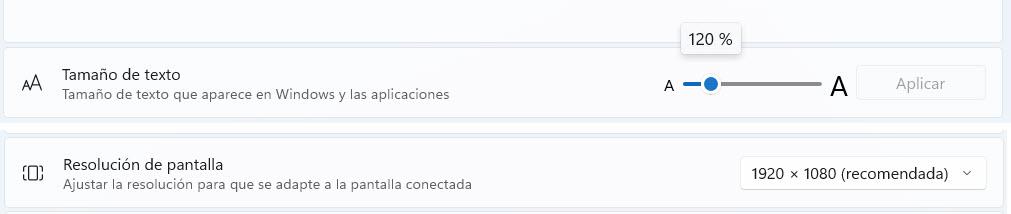
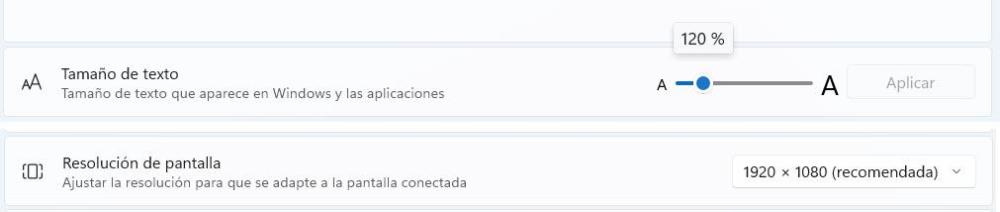
Set to 120% and it looks good now. I'll have to get used to the big font, 😀👀 Edited: I knew it was too big, I don't know why, but it doesn't respect the size. I set it to 120% and I see that Windows changes it to 175%. Thanks.

-
Hi Ian, It is easy, but as it is something I have never changed it took me a while to find it! Settings/preferences/System - at the Top Double Click in Slide List - Click the drop down Arrow & change to what you want Jill
-
Until recently, double-clicking on a slide brought up O&A dialogue. Now it opens Slide options. How can I revert to the former situation? I assume it is ridiculously simple!
-
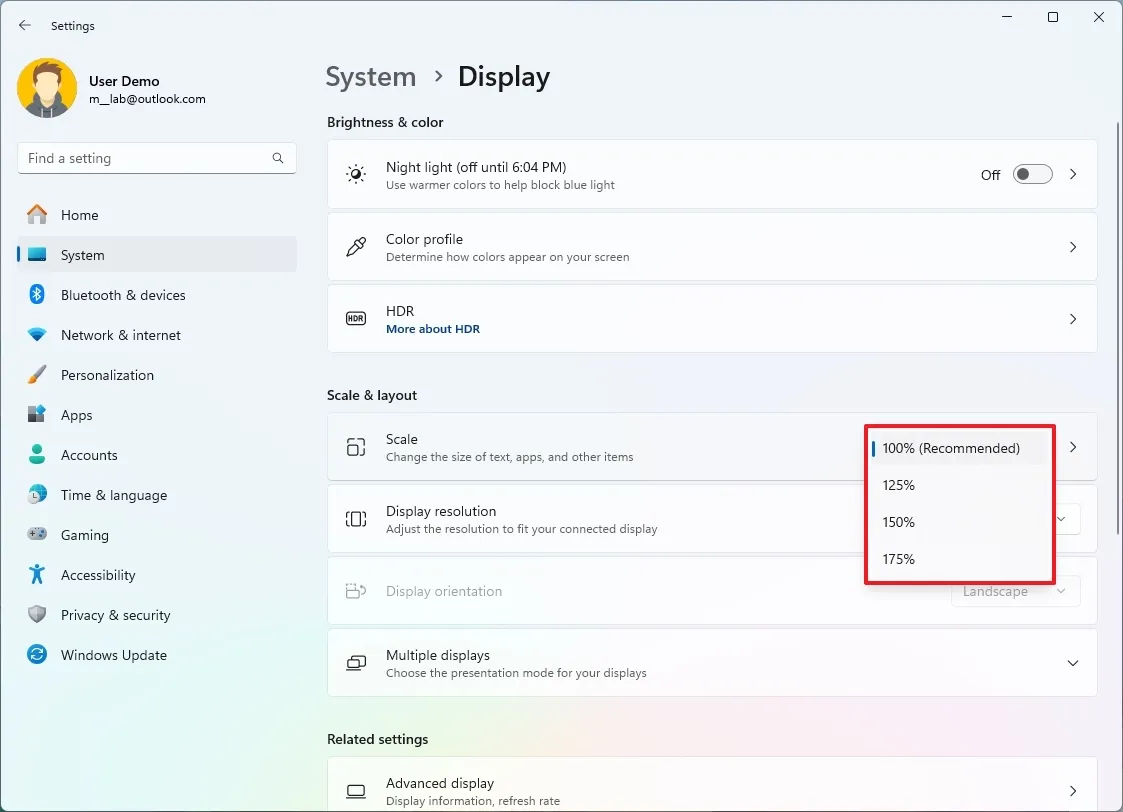
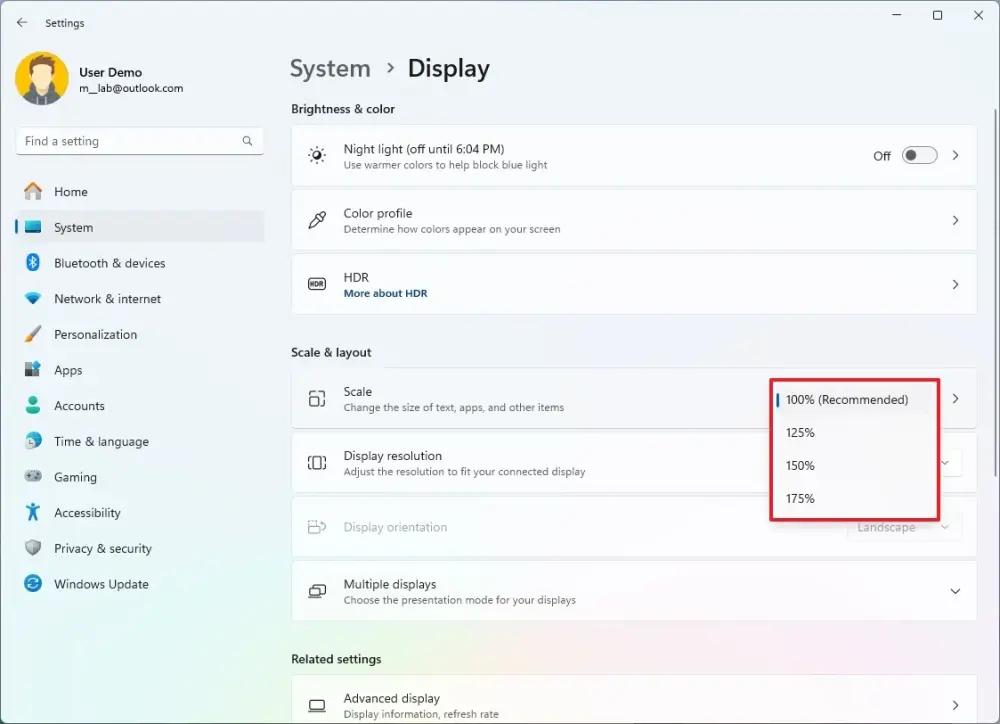
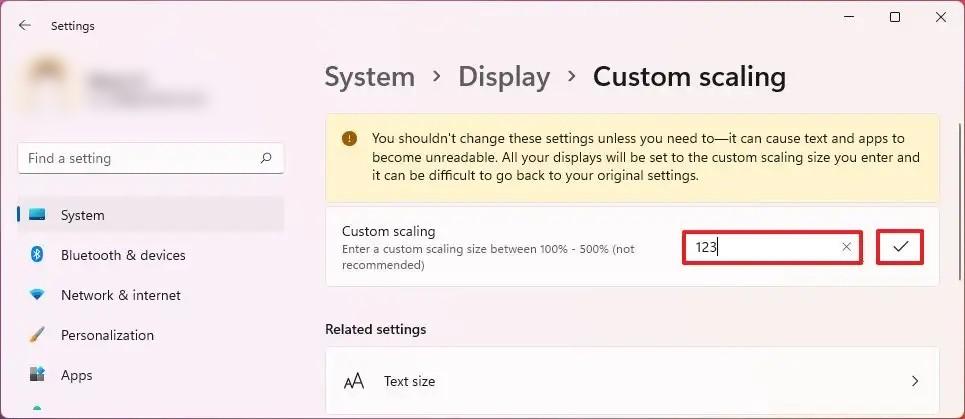
You need to use display Scale option, not Text size. I recommend to set Text size to 100% (default value) and then adjust display Scale to 125% Custom scaling where you probably set custom Text size instead of display Scale:
-
I posted the message in the other subforum; I thought it was a problem with version 12. Text size 120% Screen 1920 x 1080
-
Jill, The green timeline (with key points) always shows the original time. Including vertical red time cursor. Mini player placed above (and its time slider) shows modified resulting time. Please wait a little, I've noticed several issues with time calculations. We'll fix these mistakes in Beta 9. I suggest to try again this editor in future Beta 9.
-
Jill, thanks, we'll fix it in Beta 9 soon.
-
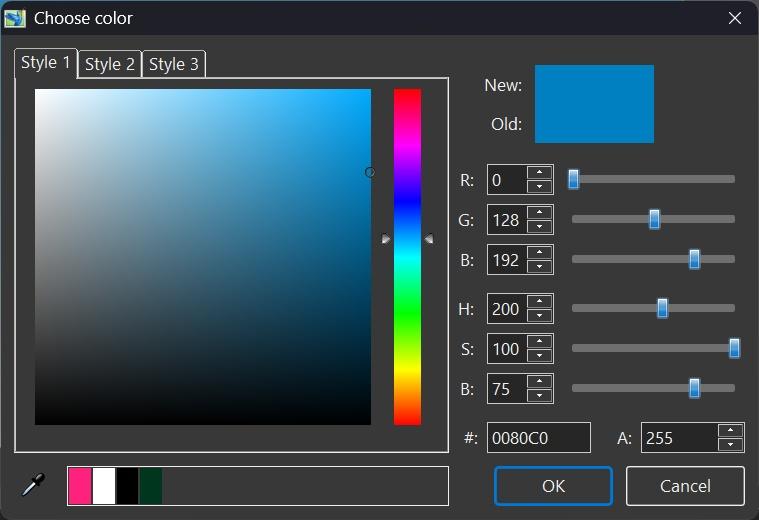
Hi, PTE AV Studio fully supports HiDPI and Windows display scaling. We recommend to use Display settings - Scale (e.g. 125%, 150%) to make everything larger - NOT adjusting the text size separately. Could you check what your current Scale and Text size settings are in Windows Display Settings? Personally I use scale at 140% for my Dell monitor and the Color window looks rightly:
-
If you have the Font Size on your Computer set to a large size this can cause the boxes to overlap. Mine is set to 125% & it is OK, but any larger & starts to overlap. Jill