Leaderboard




Popular Content
Showing content with the highest reputation on 04/30/2026 in all areas
-
Thanks to Alex55 for the Viewfinder Template. I used it to put together a few pix from a show photo shoot. A higher resolution version is on my photo site. Majestic Tango, Barclay Theater, University of California Irvine Majestic Tango Behind the Camera-template anestudio55-720_2.mp42 points
-
This is a simple example of working with text. The program's features allow you to make similar animations. It was possible to complicate the appearance of text layers with masks, but it would be difficult for an inexperienced user to understand. Of the three options I tested, the last one turned out to be the easiest, where a pair of frames rotated 90 degrees relative to each other along the Y axis and placed in the third frame, allowing you to move the entire composition vertically. I will consider any comments as an aid in studying the program.1 point
-
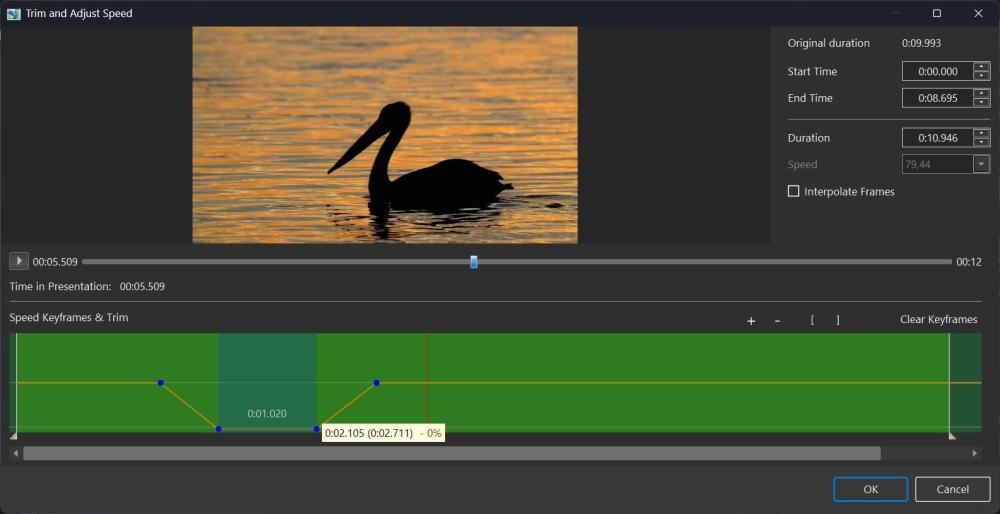
Hi, In PTE AV Studio 12, we've included a new feature - Trim and Adjust Speed editor for video objects. As in previous versions, you can adjust the start time, duration, and simple video speed. Now it's possible to add keyframes on a special timeline to flexibly control video speed. This works similarly to how you use the envelope tool to change audio volume at keypoints in the main window timeline. You can smoothly slow down video playback, then speed it back up to normal. You can also insert a pause where a video frame stays still for a period of time. Simply click on the orange line to add points, then drag a point up or down. By default, speed is set to 100% - original speed. Setting it to 200% will double the video speed. Setting it to 0% will stop playback completely. Placing two points with zero speed next to each other creates a pause interval during playback. This is shown in the example below. Note that a hint for a selected keypoint on the timeline shows two time values: - the original video time - the modified time, which reflects the effect of slowdown or speedup. You can zoom the timeline in or out using the "+" and "−" buttons on the toolbar, or with Ctrl + mouse wheel. The "[" and "]" buttons on the toolbar set the Start time and End time respectively to the current position of the time cursor (the vertical red line). Undo is available via Ctrl + Z for all speed and trim edits. The "Interpolate frames" option is useful when slowing video down significantly (for example, to 10% of normal speed). Two adjacent video frames are blended using a Dissolve method. This can be useful for creating a special artistic effect. Read more If you want to delay the start of a video object, the easiest way is to use the Offset parameter in the Properties tab of the Objects and Animations editor, and adjust the Duration (or End time) there. Using keyframes for this is less convenient. Click the play button: Video Speed.mp4
 1 point
 -
canaro99, jmc, Thanks for the comments. Good luck. Alex1 point
-
Very clever, well done. Nice use of the software1 point