SeismicGuy
-
Posts
220 -
Joined
-
Last visited
-
Days Won
4
Everything posted by SeismicGuy
-
Also I discovered and ended up solving another issue. When putting a jpg on a slide you can control when it seems to "appear" on the slide with key frames by starting it off the viewable area and/or having it transparent until some predetermined time. I was trying to do the same thing with a mp4 file in that I wanted it to appear at some point near the middle of the overall slide duration (for argument's sake say the duration was 10 seconds and I wanted the mp4 to appear after 5 seconds). The problem is that the mp4 content itself would start playing 5 seconds into the mp4 rather than right at the start of the mp4). I discovered the OFFSET option on the video property tab and looks like that I can actually have the proper start of the video occurring after 5 seconds (or whatever I choose).
-
Interesting thing about that tutorial and the "main image" box but it still is not quite sinking in why you need a main image checked for one or more of the images in the style.
-
I think I figured it out--I had the Main Object box checked (not even sure what that means). But when I unchecked it that seems to have solved the problem.
-
That's the first thing I tried but when I change the second file to the one I want with the dropdown arrow it also changes the FIRST image to the second one. So now I have two images that are both the second one instead of the first and then the second.
-
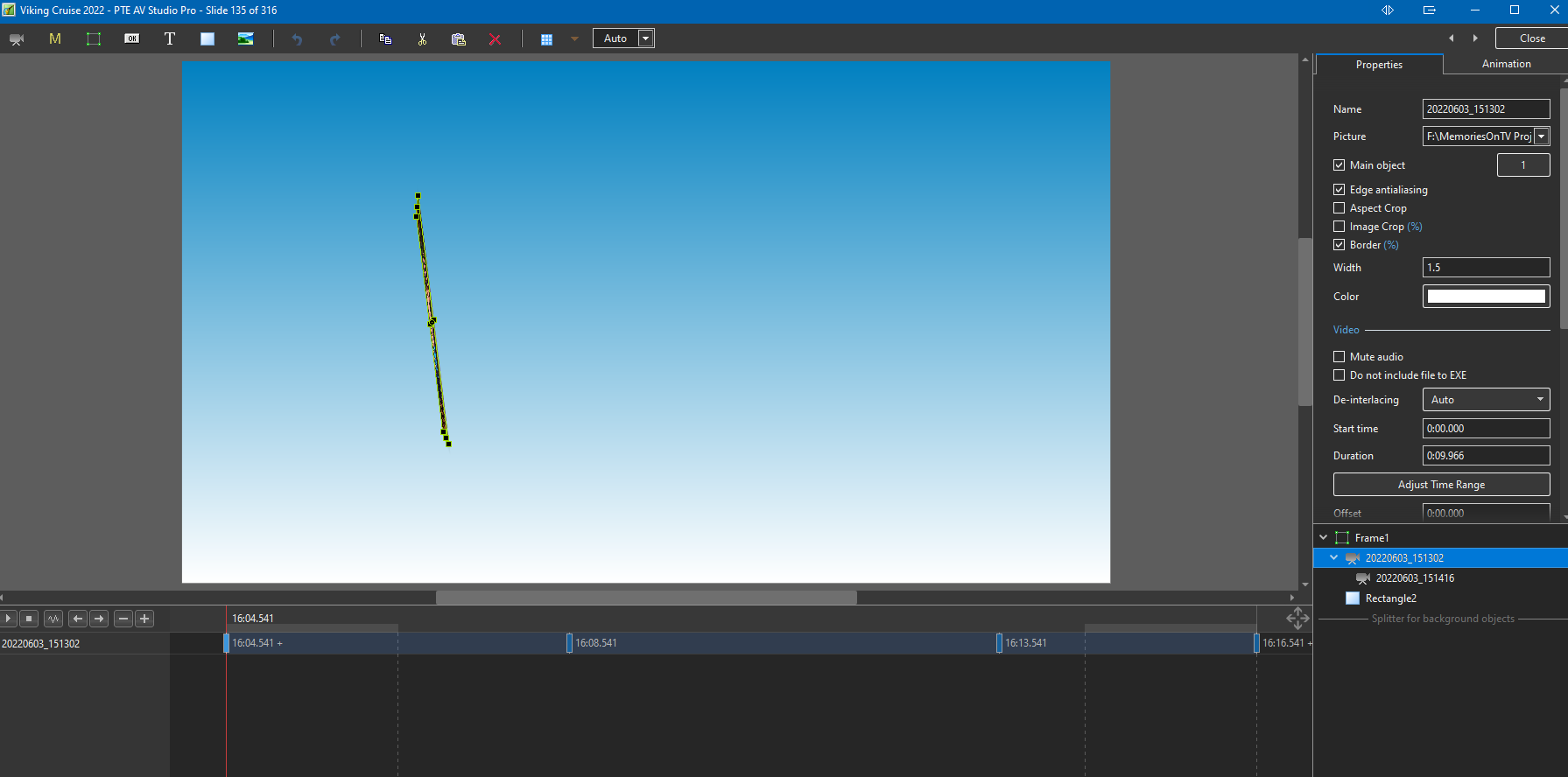
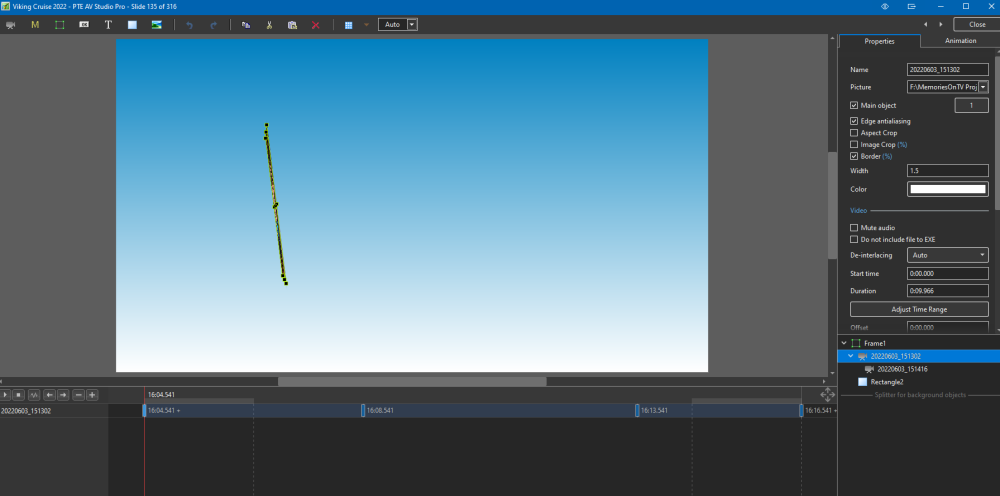
I'll try and accurately describe what I want to do. I want to create one slide with 2 images and want to duplicate the movement animation of the second image with the first but at a later time. I started by applying a style to one of the slides--it happens to be a style where the image moves onto the screen, flips over, and then disappears from the screen. Not sure it makes a different but the "image" happens to be an mp4 rather than a jpg Anyway in the Objects and Animation screen and in the attached the 151302 mpg works exactly as I like. I want to add in a second mpg (151416) and copy all of the key frames from the 151302 into 151416 since I like the rotations a movements. I will then shift all of those keyframes down along the timeline. Is it possible to copy the keyframe animation properties from one slide onto another slide or do I need to manually enter those? I hope what I am trying to do is clear. Basically take a style intended for one image but add a second image with the identical animation properties. Doug
-
I had not noticed what you mentioned about the slides being repositioned like you describe, but I just played around with some and you are indeed correct. It would be a nice option then if you could turn off the repositioning feature when deselecting slides from within a group of slides when applying a theme.
-
But could you do things like trinming pieces from the middle with crossfading of the pieces and/or splicing on another video?
-
I think I know the answer already from playing around with practice projects. But as I understand it a Theme merely attaches a sequence of styles to however many slides you select. For example if you apply the Ken Burns theme to 10 slides each one has some pan and zoom. But if one or more of those slides are actually mp4 clips it looks like the Ken Burns effect is also applied to that one the same as if it was a jpg--yes? So basically the program will not "skip" over the non-jpg slides, right? If you want to exclude the mp4 slides then you have to de-select them when applying the theme--yes?
-
That's why I believe the best way is just to create a brand new video from the edited video(s), place that new video into the slide line, and leave the original video(s) intact elsewhere on your computer.
-
I hadn't used Movavi for a year or so but on the "show" I am putting together now I have a few Smartphone videos that needed tweaking. In addition to trimming from the front and shortening the end there were spots in the middle that needed to be removed. Turned out being a breeze in spite of my not having used the program for quite a while. One nice feature also when cutting pieces out of the middle is the ability to easily adding a transition at the splice--I used a cross-fade feature. The result looks "professional" and it was easy-peasy. I end up exporting the resulting clip to a new mp4 and then using that for the PTE project.
-
I am not familiar with Lossless Cut but I think the few times I used Movavi for removing clips here and there also allowed me to have nice transitions at the cuts versus an abrupt cut in the video which was a nice feature.
-
Funny I was just dealing with the same issue in one of my video clips. I have often also had cases where I want to shorten the video by removing stuff from the middle. I have found that the best way to accomplish those types of things are using a dedicated video-editing program such as Movavi. Doug
-

Sorting in File List Window
SeismicGuy replied to SeismicGuy's topic in Suggestions for Next Versions
Yes cumbersome but at some point you will likely need to properly sort items and it would be most convenient doing within the program -
Sorting in File List Window
SeismicGuy replied to SeismicGuy's topic in Suggestions for Next Versions
The only "foolproof" workaround is to first get all images/videos into some folder somewhere. Sorting on exif or date taken/created will almost never quite work for a number of reasons and I have always found the MP4 files never end up in the right place anyway mixed in with jpg. So using a program like FastStone Viewer you can first sort on date if you like and then manually move around the incorrectly sorted images to fit in the proper sequence. This creates a "custom sort" and the next time you open FastStone the custom sort is automatically applied. FINALLY you can use the Batch Rename tool to add something like "Image ###_" to the name of each and every image so you end up with Image 0001_Original Name, Image 0002_Original Name, etc. Then when you open that folder in PTE AV sort the File List window on Name and there you have it. The key to this organization is doing everything first outside of PTE to create the properly sorted folder and then transition to PTE. This all became obvious to me when I had initially put all of the jpg's and mp4 files I wanted into a folder and opened it in PTE. As I was dragging down images into the slides many times they were correctly sequential in the File List window but sometimes I had to go to the very last thumbnails to find those images that had been obtained from another device or from a shared cloud site. -
Sorting in File List Window
SeismicGuy replied to SeismicGuy's topic in Suggestions for Next Versions
Yes exactly. Also I sometimes later want to add photos or other things to the folder and would like to move things around in the Folder list view -
When considering a new vacation highlights 'project" I create a main Project folder (with name of the project) and then subfolders. One subfolder is usually contains Images/Videos, another subfolder contains the music I may want to use, another subfolder might contain special slides I have created that will somehow fit in the presentation. The problem I always have with the Images/Videos folder is that the files come from a variety of sources--usually my Smartphone, my wife's Smartphone, our friends' Smartphones, my Fuji camera. When bringing all of the files together into the subfolder they are often not in the correct order if trying to sort on "time taken". This can occur since the photos from our friends' phones will end up with the date they were sent to my phone or computer or the date I may have downloaded from some common cloud site where we share the photos. Also, the mpg video files are NEVER where they are supposed to be if trying to sort by date. I know there are probably some workarounds where you can fiddle with the timestamps or manually sort the files somewhere and then rename them all numerically ascending or some other way. But it would also be nice to be able to move the images/videos around in the File List panel (similar to a Custom Sort that is available in a program like FastStone viewer). Unless I am missing something I do not see a way of moving the thumbnails around in the File List panel but it would be nice.
-
Yes this was one of the questions I was asking about that ended up in the General Discussion section. If you have a bunch of objects floating around the screen, each with various rotations/zooms/movements, etc., and you are trying to fine tune each one of those separately it would be nice to have a simple button to turn off the visibility of all of the other objects to eliminate the distraction.
-
Yes that seems to accomplish what I was asking. I can select one or more along the right side and unclick the "Show front side" box and those disappear. Is there a way of continuing to show the "frame" around the image without showing the image itself?
-
I am not sure but will check. The option I was looking for would be something like selecting the one element you are trying to focus on and then have a button something like "preview selected image only"--all of the other images would "disappear" so you can focus strictly on a single element at a time.
-
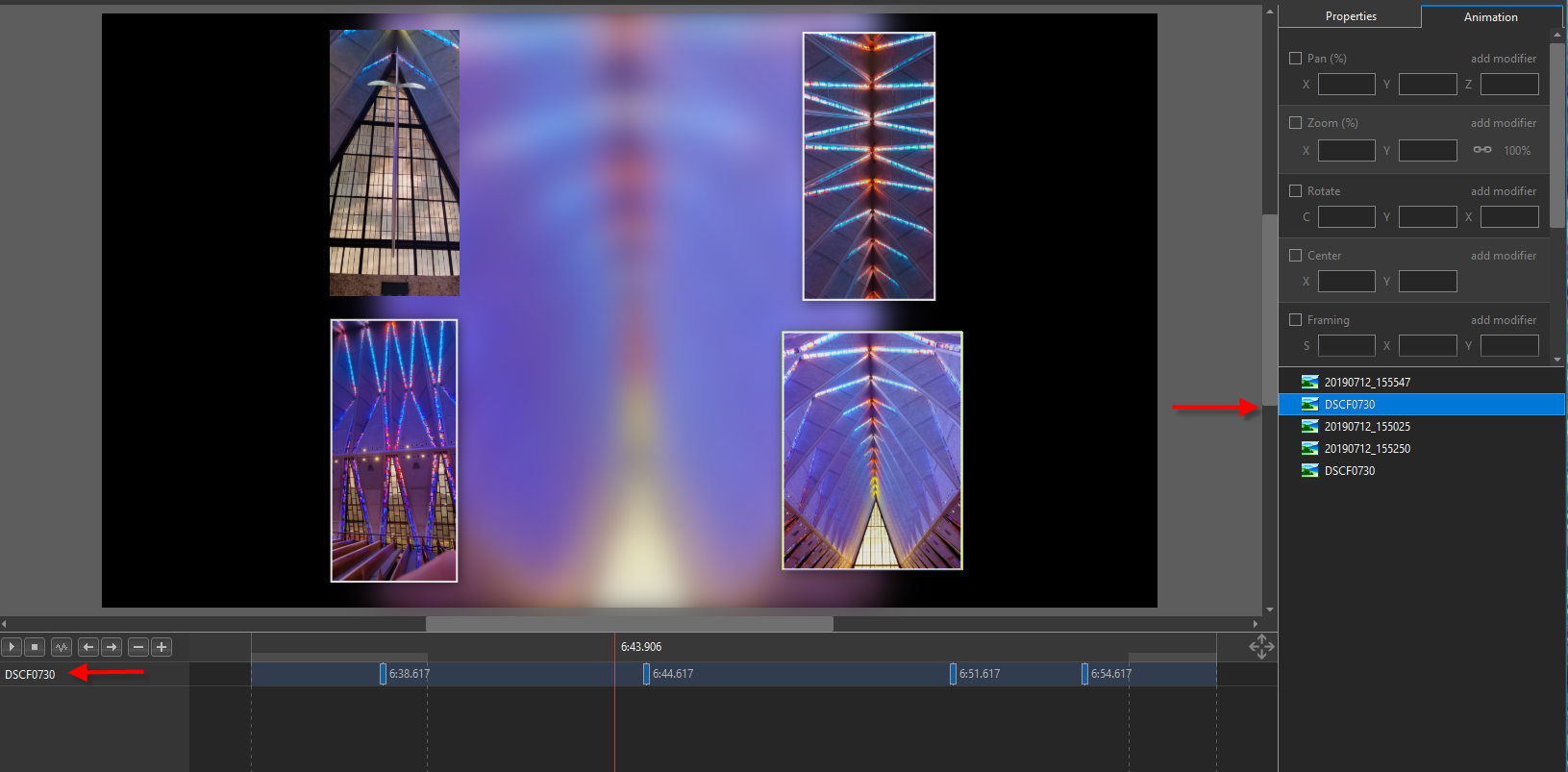
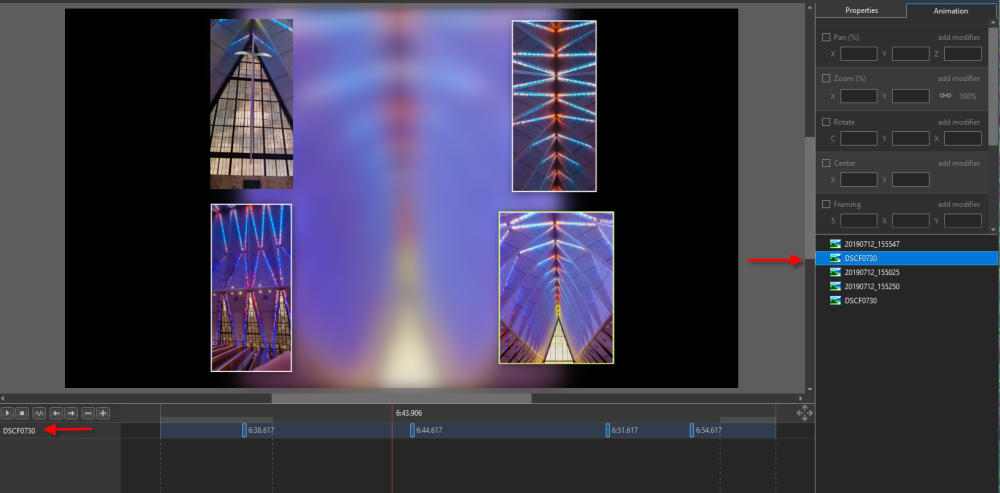
I was not sure where to post this question and not sure if it has already been answered but here goes. I have not created any styles but have used some provided by others where I have done minor tweaks using the Objects and Animation portion of the program. I have seen styles that have a bunch of various images floating around over each other with the various elements listed along the right side of the screen. Each of those elements has its own associated keyframe(s) and selecting one or several from the right side shows the keyframes on the left side (see illustration below). You can use the little play button on the left side to step through the overall resulting "slide". What I was wondering is there a way of easily tracking one of the elements through the full duration by making all of the other elements temporarily transparent so you can clearly concentrate on the one element at at time that you are concerned with? The reason I am asking is that the program I was previously using had the ability to take a bunch of images and move them around the screen in various fashion but also had the option of "blanking out" the other images when you were futzing around with one of the images. Is there such a "blanking out" option available with PTE AV? Thanks.
-
Thanks--I understood bits of this and suspect I need to learn more about masks and movements. Nevertheless quite an incredible style that is very suitable to introducing a show/presentation.
-
I came across this style and it is fascinating. I am still pretty much a novice with this program and enjoy using styles for my travelogue shows I create but have never really created a style (but maybe tweaked those I found). But this particular one seems exceptionally complex and I cannot even figure out the logic to creating it. Do you happen to have a description of the basic steps used to create this written in a "for dummies" manner? Thanks, Doug
-
I have created a number of slideshows from various vacations where the audience is typically family and friends. The "shows" range from about 15 minutes to almost an hour. The effect I have used most was the "Ken Burns" effect which is basically pan zoom. The software I had been using allowed assigning this effect (or other effects) to all of the slides if you wish or just some selected slides. It also had a "randomize" setting which would vary the actual effect from slide to slide (e.g., if all the slides were Ken Burns and you randomize, then the pan-zoom is different from one slide to the next). Then I would go through the "show" slide by slide and tweak individual slides if needed. Sometimes I would reverse the Ken Burns effect to zoom out rather than in. The goal I am generally going for is to not call too much attention to the transitions and effects since I did not want to distract from the images and videos themselves.
-
Just to add, as I mentioned these files are inscrutably named but when you open each one you can look at the pte or xml file and kind of figure out what they are. And, again, these folders are located in a few locations at least on my machine.
-
ProShow Producer transition to PTE AV Studio
SeismicGuy replied to gpc's topic in General Discussion
I was in a similar situation last year when I bit the bullet and was finally abandoning MemoriesOnTv since the original developers stopped developing this a number of years ago. After searching around for what would be a suitable replacement I ended up picking PTE. It took a while for me to get as comfortable with PTE as I was with MOTV and you can search for my numerous posts about this on this forum in several places. MOTV was extremely user friendly and intuitive with a bunch of built-in easy to select transitions and effects for images (or groups of images on a single slide) and I suspect ProShow had a similar approach. I believe the audience for each of these products was somewhat different. MOTV was definitely geared towards folks that merely wanted to take their photos and videos and put together a decent presentation for friends and family. You could essentially do this within about an hour of first installing the program given its intuitiveness. Again I suspect ProShow was the same thing. On the other hand I had not realized there was such a huge audience of very serious end-users out there these days that are more semi-professional/competitive/serious hobbyist types that took putting together a slide show much more seriously. IMHO PTE seems geared much more to those users with an emphasis on getting under the hood and creating your own effects, even though there are some built-in effects that can be used. And for those that don't want to get their hands dirty there are effects that have been created by others that are available for download from various places. Just as an editorial comment I think getting too deep into the weeds with fancy transitions and styles sort of gets in the way of the photos and videos that you are showing--kind of like the gearheads that get so technically involved in PhotoShop to produce the "perfect" image. But if you play around with PTE and search out the various tutorials, you will probably end up enjoying the program.