goddi
-
Posts
3,596 -
Joined
-
Last visited
-
Days Won
27
Everything posted by goddi
-
Igor, It has been a while since the Slideshowclub's upload limitation dropped from about 280 Mbs to 128 Mbs. You mentioned that you would get this fixed quite a while ago but it seems it has not been fixed yet. I have a bunch of shows that are larger than the current upload limitation so I am asking if it will be fixed. Even 280 Mbs will be a constraint with the use of video clips. Thanks, Gary
-
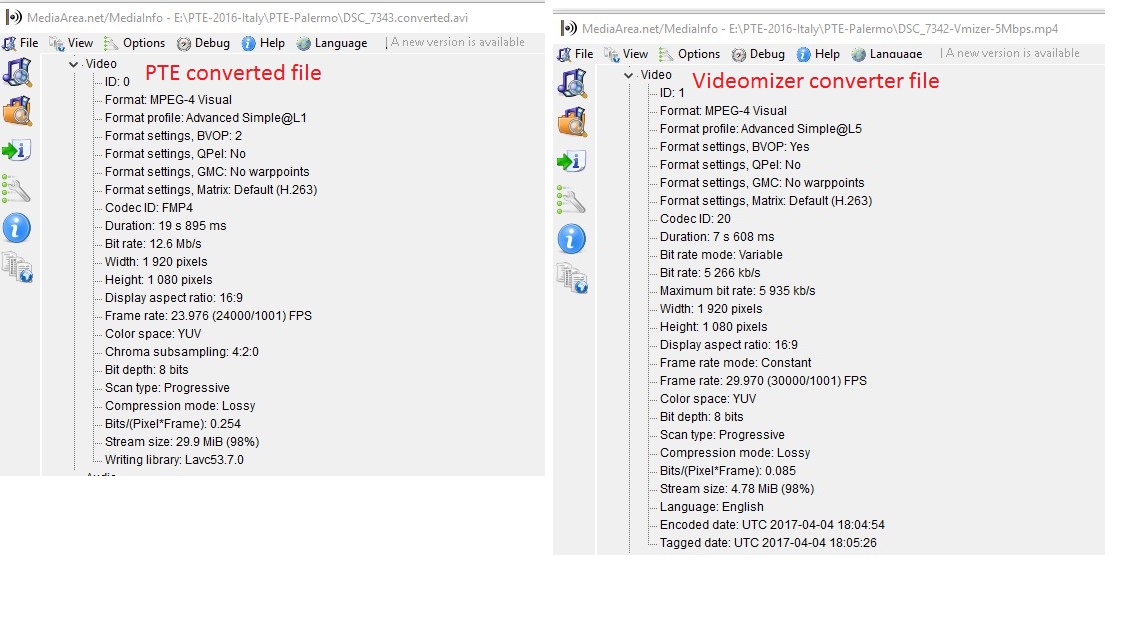
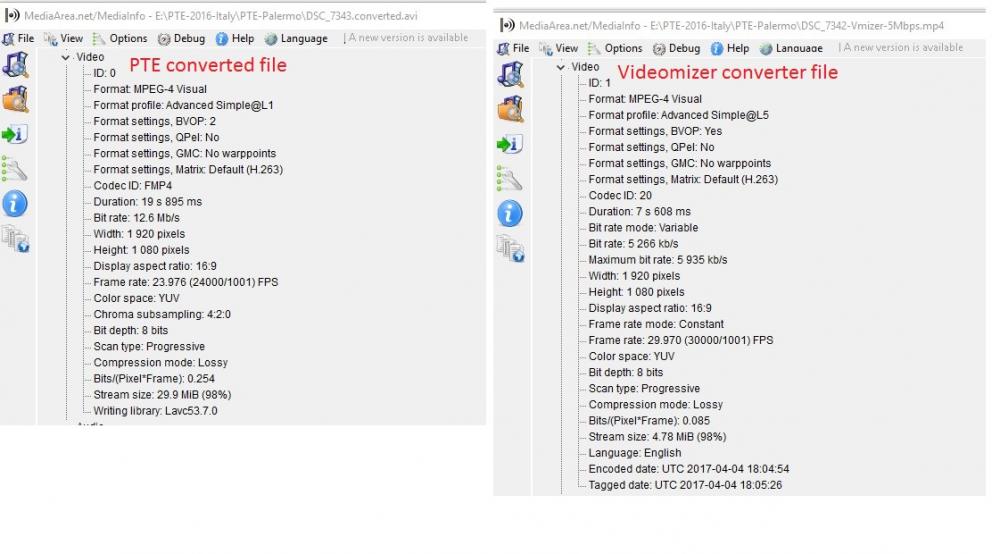
Greetings Dave, I really have tried not to ignore any advice. But, workflows can be different for all of us. Yes, I have 'converted' video clips from the File List. But the problem that PTE creates is that you have no control over the 'bit rate' for the conversion. The Conversion usually boosts the bit rate, creating a larger file. Yes, I understand it is to make the playing of the videos to be smoother. However, file size has become very critical when we start using videos. The Slideshowclub has reduced its max file size from about 280 to 128 Mbs. So that too is a limiting factor to be aware of. (Igor has said he will address this but it has not happened yet). So, I have tried several non-PTE video converter programs to trim and convert the MOV files to be as close to what PTE converts them to. And I try to keep the bit rate between 5 and 8 Mbps. The quality seems to still be acceptable and the file size is substantially less. My current project has about 135 slides, of which are 26 video clips. Therefore, size is a big concern. The program I am using now to convert my MOVs is Videomizer. A free program that gets the job done. Not the best but it works. I am choosing their output format of 'HD-MP4 (MPEG4)' that seems to be very close to what PTE puts out, but I have control over the bit rate, and other things of the video clip. When I drop one of these converted video clips into the Slides, PTE does not ask to convert it. So it seems that PTE is happy with this format. What has been confusing is that there is a difference between 'MPEG-4 Part 2' and 'MPEG-4 Part 10'. 'MPEG-4 Part 2' seems to be similar, or the same, as 'MPEG-4 Visual', which is what PTE converts video clips to. But when you try to see what the format is of a video clip, you might see only 'MPEG-4' but you don't know if it is Part 2 or Part 10. Part 2 seems to be good, and Part 10 bad for PTE. I found this: "MPEG-4 Part 2, MPEG-4 Visual (formally ISO/IEC 14496-2) is a video compression format developed by MPEG. It belongs to the MPEG-4 ISO/IEC standards. ... MPEG-4 Part 10 is commonly referred to as H.264 or AVC, and was jointly developed by ITU-T and MPEG." So, back to workflow. I understand that, to avoid bugs, if you use the PTE convert process, you should convert the video file from the File List, not in the Slides. But...Igor allows you to convert files that are already in the Slides (causing problems?). Perhaps this should be addressed. And, yes, sometimes you want to swap a video clip that is already in the Slides with one in the File List. I now drag down the video clip next to the old clip and then removing the old video clip (in the Slides view), not using the 'Change video file' to avoid problems. Perhaps the problem with the filename not changing was only the fact that the old video was 'H264'. It did swap correctly but it just did not show the correct filename. Was that just because it was an H264? Did not happen in the past, I think. I am attaching a MediaInfo screenprint of a PTE converted file to compare with a Videomizer file 'HD-MP4 (MPEG4)'. The formats look similar, with some differences. But it seems to work well in PTE. The bottom line is it would be much more useful for the PTE conversion process to allow for user input to select bit rates. Are the differences in the attached comparison of any concern? Gary
-
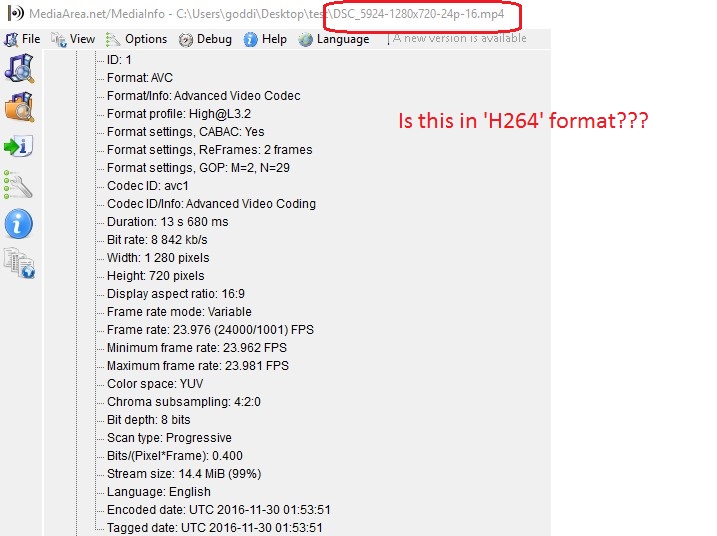
Dave.... Yes, I saw that but I did not think (understand) that the MP4 video clip was in 'H264' format. I have used it many times before with no problem. I am attaching the MediaInfo on this video clip. Can you tell me if it indicates it is in 'H264'? I don't know how to tell. Since I did not see 'H264' in the MediaInfo's 'format' description. Oh...I paused to Google 'what is 'AVC'. Now I understand. 'AVC' is 'H.264'. Found this: "H.264 or MPEG-4 Part 10, Advanced Video Coding (MPEG-4 AVC) is a block-oriented motion-compensation-based video compression standard. As of 2014 it is one of the most commonly used formats for the recording, compression, and distribution of video content." It just threw me because I have used it many times before with no problems, and MediaInfo did not show 'H264'. Ok, good to know. Thanks, Gary
-
Greetings Dave, Yes. Most times it works. I can easily remove the mp4 video clip and insert the new avi clip. But...I would like to know what is causing the problem. Maybe it can happen again. Maybe there is something inherent in this version. Something is going on because, as I mentioned, as I was going through the process of trying to change the video clip, PTE also froze up. It has happened several times. If it is just me, OK. I just wonder if Igor can sense what might be going one for PTE to react this way. The File Info indicates it is the correct video clip but the Timeline's filename is not updated to show the new video clip's name. Just strange. Gary
-
Igor, Have you taken a look at the video I attached in my response? While I was trying again, in this sample, to change the video clip, it still does not update the filename and PTE froze while I was working on it. Can you see what is causing this problem in this sample? Gary
-
Change 'Default Slide Durations' for only images
goddi replied to goddi's topic in Suggestions for Next Versions
Barry, The funny thing is that my suggestion would not affect your way of working a project in the least. We will have to agree to disagree. My point was not necessarily to change the global time just to match the music, just a side effect.The 'Fit all slides to soundtrack' does this but it also changes the durations of videos. Just to be able to adjust the 'default slide durations' without affecting videos' durations seem to be good enough reason to make the change. However, my point about not getting much response from the rest of the participants in this Forum was more of a general opinion. For example, I made a post with a list of 16 suggestions for improving the program, making it more intuitive, easier to use. It has 242 views. Only one person, Igor, responded with a 'thanks for the ideas'. It would be nice to hear pros and cons from users. Gary -
Change 'Default Slide Durations' for only images
goddi replied to goddi's topic in Suggestions for Next Versions
Greeting Barry, Yea, there are many different ways to tackle a project. I am working on one now with about 130 slides, of these are 28 video clips. I now want to change the duration of all of the images to see if I can make the show a bit shorter. So this will be a laborious process if I decide to do it, to have to highlight each non-video section. But the more frustrating or disappointing thing is we get so few responses in the Forum. Most are from the same 'Enthusiast', 'Advanced' or 'Senior' users. Where are the rest of the users? I have posted several questions and received few or no responses. I am very happy to get these responses from you guys but, gee, I wish other users would give their opinions on postings. Gary -
Igor, I am pretty sure I don't have any videos formatted as H.264. Any other things that I should look for if it happens again??? Gary
-
Igor, I can reproduce the file naming problem. I have removed most of the other images and videos to make a small show and created a 'Backup in Zip'. The 'problem' video clip is slide#2. At the end of the Slides (after the blank slide), I add both video clips ('DSC_5924-1280x7200-24-16.mp4' and 'DSC_5924-1920x1080-24-16-DviX-5Mbps.avi') so they would be included separately. When I try to replace the video clip at slide#2 (that shows the 'DSC_5924-1280x7200-24-16.mp4') with the 'DSC_5924-1920x1080-24-16-DviX-5Mbps.avi' video clip, the video clip does change but the file name does not. Can you take a look and see what might be going on? Thanks... Gary Naples_with_error_Apr3-2017_12-36-53.zip
-
Change 'Default Slide Durations' for only images
goddi replied to goddi's topic in Suggestions for Next Versions
Dave, I did not say I was the only one using video clips. I think there are not many people using video clips. Even judging by the very limited responses to any posting about video shows, too me, there is much going on with videos. Anyway, you took my statement a bit too far. Perhaps, users of videos have not run into a situation that causes this problem, yet. Your suggestion that 'any changes to the Durations of existing Slides are catered for under the Slide Options Button'. Sure, you can do this. But when you have dozens of video clips spread throughout the project, this is a tedious process to change each section of images to avoid changing the duration of the video clips. And then, if you do it once, then change your mind and want to try a different duration for all the image, you have to start all over again. Why not just make it simple and just exclude video clips from having their duration changed? This would be just so simple a fix. It would not affect anyone who wants to use the 'Default Slide Durations' as it does now. I really don't understand the opposition. I wish all the users of video clips would chime in. Seems we have a split decision? Perhaps the 'Default Slide Durations' function was created before the ability to use video clips were introduced into PTE. It worked well then, but not now. Gary Added Later: You also said the "Default Slide Duration does "what it says on the tin" - it sets a Default Slide Duration for all new slides added to the Slide List after that Setting". Yes, it can. However, it also says 'Apply to all slides'. This means that you can not only have new slides set to this duration but you can change it later for all slides if you decide. So it is not only for 'new' slides. -
Change 'Default Slide Durations' for only images
goddi replied to goddi's topic in Suggestions for Next Versions
Greetings Barry, Sure, the Project Options settings are designed as a global settings but let's make it work properly. If you think that 'Default Slide Durations' should apply to videos too, then when you drag down a video clip, it should take on the 'Default Slide Durations' setting? It does not and, of course, it does not make sense. So if you change that setting, why would you want it to change the duration of video clips? I think those who do not agree with this suggestion, have never used video clips. All it takes to understand the problems is to put one video clip in the project and change the 'Default Slide Durations'. Did you take a look at the video attachment in my previous posting? Does that not show the problem? If you have placed video clips in the project, you can not change the 'Default Slide Durations' without causing severe problems. That leaves you locked into a setting you might want to adjust later in the project. There is a function called 'Fit all slides to soundtrack'. This setting would automatically spread all content, even videos, to fit the soundtrack and unfortunately change all the videos' durations. This setting would work well only if you did not have video clips. So if the 'Default Slide Durations' would be make to not affect video clips, the adjustment of the 'Default Slide Durations' could be used to tweak the overall duration of the project within the soundtrack. Yes, it might disrupt some timing of music content, but that is easier to fix, if needed. If you did not have 'carefully synchronized images and videos', this would be very helpful. But at least the user would have a better tool. Gary -
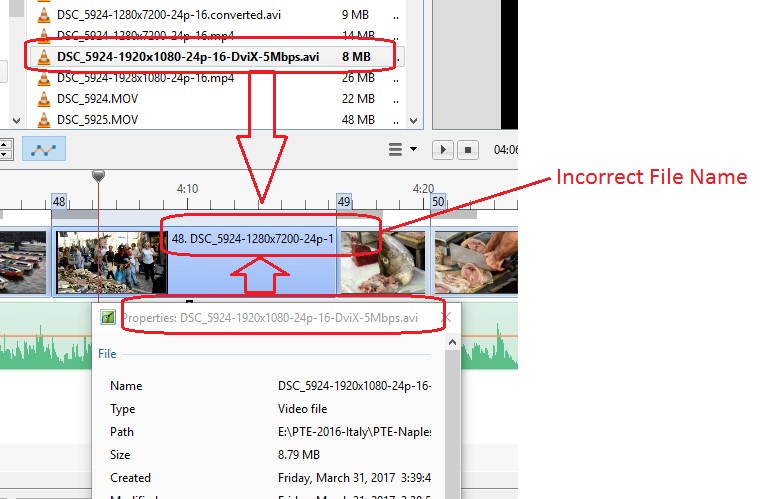
Greetings, I think we had this incorrect file name problem in an earlier version but it was fixed. However, it seems to have come back in V9.0.7. I changed the video file (using 'Change Video File'). The correct video clip is in the Timeline but the file name shown in the Timeline is incorrect. See attached. Also, I have been experiencing many times when V9.0.7 freezes. The mouse will move around but I can not do anything except close and restart PTE. This has been happening I think when I am trying to Preview different video clips in the File List. All of a sudden, PTE locks up. No error message, just locks up. Gary
-
Greetings, I have been using a lot of video clips lately. I have had to 'add' the audio from the video clip to be able to ramp up and down the beginning and ending of the video's audio (also muting the video clip itself). When a video clip is 'added', the audio shows up at the end of the Timeline or somewhere you don't expect it to be. You then have to then drag the audio clip to its proper position. My suggestion is that this audio section be 'added' directly below the video clip from where it came from (or where the mouse is positioned on the Timeline), not at the end of the Timeline. Gary
-
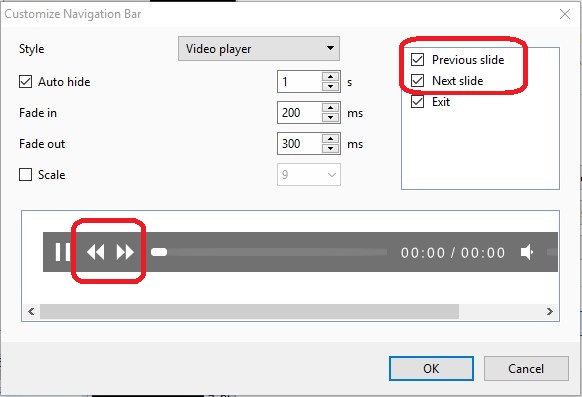
Greetings, Ok...just confusing since the other two icons, Exit and Pause show up. Gary
-
Dirk.... I gave it a try on a project that has a muted video track. It did not stall. I wonder what else could be causing the problem. Mine passed through the muted video clip with no problems. Gary
-
Greetings, I just noticed that the 'Previous slide' and 'Next slide' icons do not show up when you preview a show using the 'Four Arrow' icon. Is this a 'feature' or is it missing? Gary
-
Change 'Default Slide Durations' for only images
goddi replied to goddi's topic in Suggestions for Next Versions
Greetings, Perhaps a video would demonstrate better the problem that I see with using Default Slide Durations if you have video clips. This is probably an extreme example where all but the first slide are videos, but it shows the effect. If I change the Default Slide Durations for All Slides, all the videos change too. Gary DefaultSlideDuration.mp4 -
Greetings Igor, Yes, v9.0.6 fixed the problem. Thanks... Gary
-
Change 'Default Slide Durations' for only images
goddi replied to goddi's topic in Suggestions for Next Versions
Greetings, Perhaps I have not used the proper terminology. But, yes, I am saying that the ' Project Options/Main/Default Slide Durations' should apply "to all existing slides that do not contain any video" or are not videos. That is exactly what I am saying. It is so easy to see the problem that it currently creates. Put several videos in the project. Change the 'Default Slide Durations' to, say, 4.25 seconds. All the videos get changed to 4.25 seconds. That is the problem. Sure you can do what Dave says, which is to highlight each section in between the videos and change the duration using the Slide Option. I have a project that has a potential of over 30 video clips amongst about 200 images. To go through section by section to change the Default Slide Duration is the hard way to do it to avoid changing the duration of the videos. Why not just exclude videos from being effected by the Default Slide Durations? Why would you ever what it to effect the durations of videos??? Gary -
Change 'Default Slide Durations' for only images
goddi replied to goddi's topic in Suggestions for Next Versions
Dave, This probably makes no sense to you because your work flow is different than mine. But even if we differ in our work flow, excluding video clips' durations from being changed when you change the 'Default Slide Durations' makes sense. Do you think that before you start a project you know exactly what the default slide duration should be? And you would always set it before you put in any video clips? Do you use video clips? But, say you want to adjust the default duration of 5 seconds to 4.25 seconds after you a have put in all your images, and you also have already put in your various video clips. If you have many video clips and you want to change all the images' durations to 4.25, the easy way would be to change the Default Slide Duration to 4.25 for all slides. This would especially be useful if you wanted to tweak the overall length of the project to fit your established music length by just adjusting the duration of the images. If changing the Default Slide Duration did not affect video clips' duration, this would be easy to do. Your way would be to highlight each contiguous group of images in between each video clip and make the change. Wouldn't it be more intuitive and easier to just use the Default Slide Duration to make the adjustment, and not affect the duration of the video clips? If someone doesn't use a lot of video clips, it might be hard to see the importance of this suggestion. Sure you can change the 'Slide Name' to identify video and images. But why do we have to go through all this extra work when the information is already there. Just let it show. My suggestion would not affect your work flow at all. But it makes sense to me that the setting the 'Default Slide Durations' should exclude video files. And change the name to 'Default Image Duration'. Gary -
Igor, Please change the 'Project Options/Main/Default Slide Durations' to apply to only images, not to video clips. If you have many video clips in the project and you want to change or tweak the duration of the image slides, the changing of the 'Default Slide Durations' will change the duration of the video clips. Then you have to go into each video clip and reset its length. There does not seem to be any need to have the 'Default Slide Durations' affect video clips. The additional frustration is the File List does not show 'length' so you have to go to a lot of clicking around to get that information. Not only that, but if you had set some overlays of images at the beginning or following video clips, this setting gets removed and you have to go through readjusting that setting. Removing video clips from the 'Default Slide Durations' would solve many of these problems. Not to mention showing the extensions of the files in the Slides/Timetable views would help too, so you know which is an image vs which is a video clip. I know you said you don't want to do this but I hope you would reconsider. Thanks... Gary
-
Greetings, I just came across a problem that had occurred in earlier V9 versions but I could not make it reoccur. It just happened again but I have found what is causing the problem. If I open PTE directly from a shortcut and open a show, I can Publish the show, no problem. However, if I go to MyComputer, and click on the .pte file of a show to open it in PTE, and then try to Publish the show, the Publish window opens but will not start the process. Is this a PTE bug or a computer problem???? When this happens, closing PTE 9.0.5 and re-opening it, does not fix the problem. It gets fixed only by rebooting Win10 and opening PTE directly with the shortcut and then opening a show. I can replicate this problem with new and old shows. Gary Added Later...I made a video of the process...see attached. Publish.mp4
-
Dave, Ok, I think I see what you are saying. My laptop's graphics card's highest resolution is 1920x1080. So my laptop's graphic card must be converting the UltraHD resolution to 1920x1080 and feeding it to the TV via the HDMI cable and my Push2TV device. If I try to play the UltraHD show directly to the TV using a USB thumbdrive or my NetGear media player, it does not work because the TV is not 4K. Thanks...makes sense. Gary Added Later: So...the only way to play a 4K PTE show is to play it with a USB thumbdrive directly plugged into a 4K TV (unless you have a graphics card that has the 4K capablity if you want to play it on the laptop or desktop) (?). And you need a 4K TV or monitor.
-
Dave, I agree that the USB key is the better way of playing the PTE shows on the TV, but I was wondering if playing the UltraHD show on your Sony TV (non-4K) via an HDMI cable would actually work as it did on my non-4K Samsung. Or anybody out there.....???? Gary
-
Dave, Have you tried to play the UltraHD show from your laptop (or desktop) to your Sony HD TV via an HDMI cable (if you have an HDMI port)? Just curious if that works as it did for me... Gary