goddi
-
Posts
3,596 -
Joined
-
Last visited
-
Days Won
27
Everything posted by goddi
-
Lin, I agree with you 100%. But maybe we don't want to build a mansion. Maybe just a real nice shed...a nice on, but just a shed. When I look at the inputs for your Border Style, I get a little nervous. Way too many inputs for me to get the results I'd want. I created a Style that does pretty much the same as yours, but with just 3 inputs, no Masks. (Mine looks a bit different because I like the background image to be at 95%). I have attached a portion of your inputs (10 lines) and a similar portion of my inputs (3 lines). I think mine if fully adjustable and more intuitive to make adjustments (for non-Mask people). I don't find any fault with anyone using Masks, but if there is a more simple way of achieving the same result, I'm for that. Certainly, you must use Masks for many creative things. So I am not trying to start a conflict of Masks vs. non-Masks. If Igor can get all the Rotate functions in Framing, that would really be a winner. Gary GOddi-Border w_Blurred Inner Bkdg-Vertical.ptestyle GOddi-Border w_Blurred Inner Bkdg-Horizontal.ptestyle
-
Lin and Mick, Thanks much for your demos. I can't disagree with you that Masks are great and can do much. But, as I have mentioned before, it adds just too many steps to only rotate an image. My desire to rotate an image is to be able to make slight adjustments such as leveling the horizon. I tend to have a problem keeping the camera level. I just want to be able to quickly tweak many images I use for a show to rotate them to level the horizon. Currently, I find it easier to fix the leveling problem while optimizing the image in Photoshop then going through the steps for Masking each image. To have the features of Rotate's C, Y and X in Framing would be a super improvement and simplification. Gary
-
Lin... I think we all would like to know how to do this. I am not a fan of Masks but maybe I can learn to love them. Thanks... Gary
-
Lin, Ok...what's the magic??? Igor said it could not be done in Frame. There are only S, X and Y values. Can you show what is up your sleves? I'd like to be able to do that so I can straighten images in Frame without having to crop them in Photoshop. Gary
-
Dave, Great demo. Now, if we can get 'Rotate' within the Frame, Bingo!!! Igor has said 'not yet' but fingers crossed. Gary
-
Additional Blur Effect (preserving edges)
goddi replied to jt49's topic in Suggestions for Next Versions
JT..l. Well put. Agreed, especially for borders. Gary -
Greetings JT, I, the original poster, marked it 'Solved'. I did this because I found a way around the problem I had. However, I agree with you that it would be a good thing to have the borders not become blurred or disappear when the image is blurred. I created a Style that served my purpose. But maybe Igor will look into it to solve this problem. Gary
-
Jardin, Colombia -Search for the Cock-of-the-Rock
goddi replied to goddi's topic in Slideshows & AV Shows
Mur...Thanks. Yes, that bird is stunning. I found it is called the 'Guianan Cock-of-the-Rock'. Would love to see it in person! Gary -
Greetings Craig, Oh...I see. It has been a long time since I used PP, so it was not clear to me what you were asking. Since it does not take much time to have published an exe of the show, that is where I'd go to take a quick look at a show. But perhaps, you have a different purpose of just going to the .pte and doing a preview from it. Gary
-
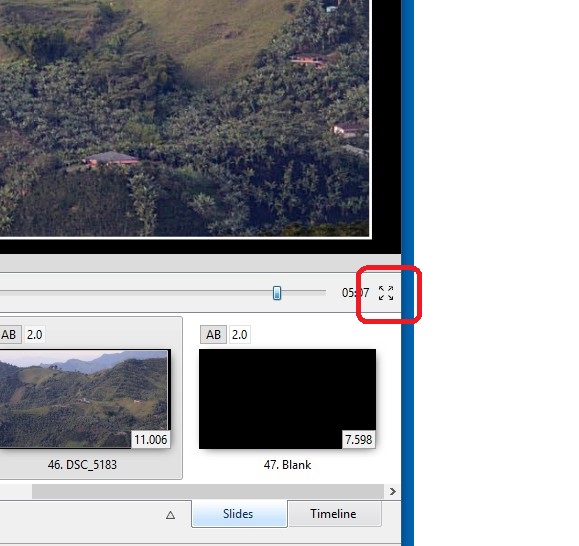
Craig, Would the 'Fullscreen preview from current position' do what you are asking? Garuy
-
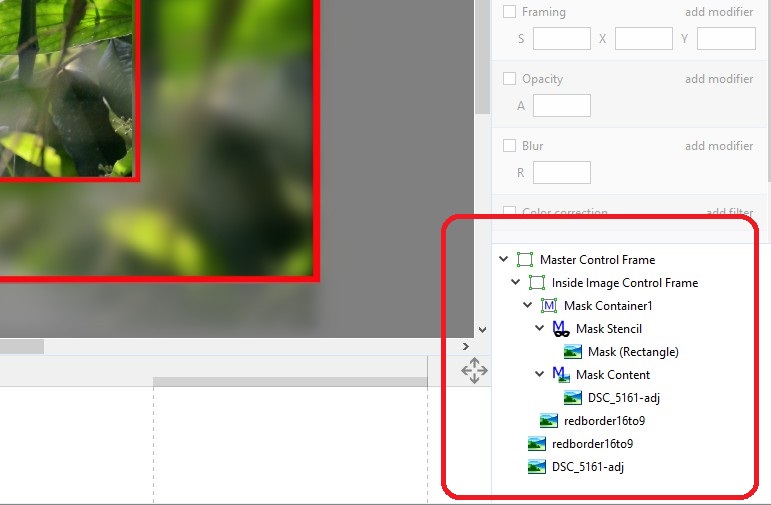
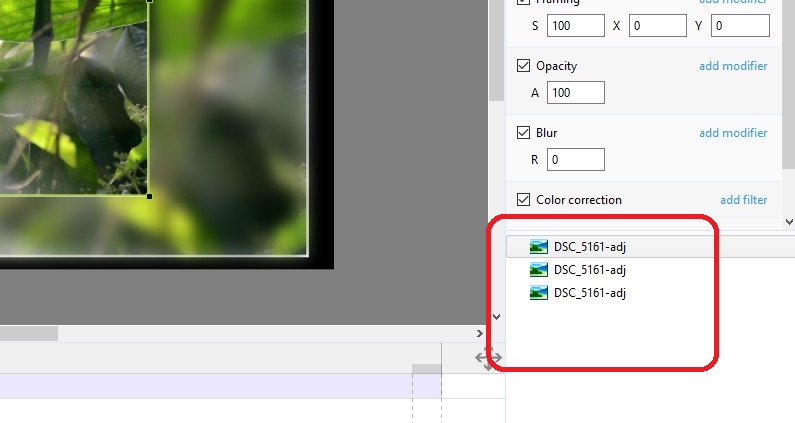
Igor, I would not worry about it much. The error messages started when I was trying out Dave's Style (in his post above-GOddi Border.ptestyle). Being a demo, it is supposed to be applied to a blank slide. At first, I applied it to an image. It creates the error message. Now, after that, I was attempting to follow Lin's instructions to create my own Style where had the 3 images (see above screenshot of my post). When I was changing the 'Main object' numbers of the two background images, I got similar error messages. Perhaps, they were holdovers from incorrectly using Dave's demo style. I have tried to reproduce what I was doing to create that error message but I can not. But it had to do with creating my Style. I have attached what I came up with. It needs a little tweaking but that is what I was trying to get. It all started because when I blurred a background image with a border, the border would get blurred too. Gary GOddi Inner Border with Blurred Bkgd-Portrait.ptestyle
-
Jardin, Colombia -Search for the Cock-of-the-Rock
goddi replied to goddi's topic in Slideshows & AV Shows
Greetings MUR, Thanks... Wow...never saw one like that. Super cool!! We did get this one of a Quetzal in Costa Rica. Gary.thumb.jpg.50e1f45dfff2f2a4dd75ed3d1616171f.jpg)
-
Lin, Ok...thanks for the first instructions. Yes, I can see how to replace the images now. However, I think you meant "Main object", instead of "Master images". And I found that if all three images have the "Main object" marked as '1', then it works. Took me a while to figure this out but it works great. Thanks... Gary
-
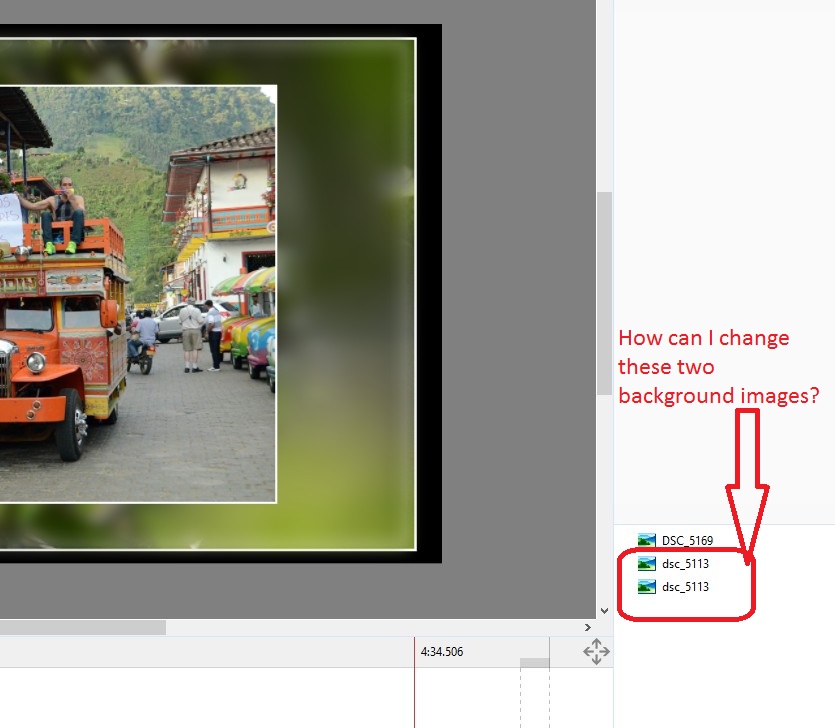
Dave... I get a bunch of 'exception errors' when I tried the Style. But, I really don't want to get it so complicated with Masks, Stencils, etc. You guys are more into doing them and modifying them to work. I keep going back to my 'easy' workaround. And Lin, thanks for the demo. Super. I see how to make them now. But, the problem is getting that border to match the '.5 percent' border that I have added to all the other images, for example. Doing a manual adjustment for the size just does not work well. The aspect ratio does not even come out evenly when trying to do the adjustment. And having to make 'templates' of borders of each size and color, etc....too much. Thanks all for the lessons. I just want to keep it simple. Gary ADDED LATER: Oh...I just had a lightbulb moment. I actually created a Style from my slide. Works great, fully adjustable, EXCEPT: 1- How can I change out the two background images that were created in the original Style after I have applied the Style to another image? 2- I get an 'Unhandled Exception' error when I use it (similar to using Dave's demo) Gary.

-
Lin...I don't see how you made the white border in your previous post. Thanks for the latest posting with the red border. Did you have to make the red PNG border in Photoshop? I tried using it but it is just not flexible. If I use the 'Aspect Crop 16x9', it cuts off the top/bottom of the red border. Sure, I can use the 'Shift/drag' to adjust its aspect ratio, but not precise enough to match other slides. I think I will have to stick with my workaround. Easy to do and adjustable. Thanks for trying. Gary
-
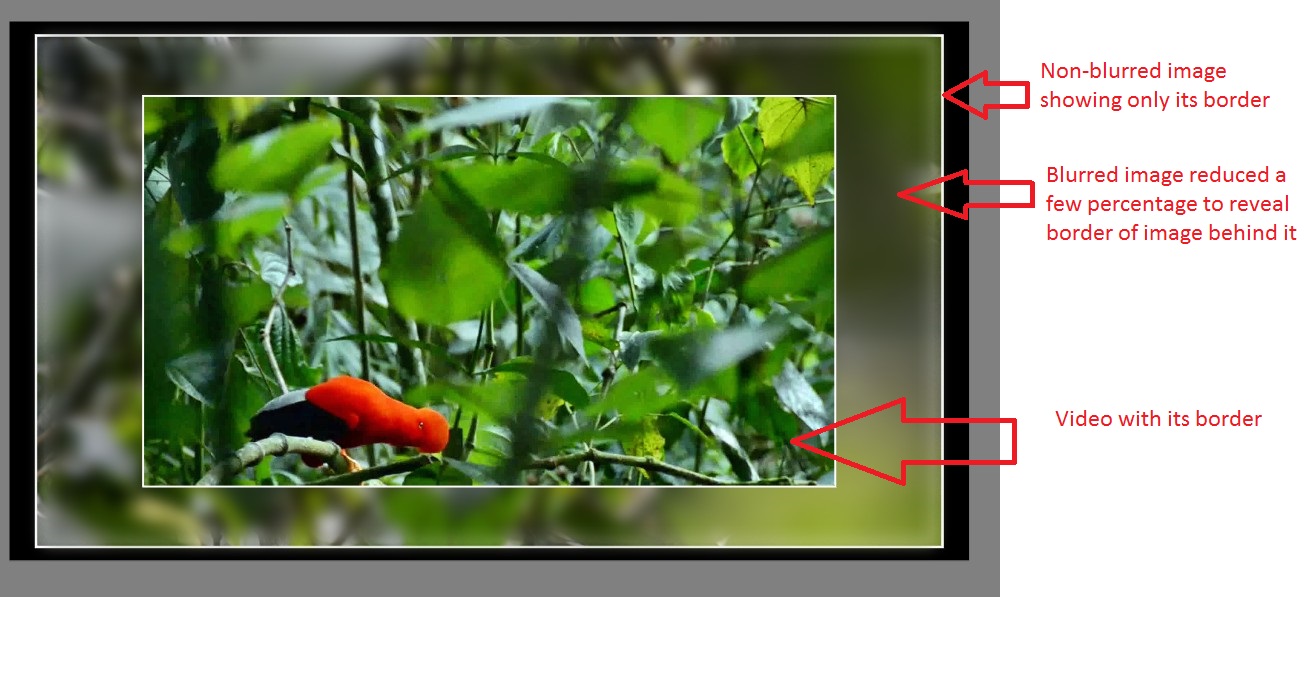
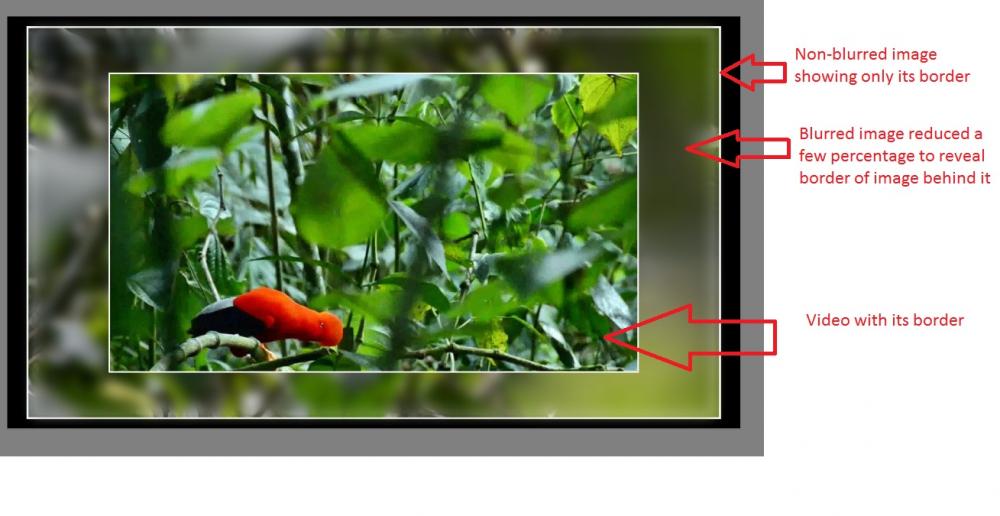
Lin... I don't think I follow you. If you place a video on top of an image with a border ("precisely the same size as the video"), it will not show the border of the image behind it. The border of the image behind the video is placed inside the image, not the outside, so the border gets hidden. My point is to be able to put a blurred image behind the video as a background and have the border show around the blurred background image. When you blur an image with a border, the border gets blurred too. In other words, I am looking for a bordered image within a bordered blurred image. See attached screenprint.... Gary
-
Lin, If I understand the first way, I'd blur an image in Photoshop and add the border to it in PTE. Then add in the reduced sized video clip to be in front of it. I think the other two ways would not work for me. Making a separate PNG border image does not seem flexible to me. And making a slightly larger color image behind the video would not solve the problem of a border around the blurred background image--if I understand what you are saying. Anyway, I tried the 'Blurring' an image in Photoshop and I don't like the results, as compared to using the PTE blur. It is not that difficult to do my 'workaround' to get the same results. I think I will stick with it. So much easier to do all within PTE, more flexible, and all within PTE. Thanks... Gary
-
Greetings, I was just experimenting with blurring a background image (behind a reduced sized video clip) but keep the background image's border in the Frame. When I select a border of the background image, I get the border. But, when I blur this background image, the border gets blurred too. Is there a way of blurring a background image but keeping its border not blurred? Gary Later...I found a workaround. I added the same image with the border. Sent it to the back. Reduced the front blurred image by a few percents to show the border of the image behind it. The reduced sized video clip now plays in front of the blurred image that is front of the rear image with its border. Can do, but is there a better way???
-
Greetings Claudio, Just uploaded a show of our trip to Jardin, Colombia, in the Slideshowclub site. I have wanted to upload it for some time now but the max size of uploads has been reduced so I finally just removed one video clip and reduced the quality of the other video clip. But I hope it is still enjoyable. Gary
-
Posted in the Slideshowclub site: This show is about our road trip from Medellin to Jardin, Colombia, to see if we could find the Andean Cock-of-the-Rock. Though it is the national bird of Peru, you can find them in Colombia, if you know where to look. My good friend, who lives in Medellin and is an excellent birder, knew where to find them. So here is a look at the town of Jardin and the beautiful Cock-of-the-Rock. There is also a few shots I took of an Olinguito, a newly discovered (in 2013) carnivore. To get under the upload size limitation, I had to remove one video clip and reduce the quality of the other. Critiques welcomed. Come take a trip….Gary (96Mbs; 16:9; 5m 7s)
-
[Solved] Run Slideshow on Exit-Version Mismatch error
goddi replied to goddi's topic in Troubleshooting
Greetings Nobeefstu.... All good points. You have refreshed my memory about such things. Thanks, especially about to just use the filename...no filepath. Gary -
[Solved] Run Slideshow on Exit-Version Mismatch error
goddi replied to goddi's topic in Troubleshooting
Greetings.... All of a sudden, it is working. Don't know what I did differently. But it works with the full path if the second show is in another folder. And it works if the second show is in the same folder as the first show, and must be in quotes. With no quotes, it does not work. I really don't know what the difference was. I thought I had saved both shows in V9.0.8. Maybe....the second show was in V9.0.7. I kept resaving the second show in V9.0.8, but maybe I screwed it up. But now it is working. Thanks all for the help. Gary -
[Solved] Run Slideshow on Exit-Version Mismatch error
goddi replied to goddi's topic in Troubleshooting
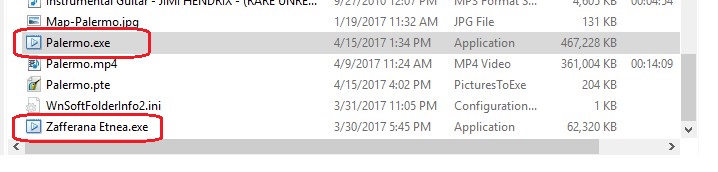
Greetings, I don't know what is going wrong. I tried it again, no luck. I now get '...Version Mismatch...' again. I know both are saved as V9.0.8. If both are in the same folder, I can understand you don't need a full path, only the filename. But it should work with a path if the second show is in some other folder. If not, Igor need to change it. If you 'browse' to a location, it would automatically put in the full path, right? Also I see you have the second show in quotes. I tried with the second show in the same folder with and without the quotes. No luck. Why do you need the quotes if the second show is in the same folder? Can't get it to work... Gary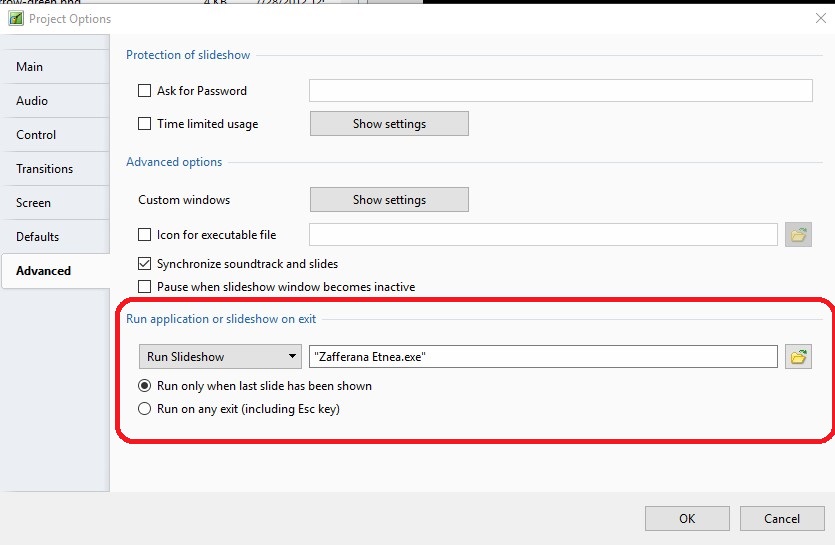
-
[Solved] Run Slideshow on Exit-Version Mismatch error
goddi replied to goddi's topic in Troubleshooting
Dave, I changed the link to exclude the path and just entered the 'File.exe'. That did not work. Got 'File not found'. I copied the second show into the folder of the first show (with path excluded). That did not work. Got 'File not found'. Bug??? Gary -
Greetings, I am having to split a larger sized slideshow into two parts so it can be uploaded to the Slideshowclub site. So I have been experimenting on using the 'Run Slideshow' to see if I can Run two of my slideshows back-to-back that I have already created. Both shows were created in 9.0.8. I selected the 'Run slideshow' in the first slideshow and browsed to the location of the second exe show and selected it. However, when it gets to the end of the first slideshow, I get '...Version Mismatch...'. Is this a bug or am I doing something wrong? Second question: If this does eventually works, do I just upload both exe slideshow parts to the Slideshowclub? Gary
.jpg.7539c0ce2bf1e27fb50ad0879fae7ffb.jpg)