goddi
-
Posts
3,593 -
Joined
-
Last visited
-
Days Won
26
Everything posted by goddi
-
Rectangle with a Window - add to O&A menu
goddi replied to goddi's topic in Suggestions for Next Versions
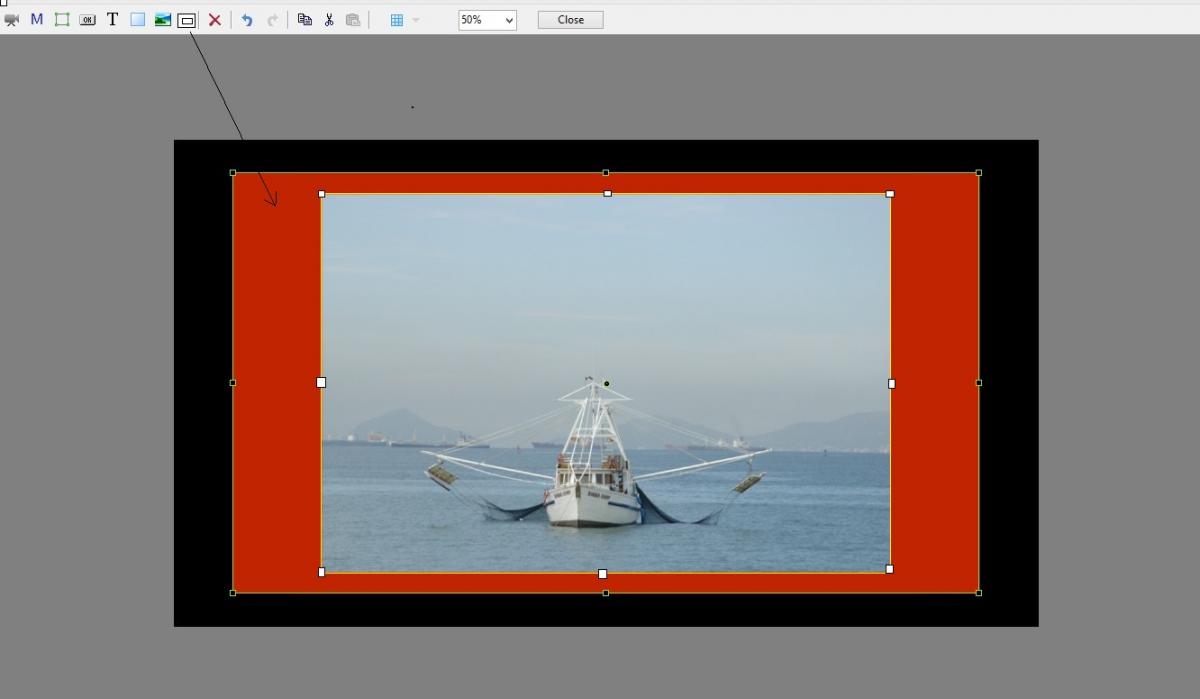
Dave, That sort of emulates what the result might be, but it is way too complicated (for me) and not as easily adjustable. Why not have a simple rectangle that has an opening, where all the edges are adjustable? Why go through all the steps to do a Mask when it really is not needed? Thanks for the example. Gary -
Rectangle with a Window - add to O&A menu
goddi replied to goddi's topic in Suggestions for Next Versions
Lin, Yes, I know you can do it as you stated. But, I want the 'Rectangle with a Window' to be able to cover the image that is added. I want to be able to bring the 'Rectangle with a Window' to the front so that I can position it in any way that I need, sort of as a frame. This would give you a fully adjustable 'frame' to an image. Your method just puts the image on top of a rectangle. Gary -
Greetings, I would like to have a 'Rectangle with a Window' object added to the O&A menu items. I'd like this object to have handles, not only on the outside, but also on the inside window so that the inside and outside edges are fully adjustable, and this window can be colored and have its Order changeable. I added a crude example in an attachment. The red window represents the 'Rectangle with a Window' with handles. I am sure this can be created in Photoshop, etc., but I think it would be very useful to have it built-in to the O&A menu with its full adjustabililty within PTE. Gary
-
Dave and Lin, No, I did not mean to say that ooc jpg images are not compressed. I was not sure what you were meaning. But I am resizing (and compressing) the original ooc jpgs even further, so I don't see how they would make a larger MP4 file. I just don't see the logic. Dave, I also just ran the show (after reducing it down by eliminating images and music files) using Low Quality and High Quality. The LQ's size is 425 Mbs while the HQ is 1,023 Mbs. So since I don't see any difference in quality, I don't see much reason for creating such large (HQ) files. Maybe it makes a difference on a huge TV screen? Gary
-
Greetings, Maybe I am not understanding some of the replies. They don't seem to be addressing the actual steps I took. Lin said "Compression level differences when you resized the files may have played a role. For example, if the original files were compressed at the equivalent of Photoshop level 8 and you resized and used a slightly smaller compression level such as 10 it could easily make the difference." Lin, The original files were not 'compressed'. They were out of the camera images. These original images were resized at 90% (Faststone). Wouldn't going from 8 to 10 be upsizing? The file became larger, not smaller, with the resizing. Dave said: "I would not really consider using the Low Quality preset - ever. It might be interesting to save the same show at a lower resolution and a Higher (Highest) quality preset? The file size would (should) go down but the quality "might" be better than the Low Quality (High Res) preset - on your TV??... P.S. With that many slides, another way of drastically reducing MP4 file size would be to knock 0.5 - 1.0 second off each slide's duration?" Dave, My main purpose in choosing Low Quality vs. High Quality is to keep the file size down. I can not see a difference between them. I have since reworked the show and knocked of about 10 minutes of slides and music, so the file is much smaller now. But I always thought and think I saw the MP4 file reduced in size when I used smaller sized images. Jt said: "In one case, the images were resized by PTE, while in the other case the images were resized by an external image editor or image viewer. Hence, the video encoder was fed by two totally different streams of images." Jt, I am not sure what you mean by the 'images were resized by PTE, while in the other case....'. For each time the MP4 file was created by PTE, they were feed the same images. Only set was larger than the other. So PTE did the same process on the same type, but smaller files. Tom said: "Interesting question. Not sure if there is a definitive answer as to why the file sizes are smaller when resized automatically." Tom, I don't understand when you say 'resized automatically'. They were resized using Faststone. I am going to do a few more test to see what's what. Maybe it was just a fluke. Thanks all, Gary
-
Lin, I can understand that if you choose different parameters (HD, bitrate, FPS, etc.), the file size will be different. However, both files were created exactly the same way using PTE's 'HD (1920x1080), low quality'. The only difference was the size of the original 328 files which were 3008x2000. And actually, when I batched resized, they were resized at 1920 on the long side so the aspect ratio was still 1.5 (1920x1277). There was not other changes to the show. Still don't understand how can reducing the files' size actually increase the MP4 file size, when all other parameters remained the same? Gary
-
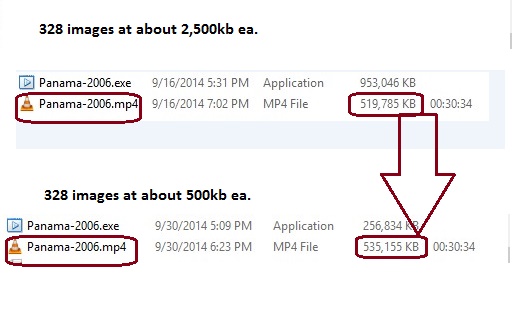
Greetings, I have a question about the size of MP4 files. I originally created a slideshow with about 328 images. This show was created using the original out-of-the-camera sized images that were about 2,500 Kb each. The size of the slideshow's MP4 file was 519,785 Kb. I then batched resized all the images down to 1920x1080, 90%, so each image averaged about 500 Kb. While I expected the files size to be reduced (as the exe files was), but it did not. It actually increased to 535,155 Kb. See attached. So I am curious why the resizing of the files would actually increase the MP4 file's size, as opposed to decreasing it. Just curious, Gary
-
Dave, I have a suggestion for some info that should be added to the Online Help for inputting adjusts to Canvas Size. I just had to go through changing the Canvas Size on in a slide show with over 300 images. I had to do this one by one. At first, I made the inputs to Canvas Size by typing in numbers and then retyping until I found the right adjustment number for each of the 4 sides of each image. This drove me a bit crazy. Then I found that if I just put the cursor in each side's input (left, right, top, bottom),I can use the Up and Down arrow keys to make the adjustments faster. Then I found out that I can also use the PgUp and PgDown to jump 10 pixels at a time to make the adjustments even faster. I had to do about 150 images before I discovered this faster way of inputting changes to Canvas Size. So I think it would be a help to add the fact that you can use the Up and Down arrow keys and the PgUp and PgDown keys to facilitate changes in Canvas Size. I see that this also works for the Animation tab. Gary
-
Yea, I got the same error message as it was installed. But I just closed the program and reopened it and then did not get the error message again. I tried opening an MP3 sound file and exported it as a test and all worked with no problem. So it must just be an install glitch that is really not a problem. Gary
-
Dave, Really excellent work! Really important to put in reminders of what you can't or should not do, also, like what you added: "Linked Audio Clips which are in the same Track cannot be Crossfaded". Gary
-
Igor, I really don't expect that you should implement all suggestions. My only point is that we are not sure that the suggestions have actually been read by you. I brought this up only because I just happened to read your posting that "I'll comment every topic (in field which located below title of a topic) with remarks: "Done: v5.10", "Scheduled for v5.10", "Declined", "Maybe in v5.20", etc." Nor do I expect a detailed explanation why you would or would not implement each suggestion made. But after reading your Pinned Readme posting, I was wondering why we don't see such comments on a regular basis. No problem. It is nice to hear that you do read the Suggestions postings. Good enough. Maybe your Readme statement should be revised. Thanks... Gary
-
Greetings, My point is that Igor said "I'll comment every topic (in field which located below title of a topic) with remarks: "Done: v5.10", "Scheduled for v5.10", "Declined", "Maybe in v5.20", etc." So it seems he had some inclination to provide some type of response. Sometimes he responds with a comment, but mostly he does not. I am not suggesting that he always provide explanations why a suggestion can not or will not be implemented. But...it would be nice to see that it was commented by them, as he stated in his posting. I think he has benefited from the users' input to make the program better, especially when we go through a Beta testing period. Getting some type of response (perhaps just 'Read'), I think, would encourage others to provide helpful suggestions. Gary
-
Eric, Yea...I cringe when I heard "I can make a slideshow in Powerpoint...." But it would be helpful if Igor would, at a minimum, post a reply that says "Read" to postings in the Suggestions forum. Or maybe Igor should revise his Pinned Readme posting. Gary
-
Greetings, It seems that many 'Suggestions for Next Versions' have been made, but few get a direct response from Igor and his team. I have assumed or hoped that Igor takes note of them and perhaps they are addressed. But we really don't know. There are many suggestions that I thought were good but they seem to fall into a black hole. There is no indication that they have been read or dismissed or planned to be incorporated into PTE. Then, today, I happened to read Igor's Pinned Readme posting. It says "I'll comment every topic (in field which located below title of a topic) with remarks: "Done: v5.10", "Scheduled for v5.10", "Declined", "Maybe in v5.20", etc." It would really be nice to get some feedback like this, but I don't see any of the suggestions that have received these types of comments from Igor. Wouldn't it be nice to get this type of feedback? Gary
-
Mur, When I say I want to be "able to select a group that begins with the initial audio file" I don't mean the entire track of audio files. I mean to be able to select and shift only a selected group that are at the beginning of the track. Gary
-
(Solved) PTE's MP4s won't play on my Samsung Galaxy Tablet
goddi replied to goddi's topic in Troubleshooting
Greetings, I keep finding more information as I go along with this issue of trying to play my PTE MP4 files on our Samsung tablet. As I have mentioned, the NTSF and the exFAT formats have their advantages and disadvantages. In the final analysis, I decided to reformat the thumbdrive back to FAT32 and deal with the large MP4 files (greater than the 4 Gb limit) by just dividing them in half or reducing their bitrate which will reduce their size. But I found that when a device (thumbdrive) has been formatted with NTSF or exFAT, Windows will not allow you to reformat the thumbdrive back to FAT32. That selection is not available when you try to do the Format command. So you have to use a 3rd party program. I found one that worked perfectly, and it is free. So for those who might run into this predicament, here is the link to a free program that I used to reformat my thumbdrive from NTSF back to FAT32. http://www.disk-partition.com/ Gary -
Mur, Yes that is what I was saying, but also being able to select a group that begins with the initial audio file. Lin, You say to 'just click on the audio selection to the left of the group...', but there is not way to 'select a group'. You have to move each one down, one at a time, with the potential of disrupting their precise positioning. But you are right that that is a good way of doing it for the time being. I remember that there was a posting that suggested, when moving audio files down to another track to retain their precise position, you can copy the audio file's 'time position', move the audio file down to the other track, then paste the time back into the box. The audio file will return to that position if it happened to be off a bit by the movement. Thanks for the reminder of that technique. Gary
-
Lin, and thanks Mur, Glad we sorted that out. I had tried everything but that!!! I was trying to be able to highlight selected audio files, then move them, sort of like we have be trained to do in Windows. However, there is still something missing. This method only allows for the movement of a group of audio files to the right of the clicked-on audio file. What if you want to move a selected group on the left side of the clicked-on audio file? Or a selected group of audio files only in the center of the Timeline? Almost there...but... Gary
-
Lin, I understand completely about where you want me to click and drag the first linked audio file. For whatever reason, yours is working differently from mine. Even the fact that the crossfade disappears when I even set up the Link to Slide is different. I know in my sample video I did not click where you wanted me to but no matter where I click, it does not do as you example does. I would hope other would give it a try to see what gives here. I hope Igor will come up with a better solution. Thanks for your help. Gary
-
Greetings, I would like to be able to highlight a group of audio files in their track and then move them as one group. For example, say I have 8 audio files in a track. All have been positioned with cross-fades or spacing where needed. But, then I want to move audio files 3-8 as a group to the right or left. I'd like to be able to highlight audio files 3-8 with a 'Ctr+key+End' (for example), without the screen position moving, and then be able to move that group left or right. Also, be able to highlight the audio files to the left of a selected audio file, with 'Ctr+key+Home'. And to be able to select a group of audio files in the middle of the track to move as a group, left or right (Ctr+key). It is also important that the screen stays in the original position, not moving right or left, after the group is highlighted. Gary Added Later: Mur discovered that holding down the Shift key will allow movement of all the audio files as a group that are to the right side of the clicked-on audio file. However, there is still something missing. This method only allows for the movement of a group of audio files that are on the right side of the clicked-on audio file. What if you want to move a selected group on the left side of the clicked-on audio file? Or a selected group of audio files only in the center of the Timeline? Almost there...but...
-
Lin, I just noticed that if you have some cross-fade set between audio file #1 and #2, before you do a 'Link to Slide' to these two files, the setting of 'Link to Slide' makes the cross-fade disappear. I wonder if this happens when you do it. And when you remove the Link to Slide settings, the cross-fade returns. Gary
-
Lin, I took a look at your video. And thanks very much for taking the time to show me that you method works for you. BUT...I followed your steps and it does not work for me. I tried it several times but something is different somewhere. You can see in the video I posted that I dragged the first audio file from the beginning portion, as you did. I don't think many users would have figured out that these steps are the ones you would use since it it is labeled as 'Linking to Slide', not for linking audio files in the Timeline. I will give it a few more shots, but I think we need a better, or more intuitive way. If it worked for you, if should work for me, but I can not see the difference in our techniques. Thanks, Gary
-
Lin, Here is a video of what I am doing. What am I doing wrong??? Gary Audio Link.zip
-
Lin, I listened. It does not work. The only way the linked audio files will move is if I move the slide. Then they move with the slide. If I go into the Timeline after linking several audio files to a slide, and I move, say the first linked audio file, only that audio file moves, not the others. Gary
-
Lin, From looking at the Help files, perhaps we are not taking about the same thing(?). When I see 'Link to a slide', that is not what I want to do. I have been saying 'Audio clips' but I don't mean 'commentary clips' that you would want to link to a particular slide (so when moved the slide, the commentary clip moves with it). I am working with full music files. I have been able to link a music file(s) to a slide and when the slide is moved, the audio file moves with the slide, as you pointed out. But this is not what I am looking for. I just want to be able to move a contiguous group of audio files in the Timeline as a group. I'll make this suggestion in the Forum. Thanks... Gary