goddi
-
Posts
3,596 -
Joined
-
Last visited
-
Days Won
27
Everything posted by goddi
-
============================================ Davegee, I don't see that this is 'off at a tangent'. I think it is exactly what the original posting is all about, which was about reducing the size of files but keeping sufficient quality. He mentioned specially widescreen format (1920x1080) and Quality size of '12'. And you mentioned Save for the Web (SFTW). Also, using Quality setting of 80, seems to be mentioned as a good starting point. Given all of this, all I did was resize an original image to 1920 on-the-long-side and see what the results would be by reducing the file size using '80' using different programs. They all came close and I understand each one has a different algorithms which gives slightly different results. That was not my point. My point was that just choosing '80' with SFTW will not give you anything close to what other programs would give you. Yes, you are right that other programs do not let you Preview the results, but when the file size is double the size of the other programs, I don't see that as a real advantage. The point was to get the file size down to a reasonable size with acceptable quality. I can view the results individually later. I put each of the images I created in my test, along with the original full size image, into PTE and I could not see the difference at all between them. I viewed them on my PC and I viewed them on my 40" Samsung flat screen. I could not see any difference between any of them. I also threw in an additional image that was reduced to 1000x633 at 80 with a file size of 147kb. Still, I could not see any difference between it and the original file. I don't see why you see my description to be 'fuzzy'. I think we did the same thing. My SFTW file is about half of the original, as was yours. The only difference is that I reduced my original image using 1920 on-the-long-side which gives me 1920x 1272, as opposed to yours which was 1920x1080, giving you a slightly less than half the size. So, perhaps, if we used, say, '60' or '50' in SFTW to get an reduced file size comparable to what others programs would give, we would get the file size down and retain the same quality. I have not had a chance to try this. But my only point was that '80' in most other programs do not produce a comparable file size that '80' would produce in SFTW. Gary
-
====================================== Greetings Davegee and all, I have a question about the Photoshop's results using Save For The Web. I took an original jpg image which was 8029kb. I resized it to 1920 on the long side at 100 quality. Its new size was 1855kb. I then saved this file in several different programs with Quality at 80: In Photoshop, its size became 447kb. In IrFanView, its size became 433kb. In FastStone, its size became 429kb. However, in Photoshop, SaveForWeb, with Quality 80, its size became 939kb. So my question is, why is Photoshop's SaveForWeb's result is so much larger than the other programs, with the same Quality 80 setting? Gary
-
========================= Bill, I didn't post my view because I was willing to go along with your change, if that is what you wanted. I have you bookmarked so it is not difficult to get to your site easily and quickly. But I do appreciate the notifications. And thanks again for your hosting of our PTE shows. Super great benefit for all of us! Gary
-
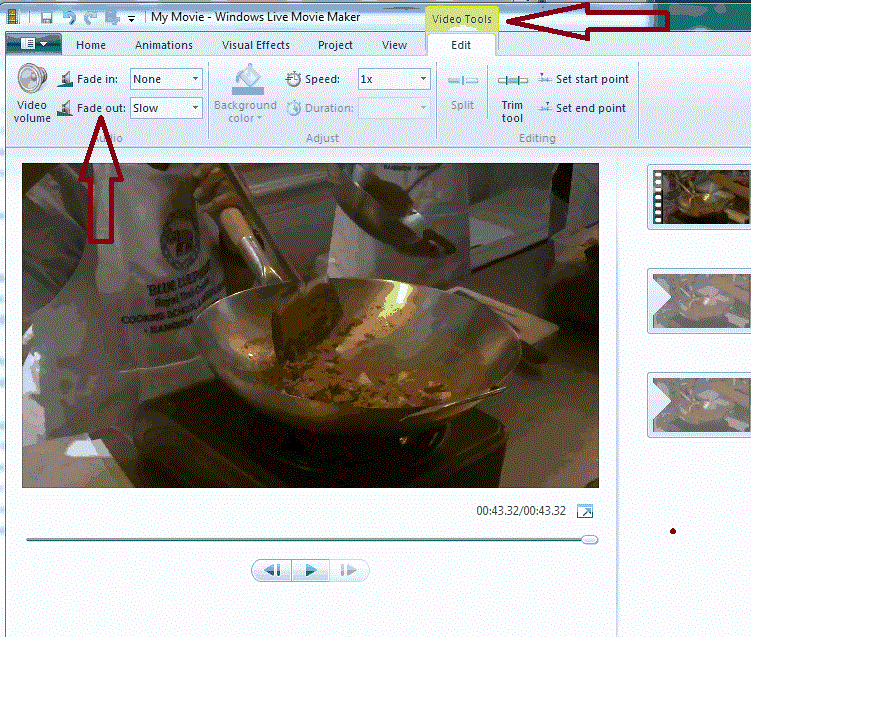
=========================== Jan, I might have a solution. You can use the Windows Live Movie Maker to fade out the audio of a video file. You can download it from here (free), if you don't already have it: http://download.cnet...4-10965753.html Just go to Video Tools and then select the speed of the Fade Out (Slow, Medium, Fast). This should fade out the audio in your video file. But it seems you want to fade out the audio at the middle of the video clip. This will only fade out the audio at the end of the video clip. I guess you could split the video clip just after where you wanted the fade out. Then fade out the end of the first video clip; then add in the second video clip with its audio removed. I am not sure if you can remove audio from a video clip with Windows Live Movie Maker. But you can with Freemake Video Converter (also free). So you can remove the audio from the second video clip and just stitch the two video clips back together. You can probably do this with Pinnacle or some non-free video program if the audio will show up on a separate track, but the two programs I mentioned might get you to where you want to be. I hope this works for you. Gary
-
===================== Barry, I use MSE. I've run scans but it shows the PC is clean. ... I'm not having problems with any other file. Mysteries of life! I turned off MSE but it did not help. But I copied the exe to my D: and my E drives (separate physical hard drives) and it played. Hmmmmm......? Gary
-
================ Barry, Very strange. I have not had any problems with other downloads from you or anyone else. Only this one file. I have no idea what is going on. I'll keep trying. Gary ADDED Later: It plays on my old XP PC. So it is just something going on with my Win7 PC. Always something.
-
Modify the '% of Slide to Show Main Images'
goddi replied to goddi's topic in Suggestions for Next Versions
=============================== Barry, You missed my point. You missed that I was talking about 'before the world of digital.' When you shot slide film, you had to do your best to get the correct exposure, etc., in-camera. Right? After you shot the slide film, and it was developed by the lab, you would put it in your slide projector and show it. No way to for manipulation/darkroom to 'close the gap.' We didn't have 'levels', or 'sharpening' or 'shadows/highlights', etc. What we view has always been different then what our cameras are capable of recording--with digital camera and with film cameras. I don't think people who shot slide film went into the dark room to make the slide itself better...they did it for printing purposes and could fix mistakes for printing. So I am not disagreeing with you about, now in the digital age, we can make adjustments to digital images. But I think you must agree that, even in the digital world, as a photographer, you want to make the best image you can in the camera, as we did in the old days with film. When I said I liked the challenge, I was referring to having to get the exposure, etc., the best I could when using slide film because we did not have Photoshop back then (yes, I am that old). Thank goodness we can now fix 'mistakes' and make improvements in the digital world, which is needed and can be done more now with digital, then with film. Gary -
================= Greetings Barry, I downloaded and unzipped the PC version. My problem is that it will not play. I have downloaded/unzipped twice, rebooted, but it does not open. I see others have not had a problem, unless they have downloaded only the Mac version. But can you check your PC version? Thanks... Gary
-
Modify the '% of Slide to Show Main Images'
goddi replied to goddi's topic in Suggestions for Next Versions
-
Modify the '% of Slide to Show Main Images'
goddi replied to goddi's topic in Suggestions for Next Versions
=============================== Greetings Barry, Thanks for the video. That is exactly how I resize my images in Photoshop if I am going to make a print. I do use Photoshop CS5 for Levels and USM, mainly. I also use Faststone (free program) for batch renaming, resizing and quality reduction (80 or so). This gets them ready for PTE. I've got many other photo programs but these are my main ones. I don't get too fancy (I don't know how to get fancy). I understand the need to resize an image as you have shown in your video. But for my work in PTE, I just think it is too time consuming to crop/resize each image individually in Photoshop and it is not really needed. I don't really want to crop my images to exactly 1920x1080 before I put them into PTE. My workprocess of doing the 'cropping' in the O&A window is, to me, so much easier and it is adjustable whenever I might want to tweak it. Since I resize using 1920 on-the-long-side, the height will be, in my case, 1272 (1920x1272). This gives me extra top and bottom portions of the image and the ability to just move the image up or down to suit me while I am in the process of creating the slideshow. It is really interesting how different crops of the same image can change the mood of the image. I can test different crops as I am creating the slide show. As I work with the making of the slideshow while in PTE, it is invaluable to me to be able to do it then, and not have to destructively crop each image before I put them in the slideshow, sort of out of context. Being able to preview the images while in PTE and make adjustment in the 'crop' without being destructive to the overall image makes it the way to go in my book. I am sure you and others will know exactly the crop they will want and will do it in a software program. I just don't have that kind of eye to positively predict how it will look or should look in the slide show. So I just wait and do it in PTE. Also, I just thought of another reason I don't pre-crop images to 1920x1080. Sometimes, I tend to take the image not exactly horizontal. With the extra top and bottom portions of the image, I get a little more wiggle room to level them out in the O&A window. And more image to pan up or down. I see many good point to not crop exactly to 1920x1080. Just my thinking. Thanks again for the video. Gary -
Modify the '% of Slide to Show Main Images'
goddi replied to goddi's topic in Suggestions for Next Versions
================= Peter, Well, your explanation finally shed some light into my brain. I see the 'logic' of how Fit to Side and Cover Slide works is now. I saw what it did but I did not understand it as you explained it. I think one of the problems is the use of the word "Slide". I think its function would be better understood if "Slide' was changed to "Screen". An image is added to the Screen (the black box or window), not to a Slide. When I think of 'Slide', I think of the slide film. So in my mind, I read it as 'fitting my image to an image (the Slide)' or 'covering an image (the Slide) with my image'. Never made sense. When you said it "increases it until one pair of edges of the image reach the edges of the Slide", it really clarified it. I still think that % of the slide to show main images is really useful for those who don't crop their images to exactly 1920x1080 and it should show the ability to input positive percentages for reasons stated in prior posts. Thanks very much. Gary -
Modify the '% of Slide to Show Main Images'
goddi replied to goddi's topic in Suggestions for Next Versions
-
Modify the '% of Slide to Show Main Images'
goddi replied to goddi's topic in Suggestions for Next Versions
============================= Davegee, Yes, I think I understand what Fit To Screen and Cover Screen does. It seems to be useful for some people to apply it to individual images or Objects in O&A, as it does now. I don't use it but I am sure some people find it good for their purposes. But I would leave it where it is. It seems to me that if you choose the 16:9 aspect ratio, and you bring in a 1920x1272 landscape image, the left and right edges of the image would be placed at the left and right edges of the screen, as it does for the 1920x1080, and let the tops and bottoms extend past the screen. The portraits would brought in relative to what the landscape images are. Giving left and right black strips only makes it necessary to include more steps to remove them. However, one of the problems with making Cover Screen a global default (at least how it works now) is that it is applied to portrait images the same way as it does to landscape images. The left and right edges of the portrait images are expanded so that the tops and bottoms are proportionally pushed out of the screen, making it useless. Also, it is all or nothing. You have no control over the results. With % of the slide to show main images, you can set the exact percentage and it is applied to each image (landscape or portrait) relatively equally. And you can always come back and tweak the percentage. The reason I think it is a better idea to make % of the slide to show main images the global default function (and moved to Project Options) is that you can specify the exact percentage you need to cover the screen for your particular images (that is fill the left and right edges of the screen, and let the tops and bottoms extend beyond the screen), so the portraits get enlarged (or reduced) by the same percentage you input. For my Nikon D7000, the 188% works fine; for my other cameras, I can use a different global percentage, or adjust certain images if different images are combined in one slideshow in the O&A/Animation/Zoom function. I resize my images in batch to 1920 on-the-long-side and with '80' or less quality setting to reduce the overall final slideshow size, but no cropping. This way, I do not have to spend time in my photo software doing any destructive cropping to exactly fit all side of the image into the 1920x1080 screen. I already have the landscape image's left and right edges moved to fill the screen. Now all I have to do is to 'crop' the images by adjusting the vertical position of the image--with no destructive cropping done. For me, it is simple, easy, adjustable. I don't consider it a 'workaround' but a good workflow. And this is why I suggested to put a slider in so that it would be obvious that you could increase the percentage in the % of the slide to show main images function. It is also strange that once you put in a percentage greater than 100%, and select Set for Existing Slides, it does not retain that value when you come back to that menu as it does if you chose a percentage less than 100%. Gary -
Modify the '% of Slide to Show Main Images'
goddi replied to goddi's topic in Suggestions for Next Versions
===================================== Greetings Barry, Sorry for any confusion I have made. Let me restate what my problem is because I am confused a bit from your response. I resize my image, using Faststone, from my in camera's 4928x3264 , to 1920 on the long side, to reduce the overall size of the final PTE slide show. I do Levels and USM in Photoshop, but no cropping. So my images are not really 1920x1080 but come out as 1920x1272. When I bring these images into PTE, with its aspect ratio set to 16:9, they do not fill the O&S's 16:9 screen. I have black strips on the left and right sides. Then I input about a 118% amount to the % of the slide to show main images, which gives me a global change (Cover Screen does not). However, you say I don't need to use the % of the slide to show main images function if I have already resized my images to 1920 on the long side. Here is were I am confused. Whether I bring in an original 4928x3264 sized image or my resized 1920x1272 image (both 1:5), I get the black bars, left and right. When I use the % of the slide to show main images, I don't mind that some of the top and bottom portions of the image are beyond the 16:9 screen. This gives me the opportunity to crop each image buy just moving the image up or down to get the best crop. I prefer this non-destructive method and very adjustable method then doing it in a photo editing software. So, what am I missing if you say an image that is resized to 1920 on the long side does not need the % of the slide to show main images (or manually zooming in on the image) to get rid of the left and right black bars? Is there some other setting that I have missed? STOP THE PRESS: Just before I was going to post this response, I took an image and actually cropped it to 1920x1080 and brought it into PTE. I now see, says the blind man. This cropped image does fill the Q&A's 16:9 aspect ratio screen, no black bars! I had always assumed that if one side of the image was 1920 then it should fill the left and right sides of the 16:9 O&A screen, and the tops and bottoms would just extend beyond the screen. But since my resized images are 1920x1272, for whatever reason, I get the left/right black bars and I have to use the % of the slide to show main images to bring the left/right edges to fill the screen. So now the question is, if I set the Q&A's aspect ratio to be 16:9, why does it not automatically fill the 16:9 screen to the left and right edges, regardless of the resized height of the image? Gary -
Modify the '% of Slide to Show Main Images'
goddi replied to goddi's topic in Suggestions for Next Versions
======================== Greetings Nobeefstu, Are you saying that if I use the % of the slide to show main images to increase my images to fill the O&A's 16:9 aspect ratio window, the PTE slideshow might show up differently on other displays? The 118% I use works for my images but you can put in whatever % that works for your images to eliminate the left and right black strips. I don't see it as adding a percentage for 'my own display'. It is only to fill the 16:9 aspect ratio that I am assuming will show up exactly the same on any wide screen monitor or TV. What am I missing here? Thanks... Gary -
Modify the '% of Slide to Show Main Images'
goddi replied to goddi's topic in Suggestions for Next Versions
Greetings Barry, Gary -
Modify the '% of Slide to Show Main Images'
goddi replied to goddi's topic in Suggestions for Next Versions
=================== Barry, Hmmmmm..... You've got me thinking. I always used 1920 on the long size because that is an established size. However, I think I see your point. If I want to fill the 16:9 aspect ratio in PTE, what is the proper size I should use if not 1920? It is late so I can't experiment right now but is there a known value so I don't have to do a lot of testing. If I follow your logic, and resize it to fit, then I don't have to increase the size to 118% and I will be at the same spot where I only have to worry about moving the image up or down to satisfy best crop? Thanks, Gary -
Modify the '% of Slide to Show Main Images'
goddi replied to goddi's topic in Suggestions for Next Versions
========================= Davegee, There really is no contradiction. The beauty of the % of the slide to show main images function is you can put in whatever percentage that suits your needs. My camera's images need about a 118% amount to move the left and right edges of the image to fit the aspect ratio window in PTE. Someone else's images might need a different percentage. You can play with the percentage amount to fit your purposes, to fit the aspect ratio exactly or have it to be more or to be less than the aspect ratio window in O&A. Jill had a good idea to allow you to apply the % of the slide to show main images to different blocks of images to make it even more useful. The 'Cover Screen' function does not allow you to do this. It will be interesting to see what the poll produces. Gary -
=========================== Actually, I can not vote for either. I don't use 'Cover Screen' for a couple reasons. First, you have no control. The 'Cover Screen' function fills the image window to remove the left and right black strips and that is what you are stuck with. You can't choose a more or less result. And, if you have portrait images, it does the same to them, which really makes no sense. I would remove both, Cover Screen and Fit to Screen, from the menus and put the % of the slide to show main images in Project Options. This would give you the choice to choose the exact % increase (or decrease) in size for your images and the ability to make adjustments by just changing the percentage. This probably isn't what you wanted but this is how I see it. Sincerely, Gary
-
Modify the '% of Slide to Show Main Images'
goddi replied to goddi's topic in Suggestions for Next Versions
================= Greetings Davegee, I never wanted to get in the middle of the discussion about making the 'Fit To Screen' or 'Cover Screen' to be the default or not. Since I don't use them, I yield to others for this. I just thought it would make sense to make it easier and more obvious to show that the % of the slide to show main images function could be increased to greater than 100%, since it can be done. And I think it is a very useful function to use it as I described in previous postings above and I don't think it takes away from any other functions. I don't think it is a 'workaround.' Thanks for your thoughts. It's great to have these discussions. Gary -
Modify the '% of Slide to Show Main Images'
goddi replied to goddi's topic in Suggestions for Next Versions
======================== Davegee, Not sure why you use the word 'badger' but this has been just a simple request that I think would make this specific selection to be a bit more obvious in what it seems it can do (only 100% or less). The problem with 'Cover Screen', at the present time, is that it can be applied to only one image at a time. The % of the slide to show main images can be applied to the entire list of slides with one click. I am sure many use 'Cover Screen' for their specific purpose and I would not want to disrupt that process. I don't think changing the % of the slide to show main images choice to be a slider is such a big deal but it will illuminate other possibilities (increasing to more than 100%). And I can't really see any purpose for it to be only for reducing the size of images to be below 100%. I don't think making it a slider for both negative and positive changes would be stepping on anyone's toes. And I suspected, some people, like Jill, did not realize you could type in a percentage greater than 100%. Gary -
Modify the '% of Slide to Show Main Images'
goddi replied to goddi's topic in Suggestions for Next Versions
================ DG, Yes, I resize my images to 1920 on the long side, to reduce the overall size of the PTE exe file. Gary -
Modify the '% of Slide to Show Main Images'
goddi replied to goddi's topic in Suggestions for Next Versions
========================== Barry, I am only saying what works well for me, of course. Maybe others are not aware of this easy way of making their images fit the 16:9 aspect ratio. It took me a few years to find the % of the slide to show main images tool before I figured out it would save me a lot of time. I had been adjusting the aspect ratio (or crop) of each image, one by one, in O&A. I do use Photoshop for Levels and Sharpening. But I don't want to do a final 'crop' until I get the image into PTE. I just think that if you can input an amount greater than 100% in the % of the slide to show main images block, then why not allow for a slider that actually shows you that an amount greater than 100% can be entered? In the end, I don't see an issue with the final quality on an image whether you use my method or doing it in Photoshop. Do you? Gary -
Modify the '% of Slide to Show Main Images'
goddi replied to goddi's topic in Suggestions for Next Versions
================== Davegee, Ok, I see your method. But I like my method because it allows me to make adjustments to the 'crop' in O&A while making the slide show. Many times, I can see big differences in the 'feel' of the final image when I move the 'crop' up or down, even just a little bit, while in O&A. It would be a real pain and take so much extra time to do the actual crop in image software. And if I didn't like it, having to redo it all over again is not appealing. There does not seem to any real difference in the final result, except that I can get to the final result much faster (?). I'd do your method only for only those images that I actually will be printing. Gary -
Modify the '% of Slide to Show Main Images'
goddi replied to goddi's topic in Suggestions for Next Versions
========================= Yachtsman, Sure, of course you can crop each image, one by one, in Photoshop or whatever you use. However, to me, I'd rather not. Cropping the image in Photoshop, or whatever, is a permanent change to the image. If you use my method, you always can tweak the 'crop' as you are making the slide show. AND, my method of 'cropping' using % of the slide to show main images is soooooo much faster (and adjustable). Gary