

tom95521
-
Posts
3,689 -
Joined
-
Last visited
-
Days Won
47
Posts posted by tom95521
-
-
Simple backlight frame using two masks and gaussian blur. LED backlight is sometimes known as Ambilight available on certain model Philips HDTVs.
https://www.philips.co.uk/c-e/so/tv-buying-guide/what-is-ambilight-tv
It is slightly different than the Border Simple Style in PTE AV Studio.
Thanks,
TomUpdate: New version should work with any aspect ratio.
-
 3
3
-
-
I ordered a P950 and probably a monopod next. This photo of a Sandpiper sunning on a rock at high tide was taken with my old FZ150 a few days ago. We also have many ducks, pelicans, herons, and egrets at our local wildlife sanctuary,
https://photos.app.goo.gl/1z59MEWwsT9irKnT8
Thanks,
Tom-
1
-
-
Very nice. I like the animation. I am thinking about purchasing a Nikon P950 for wildlife photography.
Thanks,
Tom -
The new Affinity all in one app (Pixel, Vector, Publisher) is now available and basic functionality is free. If you want the AI features then it is US $15/month subscription. I don't know if AI is local or cloud based. Canva is a competitor to Adobe.
https://www.affinity.studio/get-affinity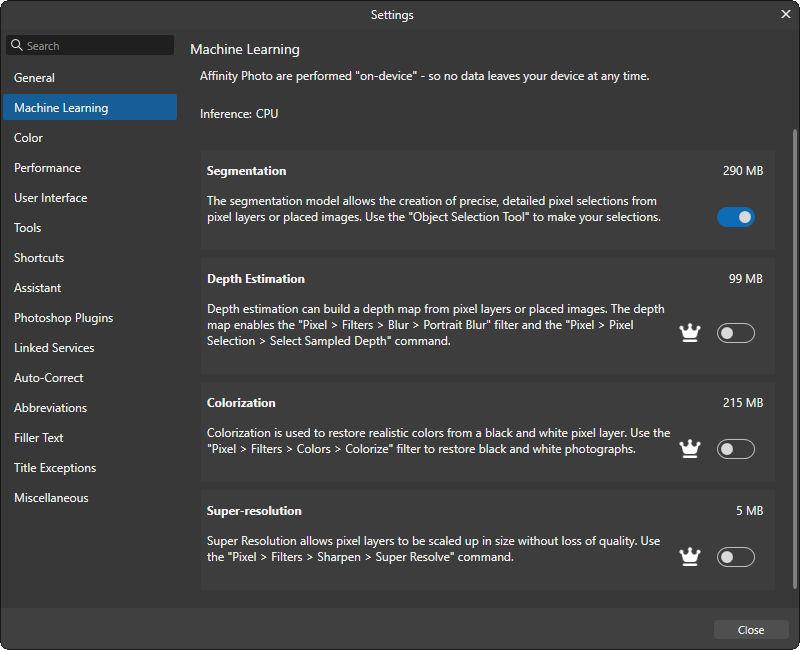
-
1
-
-
That should be interesting.
Thanks,
Tom-
1
-
-
Topaz is considered by many to be one of the best AI image resizing software but recently switched subscription. If you are looking for alternatives to subscription based image resizing then you might try Upscayl which is free open source software and available for Mac and Windows. Like most AI software it works best on a Windows computer if you have a good graphics card or a Mac silicon computer.
If you install Gimp open source image editor on a Windows or Linux Vulcan compatible GPU then this is one of my favorite free AI upscale options.
https://www.gimp.org/
https://github.com/Nenotriple/gimp_upscale?tab=readme-ov-fileExample of a popular non-subscription AI software.
https://www.aiarty.com/ (Part of Digiarty which also sells VideoProc Converter AI)This is a good free online image scaler if you have just a few photos.
https://imgupscaler.ai/Here are a few samples for comparison.
https://share.cleanshot.com/LZc2XWxp
https://share.cleanshot.com/K3LtRNf3Tom
-
1
-
-
My list of image comparison software that supports Mac and Windows.
For the Mac and Windows there is the free XnView MP image viewer.
https://www.xnview.com/en/xnview-mp/For Windows there is the free FastStone Image Viewer and IrfanView.
https://www.faststone.org/FSViewerDetail.htm
https://www.irfanview.com/If you want to purchase software there is ACDSee Photo Studio which has image comparison option.
https://www.acdsee.com/en/photo-editing-software/Sample Comparisons
Irfanview https://share.cleanshot.com/mM1X6Vl3
XnView Windows https://share.cleanshot.com/1BsSw8Dd
XnView Mac https://share.cleanshot.com/vxLzy7cFSoftware that I have been testing recently. AI is now very common for image resizing, subject masking, and noise reduction.
Win/Mac Free RapidRAW https://github.com/CyberTimon/RapidRAW
Mac Image Restore AI https://www.neuralmoon.ai/image-restore-aiTom
-
3
-
-
It's fun to experiment with PTE. I created 2 more versions with more blending steps. It seems to improve deflicker on the 20 to 60 version.
Thanks,
TomTimelapse Blend 20 fps.ptestyle Timelapse Blend 10 fps.ptestyle
-
1
-
-
Sample of frame blending using dissolve transition. Comparison with single step frame at the end. Taken from an indoor security camera pointed out window towards the sky. It's been overcast and raining so I can't go outside with my camera to capture photos with a better camera. Waiting for the weather to improve.
Two Styles.
Style 15 fps publish at 30 fps
Style 30 fps publish at 60 fps
Missing Style 25 fps publish at 50 fps (just modify one of the others to .040 for slide and dissolve time).Thanks,
TomTimelapse Blend 30 fps.ptestyle Timelapse Blend 15 fps.ptestyle
-
3
-
-
Yes. I have been testing a few timelapse videos and have found that frame blending works best when the publish frame rate is 2x the slide frame rate. You can see the difference when moving frame by frame in the video. Some people may not realize that PTE can create timelapse and hyperlapse style videos from images. I have been comparing results with other software (QT, GlueMotion, TLDF, and CamDoMachine,PTE is comparable in quality. I think frame blending is better when the output frame rate is at least 30 FPS so 15 FPS has limited value.
Thanks,
Tom -
I have been experimenting with timelapse by combing images with short slide duration. By adding a very short dissolve transition between slides it appears to smooth the video like motion blur (often called blending in other timelapse software). If we had a 15 FPS publish option then the file size would be smaller (depending on movement between frames).
Thanks,
Tom -
An outline/stroke font would be great but might be complicated due to how PTE converts fonts so they can be played on other computers without the same font. If you really need crisp outline font without animation then a high resolution PNG image is another option.
Tom
-
Very nice. It's interesting to watch clouds move in different directions at different altitudes. On clear nights you can watch the stars move in a circular pattern across the sky.
I have added 15 fps and 24 fps timelapse styles to my previous post in styles and templates sub forum.
Thanks,
Tom -
Great. It's easy to change the frame rate by adjusting the slide time. I can make styles for 15 fps and 24 fps.
.067 ms for 15 fps (14.9 fps)
.042 ms for 24 fps (23.8 fps)
.033 ms for 30 fps (30.3 fps)Looking forward to your show.
Thanks,
Tom-
1
-
-
Sort the images before importing by Date/Reverse order or Name. Apply the style to the images before or after importing. Publish as a video to view. Many newer cameras have a video timelapse option. Camera shutter speed should be 1/2 capture frame rate to add motion blur. If you capture at 5 second intervals the shutter speed should be 2.5 seconds.
Thanks,
TomUpdate: Sep. 5 2025 Added 15 fps and 24 fps styles.
Update Sep. 6, 2025 Added frame blending (dissolve transition) style for smoother video. Blending attempts to add synthetic motion blur but can create ghost images for fast moving objects. I also renamed regular version to quick.
Update Sep 10,2025 Frame blending moved to another post in this thread.
Timelapse Quick 30 fps.ptestyle Timelapse Quick 24 fps.ptestyle Timelapse Quick 15 fps.ptestyle
-
4
-
-
Very nice photos. I have an insta360 camera that I need to spend time learning how to use.
Thanks,
Tom -
This is a useful system tray app that allows you to quickly access and configure the screen saver using hotkeys.
https://goat1000.com/trayblank.php
Thanks,
Tom -
I agree video trim could be improved by using keyboard shortcuts to set the trim points and to single step video frames. I use the Objects and Animation editor without using the Adjust Time Range window.
My video trim workflow (accurate to within a few frames).
1. Move the video you want to trim to slide 1.
2. Scrub the timeline with mouse to where you want the the video to start, note the time, and then set the start time of the video (in).
3. Scrub the timeline with mouse to where you want the video to end, note the time, and then set the video duration (if using a transition) and slide duration (out).
4. Move the slide back to the previous location.When using multiple parts of a long video, just make a copy of the slide before moving it to slide 1 to set the trim. PTE is smart enough that you don't have to create links to a master video since it only keeps one copy in the published slideshow.
I have not been following posts related to possible PTE 12 features so split and trim may be much easier in the future.
Tom
-
One method that does not require a custom mouse pointer is to mouse click to switch between resize and rotate. Sample from Boxy SVG.
Thanks,
Tom
-
Too bad there is not an operating system provided mouse pointer for rotate. I guess it requires a custom pointer and software that reads the system pointer size and adjusts automatically. It's easy to make a custom cursor from a .png file. Maybe there is a file in the WnSoft folder that can be updated. This might be considered a Suggestions for Next Version instead of Troubleshooting. My 68 year old eyes can see the small cursor but I usually increase the size.
Thanks,
Tom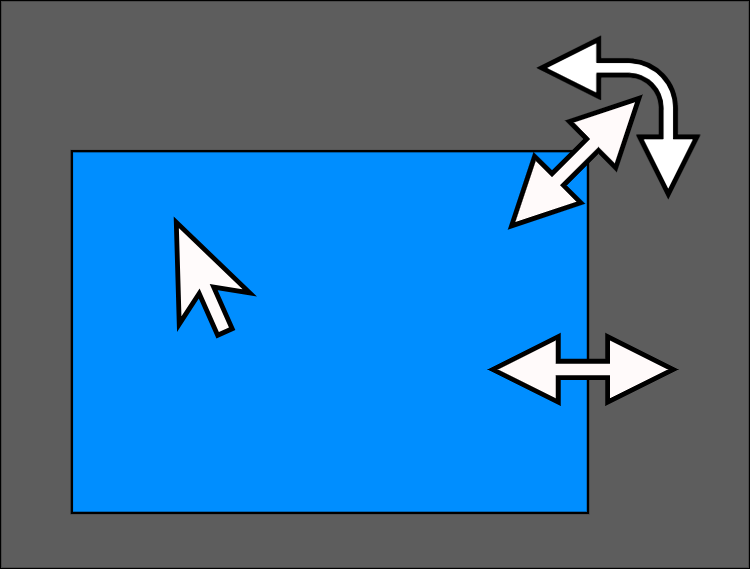
-
I have noticed that when I increase the size of the mouse pointer in Windows that the rotate object size does not increase, On a Mac it increases in size but the rotate pointer resolution is lower than the other pointers.
Windows 11
PTE AV Studio 11.0.18Thanks,
Tom
-
I recently purchased a low cost N150 Win 11 Pro mini PC ($150) to replace my old i5 desktop PC that is non-upgradeable to Win 11. I was surprised how well PTE AV Studio 11 performed on the N150. Very low power requirements and no fan noise at 1920x1080 display resolution. If you need 4K display resolution then I would probably buy a more expensive mini PC with DDR5 memory, and a CPU with higher performance iGPU. For most people I don't think you need a full size desktop PC in 2025.
Tom
-
 1
1
-
-
I have tested various methods to display videos as live wallpaper and screen savers.
Windows
PTE AV Studio (publish .scr screen saver)
Pot Player (free screensaver)
Wallpaper Engine (wallpaper/screensaver)
Push Video Wallpaper (wallpaper/screensaver)
Lively Wallpaper (free wallpaper/screensaver)
WinXcorners (free emulates Mac hotcorners)
HideDesktopIcons (free download link)WinXcorners and HideDesktopIcons work well together to start the screensaver or show/hide the desktop icons.
Mac
Dynamic Wallpaper Engine (wallpaper/screensaver)
I know there are other apps but I am happy with this one.Lively wallpaper can add depth map to bitmap images (like Photoshop neural filter depth blur) so the have slight parallax change during mouse movement.
Thanks,
Tom-
1
-
-
MKV is a great format for high quality video with support for subtitle tracks that can be hidden or displayed. Both PTE Studio and PTE Optimiser can play MKV files but not the subtitle track. MKV file size is usually much larger than MP4. It would be great if we could take a subtitle track in the MKV and embed (hidden) or maybe burn it (overlay) into the MP4 video.
Thanks,
Tom-
1
-
Backlight Frame Style - 16:9 aspect ratio
in Styles & Templates
Posted
Very nice. I like your version better. I have many ideas but sometimes I get distracted and don't finish what I started.
Thanks,
Tom