All Activity
- Past hour
-
Can Adobe Elements be linked to an image direct
davegee replied to Janet Wright's topic in Troubleshooting
In PTE go to Settings / Preferences / System / Graphical Editor - Click on "Use the following programme" Navigate to the C Drive / Program Files / Adobe folder. Look for a Photoshop Elements folder - open it. Within that folder you will see an EXE file - probably "Photoshop Elements.exe". Click on it. Click on OK. That will allow you to use the Edit function from PTE. Please do not take this the wrong way but I wonder why you find Adobe Subscription exorbitant? At £120 per year that is less than the price of a cup of coffee once a week from Starbucks. ....and for what you get - Photoshop, Photoshop Beta, ACR, Lightroom (3 variants) and Bridge (and almost daily updates and improvements) - I call that a bargain. DG -
When you save a project, it saves unused material
Igor replied to SoCu's topic in PTE AV Studio 12 Beta
We'll fix it in future Beta 9. - Today
-
Just wondering if the edit on an image ( right clicking ) in a show and the image goes into elements to be edited and then saved back to the show. I could do this before with Photoshop CC but all the files connecting it to the show have disappeared since I got a new broadband providerI am going to be cancelling Photoshop CC due to the price they are charging and using Adobe Photoshop Elements. Can this be linked to PTEStudio Pro and if so how? Hope someone knows the answer Thank you Janet
-

When you save a project, it saves unused material
SoCu replied to SoCu's topic in PTE AV Studio 12 Beta
It seems to work when it feels like it, hehe, Today, with two projects I've tested, it keeps saving resources that aren't used. The styles were tested in the project at some point, but since they weren't applied, it's an impossible task to have to keep opening and closing PTE every time a transition is tested so it doesn't save those resources. This has happened to me before when I exported a transition to keep a copy; it saves resources that aren’t part of that transition. Well, if you already know where the problem might be, then it can be fixed. Thanks. - Yesterday
-
When you save a project, it saves unused material
Igor replied to SoCu's topic in PTE AV Studio 12 Beta
I think that I've understood what happened. It appears that the versions (revisions) of this transition are different (in the project and in the global storage). You previously applied this transition to slides. Then you modified the transition in the global storage being in another project (changed something). Usually, when a project uses a transition, it syncs automatically, but this didn't happen in your case because the transition wasn't used but hadn't yet been deleted from the project. We'll try to fix this. Simple solution: 1. Temporarily apply this transition to one of the slides. 2. Click OK and close the project. 3. Open the project (PTE). 4. Untick the transition. Click OK and close the project (PTE). Now unused resources will be deleted automatically from the project folder. -
Beta 8 is available See the download links above. Improved the Trim and Adjust speed window (for a video object). Also the original duration is now displayed correctly. Quick Search accent-insensitive matching has been improved with broader language and character support. Improved installer on Windows: fonts now render larger and are easier to read at 125%+ display scaling (HiDPI support), and the installer now respects the system Dark Mode theme. Added a Japanese translation.
- Last week
-
When you save a project, it saves unused material
SoCu replied to SoCu's topic in PTE AV Studio 12 Beta
Sorry, Igor, but I can't find that menu option to remove transitions locally. I understand that it's under Project Menu > Project Options (Ctrl+P), in the “Transitions” section, but nothing appears in the “Embedded Transitions” list.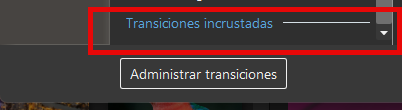
-
Thanks Igor. I know nothing about programming. All I know is that in other programs one just selects the text size, the font and colour. Line spacing is an option too. Easy for me to say I realize but the option would be great. Good luck. Rosemary
-
When you save a project, it saves unused material
Igor replied to SoCu's topic in PTE AV Studio 12 Beta
I downloaded and checked your project Proyecto 2_Mar22-2026_9-30-44.zip (62 MB). This project includes one heavy custom transition (10 variants, 62 MB, 20 video files). It's included as Embedded transition (local project storage). It means that it's included in the project (not in the global storage). For this reason, the program doesn't clean up its resources, even if no slide uses it. This is because the transition is stored in a single, unique instance - in the project's resources. If the transition is in the program's global storage, the program (PTE AV Studio) automatically cleans up the project's resources as soon as all slides stop using it (when the project or PTE AV Studio is closed). To resolve this particular case, simply remove the transition in the list of transitions in Project Options / Slide Options and close the project. Be careful - re-check that you have a copy of this transition before deleting it. If you didn't specifically create this transition in the project's local project storage, this situation could have occurred for the following reason: 1. You created or imported a new transition into the program's global storage. 2. You used this transition in a project. 3. Then you shared a ZIP copy of the project with another user (or moved the project to a second PC). 4. PTE AV Studio always saves a local copy of the transition in the project, so you can correctly open this project on another computer where the transition isn't yet in the global storage and it won't be automatically added there. 5. Thus, the transition becomes a local transition (embedded transition). If you now stop using this transition, resource cleanup will not occur automatically. -
Thank you for your comment.
-
Hi, We're planning a major improvement to a text object before the final release of version 12.0. I just want to make sure the new code works as intended before announcing it. Regarding the issue of keeping consistent text size between slides. I understand this task. But how can we implement this, if the text size depends on where the text object is added - on a slide or as a child object? Years ago we've added one solution (which, of course, isn't suitable for all cases) - a text comment. The text object has a special mode - text comment. And its size can be controlled through the Project Options (for all slides or for new slides) in the Pro version of PTE AV Studio.
-

When you save a project, it saves unused material
AleAle5025 replied to SoCu's topic in PTE AV Studio 12 Beta
I had issues with duplicates. Here's how to work with an old slide to make changes or extract content from it without creating duplicates or breaking the original slide: Open the old slide in the program and copy the entire slide from start to finish onto the timeline. Once you've copied it... Click on the word "File" in the panel, then select "New Project." In the new project that opens, paste the copied old slide on the timeline. Give the new project a name and confirm. Save the new project and continue working with it. Now you won't have any duplicates. This is the correct way to work with old slides and transitions to avoid duplication issues. -
Thanks, Igor, for keeping it in mind, even if we have to wait a few years before we can use it, haha. What I'm most excited about is being able to have multiple tracks or timelines for video or images—it opens up a whole range of possibilities for working better and faster.
-
When you save a project, it saves unused material
SoCu replied to SoCu's topic in PTE AV Studio 12 Beta
Hi, thanks to both of you for responding. To prevent that from happening, do I need to create a project, and once it’s finished, create a new one to paste the slides into? It must be because something isn’t working right. I understand that this material is needed so the user can undo changes (Ctrl+Z), and when the program closes, it should delete them, but that’s not the case—when the program reopens, the transition folders with the video files are still there. I passed the project on to another user, and when they opened it on their computer, they were still there. This doesn’t just happen with projects; I’ve also noticed it when I’ve exported transitions or styles to send to another user. I saw that the file was much larger, and it was because it contained material that didn’t correspond to what was used in the styles or transitions. As I said, it can take me a while to finish a project, and I close it many times and reopen it, and the folders with unused material are still there. It doesn’t happen all the time, but now that I’ve been working on a project, I’ve seen it again, and I’ve mentioned it. Igor, regarding the project I sent you, I don’t know if the transitions folder was deleted when you opened it, but I still have it. -
Hi, Mark. Thank you for your feedback on my work. I hope you'll learn the style and use it in your own work. Thank you.
-
When you save a project, it saves unused material
Igor replied to SoCu's topic in PTE AV Studio 12 Beta
Re-open this project (or restart PTE AV Studio), and the program will remove unused resources associated with this project. This works this way, because user can undo changes (Ctrl+Z) and return some transition with video resources to the project. Therefore, clearing unused resources always occurs when closing the program or closing the project (re-opening the project). -
Hi, That's a good idea, thanks. But in the future V13, we plan to add multiple slide tracks, which will allow the logo to be displayed with better flexibility and customization. An universal tool would better than specialized tool.
-
Hello Alex Just saw this and downloaded. I need to get my head around these soon. Thanks for sharing. Mark
-
Hello Great and very modern. Especially suited to the images in the sample video. Will look at it later in more detail. Thanks for sharing. Mark
-
When you save a project, it saves unused material
AleAle5025 replied to SoCu's topic in PTE AV Studio 12 Beta
Create a new slide without duplicates. Copy the slide that you want to edit. Open a new project in the program. Paste the copied slide. Edit the slide. Now you will have a new slide without duplicates. -
It happens again and again. The original poster asks for a particular feature, here "Text size". It might be helpful to present lots of workarounds, but they should be posted in seperate topics! Otherwise, the original topic looses its way.
-
Thanks Jill,. I shall have a play with this. It doesn't stop me from hoping for the option to set a text size though. I shall live in hope. Rosemary
-
Hi Rosemary, I understand what you mean about keeping all the Text the same throughout a Show. If you are using a lot of Text, I find it best to type it out in something like Word first. That way you also have a Spellchecker. If you know that you can get say 15 lines of Text on one Slide, then simply add Blank Lines to each section, so that you always have 15 Lines. Then you can just copy those 15 lines needed for a Slide & Paste it directly into PTE. That way it will always be the same size. To make sure all the Lines are aligned then set the Text Object to be Left adjusted & set the Center Point to -100. Your Pan X is then set to say -90 and you know that all of your Text will start & be aligned to the same position. Do this before you add any actual Words You then just copy & Paste from Word for each Slide needed. Maybe set up a standard set of 15 lines - doesn't matter what it actually says. Add this to Slide 1 & then using the Quick Slide Style, Apply this Sample Text to all the others you need - It is then done in one go. You then can quickly change the actual words by Copy & Paste from your Word doc Quite quick really. Hope this helps Jill
-
Hi Jill, Thank you for getting back to me. Thank you for the tip about copying the text object in O&A. I tend to use a lot of text, usually a slide worth to explain what or where we were. I find that after a few years I forget where the picture is from or about! I feel that if the text isn't the same size throughout the show, it looks untidy. The intro and credits can be different text or size but the main body text, I feel, should be uniform just like a book or newspaper text. I long for the day when one can just select a size for the text and that is it - no copying and pasting needed. Thanks again Jill, Rosemary
-
You don't copy & paste the Slide with Text, just the Text Object in O&A. At least with this method you are certain to keep the same Font, Shadow & colour throughout the show. I don't find it a problem. But then I mainly only use Text for a Title & end Credits. And each of these would be a different size anyway. I never look at the Zoom size & just drag the Text to the size that looks right on the image. The ability to easily use a different colour or Font for some characters in a word or line, without having to create a separate Text Objects would be much more useful. I have recently needed to create a line where the first letter of each word was a different colour & size took much longer as they all had to be separate Text Objects. And keeping the spacing correct, especially if there is animation was difficult. Jill