All Activity
- Past hour
-
Behind the Camera (Courtesy Alex55 Viewfinder Template)
Aleina Show replied to canaro99's topic in Styles & Templates
Hi John, The video turned out great! The project was a perfect fit for your idea! It's so dynamic, just right to capture the energy of tango! And the photos are beautiful! - Today
-
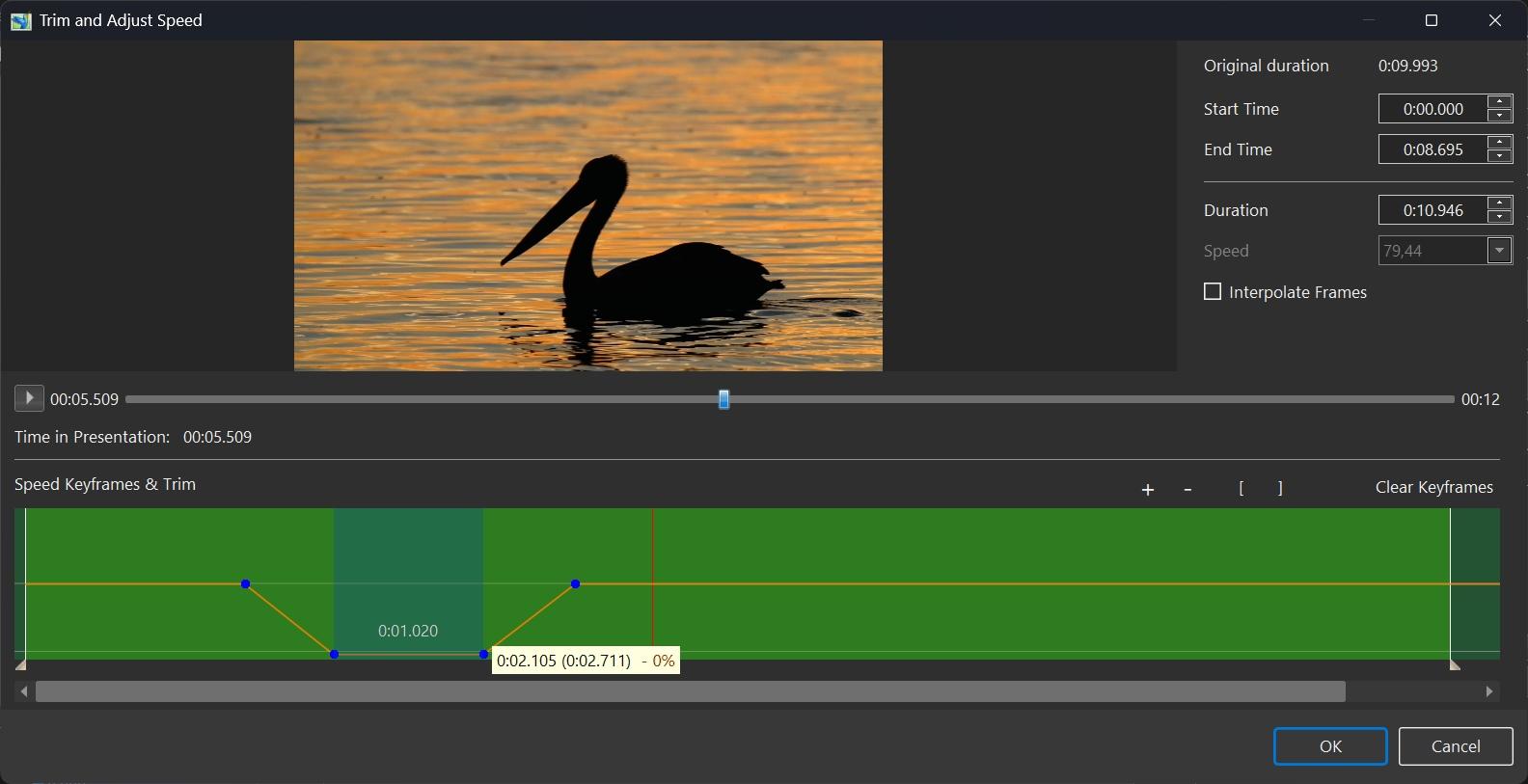
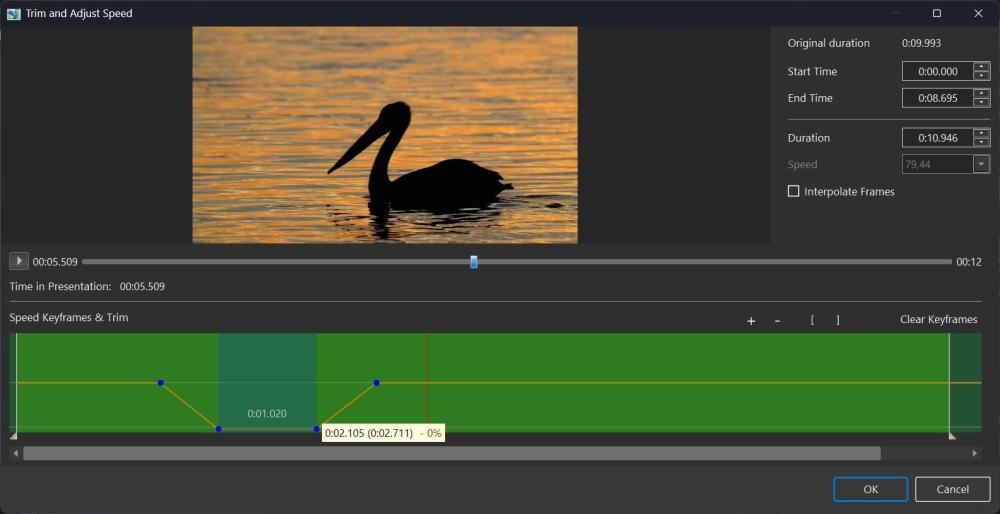
Hi, In PTE AV Studio 12, we've included a new feature - Trim and Adjust Speed editor for video objects. As in previous versions, you can adjust the start time, duration, and simple video speed. Now it's possible to add keyframes on a special timeline to flexibly control video speed. This works similarly to how you use the envelope tool to change audio volume at keypoints in the main window timeline. You can smoothly slow down video playback, then speed it back up to normal. You can also insert a pause where a video frame stays still for a period of time. Simply click on the orange line to add points, then drag a point up or down. By default, speed is set to 100% - original speed. Setting it to 200% will double the video speed. Setting it to 0% will stop playback completely. Placing two points with zero speed next to each other creates a pause interval during playback. This is shown in the example below. Note that a hint for a selected keypoint on the timeline shows two time values: - the original video time - the modified time, which reflects the effect of slowdown or speedup. You can zoom the timeline in or out using the "+" and "−" buttons on the toolbar, or with Ctrl + mouse wheel. The "[" and "]" buttons on the toolbar set the Start time and End time respectively to the current position of the time cursor (the vertical red line). Undo is available via Ctrl + Z for all speed and trim edits. The "Interpolate frames" option is useful when slowing video down significantly (for example, to 10% of normal speed). Two adjacent video frames are blended using a Dissolve method. This can be useful for creating a special artistic effect. Read more If you want to delay the start of a video object, the easiest way is to use the Offset parameter in the Properties tab of the Objects and Animations editor, and adjust the Duration (or End time) there. Using keyframes for this is less convenient. Click the play button: Video Speed.mp4
-
Free Music / SFX Resource - Over 2000 Tracks
Eric Matyas replied to Eric Matyas's topic in General Discussion
"FACTORY MAGNATE" HAS JUST BEEN RELEASED ON STEAM! Hey everyone, here's a another brand new game featuring an original score I created. Please show the developer some love and check it out! https://store.steampowered.com/app/1475310/Factory_Magnate/ That said, this week's brand new free-to-use-with-attribution music track is: "ACOUSTIC ROCK DRAMA" (LoFi) https://soundimage.org/rock/ CUSTOM MUSIC Need some custom music for your game or project? Give me a shout...I'd love to help out! Here' what the developer of "Factory Magnate" said about working with me: "I had a great desire for original and thematic music that would fit the atmosphere of my game, but I am a solo indie developer without a significant budget or musical skills of my own. I was close to giving up, but then I found Eric. He proved that it doesn't have to be an unattainable dream. I am happy to say that he made the entire soundtrack for my game for a very affordable price. Plus, he's really pleasant and easy to work with. My warmest recommendations." Feel free to contact me here: https://soundimage.org/custom-work/ And as always, please stay safe and keep creating! 🙂 -
Beta 11 is available See the download links above. Improved the Trim and Adjust Speed window (for a video object): Added Undo function (Ctrl+Z). Hint for a selected keyframe shows the source time and the playback time. Minor improvements.
-
Problem creating a Menu to run shows with Windows 11
Igor replied to AVMalcolm's topic in Troubleshooting
Hi Malcolm, I assume you have PTE AV Studio 10.5? I just checked and created 2 projects in V10.5 - a menu and second show. There are 2 buttons in the menu for launching the second show: "Run Application or Open Document" and "Run Slideshow with Return". It works perfectly on my PC with Windows 11 (25H2). I've attached a ZIP archive with these projects. Try it on your computer. Create 2 EXE files and place them in the same folder. Important note: for best results, I recommend using the "Run Slideshow with Return" command. It ensures you return to the menu after the second show finishes. The only requirement is that both EXE files should be created in the same version of PTE AV Studio. If my simple menu works correctly on your computer, carefully check again your project: 1. Commands for buttons. 2. If you use the "Run Application..." command, make sure the "Pause show when slideshow window becomes inactive" option is selected in the Project Options > Advanced tab for the menu project. 3. Also make sure the slide in the menu has a sufficient display duration or even uses the Pause mode after reaching the end of the slide. RunAppTest.zip -
 JRR thanks a lot
 - Yesterday
-
 Thanks to Alex55 for the Viewfinder Template. I used it to put together a few pix from a show photo shoot. A higher resolution version is on my photo site. Majestic Tango, Barclay Theater, University of California Irvine Majestic Tango Behind the Camera-template anestudio55-720_2.mp4
- 1 reply
-
- 1
-

-
canaro99, jmc, Thanks for the comments. Good luck. Alex
-
canaro99, henry64200, Thank you for your kind words! Best Alex
-
I really like it; I might use it to make a trailer for my video montage for the 60th anniversary of a tiny football club... I’ll give it a go... Thanks for sharing... Thanks a lot, Alex jmc
-
un coucou pour te remercier de tout ses magnifiques cadeaux de Template un régal !!! un Grand Merci Henry
- Last week
-

Free PTE AV Studio project - Typography Motion Graphic ID 28042026
JRR replied to Bad Dancer's topic in Slideshows & AV Shows
Very clever, well done. Nice use of the software -
I've been doing this for years, creating a Menu PTE executable file to run a programme of AVs using either buttons, text, or thumbnails to trigger the AV using the "Run Application or Open File" command, and at the end of the AV it returns to the Menu ready to start the next AV. This works fine in Windows 10. It does not work in Windows 11. I have tried it on two machines and at the end of the AV it does not return to the Menu, it just quits. It is as if the "Run Application or Open File" command has been programmed to "Run Application and Exit". If I make the Menu in Windows 10 it will play correctly on a Windows 11 machine, suggesting there is a conflict between PTE AV Studio and Windows 11.
-
This is a simple example of working with text. The program's features allow you to make similar animations. It was possible to complicate the appearance of text layers with masks, but it would be difficult for an inexperienced user to understand. Of the three options I tested, the last one turned out to be the easiest, where a pair of frames rotated 90 degrees relative to each other along the Y axis and placed in the third frame, allowing you to move the entire composition vertically. I will consider any comments as an aid in studying the program.
-

Free PTE AV Studio Pro project - Brush Slideshow ID 22042026
digartal replied to Bad Dancer's topic in Slideshows & AV Shows
Very creative, thanks for sharing this. -
Very nice work!
-
Thank you for your help and for sharing your amazing work with us. I couldn't have done it without it. I'm studying it carefully now.
-
I've added a link to the first post, thanks for commenting, Renato.
-
I tried to recreate it following your example, unfortunately with disappointing results. If you would like to make your project public, we would all be very grateful.
-

Free PTE AV Studio Pro project - Brush Slideshow ID 22042026
chanfi22 replied to Bad Dancer's topic in Slideshows & AV Shows
Hi bad dancer another one nice idea and the result is great. thanks for sharing -
Hi everybody, Love this song. Tried to find suitable Styles to fit. Here's the result. Note, this is 16x9 Aspect ratio, so choose pictures accordingly or crop the aspect to 16x9. Best Alex55
-

Free PTE AV Studio Pro project - Brush Slideshow ID 22042026
Alex55 replied to Bad Dancer's topic in Slideshows & AV Shows
Bad Dancer, Nice Slideshow. Thanks for sharing. Best Alex55 -
Don't worry, be happy. 😉 Description and download link for the YouTube video. https://www.youtube.com/watch?v=SCZmOUHG-eU
-
When was PicturesToExe first Published
chanfi22 replied to Barry Beckham's topic in General Discussion
Thank you Gérard for this very interesting retrospective on PTE