
thedom
-
Posts
2,323 -
Joined
-
Last visited
-
Days Won
6
Everything posted by thedom
-
Very interesting Lin, I like it a lot !
-
Hello Peter, Here is the method Hawk provided (original post here : http://www.picturestoexe.com/forums/index....mp;#entry31206) Copy the slides of your template, do not close PTE, and open the project you want to copy the slides to. Then paste the slides copied wherever you want in the slide list.
-
Hi Bruno, Lin is right. If you want us to help you quickly and efficentiely, please upload your PTE project. In PTE, click on Fichier then on Sauvegarde en fichier zip. In the forum, click on ADD REPLY and in the next screen, click on Parcourir, browse your HD and select the zip file, then click on UPLOAD. Once done, I'm sure you gonna have an answer and the solution in less than an hour.
-
Hello John, Actually, in the Video Builder screen, you can browse your HD (on the left) and drag and drop other PTE projects in the bottom window. You even can add avi files. And at the bottom of this screen, as one goes along, you can see how much space you still have left on your DVD. Hope it helps.
-
You're right Igor, it makes perfect sense. I'm always amazed by your ability to think as a user (and a shrewd developer but I think it's not to demonstrate any more!)
-
It will be great ! Will "rasterize text to PNG image" feature be still useful or do you plan to remove it ?
-
I guess you mean v5.6 or later version, right ?
-
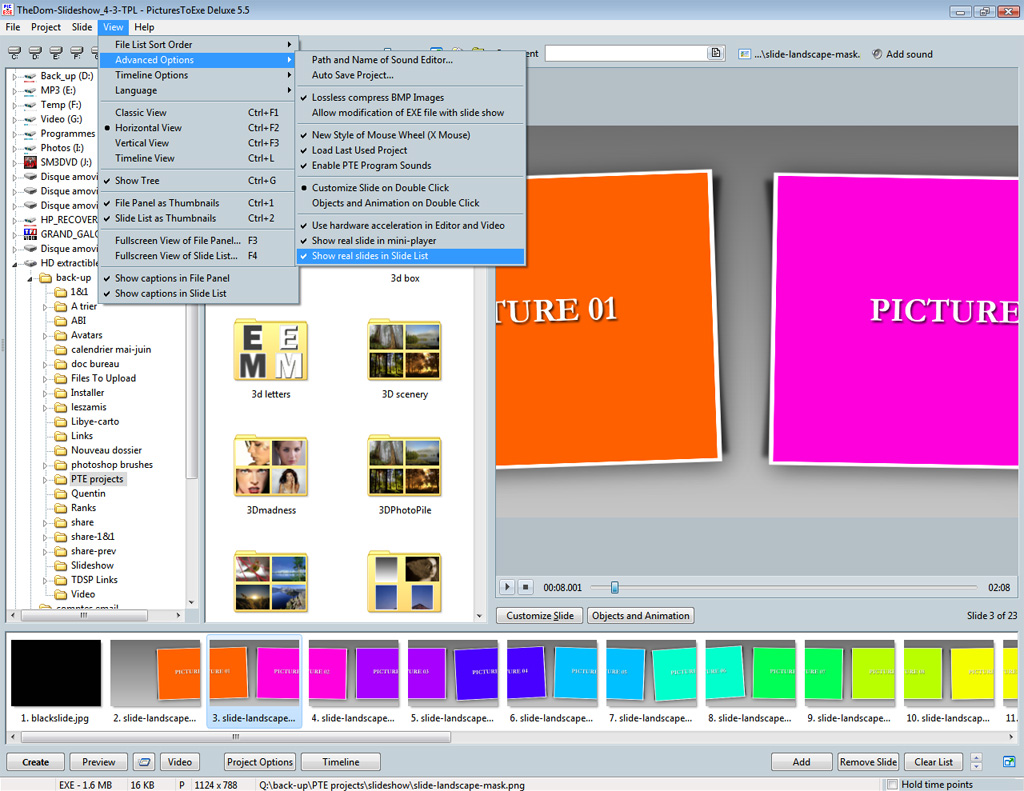
Hi Mary, "Main image" is used only if you uncheck "Show real slides in Slide List" (and "Show real slides in mini-player"). See image attached. It can be useful for PC not powerful enough. In this case, only the images you choosed as "Main image" are displayed in the Slide List (like it was in previous version). About the display of "real slides", I would suggest to display the slides like they are in the middle of the timeline (instead of the begining like it is now). But it's only my opinion and I don't know if it's feasible.
-
I just bought a new camera and after a lot of hesitation, I finally decided for an advanced bridge - the Fujifilm Finexpix 100FS - instead of a reflex. To be honest, I am a complete newbie in photography. I spend hours and hours to read reviews & forums to make my choice... And I'm finally really happy with the first tests I made with my new toy. Does anybody else bought this model ? Anyway, as most of the users of PTE are serious or even profesional photographers, I was wondering what kind of camera do you use (=> poll at the bottom of this topic). Please feel free to give details about your material, why you bought it and if you enjoy it.
-
Stonemason, As the image ratio of your camera is 3:2, here is a little "trick" I used for my 16:9 slideshows (The screen ratio of my camera is 4:3 but as my TV and video projector are 16:9, I prefer to use this format) : I keep the 4:3 ratio and in PTE, set the image to cover slide mode (in the common tab or ALT+S). Then I move my image up or down (with the mouse and keeping my finger on the SHIFT key) to precisely adjust what part of my image I want to show. And if I change my mind and finally decide to present the picture in its 4:3 original format , as I didn't crop my images (but just reduced them to 1920px width for picture I do not want to zoom), I just have to reduce the zoom to show it entirely. Hope it can help you.
-

How do I do this? 3 Questions using 5.5 Beta9...
thedom replied to goddi's topic in General Discussion
To avoid this problem, just tick "transparent to selection" for the text object in the "Common" tab and keep the action associated with the button object. This way, the text will become transparent for click and you can click wherever you want on the button whatever the size of the text. I noticed that the cursor doesn't change to an hand icon when you move it over an object associated with an action on mouse click. May be I'm wrong but I think it didn't work this way with previous version. Am I dreaming ? -
Steve, The solution fh1805 will perfectly work. The image are replaced by a blue rectangle with the path and the name of the image inside this rectangle in yellow. You can read the information perfectly... unless your image is displayed with a small zoom (10% by example). In this case, in the Objects and Animation window, select your image in the objects list and the complete path and name of the image will be displayed at the bottom of the Objects and Animation window. Hope it helps. But I agree with you, it would help if the Error dialog box could be resizable because some of the names might be truncated right now and you can not read them even if you scroll to the right.
-
Hi Tony, Is there a particular reason why you want to keep your scan as a PNG file ? PNG file might be huge. If you do not need transparency (main reason for using png files), you could save your file as JPG file, keep a big resolution and decrease the weight of your image. An other alternative would be to save it as a GIF file. I think this format is quite appropriate to keep a good resolution for text. May be you could try both and see which one gives the best result ...
-
Here is an other demo inspired by panosfx photoshop action. You can download his discrete action here. Thank you for downloading and watching my demo here (2.45 Mb - 1 minute 30 seconds).
-
Jos, what do you mean by "calibration" ? If you want to be sure that the reference to the image is correct, in the objects and animation window, select your image object and in the properties tab, click on the littlee folder icon (in the upper right). What image do you see in the "open" window ? And what happens if you choose a totally different image, does the exe show this new image or still the old one ?
-
How do I do this? 3 Questions using 5.5 Beta9...
thedom replied to goddi's topic in General Discussion
I have exactly the same problem. I have XP Pro too. Everything I tried to do didn't succeed. I suspect it's a Windows Problem. ANyway, I have to reformat my HD and reinstall Windows. I think it should work after I completed this reinstallation. I think so. I didn't try but here is how I would do it : Associate each button "Action on mouse click" with "Go to slide number...". => Button 1 go to slide #n. => Button 2 go to slide #m. slide #n and #m will include the same objects as your "menu" slide. This way, the go to slide will be invisible for the user For slide n & m, use the "add sound" feature. The display slide of those slides will be equal to the length of your sounds. Customize slide #n and #m to "run external applications" (your 2 other slideshows). I think it should work. I think you have the problem because you choosed for "action on mouse click" to "Run application or open file...". You should have choosed "Run applicatio and exit". But if you follow the instructions I gave for your problem #2, it should work. But if you want to go back to the menu at the end of each of your PTE slideshows, you should add your menu slide as last slide in each of those slideshow. I hope it makes sense. -
Jos, May be you can try this : File | Create Backup in Zip. Open the archive you just created and unzip it in a new folder. Then open the .pte file located in this new folder... I hope it will be the solution. Anyway it's strange the previous solutions didn't work because they should.
-
Hi Alan, Thank you for your comment. I'm glad you find this animation interesting and even more if you think it's an effect you can include in one of your future show.
-
A very short "show" with beautiful women... (30 secs - 10 pics) Download it here (1.23Mb).
-
More than 2 keyframes : sections should not be glued
thedom replied to thedom's topic in Suggestions for Next Versions
Hi Lin, Thank you for the explanations. That's eaxctly what I meant... but had difficulties to explain. I don't want any more to spend hours to separate sections. -
Igor, it's certainly not the priority right now but did you had time to write to Invision about the search options ?
-
Ken, I was quite sure you would have a bunch of links to provide. You are definitely the memory of this forum for us all.
-
Stonewall, You can find a lot of things (sound effects and musical instrument samples) on http://www.findsounds.com Yes, PTE includes several transitions for this effect. It's called "Curling of page". If you want to see how it looks like, I made a demo which gives you the complete view of all Transition Effects available. Just click on the transition and it will play it for you. It's blue in my demo but you can set the color of the back page to your convenience. Download it here.
-
Brian, I guess you're looking for PZR 360 Transitions by nobeefstu. It's on beechbrook Cottage : http://www.beechbrook.com/pte/index.asp?ca...yid=&page=2 And here is the link to the original thread on this forum : http://www.picturestoexe.com/forums/index.php?showtopic=8018
-
Install of new version & default template
thedom replied to fh1805's topic in Suggestions for Next Versions
Hi Peter, I'm not on a PC where PTE is installed to verify but I think it's in C:/Documents and Settings/All Users/Application Data/PicturesToExe/Versions/<version of PTE>/ Application Data is a hidden folder. I have to install beta 4. I will verify tonight and will let you know.