davegee
-
Posts
9,386 -
Joined
-
Days Won
63
Everything posted by davegee
-
Just to clarify, are you asking what we would do? Or are you asking what you can do to satisfy the "client"? If your show is going to be 3:2 aspect ratio then I suspect that your only way forward is to present the images within some sort of "frame" within the 3:2 canvas area. You cannot have what appear to be something like 4:3 images fill the area without either stretching or cropping. Stretching would be a no-no for me and cropping appears to be a no-no for the "client". (The Neville Chamberlain image appears to be 16:9 or wider so a frame is your only answer there. Same goes if you make your show 4:3 - you will have problems with the 3:2 images. The ONLY alternative is to present each image in a frame within the 3:2 or 4:3 canvas without stretching. Under the circumstances I think that I would go for a 4:3 show as it would better suit any of the current range of projectors available. DaveG
-
Hi Peter, You said: "For me, it is not a problem to Create again all my sequences using v5.6..." Is it simply a matter of opening an old project in V5.6 and then doing "Save as" or is there more to it? DaveG
-
Aaaaah, I'm off to the opticians tomorrow morning!! Thanks, DaveG
-
"Added "Pause" button to "Object and animation" editor. " Can anyone point me toward this - I can't find it? DaveG
-
The rate that things are moving - 2002 - ancient! DaveG
-
If we take your original scan at 1604x1052 that is pretty close to (but not exactly) 3:2 aspect ratio - same as 35mm slide. To get an accurate 3:2 image from that you need to crop it to something like 1578x1052 using the crop tool set to those dimensions. That will take a little from one or both sides of the image. Having arrived at a 3:2 image you can now go to IMAGE in Elements and, with "Constrain Proportions" ticked, you can enter the pixel size you require for either the height OR the width and it will be re-sized to the correct 3:2 aspect ratio automatically. For example if you alter the width to 1200 you will see that the height will automatically be set to 800 preserving the 3:2 aspect ratio of the "original" (cropped) version of your image. If you set the width to 1024 you will see the height automatically go to 682.666666666666666666 because it is impossible to set a 3:2 aspect ratio of 1024 wide and have the height come out as a whole number. It's better to set something like 1200 pixels wide or 1026 pixels wide and fit to screen in PTE. That way the 3:2 aspect ratio will be accurately preserved. Once again, crop to the desired aspect ratio, be it 3:2 or 4:3 or 16:9, and THEN re-size in IMAGE/Re-size using a figure for the desired width and letting the "Constrain Proportions" set the height. Alternatively set the crop tool to 1200x800 (or 1026x684 if you want to get closer and still be accurate) and use that to crop and re-size at the same time. Fit to Slide in PTE in a Fullscreen 3:2 (15:10) project will then FILL the screen ACCURATELY with your image. DaveG P.S. Here's you boat accurately cropped to 3:2 at 1026x684 pixels.
-
I have obviously not tried every make and model of DVD player, but I have never come across a player that will not play a region free DVD. I'd be interested to know what specific make and model will not play a region free DVD for future reference? It is possible that the age of the player is relevant - ancient players will not play BOTH Pal and NTSC but more modern units USUALLY play both Pal and NTSC and also play region free DVDs. DaveG
-
OK, Let's start again. 1024x768 is a 4:3 aspect ratio. In order to end up with 1024x768 your image must be 4:3 to begin with. 1000x750; 2000x1500; 4000x3000 etc are all 4:3 aspect ratios. To crop to a 4:3 aspect ratio use the crop tool. Various presets are available or you can make your own. When you want to resize you can then use the EDIT tools to do that with the "Constrain Proportions" ticked - it should always be ticked for images. If your image has been correctly cropped to a 4:3 aspect ratio whichever you choose to change (width or height) the other will automatically change to suit. If you change the width to 768 the height will automatically change to 1024 preserving the 4:3 aspect ratio. BUT, it must be 4:3 to begin with. Crop to correct aspect ratio first - then re-size to 768x1024. Alternatively, crop and re-size at the same time using the crop tool with preset dimensions of width = "768 px" and height = "1024 px" I hope this helps? DaveG P.S. I don't have Elements 5 to check, but since Elements 6 the Re-size command has been in the IMAGE menu, not the EDIT menu as you suggest?
-
Yachtsman, When you are re-sizing (and if it is with Photoshop) make sure that the "Constrain Proportions" is ticked and only change EITHER the height or the width. That way the re-sized image will maintain the same aspect ratio. Is that the problem? If you want to crop and re-size at the same time you can do it with the CROP tool. Enter 768 px into the width box (for your example) and 1024 px into the height box and then drag the tool over your image. You will notice that it draws a box which is of a FIXED aspect ratio. Take care not to draw a box which covers an area less than 768x1024 or interpolation upwards will take place. Hit enter and it is done. DaveG
-
Finding redundant audio tracks in Cusomise Slide
davegee replied to JEB's topic in Suggestions for Next Versions
You're my mentor, Ken! DaveG -
Finding redundant audio tracks in Cusomise Slide
davegee replied to JEB's topic in Suggestions for Next Versions
There is an even easier way: ALWAYS keep ALL files relevant to a project in a single dedicated folder. New project - new folder. DaveG -
What I would do is scan at the highest resolution the scanner is capable of. Re-size in photoshop to whatever size your project is. You don't even need to alter the PPI/DPI - just leave it. The subject has been covered many times here - there is no difference at all, for the purposes of PTE projects, between a 1024x768 at 8000 ppi and a 1024x768 at 300 ppi. DaveG
-
Finding redundant audio tracks in Cusomise Slide
davegee replied to JEB's topic in Suggestions for Next Versions
Do you mean where on the computer or in which slide the track is "embedded"? DaveG -
It's possible that both Bruce and I are misreading your post. You keep mentioning "scanning at 1024x768" or "1024x683". If I am scanning slides I scan at the full resolution of the scanner and the files are then sometimes 50Mb or more. At that stage I take them into CS3 and crop and resize to 1024x768 or 1024x683. You give the impression that you are scanning directly at 1024x768. That's asking for trouble - can you clarify? DaveG
-
Hi Igor, In Beta 8 I am still not able to enter minus figures directly into the POSITION boxes in "Size / Position in pixels of parent". Have I missed something? DaveG
-
You are trying to ADD projects to a DVD? I think that you can write 3 at the same time but not ADD to a DVD. DaveG
-
"Technically no problem. I'm thinking how to make it intuitive for user" :rolleyes:
-
Lin, Computer made DVD's can be PAL or NTSC but are not usually region specific. I make DVDs in PAL and send them to various countries - USA, Japan, which are different regions to here in the UK. Modern DVD Players will almost invariably play them, although they are PAL, because they are not region specific. Commercially bought DVDs are region specific where there is a copyright issue. DaveG
-
"In Slideshow.pte go to Project options | "More" tab and choose "Run slideshow" command, type "Menu.exe" ." That's what I meant by "link it back to the menu". I hadn't tried the "Run on any exit (including pressing of Esc key)" option. DaveG
-
Ian/Den, Make a two slide menu. First slide = 5000 seconds; second slide (copy of first) = 4 seconds. Make a slide show to go to and link it back to the menu after 4 seconds. Press forward arrow to go to second slide in menu and after 4 seconds the second slide show will appear. After 4 seconds it will open up the menu again. Endless loop - superb. DaveG
-
Congratulations on an excellent Beta 8. The "Run Slideshow" has been eagerly awaited by many and I'm sure there will be a lot of feedback on this. Well done Igor. DaveG
-
Vexing problem with Screensavers in Win XP
davegee replied to Ed Overstreet's topic in General Discussion
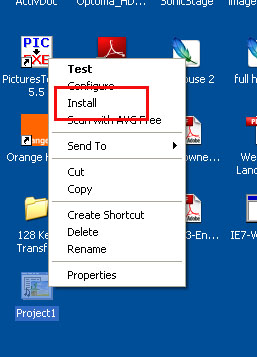
Ed, I tried it again on my XP Home Edition Laptop. Save Screen Saver from PTE to Desktop. Right click on the screen saver logo (same as EXE) - see attached JPEG. P.S. It occured to me - you are changing the file type from EXE to SCR in the drop down box? The right click / Install does not appear for EXE files. DaveG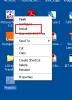
-
Vexing problem with Screensavers in Win XP
davegee replied to Ed Overstreet's topic in General Discussion
Hi Ed, More info: I was incorrect about the placing of my original "Bracken.SCR" it was/is on a different drive. I just changed my screen saver and Bracken disappeared from the list of screen savers. The ".pf" file above was just a red herring. If I want to re-use the Bracken.scr as my screen saver I have to re-install from its location on the other drive. It then remains in the list of screen savers until I change it or delete the PTE .scr file. The screen saver uses the original PTE .scr file from its original location. DaveG -
Vexing problem with Screensavers in Win XP
davegee replied to Ed Overstreet's topic in General Discussion
Ed, I made my screen saver in PTE and dropped the file on the desktop. When I right clicked on it I was offered the option to "Install a Screen saver" or similar. I just searched for mine and it is in C:\windows\Prefetch The original file was, I believe "Bracken.scr". It is now "Bracken.scr-19a3bc2d.pf" ?????????? Hope this helps?I also searched for System32 and that is not in the Windows Directory - it's in Windows\I386. I have XP Media Edition. DaveG -
Have you tried putting the text into a frame (Parent/Child)? DaveG