goddi
-
Posts
3,596 -
Joined
-
Last visited
-
Days Won
27
Everything posted by goddi
-
======================== Greetings Artem, I am not sure I understand your explanation for what I see is an inconsistent result with the Top/Bottom Sides compared with the results with the Left/Right Sides. So I created a new post ("Canvas Size not working as expected") with my question and several screen shots to explain in more detail my question. I'd appreciate if you could view that posting to see if you see what I am trying to explain. Thanks... Gary
-
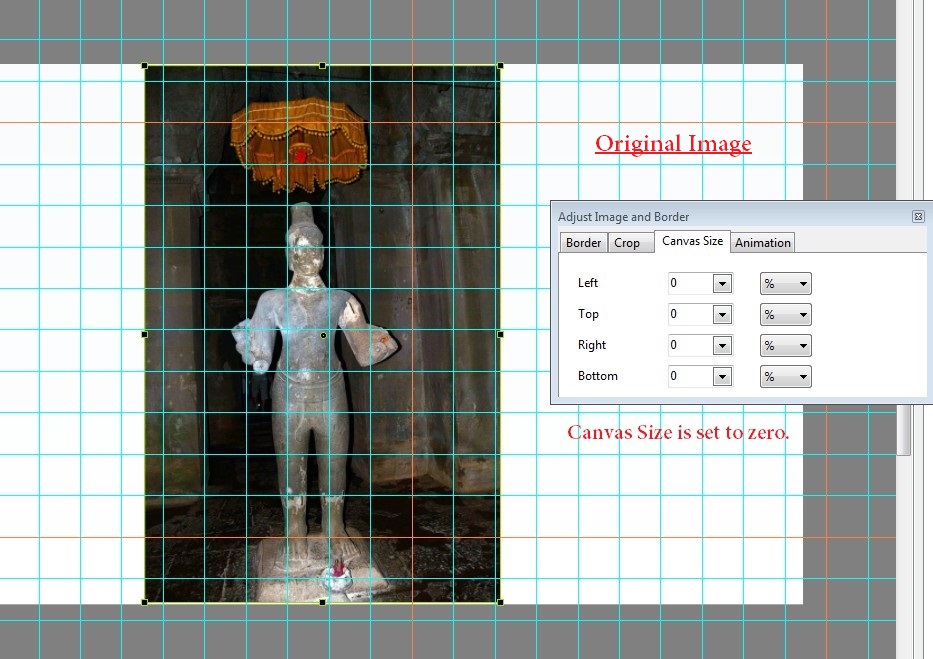
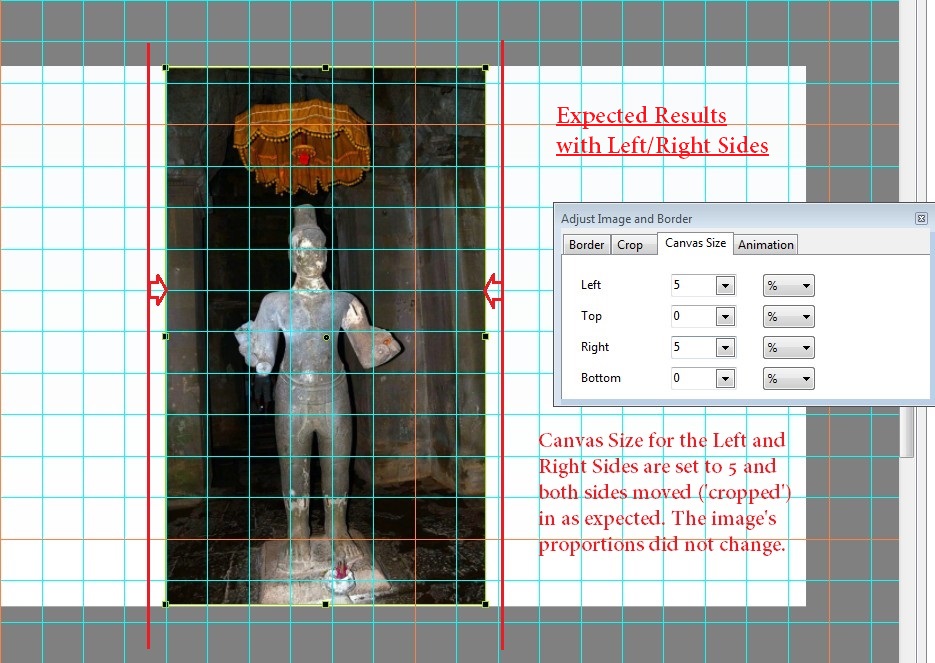
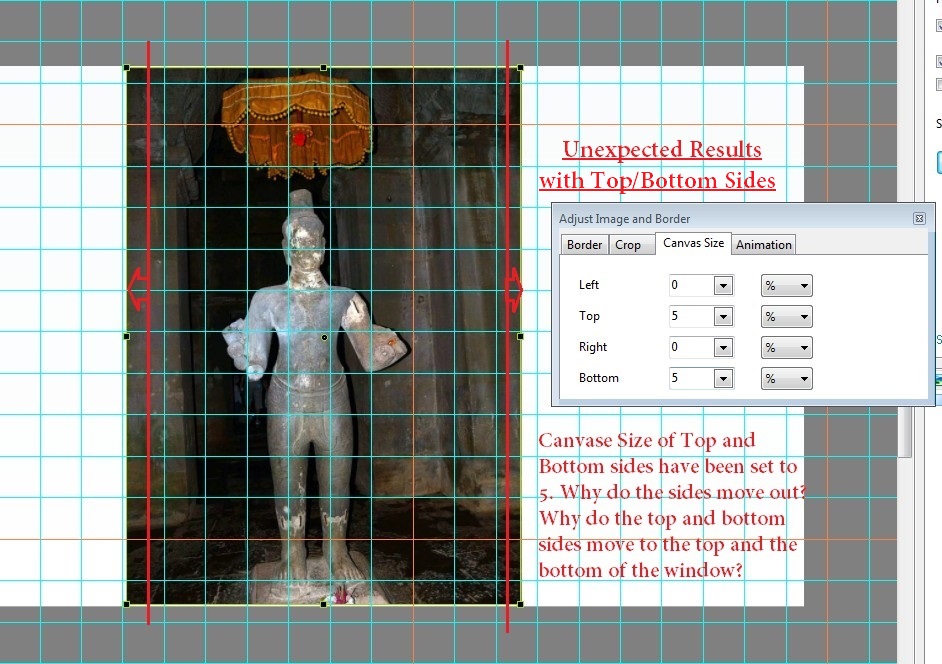
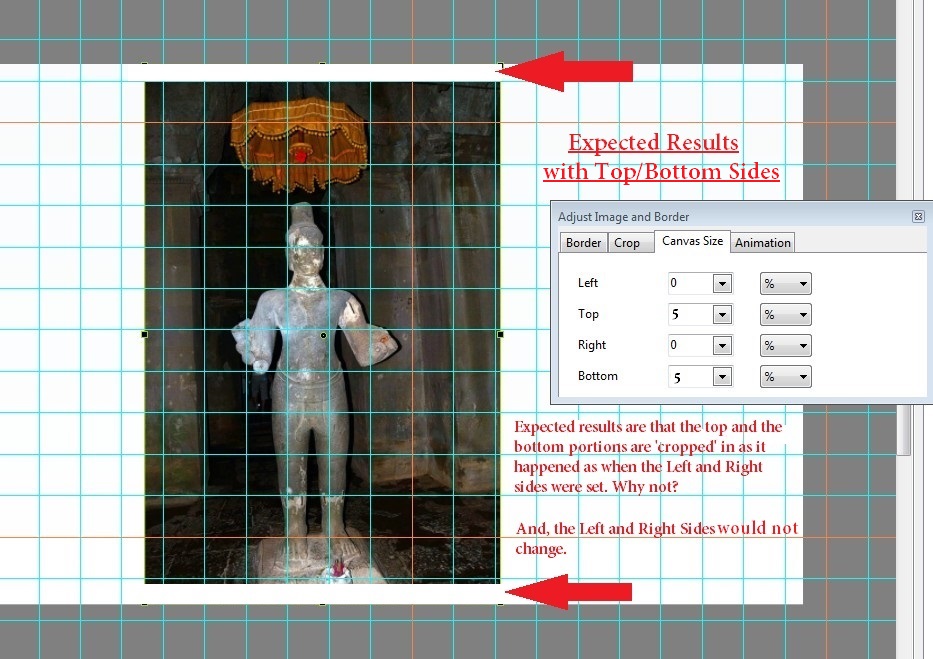
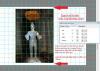
Greetings, In a response in another posting of mine, Artem recommended that I use the Canvas Size to solve a question I had. It did help in part, but it caused me to question why the Top/Bottom setting did not seem to work in a similar fashion as the Left/Right setting. His response was as follows: "Canvas Size determines which part of original video file is displayed. It doesn't control at which size it is displayed, i.e. canvas size is not the zoom. If your video had 100% zoom before you reduce canvas size, it will remain at 100%. The result might appear as 'zoom in' since fewer pixels are fit in the same size. To avoid that effect, you have to reduce zoom accordingly. You can ask Dave (davegee) for additional information. He knows a lot about this feature, and might give you some practical advice. " I am not sure I understand this explanation. I am posting my question so that, perhaps, it can be explained in more detail. I am attaching several screen shots of what I see as perplexing to me in the way the Top/Bottom setting does not react in a similar way as does the Left/Side setting. What is happening with my results with the Canvas Size seems to contradict Artem's response. So what am I missing? Thanks... Gary
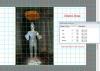
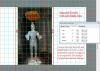
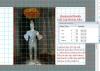
-
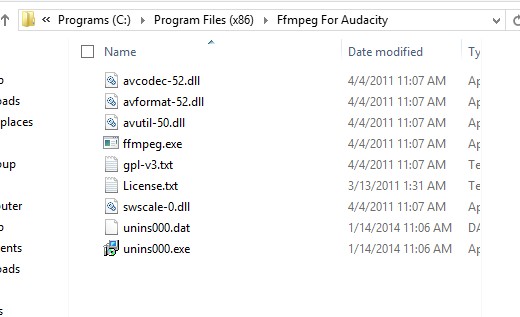
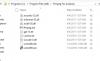
========================== Eric, Ok...Thanks for your persistence! I finally found the correct file to download that would install the FFMpeg for Audacity. I installed it and I was able to open an AVI in Audacity. Your folder has a lot more files than mine, but since it worked for me, I am happy. So thanks for the help. :D/> Gary
-
========================= Greetings Artem, I gave it a try. Yes, thanks. What a better solution!!! But...I notice that the 'Top' and 'Bottom' settings seem to react differently from the 'Left' and 'Right' settings. The 'Top' and 'Bottom' settings actually bring in the left and right edges to cover the wavy edges of the video, as expected. However, when I use the 'Top' and 'Bottom' setting, the results seem to 'zoom in' or enlarge the vidieo's size. It does not move in from the bottom or the top to reduce the viewing area as does the 'Left' and 'Right' settings. Can you take a look at this and let me know if this is correct in the way it is working? Thanks... Gary
-
============================ Eric, The 'lame' files are in the Audacity folder. However, I am going to give up with the FFMpeg files. I just can't figure out what is going on here. I will just convert any avi files to audio files using the process in PTE. Just not getting it. Thanks anyway. Gary
-
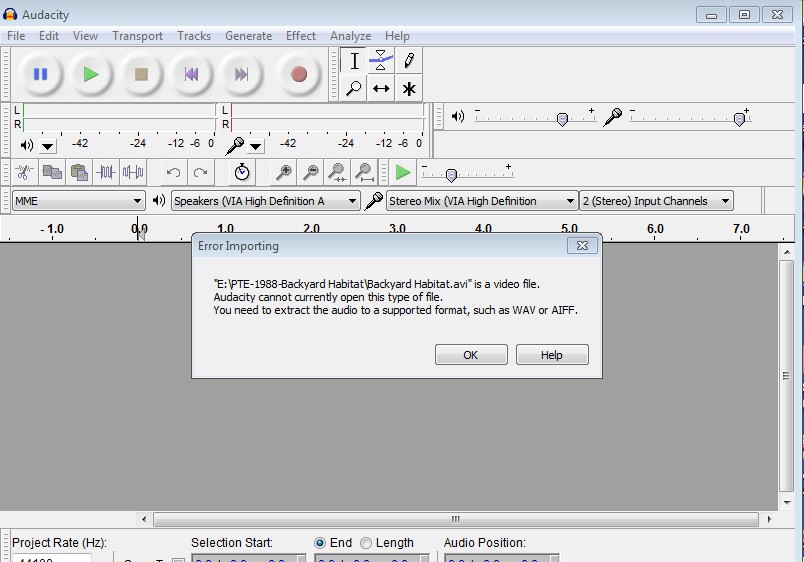
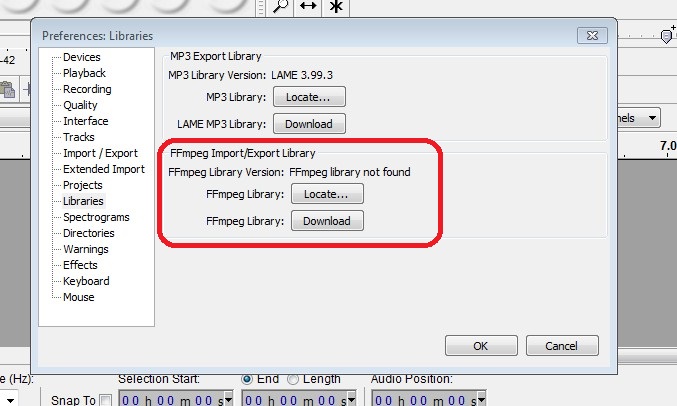
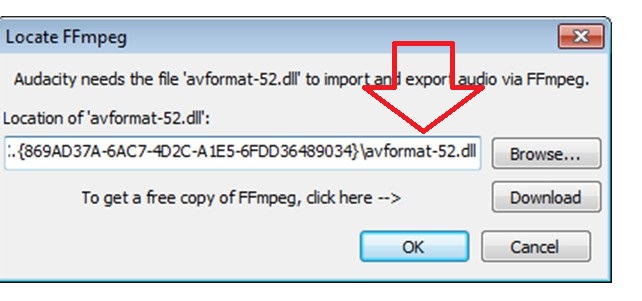
=========================================== Eric, Thanks for the links but I have been there and done what, I think, I should do to get the FFMpeg installed. I am puzzled by the fact that my image #2 (above) indicates that the FFMpeg is not found, but in image #3, it shows that I have the correct file, avformat-52.dll. So I am confused as to what is the problem. When I click on the downloaded FFMpeg exe file, the screen flashes as if something is being installed, but nothing changes. Gary
-
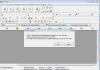
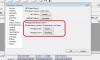
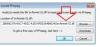
=========================== Peter, Eric, I checked to see if I have FFMpeg, and it seems that I do. But it still will not work. See the attached images. Even though I have the FFMpeg located, it still says the FFmpeg can not be located. Not sure what is going on here. Do you see anything strange??? I do have the Lame and it seems to be OK. Gary
-
========================= Lin, Thanks. I just could not remember those steps. It worked. I also was able to use the 'Link audio clip...' so that the 'new' audio clip from the video would line up with the video clip. Then when I inserted the introductory blank slide, the beginning of the audio clip stayed with the beginning of the video. Super!!! Thanks... Gary
-
=========================== Peter, I think I will stick with my method. I just have to remember to create the rectangles as a 'child'. It just makes it easier to adjust, if needed. But it would be nice to be able to copy/paste a 'non-child' object to be a 'child' and keep its original proportions. Thanks... Gary JT... Thanks for the explanation. I kinda see what's going on now....Gary
-
=================================== Greetings, An added video's audio starts too abruptly, so I want to fade in its embedded audio track. I tried to find the 'Convert to MP3' in my V8.01, as mentioned above, but I can not find it. Is it there or not yet? I also tried the workaround but Audacity does not import AVI's. What am I missing? And, I am not sure what you mean by 'resolution of 16x8'. Is the the 'width and height'? Thanks... Gary
-
Greetings, I am creating a new project. It is just a single video that I digitized from an old VHS tape. This is an important fact since it is not HD and I have to reduce the size of the video in the O&A screen to reduce pixelization. Ok... So, I added the video. Since this is a VHS tape that I digitized, the edges of the video tend to be a bit wavy. I want to cover these edges with a black rectangle on each of the edges that show waviness. I first created the rectangles as independent objects...not as a child. It worked just fine. But then I wanted to change the size of the video by resizing it with the handles of the video in O&A. But since the rectangles were not a 'child' of the video object, they did not move with the changing of the size of the video. Then, I figured that I could copy each of the already created black rectangles to be 'child' of the video. However, when I did this, the size of each black rectangle did not retain their exact size or location and I had to reposition and resize each rectangle. So, my question is, is there a way to copy a 'non-child' object as a 'child' of an object and have it retain its exact position and size when it becomes the 'child'? The Animation figures were the same but the results of the copy are not the same size or position. It is as if was copied relative to some other object. Is there a way to keep the copied object the same size and position when going from a non-child object to a child object? Gary
-
========================== Greetings, My 2 cents is that, whether they are icons or icons with labels, the 'toast' icon and the '4 arrow' icon should be at the same location, side-by-side. To have on at one end of the screen and the other over to the right side, just makes no sense. Since they do fairly similar actions (though slightly different), put them together. I'd move the 'toast' icon to be next to the '4 arrow' icon. Gary
-
======================== Dave and Peter, Yes, I've got it now. I never used to use the Timeline. Now it is more a part of my workflow. But you have helped me to understand it more fully. I have made many suggestions to Igor but most seem to fall into the black hole. I make suggestions that I think would make the existing program more understandable and user friendly. There has been more attention to new features for the new version, which are important, but I hope Igor will now pay more attention to the 'intuitiveness' of the menus, terminology and the program in general. I might give it another try in the 'suggestion' section. Thanks for all your help. Gary
-
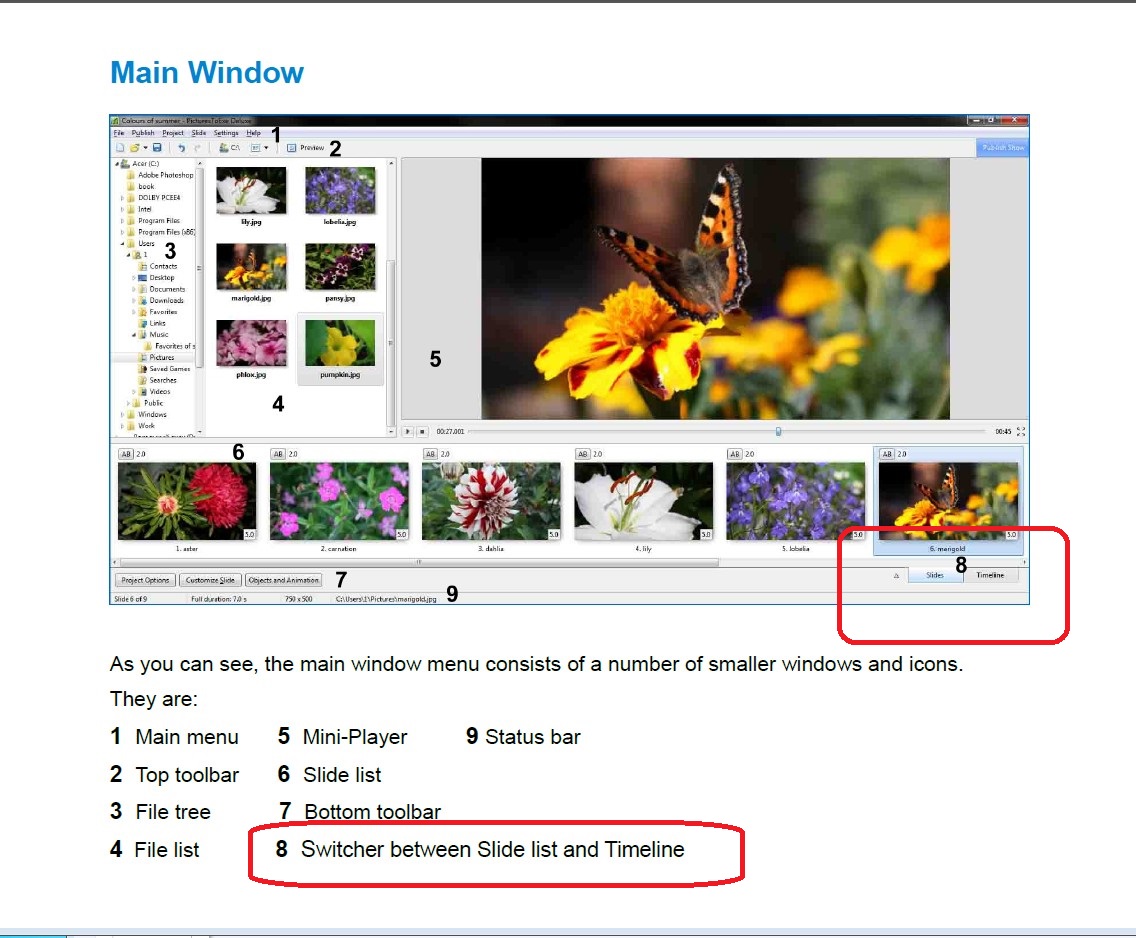
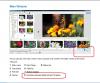
====================== Hi Dave, Hmmm...I am not sure what you are trying to correct. When trying to create a post, it is usually, at least for me, difficult to come up with the correct nomenclature to use. But your comment about 'slide list in Time View' leaves me a bit confused. The two tabs in the 'Slide List' are labeled 'Slides' and 'Timeline'. Many times, the word 'View' is added to these two terms, 'Slides View' and 'Timeline View'. So when you say 'You don't drag and drop images into the timeline...', I don't understand your point. From what I have gathered from the above postings, you can drag/drop images in the Timeline. You just have to be aware of how it differs from drag/dropping into the Slides View. You just taught me that./> One of the problems is that one of the Users Guide's pages just muddies the waters. In the attached image, it shows the #6 to be the 'Side list'. And then it also calls the 'Slides' tab as the 'Slide list' in #8. I hope Igor will now concentrate on making the program more user understandable from correcting text and labels to the Users Guide. Also, if I may ask. You add the'?' at the end of many of your sentences. I am not sure if you are actually making a statement or asking a question. Is this a 'Wales' custom or just a personal method. I enjoy your comments and they are most helpful, but sometimes I am not sure if you are leaving a question or not. Thanks... Gary />
-
===================== Dave, Lin, Peter.... Ok...I see what has be throwing me. When I drag/dropped the first image into an empty Timeline, and drop it at, say, 20 seconds, it come in at the default of 5 seconds, not 20 seconds. Only until I drag/drop the second image in does the first image's duration expand/shrink to wherever I dragged/dropped in the second image into the Timeline. Seeing that drag/dropping images as a group and all got the same default duration, it seemed like I would get the same result when I dragged/dropped images individually into an empty Timeline. Ok...I see the light. /> It is amazing what you can learn even after using this program for years!!! Thanks for sticking with me... Gary
-
========================== Peter, I completely understand that. However, it is possible to drag/drop images into the Timeline that it is empty. For example, you are starting a new show. I am just trying to point out that if you drag/drop images into an empty Timeline, one at a time, it will give different durations to each image. If you highlight the same group of images and drag them down as a group to an empty Timeline, each image will receive the default duration. This is inconsistent and unexpected. Give this a try and tell me if this makes sense. I am not talking about drag/dropping images into an existing Timeline with images already in the Timeline. When you have images already in the Timeline, I understand that you are drag/dropping them as Timepoints in the Timeline. Gary
-
========================= I went back and tried it again. I see there is a difference. When I drag one by one, I get strange, random durations. However, if I highlight the group of images and then drag them down as a group, they all get the same default duration, as expected. And this is dragging into an empty Timeline. So, I think there is a bug! :)/> Gary
-
========================= I don't think you are following my example. They are dropped into an empty Timeline. The first time, the durations for the 3 slides were: 12.328, 18.994 and 5.0. I removed the images and dragged them down again. Now the durations were: 15.724, 22.516 and 5. Then, I tried it again, but I double-clicked on each image to put them into the show. The durations now were: 5.0, 22.516 and 15.724. I tried the double-click process again and got: 15.724, 22.516 and 5.0. What do these durations have to do with 'where I dropped them'? They were dropped into a blank Timeline. Each time I got different durations. Gary
-
===================== Lin, I am not trying to reinvent the wheel. Try this. Start a new show with, say 3 images. While in the empty Timeline, drag each one down, one by one, into the Timeline. Why would you get random durations for these three images as I got in my original posting? Why would the images not get the default duration for each image as you would get when you did the 'Add selected files...'? Just trying to tighten the spokes on the wheel. Gary
-
============================== Dave, Yes, that is a solution! But, you make my point. If I happen to drag images into the Timeline (there are not other images, yet, and I am starting a new show) you get random durations for the images. You should get the same results when dragging/dropping images (into an empty Timeline) as you do when doing the 'Add Selected Images'. Right???? I don't think you want to disallow dragging an image. ;)/> Let's make 'dragging/dropping' imagaes (into an empty Timeline) and 'Add Selected Images' consistent. There is no reason to get random durations when dragging/dropping into a blank Timeline. Gary
-
=============================== Lin, I agree that putting in images into a new show using the Timeline is 'unreliable', or at least confusing, as shown in my results. And that is my point. I am not a new user and this is a potential complication that a new user (or even a old user like me) can inadvertently fall into. If images are inserted into a blank Timeline (when starting a new show), getting random durations does not make sense. It seems the durations should at least be whatever the default is set to. If I double-click on an image in the File List when in the Timeline, and there are images already in the Timeline, the image is sent to the end of the Timeline with the default duration. So, I think the result should be the same if there are no images yet in the show as there is with images in the show (inserted with the default duration). I understand that if you are in the Timeline, and you drag an image into an existing image, the duration gets split between the two images and the total length of the show does not increase. But this is an inconsistency that, I think, should be addressed. Gary
-
Greetings, I have been using PTE for a long time. I just noticed something that I never noticed before. I started creating a show in V8. It was only three images. The default slide duration is set at 5.0. I first dragged each image into the show. I noticed that each image had a different duration. The first time, the durations for the 3 slides were: 12.328, 18.994 and 5.0. I removed the images and dragged them down again. Now the durations were: 15.724, 22.516 and 5. Then, I tried it again, but I double-clicked on each image to put them into the show. The durations now were: 5.0, 22.516 and 15.724. I tried the double-click process again and got: 15.724, 22.516 and 5.0. Then, I noticed I was in the Timeline and I realized that I should have been in the Slide View, where dragging down or double-clicking the images all came in at the default of 5.0. So, my question is, why, when inserting these 3 images into the Timeline, does durations of each slide come out differently, seemingly at random durations, as shown above??? Gary
-
==================================== Greetings PhotoFlora, I have been asking for something similar for some time but it has not been addressed. If you put slides in the project (dragging them down from the File List), the filenames becomes bolded (and they become a 'Main Object'). However, if you "Add Image" while in O&A (they therefore are not a 'Main Object'), the filename is not bolded, so you are not sure if it has been put in the project or not. I made one show where only video clips were added to each blank slide. The File List had only video clips in the folder. When I looked at the File List, I could not tell which video clips had been used or not. It would be nice to be able to distinguish if an image or a video clip has been added if it is not a 'Main Object'. I have asked that some indicator be created for images that have been "Added" (therefore not a 'Main Object') to the show, such as italics or a color, or anything so we know that that image has been to the project. I think this would be a useful and helpful improvement. Gary
-
============================ Lin, The problem occurs with my Windows 7 and Windows 8.0 with PTE 8.01 and PTE 7.0.1 and PTE 6.5. I don't have an XP machine to see what you see. But I'd think that if it is happening differently between operating systems, I'd call it a bug (or whatever you want to call it) and hopefully Igor can fix it. But covering up menu icons when resizing a window, I would think should not happen. Gary
-
====================== Peter, Eric, Lin, Yes, 'design fault' is a good way to put it. I don't see why that row of tool icons needs to be included with the resizing of the File List. The simple solution is to move the bottom of that 'window' to be above the tool icon row. And Eric can drag the window any which way and not have any icon covered up. Lin, interesting that you say it does not happen XP. I assume you are using 8.0.1. I wonder why the difference. Igor???? Gary