Lin Evans
-
Posts
8,206 -
Joined
-
Last visited
-
Days Won
12
Everything posted by Lin Evans
-
If you have the PTE file (filename.pte) and associated image files and sound files used to create them, then any previously created exe AV file can be output by current versions of PicturesToExe in native Mac exe format as well as in AVI or MP4, etc. Best regards, Lin
-
Hi Roy, PTE uses Windows to make a native Mac Executable file. Of course it also creates video files which run on a MacIntosh as well as on Window's PC's and various tablet and phone devices. Our users who have MacIntosh run various programs such as bootcamp, VMware Fusion, etc. to run PTE on their machines. In the future, there will be a dedicated MacIntosh version but it will be a while. Until then, it works perfectly using programs which permit Windows programs to run in a Mac environment. You may download a free trial version as well as purchase the product here: http://www.wnsoft.com Best regards, Lin
-
Hi Barry, I'm not aware of any tutorials on using the Unsharp Mask to oversharpen, but here is how I proceed. There are technically two ways to sharpen images with PicturestoExe. The first way is by going to the Properties Tab on the Objects and Animations screen, left click on the small down arrow, and pulling the "Sharper/Smoother" slider to the left. This process applies a sharpening effect (or if pulled to the right a smoother effect) to the currently selected image.This procedure is fairly subtle and affects the image regardless of the keyframe settings. This is to say that the setting can not be changed from one keyframe to another. The second way, and a more dynamic appearance, is done by clicking on the "Animation" tab and using the "Blur" tool. By sliding it to the left, a much stronger sharpening effect is accomplished. Unlike the Sharper/Smoother tool, this setting is keyframe dependent so that it's possible to totally blur or totally sharpen a selected image at any point along the timeline. If you apply the sharpening at the first keyframe and do not change it, the image will remain sharp for the duration. My suggestion would be to use both of these features to slightly oversharpen each slide before converting to a video which you later plan to upload to social media. This will compensate for the normal degredation of sharpness due to various reasons. The best way is to experiment with some very short videos. Best regards, Li
-
Very nice Robert - sad that it only lasted three years, but much better for Heather that if it had to end it was after three rather than thirty years... Best regards, Lin
-
Done... L
-
PTE 8.0.17 just started to create MP4's of 0 bytes
Lin Evans replied to noppes's topic in Troubleshooting
Hi Noppes, Did you try Igor's suggestion of creating a folder with a simple name and without using any symbols such as #, etc.? The available codecs on your system will depend a great deal on other software which has been installed. PTE is selecting the best default and if you haven't changed anything since the MP4's were created successfully I doubt that is the problem - actually I believe Igor has the solution. Try creating a simple folder such as C:\myslideshow and put a couple of slides in it. Then open PTE and add these two slides and try to create an MP4 from them saving it to that location and with simple names for the two slides with nothing other than alpha/numeric characters in the file names. No spaces or underlines of ASCII characters other than alpha characters and/or numbers. Let's try that first before looking for anything more complex. I had no problem creating the MP4 from your PTE file but I put the files in a unique and simple folder to work with. I'm betting that's the problem.. Best regards, Lin -
Hi Mike, I agree fully with what has been said. What is important to keep in mind is that your shows are for an audience. The exact nature of your presentation will depend then on the type of audience you intend to reach and what you are trying to say. For example, if your show is primarily for photographers the quality and appearance of your slides is paramount. If your show is, for example, for engineers, their might be a different emphasis. If the intent is to tell a story with a moral or ethical message, then the approach might be different still. Only you can know your intent and the message you intend to convey so that the entire production is focused for the correct audience. Many users of PicturesToExe place their compositions in competitions and that brings yet another dimension to the whole. Many of my own shows are demonstrations of what PicturesToExe can do rather than slideshows for a particular audience so they may not be representative at all of what makes a good slideshow. For example, what you create for a family party, birthday celebration or wedding will differ greatly. The software is amenable to a wide variety of uses. The bottom line is that PTE is a powerful environment which allows the user to be the conductor of a symphony which may be amenable to numerous types of audiences. How you use it is up to you since you are the conductor! Best regards, Lin
-
Cool demo Dave - nice job! Lin
-
Nice job Mike, Excellent presentation - my only suggestion would be to kill the watermarks for your show. Since the majority of the images are smaller than full resolution, the probablility of theft is minimal and you can extend the time on credits on the endings. As photographers, we all tend to be protective of our images but truthfully, having even a plainly visible watermark is of little use for a determined thief who will simply clone it out anyway. Sometimes the hidden watermarks are more useful because the thief doesn't know where they are and the services which patrol the internet are adept at finding them. Sadly, many times one's good images appear on foreign websites and trying to prosecute the offender is almost impossible when the country and prevalent view of "intellectual theft is O.K" are not very helpful... Beautiful images and well thought out presentation. Best regards, Lin
-
PTE 8.0.17 just started to create MP4's of 0 bytes
Lin Evans replied to noppes's topic in Troubleshooting
Hi Noppes, I created an HD MP4 without any problems from your PTE file so I think we can assume that the problem is not PTE itself but more likely either a resource issue or possibly a codec issue. Here's a link to the zipped mp4 I created: http://www.lin-evans.org/test/test.zip What I did was choose all defaults in PTE for the HD video. First I would check to be absolutely certain that you have sufficient storage space on the hard drive, then, if no problem with storage space, try changing the Codec and see it that makes a difference. I don't recognize the Klaar codec myself, but there are so many that isn't meaningful. Also you might try downloading and reinstalling PTE before doing anything else just in case a file may have become corrupted.. Best regards, Lin -
Hi Barry, Yes - when you go from an executable code to an mp4 there is a very good chance that when loading the show to YouTube, Facebook or other social media site that the default sharpness will be reduced by the re-codeing done by the host to accommodate their own proprietary video formats. By using unsharp mask to oversharpen your images you can compensate for the loss - that's been my experience. But other than blur and unsharp, etc., the very powerful feature of audio wave control is also present in the Deluxe PTE version. I find this to be a compelling reason for me to use the Deluxe version myself. Best regards, Lin
-
Hi Barry, Yes, you will not be able to view your executable except on a computer. You can send the executable file to others and it can be in MacIntosh or Windows format with PTE, but you can't post it to social media such as FB, Youtube, Vimeo, etc. As for the quality, in my own personal experience, Youtube gives better quality than FB but what is really the important thing is whether your slideshows are rather straight-forward with primarily just images, text and simple transitions or whether they contain complex animations. Animations in general do not work as well on video as they do in executable code. Executable files produced by PicturesToExe take advantage of the power of an advanced video card and produce sixty frame per second results which are truly great. Once the code is converted to video, for the most part only 24 frames per second or 30 frames per second are commonly used by services such as Youtube, Vimeo and Facebook. In addition, Facebook further degrades the performance by high compression and a change in the MP4 format to something proprietary to Facebook. If your show only contains nice images, text, audio and simple transitions such as fades or dissolves then I would suggest uploading directly to Facebook. If there is anything more detailed, then upload in full HD to Youtube or Vimeo. PicturesToExe can produce 60 frame per second video, but FB can't play it. Youtube can but sometimes doesn't do it smoothly and part of the reason has to do with the amount of data which can be forced through the bottleneck of the internet connect. People with really high speed internet will get better results than people with ordinary connect and transfer speeds. My suggestion is to take one of your shows and upload it to both FB and Youtube. Then play it back and see if you can easily distinguish any important differences. The choose the better of the two - Youtube with a link to FB or FB direct. Best regards, Lin
-
Barry, Keep in mind that you will not get the same quality of show, depending on your content (whether animation or not, etc.) from an MP4 as from your executable file. Then FB will further degrade the image quality of the video file you upload. It will look much better played directly from your own computer via your choice of player as the mp4 video file than when uploaded to FB and played back via a browser. FB renders your MP4 in their own proprietary format which greatly compresses the file and degrades it a good deal, especially if there is animation. It's just something we have to live with right now... Best regards, Lin
-
Voice files - inserting into slides
Lin Evans replied to aplman's topic in Suggestions for Next Versions
Hi Ken, I suspect Dave's sound asleep right now or he would reply. You don't need to be in the timeline to link an audio clip to a slide. Just highlight the slide in the slide list then right click on this slide. From the resulting menu, chose Audio Comment then Add Audio File. Browse to the file you want and left click on it, then click on "open". Now if you go to Project Options Audio, you will see if you highlight that audio file that it's been linked to the slide you highlighted. That's all there is to it.. The slide duration won't be automatically changed, but you can see what the time is then quickly click on the Main tab and change the slide duration to match the audio duration. Best regards, Lin -
Hi Carmelo, I don't believe anyone here can actually answer that question. Dominique had not been active on this forum for a long time, but stopped by and posted a few months ago. Perhaps he will read this and answer your question. I know that his site had been hacked a number of times and he was trying hard to get it up and running, but I don't believe anyone presently using this PicturesToExe site can answer your question other than Dom himself. Best regards, Lin
-
Excellent Mark !! The photographer captured both the solemnity and frivolity of the event in a beautiful way and you did a superb job of putting it together in images and music! I see he also caught pop with his camera in one frame!! Congratulations to Claire and to Wayne on a wonderful wedding ceremony and you for doing the right thing (almost all the time)! Best regards, Lin
-
LOL - It did - less than 47 minutes.. Lin
-
Hi Bert - thankfully just an experiment - sort of like this post... will check later to see if it succeeded... LOL Best regards, Lin
-
Thanks guys - just one of those fun to put together little video experiments... Best regards, Lin
-
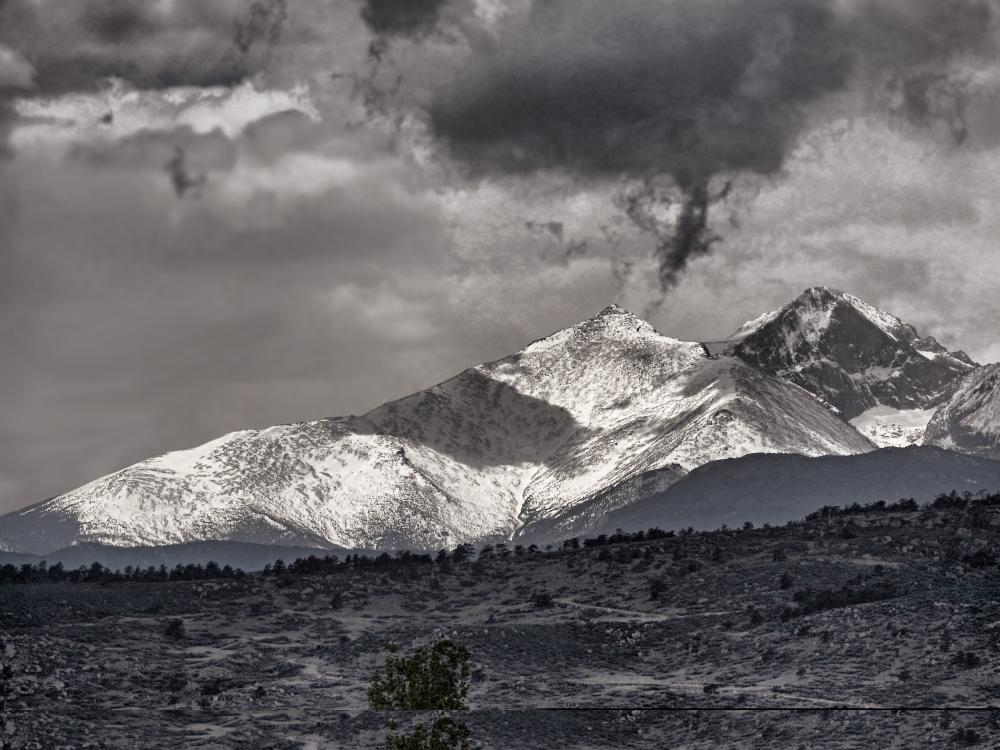
Here in Colorado we've had some severe storms and unusual clouds. Yesterday morning I shot this image of a huge funnel cloud forming between Mount Meeker (elevation 13,911 feet) and Long's Peak (elevation 14,259 feet), It never developed into a full tornado, but similar incidents in the past had prompted me to take one of my photos and create a little video simulation of a storm with rain, lightning, wind, clouds and tornado over the Colorado front range.... Lin storms_over_front_range.mp4 Link to download video... About 7 meg download...
-
Topaz Lab Photography Collection on sale
Lin Evans replied to tom95521's topic in Equipment & Software
Hi Tom, They also have most of their individual packages on sale. I use three of their products: Topaz Adjust, Denoise and Detail... I find these to be very useful... Best regards, Lin -
Actually a JPEG is embedded in the capture. Nearly every camera generates an embedded JPEG sometimes of less than full resolution size but often a full resolution image. LightRoom just reads this, it doesn't actually convert the RAW file until you declare the version you wish to save. After shooting, the image you see on your LCD review is the embedded JPEG. Several of the freeware viewing programs such as Irfanview reveal this JPG when they open a RAW file which they are not designed to convert. Depending on settings, LightRoom may make a quick JPEG from the RAW for your preview, but it's done with algorithms which sometimes make unwarranted assumptions. Having this RAW viewer may allow superior sorting before deciding which to keep and which to toss. Best regards, Lin
-
Hi Steven, It sure seems pretty rugged and I see the K1 is shipping now... Pentax usually makes quality and durable cameras so would expect nothing less from this one Best regards, Lin
-
Hi Mike, What profile is selected in CC 2015? Perhaps try downloading a trial version of some printing program for Mac just to rule out a potential CC 2015 issue. When you get a consistent issue and there are no issues with the nozzle patterns, it really sounds like a color profile (colorspace) issue and the most likely culprit is the printing software being used. My suggestion would be to find a Mac printing program which has a free trial and install it just to test... Best regards, Lin
-
Template for Simplified Fan Animation Dave Gould has produced a fantastic PicturesToExe (PTE) Style which allows the creation of an animation of the Panos Wooden Fan complete with animated shadows. This little template is not designed to replace Dave's style, but rather as another way you can do this when you don't need the shadow effect. Dave style is the preferred way but this is a simplified method for those who want to play... For those who do not use styles or wish a simplified version without shadows, I have created a PTE Template which you can use to create the folding and unfolding fan without shadows. The background included in the default grayscale which the Fan Action defaults to, but it is very simple to replace it with your choice of background or even a video by simply using the “Properties” tab in the Objects and Animations screen in PTE. Just click on the background layer to highlight, then click on the small “file” icon, navigate to your choice of background or video and double click it. To use this template, you will need PicturesToExe and Photoshop. Create your Fan as instructed by Panos then once you have added your picture and adjusted, press Enter and the action will complete your fan. Once you see the completed fan, go to “Image” “Image Size” and change the large horizontal value to 1600 x 905 which will give you a resize of the image to a value which is compatible with most modern computer. You are next going to create files from layers and there will be a total of twenty two images created. To do this, click on “File” (at the top left of the toolbar) then highlight “Scripts” and choose “Export Layers To Files.” Choose a folder or create one to hold the files you will be creating, then make certain that “Trim Layers” is unchecked, Change the file type to “PNG 24” and be certain the “Transparency” is checked. Give the “File Prefix” a simple and short name then with visible layers unchecked, click on “Run” and Photoshop will create the files and place them in the folder you have chosen. Next open PTE and load the PTE project provided. Go to the Objects and Animations screen an click on the “Properties” tab. You will see files in the lower right quadrant of the screen. The ones you are going to substitute with the exported files have numbers ending in one through nineteen (1-19). Click on the first one at the top of the list to highlight it (#19) then click on the small “open file” to the right of “Picture” and navigate to your exported files as layers. Select the file ending in 19 and it will replace the #19 fan blade with your new one from your own fan. Do the same for each of the remaining 18 files then save the PTE project under a different name. If you wish, replace the background image with one of your own choosing or even with a video. Mute the sound on the video if you do not want it to play. That’s it folks. Now your own fan will close and open just like the PTE example in the template. Lin http://www.lin-evans.org/temp/fantemplate.zip Here's a sample I did for a FB friend with a video running as the background... tonyafan.mp4