goddi
-
Posts
3,593 -
Joined
-
Last visited
-
Days Won
26
Everything posted by goddi
-
Still not getting any Forum posting notifications. Gary
-
Cool, I would not have thought of doing that. Might come in handy in the future. See...you have to stay. Good ideas! Gary
-
Dave, Please don't leave us. I am aware of some people that don't have a filter on their mouths or sensitivity in their brains. You have always been helpful and courteous. Don't let the nincompoops win!!! Gary
-
Tonton, I like your suggestion. There is a way, sort of a workaround, that should help for the time being, I think. I understand that if you add the same audio file multiple times, it does not increase the size of the final file. So, you could add your commentary in multiple tracks. At the point of where you would want to 'split' the file, at that point just move the sound level down to zero. Then, in the next track (the same commentary audio file) make the first section of the commentary not audible until you get to the part you want to continue, and just slide that audio track to match up with the image/video portion where you want it to start. And do the similar settings for the remaining show. This would be less 'boring' then having to go to another program to do the actual 'splitting' and this might be an easier way of adjusting your sections of audio (until a program change is made that will allow actual 'splitting'. Gary
-
Not getting notifications, still. Gary
-
Greetings, I have brought this issue up before but I did not get much of a response. I think this suggestion is logical and would make using PTE less frustrating. So I’d like to bring it up again. When a slideshow has been created and saved, the directory of files (or File List) that has been used in the creation of the slideshow will be shown automatically when the slideshow is opened using Open Recent Projects. This is very useful and saves time in having to browse around to get to the associated files to show in the File List that were used to create the slideshow. But this does not always happen when you select Open. Recently, I was having a problem with my PTE and I reinstalled PTE to fix the problem. However, now every time I want to Open an previously created slideshow, I have to browse to the directory to re-establish the directory of the files used in the slideshow so they show in the File List. In the .pte file, there is a line that indicates the path of where the .pte file was last saved. That line is ‘ProjectFilePath=’. I follow the recommended suggestion that we should put all the files used in a show in one folder, which includes the .pte, images, music and videos and all Published files. My suggestion is to utilized the ‘ProjectFilePath=’ as the default path to automatically populate the File List. This would allow, when you Open a slideshow, the FileList to always populate with the files used to create the slideshow for those who follow the recommended suggestion of placing all files associated with the slideshow in the same folder. I am sure some users do not follow this suggestion of putting all of the images, music and saved outputs of the slideshow in the same folder. There can be a setting in the Preferences to select/deselect this feature. If the Open Recent Projects can display the proper associated File List, then the Open should also function in this manner. Gary
-
I uninstalled my 8.0.18 version and found 8.0.17 and installed it. The fuzzyness seems to have stopped. I checked my graphics card driver and it is up to date. One thing is that I have recently updated my Win10 with the Fall Update 1511. Maybe that caused a bit of the problem. Just wondering. Gary PS Still not getting notices of Followed Topics, as I used to get.
-
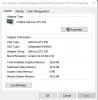
Greetings All, It is my desktop. Never had this happen before. I have attached two screenshots, Slide View and Timeline View. If I open a slideshow and it happens to open in the Timeline View, the images are sharp But if I switch from Timeline to Slide, then back to Timeline, the images go fuzzy. Gary PS I have not been getting notifications of postings to the Forum as I have before. Is this due to the new Forum software???


-
Greetings, It has been a while since I have made a slideshow. I am creating one now and I notice something that I have not noticed before or there might be a problem. When I look at the slides in the Slide View, the slide images are sharp. However, when I switch to the Timeline View, the slide images look fuzzy. Is this the way it has been??? I always thought both views of the slides were sharp. Gary ADDED LATER: I just noticed that if a show is opened and it opens in the Timeline View, the slide images are sharp. If I then, switch to the Slide View and then back to the Timeline View, they turn fuzzy. Hmmmm.... what's going on???? (Win10)
-
Mickp, I moved each of the sound files to be on the same track. This made it easier to judge by ear without having to mute and unmute each sound track. I could shift back and forth to compare the sound levels. They all changed relative to the volume you set for them, as far as I could tell by listening to them. I have Win10, and I could not see any problem with the different sound levels you created. They all went up and down as expected relative to each other sound file. Gary
-
Mickp, I now remember that when I upgraded to Win10, my VIA HD Audio drivers did not work. I was told by the VIA Audio tech people that the drivers would be available in a few days. In a few days or a week or so. Soon thereafter, every thing eventually worked just fine. I don't remember now exactly what the problem was but there was something that needed to be updated through Win10 that would fix the audio problem. This is not much help but perhaps a driver or DLL is still needed to be updated to solve you problem. There does seem to be some issues out there concerning sound and the Win10 upgraded. I'd check to see if you need to update any audio drivers/DLLs. http://www.digitaltrends.com/computing/audio-issues-silencing-your-windows-10-experience-heres-the-fix/ Gary
-
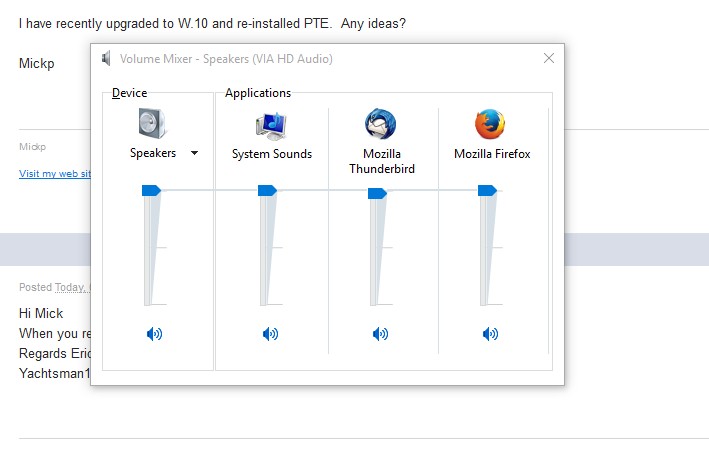
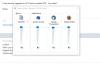
Mickp, I, too, have Win10. I have not noticed your problem...yet. But, perhaps, you might check your Volume Mixer (speaker icon that is in your Tray). See attached. Sometimes the levels are not set to maximum...??? Gary
-
The Project Options|Music 'Sync Music With Slides' will keep, whatever slide is displayed, the music synchronized with the correct time point along the timeline. So when you stop and start the show, the music stays at the same point in time. You have to 'Spread All Slides to Soundtrack' to do what I think you are asking. Gary
-
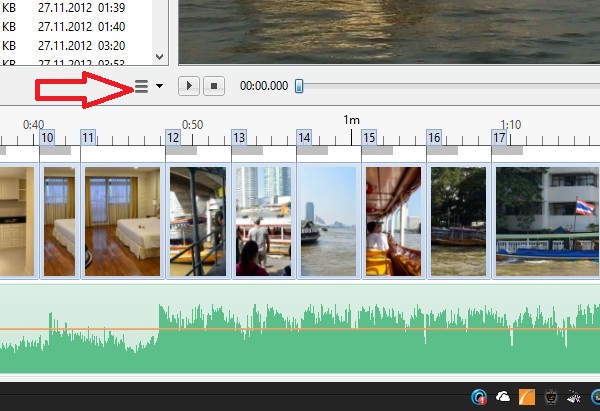
Greetings, If I understand you correctly, you want to spread all of the images over the length of the song. If so, see the attached. Click on that icon and you will see 'Spread All Slides to Soundtrack'. See if that works... Gary
-
Boogie, Are you talking about the image portion of the show or the video portions? Or something else? I recently upgraded to Win10. I have not seen any problems playing my shows. However, I just was playing an older show that has several short video sequences. One video portion was a bit jittery. I noticed that I had not 'converted' that sequence. After converting it, it played smoothly. Not sure if this pertains to your problem, but I have found that 'converting' video sequences usually is the best route to take for videos sequences. Gary
-
Igor, I install the '8.0.18 Beta' and found the Sample Project. Using it as my main version. Great idea and it reminded me of ways to animate future slideshows (installed in Win10). Thanks... Gary
-
How to use PTE on a Samsung tablet (android)
goddi replied to Leona Isaak's topic in General Discussion
Check out this discussion. It might shed some light on your question: http://www.picturestoexe.com/forums/index.php?/topic/17978-solved-ptes-mp4s-wont-play-on-my-samsung-galaxy-tablet/?hl=%2Bsamsung+%2Btablet -
Denis, Thanks. I got the second method to work. But I can not see where to find the "find content". It would be so much easier and logical if we could put in the person's user name and set it for 'Downloads' and did the search. But thanks, Gary
-
Greetings, Is there a way to search the slideshows in the Slideshowclub site by the 'author' (or the 'By ....') information? I have tried several ways but I can not get the Search function to delivery results by the author of the shows. Gary
-
Dave, Yes, it does work...most of the time. But there are many times, even though the project had been saved many times to the same folder, I open the pte file and the File List is incorrect. This happens whether I use Open Recent Project or I go through MyComputer to open the project. I know the file had been Saved because I had created the exe and the MP4 for the project. It is such a simple solution to this problem. Let the default folder for each project be based upon what is in the "ProjectFilePath=... .pte" line. Let it be a selection so if someone does not want that as a default, it can be unchecked. This has been going on for many years with PTE and even Igor has mentioned it would be fixed. But it has not. What if you went to open a recent Excel or Word file and it opened the incorrect file and you had to go back and do a File Open to find it? What is strange is if the File List shows the incorrect folder for the project and I, then, browse to the correct folder and then close PTE without saving the project, when I open the same project, the correct folder shows up in the File List. So something is making it lose the correct association for the folder that should show up in the File List. Not every time, but enough that it should and can be fixed by letting us select the default File List folder for each project. And the original default folder location for new projects should be what is in the ProjectFilePath=...pte file, until it is changed by the user. Gary
-
Greetings, Most of the time, when I do a File/Open Recent Project, the File List will return to the folder where the files have been used before to create the project. However, for whatever reason, many times it does not. I can Open Recent Project and the File List does not show the files used in that project. It shows some other project's folder. Even though the project's folder location did not change, the File List loses the original association to the folder used. We are constantly told we should keep all of the files used for a project in the same folder (usually in the same folder where the .pte file was saved). Doing this alleviates many problems. I know some of the users do not do this. I am suggesting that the default folder for what shows in the File List is what is shown in the 'ProjectFilePath=... .pte' line of the .pte file. I would like this choice to be selectable in the Settings/Preferences tab. For those who don't want this for their work process, this can be unchecked. I bring this up again because I just updated to 8.0.14 and I this problem still occurs. Yes, I had all the items checked to keep associations when it was updated. Gary
-
Igor, For me, I don't want to be involved in having to create a slide style. I would prefer to have all images being able to be treated in the same manner. In a similar vein, as mentioned in some suggestions, those images that are used in the show, but are not 'main' images, should have some indication in the File List that they have been used in the show. But this is a bit off topic. Gary
-
Igor, It would be an improvement if you could customize, not only the 'main' image, but also other images in the slide. For example, what if you had several other images in addition to the 'main' image? It would be nice to be able to apply the default to non-main images,too. Gary
-
Igor, The 'Enable Border' function is not specifically mentioned as part of the 'default template'. Currently, you have to do this image by image. If the 'Enable Border' (of Adjust Image and Border) is included in the default template, this would be of great help. And, of course, the default setting should be able to be turned off for selected images. Gary
-
Convert Video Clip process - renaming and resizing
goddi replied to goddi's topic in Suggestions for Next Versions
Denis, Thanks. I had not tried your method. But this shows that all Igor has to do is change the dropdown lists to include all the resolutions so it works easier. I don't want to have to remember all the different resolutions. Gary