Igor
-
Posts
13,677 -
Joined
-
Last visited
-
Days Won
289
Everything posted by Igor
-

Scrolling Through File List and Slide List Using Mouse Wheel (Mac)
Igor replied to GordW's topic in Troubleshooting
Hi Gord, We'll try find this Logitech mouse (or one similar one) for testing. If we notice a difference in scrolling behavior between PTE AV Studio and other programs on Mac, we'll rework the code that handles mouse input. I'll get back to you later. -
Hi, Thanks. I’ve added the missing Spanish version of this page, so the link should now open correctly.
-
Scrolling Through File List and Slide List Using Mouse Wheel (Mac)
Igor replied to GordW's topic in Troubleshooting
Hi, Could you check how the mouse works with other programs on your Mac or Windows computers and compare with PTE AV Studio, specifically in programs that have list (panels) with both - horizontal and vertical scrolling? For example, the free iMovie app on Mac might be a good candidate for such a checking. It’s difficult for me to verify this myself, as we don’t currently have Logitech MX Master 4. Our assumption was that the typical, primary setup on Windows and Mac - a mouse with a single scroll wheel or Magic trackpad on a Mac. -
Hi, Could you clarify where this link ("Get free music") is located? In PTE AV Studio (Project Options), forum, or WnSoft website? 2. And what link do you see in your browser when the 404 error appears? Please copy the exact URL from the browser. I'll check the link.
-
Folder display is missing files in PTE AV Studio Pro evaluation copy
Igor replied to Helmut52's topic in General Discussion
RAW images are not supported. We recommend using JPEG or PNG images. Other supported formats: HEIC, PSD, BMP, TIFF, GIF, WEBP, and AVIF. -
Hi, PTE Video Optimiser 1.0.3 Beta is available: Added support for HDR video in Dolby Vision with HLG. Improved audio synchronization for video files recorded with variable framerate. Diapositif PTE Video Optimiser is now built on the PTE AV Studio 12 codebase. Download for PC: https://files.wnsoft.com/ptevideooptimiser/beta/ptevideooptimiser-setup.exe Download for Mac: https://files.wnsoft.com/ptevideooptimiser/beta/PTE-Video-Optimiser.dmg It's a free update for all PTE Video Optimiser users. The About window shows v1.0.3 Build 1
-
Hi Garry, We didn’t change this behavior in V12. When you installed V12 for the first time, the program prompted you to import settings from the previous version (V11) on first run. You need to confirm this action. Right now, you can uninstall V12 and reinstall it, importing your settings from V11. Sorry, I'm not sure that understood rightly. When PTE is opened, you can open projects from the main menu > File > Open... or by clicking the Open icon in the top toolbar. The File panel displays only images, videos and audio files. Not project files.
-
Visual Clue for Open Project in Unsaved State (macOS)
Igor replied to GordW's topic in Suggestions for Next Versions
Hi, Thanks for your message. We've added this idea to our TODO list. -
Hi, Welcome to the forum, and thanks for sharing your tool. It has some good ideas. Good luck!
- 1 reply
-
- 1
-

-
Hi Tom, A fun idea and an impressive result
-
Thanks for sharing, Alex!
-
Updated version of PTE AV Studio 12.0.5 is available for PC and Mac Download: https://www.wnsoft.com/pte-av-studio/download/ Or use the Auto Update function: Main menu > Help > Check for Free Updates Added support for images in PSD format. Only for PSD files saved with the "Maximize Compatibility" option (enabled by default), which includes the merged layer. Added support for videos in the MXF file container. Fixed an issue where TIFF images used as decorations were not displayed correctly in slide styles. Fixed an issue on macOS where Arabic letters in text objects overlapped each other. About window shows: 12.0.5 Build 2 (Build 1 on Mac)
-
Hi Tom, Thanks for sharing your transition! I’d like to suggest a small improvement. You can animate different parameters, movement and opacity - independently. - Animate movement (Pan) from the 1st to the 3rd keyframe, with a speed modifier (Slow down) on the 1st keyframe. - Change the opacity from the 1st to the 2nd keyframe; the 2nd keyframe affects only the opacity, while other animation groups (Pan, Zoom, Rotate, etc.) are disabled (unticked). The ability to selectively disable (untick) animation group(s) allows for the insertion of intermediate keyframes where other animations remain unaffected while other properties, such as opacity - can be modified. Here is an example: Quick Slide V2.pteeff
-
Add ability to read Jpeg XL (.jxl)
Igor replied to tom95521's topic in Suggestions for Next Versions
Hi Tom, Thanks for the suggestion. We already reached partial support for JPEG-XL in the internal code, but we’ve faced with a challenge: JPEG-XL standard natively supports extended color spaces without the use of color profiles. We're currently investigating the best way to implement this support. By the way, regarding Apple and iPhone. They use a non-standard version of JPEG-XL. In fact it's RAW data packed as JPEG-XL data inside a .dng file container. -
Hi, If you like the new PTE AV Studio 12, please share the news about V12 on your page or with your photo club. Thank you! Here is a short example text. Feel free to edit it as you like:
-
- 2
-
-
Aleina, thanks for your response! Glad that PSD support works correctly. --- P.S. This Beta is a stable version, so we can publish it as a final version.
-
Hi, We've added experimental support for images in PSD format. It works only for PSD files saved with the "Maximize Compatibility" option (enabled by default in Photoshop), which includes the merged layer. Try the new v12.0.5 Beta: https://www.pteavstudio.com/forums/topic/56408-pte-1205-beta/ Please check this Beta with your PSD files and let me know if they are all supported in PTE AV Studio now. Would it be disappointing if some PSD files failed to display (PSD images saved without the "Maximize Compatibility" option)? Should we keep this experimental feature in the final code of V12? We still recommend to use JPEG format as the best choice - it offers an optimal file size, very good quality, and fast loading, especially for high-resolution images.
-
Hi, Try the new version 12.0.5 Build 1: https://files.wnsoft.com/test/pteavstudio-setup.exe Now it works correctly with TIFF images in slide styles.
-
Yes, it' a common issue for all TIFF files included in a slide style or CT resources. TIFF decoder incorrectly handles the "{" character in the file path. We have already fixed this bug, and the solution is very simple and reliable - just one line of code. I'll publish the new version on Monday.
-
I've fixed the issue with this TIFF image. I'll send you the new version on Monday.
-
Hi, Good idea. Technically, everything is ready to notify V11 users about the release of the new version 12.0 via this function. However, it is currently configured to display the notification to all V11 users simultaneously (upon program startup). I planned to enable this message a bit later so that the rollout of version 12.0 would happen gradually. You’ve given me an idea - to separate the automatic notification and the notification shown during a manual check. I will implement this for a future version. In any case, there is also our website https://www.wnsoft.com/ and AI chatbots are already aware of the latest version of the program
-
Hi Ken, Firstly, click the "Add Mask" icon on the top toolbar. 2. Choose "Add Blend Mask" and choose one of the blend modes (Screen, Overlay, etc). 3. You'll see a Mask container with two objects: Mask Stencil and Mask Content. 4. Put one image into the Mask Stencil, and another image into the Mask Content: Simply drag'n'drop an Image object into the Mask Stencil/Content with the mouse cursor in the Tree of objects. Or select Mask Stencil and click the Add Image button - the image will be inserted into the Mask Stencil. You can change blending mode later in the Properties tab for the Mask Container.
-
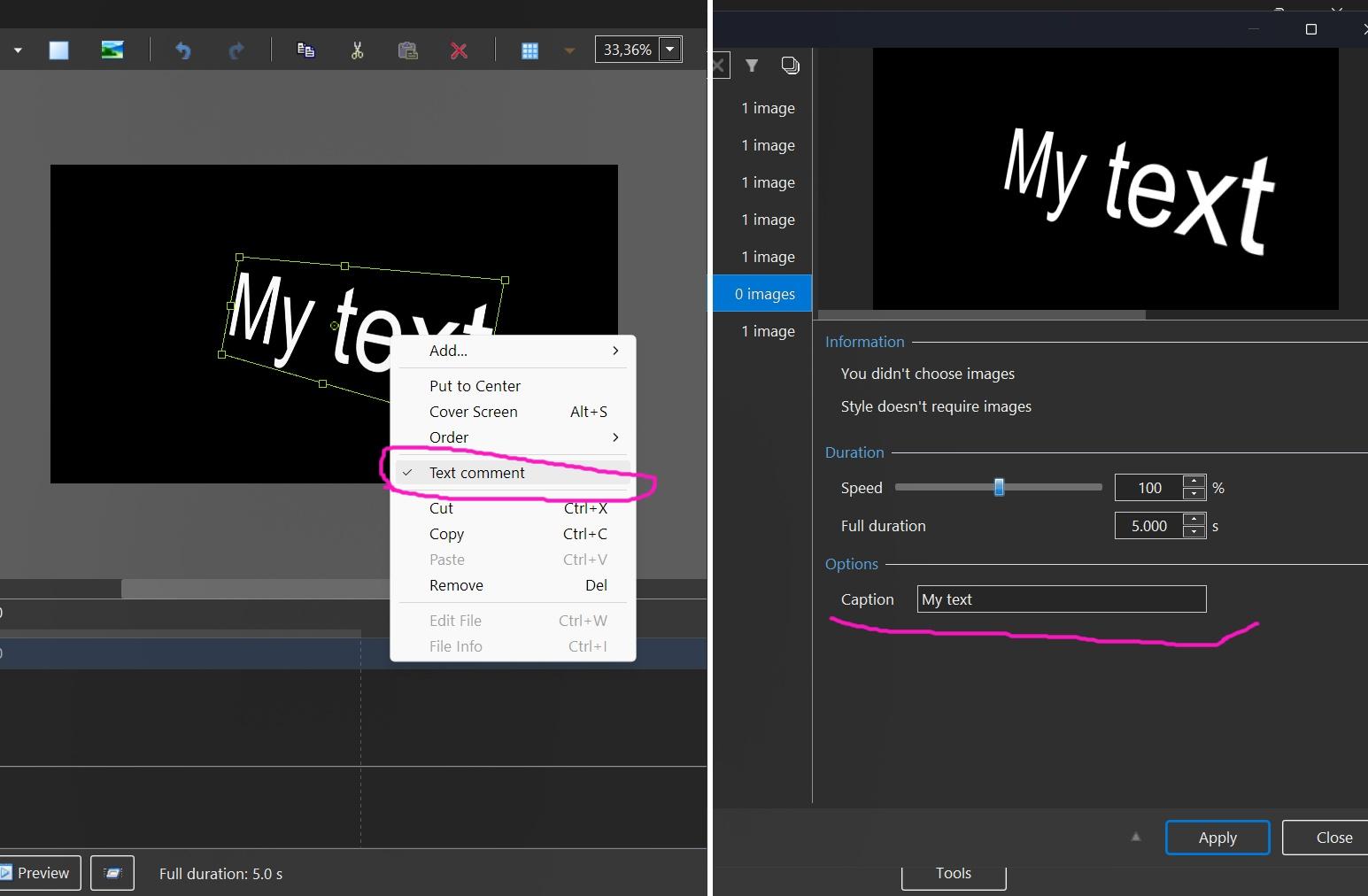
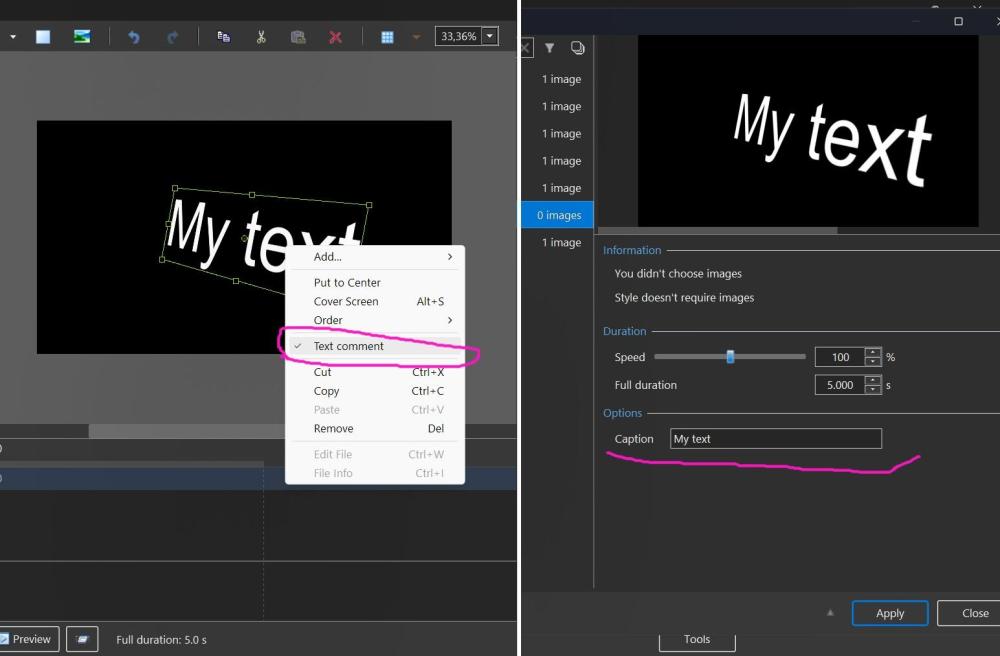
One more idea for your style. It's possible to create a slide style with a text object which can be changed when user apply your style. You need to select a Text object, call the popup menu and choose "Text comment". Then create a slide style. Yes, the choice of fonts and decoration will be limited.
-
Honestly, I don't understand the advantage of TIFF over PNG for this particular case?
-
Hi, I confirm the issue with this TIFF image. We'l check the code tomorrow. Thanks. However, I recommend you optimize this TIFF file. Because this file is 50 MB for 2213 x 1246 image! After converting to PNG (lossless compression) you get only 1.2 MB. A good optimization for the slide style.