goddi
-
Posts
3,596 -
Joined
-
Last visited
-
Days Won
27
Everything posted by goddi
-
Greetings, At first, I liked the image on the right. Mostly because, I think, it was 'brighter'. But, on more inspection, it seems to be a bit over-exposed (such as indicated on the white pole). The jacket on the left seems a tad bit sharper. Now sure what to tell you about my monitor, but it is a Dell P2715Q, and using the color profile sRGB IEC 61966-2.1, and 'Standard dynamic range', if that helps. Gary
-
Free Music / SFX Resource - Over 2000 Tracks
goddi replied to Eric Matyas's topic in General Discussion
Yes, I have been building a folder of music you have created and offered to us to use. Very thankful!!! It is a pleasure to attribute each one that I use to you. Gary -
Barry, My point was not to increase the max upload size to accept file sizes in excess of 1 Gig, though it would be nice. My point was to revert back to at least what the max upload size used to be which was about 273Mbs. The decrease in the max upload size apparently occurred due to the server's configuration. Igor acknowledged this and said he would 'fix' the problem. I noticed this back in January 2017. Whether there are many comments or not in the SSC, I would be nice to have the ability to upload shows without the current restriction in size. Gary
-
Greetings, I beg to differ on the idea that file size does not matter. Lin gave a link to his 'Whatcanido2018.zip' slide show. It would have be nice to have put it on the Slideshowclub site but the max size for upload is only 125Mbs. Since his show is 1.8Gbs, this is not possible. I have been asking Igor for almost a year to fix this problem since it appeared. It is a limiting factor that prevents uploads of larger sized files, especially those with video clips. Not everyone has a web site that can host files. So the Slideshowclub used to be a good solution to share our shows. I have reverted to putting all my slideshows on my Facebook page but it does not help in getting comments from other PTE users. Would be nice if Igor would fix it. He has said he would, but hasn't. Gary
-
Greetings, A bit over 2 years ago, I posted this suggestion but it has not been added yet. See: https://www.picturestoexe.com/forums/topic/18427-create-default-choice-for-folder-that-displays-in-the-file-list/?tab=comments#comment-122720 It has been mentioned before that the 'golden rule' when creating PTE projects is to put all files used in the project in the same folder. It would be most helpful, for those who follow this 'rule', to be able to input a default file location of the project when we initially start a project, usually the location of the PTE file. Many times when you go back to an old project, the File List, for example, does not populate with the files used when the project was created. You have to hunt for the location and reestablish it. When you try to 'Add Music', it shows an unrelated folder and you have to hunt for the working folder again that would contain the audio files for the project. Same with 'Save As'. It might not go to the original location. This happens very often with Open Recent Files. The PTE file already contains the 'ProjectFilePath=...' which is where the PTE file resides and is the 'Golden Rule' location. If PTE can let users input this path for the default location for all files for a project, it would be very helpful. As I have mentioned before, you can set a default folder location with Excel and Word, why not do it for each project with PTE? Gary
-
Lin, Yes, I realize that the member's can post their own shows on the PTE Group site. It is just that I see mostly (if not all) your shows. Nothing wrong with that at all. But since it is a PTE Group, I expected to see PTE shows created by others in the Group. Yes, there is a Discussion area. But wanting to see more PTE shows that have been created by others, I went to the Members link and checked around there to their own Facebook sites. Couldn't find any shows. I don't want to fill the site with all my shows so that is why I gave my direct Facebook link for my shows where they would be more consolidated. Maybe I'll upload a few to the Group site. Gary
-
Lin, Thanks for the reminder. I just Joined the Group. I've been using my Facebook site to post my PTE shows. I stopped using PTE's Slideshowclub since it reduced the max upload size of shows. I'd prefer to get feedback from PTE users by using the Slideshowclub site but Igor has not figured out how to fix it. But I don't see much (or any, yet) PTE shows being posted on the sites of the members of the Group. Not sure what is going on. Anyway, for a more direct link to my page with mostly PTE shows I've made: https://www.facebook.com/gary.oddi Gary
-
Thanks, Igor. Just a strange thing... Gary
-
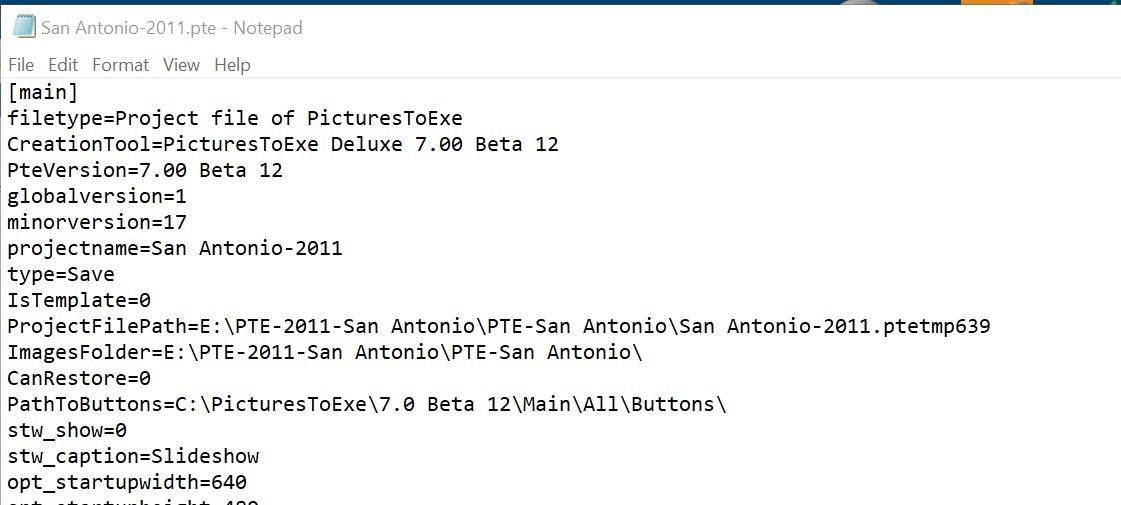
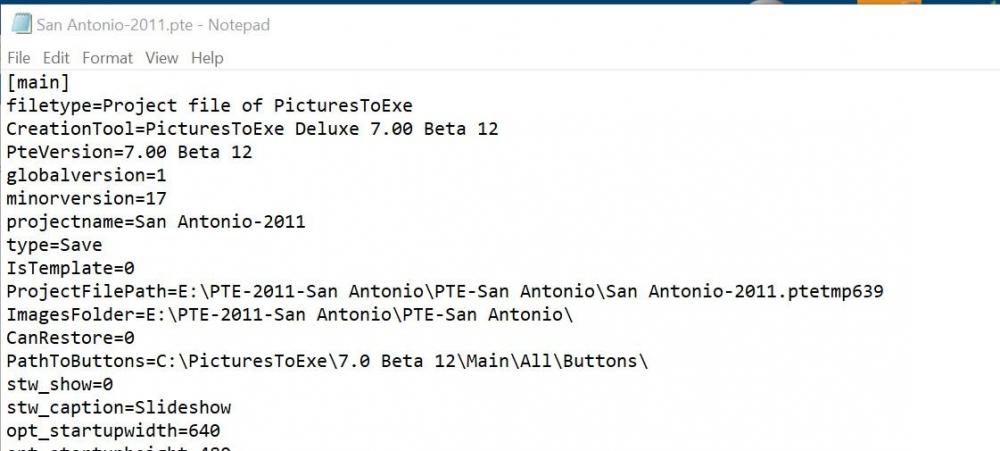
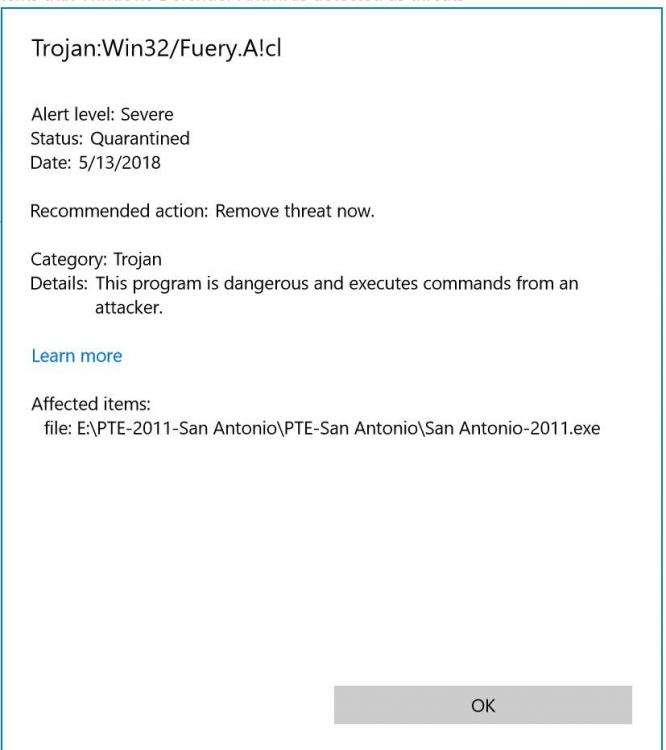
Igor, I checked the PTE file and it shows the 'CreationTool=PicturesToExe Deluxe 7.00 Beta 12.' I re-created the exe and ran the following programs on it: Malwarebytes, Super Anitspyware, AVG AntivirusFree, Zemana AntiMalware and Windows Defender. None of them indicated any virus/bug. Must have been a false positive. But I don't understand why, all of a sudden, this old exe show would pop-up as having Trojan. A long time ago, there was a virus that attached many of my PTE exe shows and I was thinking this was one of them too. Maybe not, but it concerned me. Thanks for looking into it. Gary
-
Igor, Not sure what you mean. I don't have the Trojan anymore. It was deleted. I don't have the exe anymore, unless you want me to create it again and send it. Not sure what you want me to send you in a Zip,...the entire show in PTE or the show as an exe...? Not sure yet how to add the Trojan to the white list but I will wait to see what you find out. Gary
-
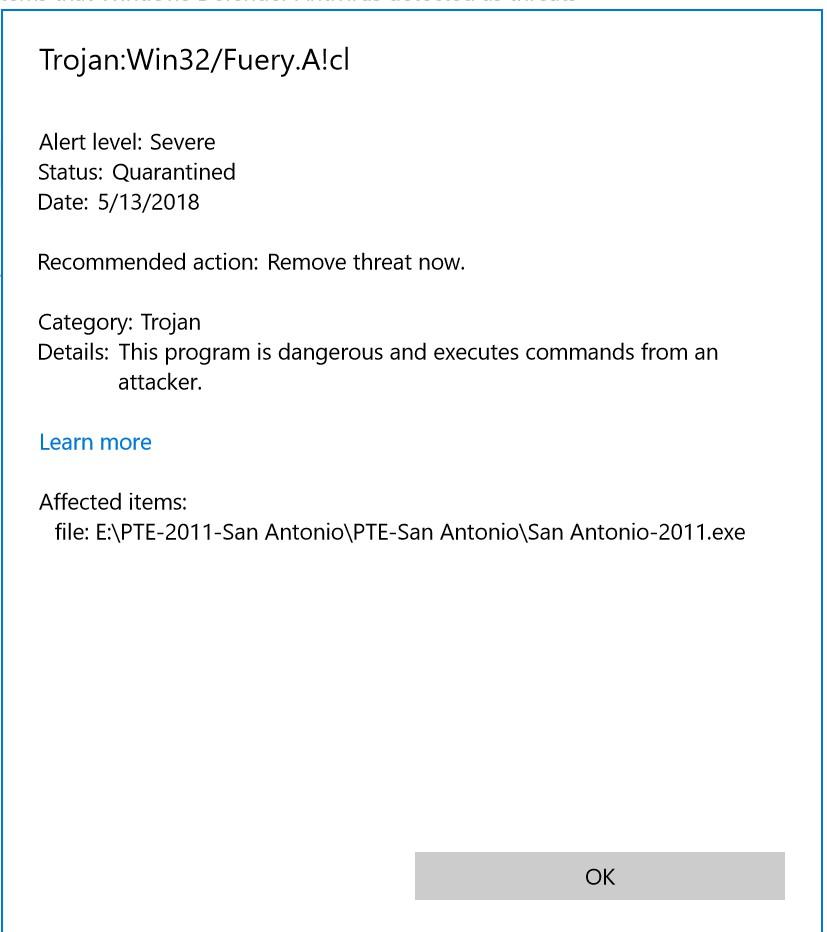
Greetings, My Windows Defender indicated that I had a 'Trojan:Win32/Fuery.A!cl'. The affected item was an exe of a PTE show that I have not run for a long time. I let it be removed and the exe was deleted. I am wondering if this appears to be a false positive. Or why an old exe that has not been used for years can get a Trojan attached to it. Some searching indicate its could be a false positive but just wondering... Gary
-
Mark, Thanks for the links. Very inspiring examples of AVs. Congrat on your entry! Really impressive. Gary
-
I've noticed that the sorting choice for 'Date/Time' in PTE is the 'Modified' date. Perhaps it might help, when you have used different cameras (i.e., different filenames sequences), if you have a sort choice to use the 'Date Taken'? Gary
-
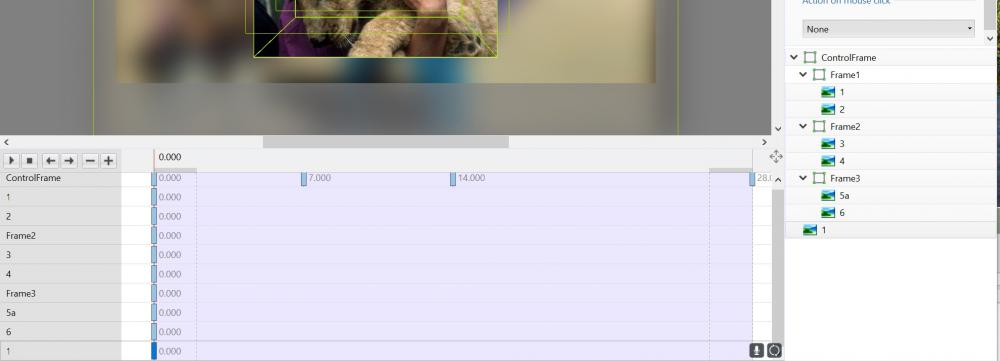
Not sure if this is what you are asking for, but you can 'expand' that area by holding down the Ctrl key and clicking on each of the items in the Keyframe list. Gary
-
Greetings Lin, It really is not the my system doing something strange, I believe. I am using Win10. The confusion with the Convert process stems from some functions not being intuitive or consistent. I have been fooling around a bit more with this and have come to some better understandings of what is going on. For example, when you select 'Convert Video Clip', you get the 'Video Converter' with the 'Trim' function, etc. After the Convert is done, the converted clip stays in the File List and you have to drag it down to the Slides. Ok. If you select 'Add Selected File to Project', then 'Optimize', the 'Video Converter' starts immediately with no opportunity to Trim or do any of its functions. If you drag down a video clip, you get the 'Optimize' window, but, it, too, starts the convert process automatically with no opportunity to Trim or do any of it functions. What is the difference between 'Optimization' and 'Convert'? Change 'Optimize' to 'Convert'. The 'Add Selected File to Project' for video clips just adds to the confusion since it is recommended to always Convert your video clips and seems best to use the 'Convert Video Clip' function. Sometimes, when I drag down a video clip to the Slides, and select 'Optimize', the Video Convert window does not show up and I get the MOV file in the Slides. No Convert done. Then, if I drag down another video clip, the Video Convert window does show up and it has both video file being converted. This has happened several times. Then there is the Trim function. Makes no sense that the duration of the video clip that you have Trimmed does not adjust to the new shorter length, as the default. Also, when you 'Change Video Clip', the default should be to adjust to the new length of the new clip. Just my views... Anyway, no need to respond. I've already burned out Dave's brain. Hope he recovers.... Gary
-
Dave, I usually appreciate your insights and help. However, your snide remarks are not really welcomed nor helpful. Oh, yea...and if it doesn't happen to you, that does not mean it doesn't happen. Gary
-
Greetings, Not to beat a dead horse, but here is an example of a 'bug' that Dave brought up about 'Change Video File' and the Slide Duration not being updated. Igor responded but it has not been fixed, as I have just pointed out above. When something does not work intuitively or as the Help indicates, for me, any other steps are a 'work-around'. Sure we can all get to where we want to get to but let's try to make the program more logical and consistent. I am not trying to make PTE fit my 'style', as you pointed out. Just trying to make it better. For example, the Help's 'Add Video to Slide List' section says to use 'Add Selected Files To Project' to add a video to the project. What is the difference between the 'Convert Video Clip' and the 'Add Selected Files to Project' when you want to add a video to the Slides? They seem to give different results. The Help also says " Whichever way the Video is added it is advisable to Convert the Video Clip before adding it to the Project. This can be done by “Right clicking” on the Video File in the File List and choosing “Convert Video Clip”." If they don't give similar and consistent results, as I have found, perhaps they should be looked at. Gary
-
Lin, Sure, I can do all those things. I can 'fix' the problems. I am trying to highlight problems that I see as bugs. These are inconsistencies that should not happen. I post these things in Troubleshooting in hopes that Igor will check them out and find a solution. It is discouraging that the same problems crop up after having posted them years ago. PTE is a great program but it has to get back to fixing basic concerns. I have been using PTE for a very long time. I find many non-intuitive items that can and should be fixed but seem to be ignored. When I do a posting as I have done above, I hope to get support from other users who might have experienced the same problem. But I get what I would call work-arounds to solve the problem or links to the Help documents that don't really address a solution to the problem. I am just a user that experiences problems that I think can and should be addressed. Gary
-
The Help says: Add Video to Slide List This can be done as follows. Select an unconverted video (or videos) from the File List and Right Click on it. Choose “Add Selected Files to Project”. You are asked if you want to Optimize the file. Choose “Optimize”. The file will be added to the Slide list while the Optimization is carried out in the background. When Optimization is complete the Converted File is shown in the Slide List. (The conversion might take several minutes). Select a Converted Video (or Videos) from the File List and Right Click on it. Choose “Add Selected Files to Project”. The converted file is added to the Slide List. Drag an unconverted video (or videos) from the File List into the Slide List. You are asked if you want to Optimize the file. Choose “Optimize”. The file will be added to the Slide list while the Optimization is carried out in the background. When Optimization is complete the Converted File is shown in the Slide List. (The conversion might take several minutes). Drag a Converted Video (or Videos) from the File List into the Slide List. Yes, I know you can use the Right Click Menu. I have done this and it usually works. But you can also drag down the unconverted clip to the Slides. However, as I have pointed out above, dragging an unconverted clip does not always activate the Convert/Trim window or the conversion process. The unconverted MOV file was inserted into the Slides. No Convert/Trim window appeared. Not supposed to happen. Also, after doing a Right Click on the clip in the File List, and selecting Convert Video Clip, the conversion has started immediately without showing the Convert/Trim window. Other times, it works as it should. There seems to be an inconsistency in the conversion process, among other questions mentioned above, like length of the clip when you Change Video File. One thing I just noticed, that after the Right Click, the Help says choose 'Add Selected Files to Project'. Seems that should be used and not Convert Video Clip? Shouldn't they do the same thing? But then the Help also says: Whichever way the Video is added it is advisable to Convert the Video Clip before adding it to the Project. This can be done by “Right clicking” on the Video File in the File List and choosing “Convert Video Clip”. Gary
-
Dave, Not sure what you are trying to say with just the link. The questions still have not been resolved after almost 3 years. There seems to be a problem(s) with the convert process, at least to me. The intuitive thing to do, for me, if you want to put a video clip into the Slides, is to just drag it down from the File List to the Slides. After dragging it into the Slides, it usually asks if you want to Convert/Trim the clip. Then if you also Trim the clip, I’d expect the new length of the video clip in the Slides will be reflected in the clip’s new trimmed length. If I read your posts correctly, you say you should do the Convert/Trim function of the clip while it is in the File List, before you drag it down to the Slides. Then the new trimmed length would be reflected. I suggest that the new trimmed length of the clip should be reflected no matter which method is used. So, I deleted the previous ‘converted’ files for this video clip, as if I am starting over. I dragged the MOV clip down to the Slides and it asked if I wanted to ‘Optimize’ it (same as Convert, I assume). I clicked OK. Before, I would normally get the Optimize window and have a chance to select the Trim function. But this time, it automatically just started the Optimizing (did not show the Optimizing window), no chance to Trim. I then started over again. I dragged down the MOV clip into the Slides expecting the Optimizing/Trim window and nothing happened. The clip was just dropped into the Slides as an MOV. Your reference to my old posting of almost 3 years ago indicates that nothing has been done to resolve these questions. If I read the old postings correctly, it says that the ‘correct’ method is to do the convert/trim while the MOV file is in the File List and then bring down the converted/trimmed clip into the Slides. To me, this is just a work-around to avoid a problem. The convert/trim process should work the same whether you do it in the File List or drag the clip into the Slides. But back to the questions: 1-Why was I getting an ‘Error’ when I tried to change the filename? 2-When you Trim a video clip, why shouldn’t the new length of the clip always reflect the new trimmed length regardless of the method you use to convert/trim? 3-Why shouldn’t the convert process work the same whether you convert the clip in the File List or dragging it into the Slides? 4-And, why do sometimes when I drag down a video clip into the Slides, the convert process brings up the Convert/Trim window (as expected), and sometimes starts converting automatically without showing the Convert/Trim window and other times it just inserts the video clip as the MOV file? 5-When I select ‘Change Video File’, the length of the replacement video clip is not used. It keeps the previous clip’s length. Why? Sure there are times when you want to keep the length of the previous video’s slot the same but that should not be the default. Gary
-
Greetings, I converted a video clip and it was saved as ‘filename.converted.avi’. After seeing that I needed to trim off the last section of the video clip, I re-converted it. The filename was to be saved as ‘filename.converted.converted.avi’. I wanted to overwrite the previous version of the video clip so I clicked on the ‘Save As’ icon (three dots) and changed the name to ‘filename.converted.avi’. When I clicked on the ‘Convert All’, I get an ‘Error’ in the Status box. Why do I get an ‘Errror’? So I tried it again but I let it convert to the ‘filename.converted.converted.avi’ filename. Then I delete the previously made ‘filename.converted.ave’ and re-named the ‘filename.converted.converted.avi’ to ‘filename.converted.avi’. Then I clicked on ‘Change Video File’ to replace the original converted clip in Slides with this trimmed video clip. The newly trimmed clip is in the Slides but the length of the trimmed video clip stayed the same length as the original clip. The trimmed video clip plays its new trimmed length but continues with its last frame shown for the remainder of the length of the original video clip. The length of the video clip is not adjusted to the new shorter trimmed length when I used the 'Change Video File'. I have to remove the clip in the Slides and then re-add it to the Slides. Seems that ‘Change Video File’ should make the adjustment to reflect the length of the replacement clip. Gary
-
Greetings, Well, to put a cap on this topic, finally found a monitor and placed an order. I think I got a pretty good deal on one. I got the 'Dell 27" IPS LED 4K UHD Monitor', P2715Q. BestBuy had the price at $499.99. But I found it advertised on Amazon for $399.99, so BestBuy matched the price. https://www.bestbuy.com/site/dell-27-ips-led-4k-uhd-monitor-black/2438098.p?skuId=2438098 I almost got the similar LG monitor but the stand seemed shakey. And my PC will connect to the monitor with the DP ports. I can connect an external TV tuner to the PC's USB port. So thanks for the input. Gary
-
Greetings, In anticipation of getting a new monitor, I thought I'd try switching my cabling from using the DVI cable to an HDMI, on my current Samsung monitor. When I switch to the HDMI cable, the quality of the monitor really degrades. Also, the desktop icons are pushed off the edges of the monitor screen as if the aspect ratio changed (but the settings are still 1920x1080). I understand that there really is no different between these cables and I should get the same results. But I am not. What can be the difference between these cable results and getting such poor results with the HDMI cable? Gary
-
Greetings Michael, You got me to take a look at what Costco has for monitors. I found the 'LG 27UD59-B 27" Ultra HD IPS 4K Freesync Monitor". A 32" or larger would be too big for my desk. I could add an external TV tuner, as Igor mentioned. I guess my question now, are there any negatives in getting a 4K monitor and IPS if you are only doing the image and video editing on it. I play my shows on my 40" Samsung Smart TV and they look perfect. This LG seems to be a good fit but not sure if I am going in the right direction with its specs, for $329.99. Opinions? They also have a Dell, non-4K. Gary https://www.costco.com/LG-27UD59-B-27"-Ultra-HD-IPS-4K-Freesync-Monitor--.product.100386158.html Breathtaking clarity and fine details of 4K [3840 x 2160] Four Times the Resolution of Full HD 5ms Response Time 75Hz Refresh Rate With FreeSync On-Screen Control with Screen Split 2.0
-
Igor, Thanks, I had not thought of that possibility. But, the main question is can a 'TV' be as good a display as a 'monitor' for photo and video editing? Also, size matters. Hard to find a TV that would fit on a desk. The smallest TVs are about 32". I'd think I'd prefer a 27". Is a 4K the way to go, for the future, if only used for editing? Is 144hz really needed? What about IPS? If I can fit a 32" or 27" Samsung Smart TV on my desk for my PTE processing, I am just wonder what I might be losing by not buying a "monitor". But, it seems that 27" TVs are 720p, not 1080p. Just too many specs to juggle to make a decision... And TVs are less expensive than monitors... Gary