goddi
-
Posts
3,596 -
Joined
-
Last visited
-
Days Won
27
Everything posted by goddi
-
New show on Beechbrook: http://www.beechbrook.com/pte/ Title: Lions, the Kings (MP4 format, not EXE). Location: South Africa. Frame Size: 780x432, MP4. Videos: Yes. Hi8 video tape was converted to digital. Size of file: 34 Mbs. Run time: 07:45. Any other info: This show is from our trip in South Africa in 1995, as we sat in our vehicle in front of a pride of lions. I finally have the ability to convert and edit the original Hi-8 video tapes to digital and to insert them into PTE. This show contains all video except for the first and last slide. Due to its low quality, the video was inserted into PTE with a frame size of 780x432 and published as an MP4 to reduce the file size. The size of the EXE would be 203 Mbs and the MP4 is only 34 Mbs. And with an MP4 file, you can play it directly on your TV or through your media center box to your TV!!! Comments and critiques are welcomed. Gary Oddi
-
====================== Jill, Yes, I know that if the track is locked, holding the shift key will release the 'lock' on a single audio file and you can then drag that single audio file. But...what I want is to be able to highlight several audio files and be able to move them together as a group. And, as you suggested, this should be able to be done with audio files on several audio tracks. Gary
-
==================== Umberto, I had tried that. Once the audio track is locked, nothing can be moved. I am using 7.5. It would be nice to be able to highlight individual audio files on a track (with Ctrl-mouseclick) and be able to move them as one unit. Gary
-
Greetings, Maybe it can be done now, but I can not see how. I have 3 audio tracks that I have positioned just right, except that I want to nudge them slightly, as a group, without interupting the careful crossfading and customization that I have made to all of the audio tracks. So my suggestion is to be able to highlight the audio tracks (as we can do with files) and then use the mouse or arrow keys to move them all together as one track. Perhaps there could be an specific amount of time that can be selected to move the selected tracks per left/right arrow click. Gary
-
================== Greetings, Ctrl/F11 and Ctrl/F12 do it too (in Windows). Gary
-
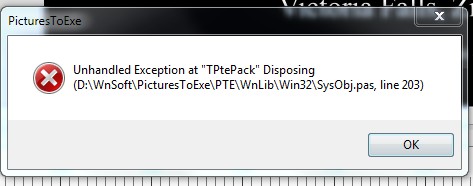
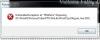
========================= Jose, Yes, I am referring to re-saving my .exe file. I don't have a problem when I save or re-save my .pte file. Now, when I try to re-save my .exe file, I still get an 'Unhandled...' error message but it has a little different 'Line'. See attached. I have 3 different physical hard drives in my PC: C, D and E. The PTE program is on C: and my PTE shows are on E:, so my D: does not enter in the process of creating or saving a PTE file. So I don't think the "D:" in the error message has anything to do with our PCs. I just really don't know for sure. I think it is a problem with my Windows7's permission setup. I just can't fix it. My error message might not have anything to do with yours, but I have not been able to figure out why my error message, which is similar to yours, occurs, yet. Sorry. Gary
-
======================= Jose, I have received the exact same error message in the past. See the link from Tom's posting #13. It was never resolved. However, I think we did figure out the "D:" in the error message has no relation to the D: drives on our PCs. My error message was created when I was trying to save the EXE file over the existing EXE file. To avoid any error message, I have to first delete the previous EXE file before I could continue on to do a save of my revised EXE file. I have not been able to resolve this problem. But it seems to be a 'permissions' problem with my PC that I have still not been able to resolve (not a PTE problem). I don't think you have mentioned what steps you are taking that create your error message. Maybe there is no relationship with what I was doing to cause my error message and what is causing yours. But what are you doing that causes your error message to appear? Gary
-
==================== Greetings, In case you have not tried it, open the .pte in Excel. I think it is easier to view and work with as a spreadsheet. Gary
-
==================== Ha!!!! I guess my eyes never got down that far. Filename setting is enabled but I just did not notice it down there. I guess it was just too simple. Thanks... Ok...never mind!!! :blink:/> Gary
-
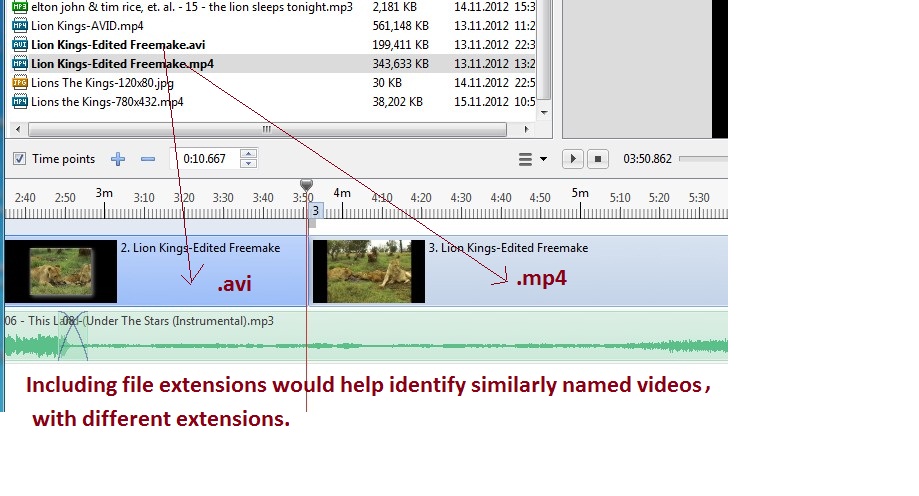
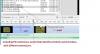
Greetings, I would like to have file extensions of videos (and perhaps still images) to be included in the file names in the Timeline View and the Slides View. I understand it might be a rare circumstance when you would have similar video file (or still image) names with different extensions, but I have run across this possibility. I have attached a screen shot example of this problem in the Timeline View. Perhaps the best way to handle this is to have it as a Preference setting to allow extensions to be shown or not shown. This could be applied to still images, too. Thanks... Gary
-
===================== Yes, it works now. Cool, interesting. The audio has a bit of a problem...seems to jump slightly at times. But it is nice to see different uses of PTE. Gary
-
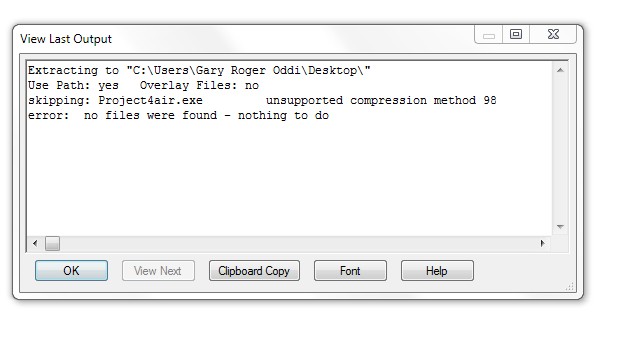
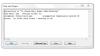
======================= I got a somewhat similar error message when trying to unzip the file. See attached. Gary
-
======================= It is an interesting and, probably, useful idea. I just hope it does not just give use nebulous choice of 'Quality percentage' that the video converter gives (I still don't know what it is doing). Also, I think I would want to be able to re-do the resizing so that it would allow me to overwrite the previous resized images. For example, if I initially chose to resize a group of images and I later determined it was resized too small, I'd like to be able to re-run the resizing so that I have the choice to overwrite the previously resized images to avoid multiple names for the same images. This would avoid the 'filename.converted.converted.jpg' as we get with the video converter if we re-convert a converted video. Gary
-
=================== Greetings, Gee whiz....let's use a little imagination. This list that I posted is not cast in concrete. Of course, if you used more cameras and want to list them, feel free to expand or contract the list. If you want to say what year the images were taken or when the show was made, modify the text. These items are only a reminder of things that I might want to include. The point is to put in whatever you want, when you want. To prejudge that the information will be irrelevant will not encourage anyone to post anything. I think posting at least some information will open a door for the viewers to ask more questions if it piqued his/her curiosity. No attack, just an opinion. Gary
-
========================== Peter, Just to give you some comparison to my download, when it first started it was a bit over 900kb/sec. Then it dropped a bit, maybe around 600kb/sec, then when up a bit. Anyway, the entire download took only 60 seconds. I am not techy enough to point to any reason for the difference in download speeds, but maybe it was not their server. Duno... just interesting to see the differences. Gary
-
=================================== Jeff, As I mentioned in my email to you, I thought your PTE show was terrific. I was disappointed that you did not provide any information about the show. I am glad you are looking into it. This subject of how much info to provide has been tossed about before in this Forum. I made up a template that I pull up each time I post a show so I don't forget something. Everyone has their own way of doing it but here is my list: Location: Year: Aspect ratio: Screen resolution: Videos: Size of file: Run time: Manual control (yes/no): Camera and lens: Any other info that you can provide: Comments and critiques are welcomed. Gary
-
=================== Greetings, I took a look. Very nice. Well done. Gary
-
============================= Dan, I took a look at the specs of your camera. I see that it has the 'AE Lock' function. As I mentioned in an earlier post, I think your image is overexposed due to the dark subject you zoomed in on. There have been many suggestions to 'fix' this problem. But you have a function in your camera that, I think, will help you get a better shot in-the-camera. Take a look at this site that talks about using your 'AE Lock' function of your camera. http://www.learn.usa...k_article.shtml Basically, the AE Lock function will lock in an exposure setting. This can be used in the situations like you had when you were trying to take a shot of something very dark (or very white), or really any shot, if you want to take it that far. A camera tries to make every exposure to be 18% grey. So, if you want to be really specific, one would take an exposure reading off a 'grey card' in the light that is shining on the subject and lock in that exposure with the AE Lock function. Then compose your shot and take the picture with that exposure setting. But, if you don't have a grey card handy, you can take an exposure reading off of any other object that is 18% grey or close to it. Sometimes, green folage or grey stones are close, but you get the point. You can get a grey card and learn what other things out there come close to a grey card reading and then you don't have to really carry around a grey card. With this method, your shot in the camera will be much closer to what you want and you will have to do less post processing. And here is an interesting site that talks about using a grey card with some interesting samples of the benefits of using a grey card: http://www.digitalar...nstructions.htm Gary
-
======================= Dan, There is something I learned back in the film days, and it might also apply to digital cameras today, too. Maybe, maybe not but here is my take. The image looks overexposed. When you zoomed in on the dark object, the camera wants to make it '18% grey', an industry standard. But the light meter says, "Oh, it is almost black and I will open my shutter to let more light in to get close to 18% grey." So the dark object gets lightened. When you have a very dark or very light (snow) as your main object, the thing to do is to take a light meter reading off of something that is closer to 18% grey; then, hold that setting, recompose and take the picture. Or, in your case of the dark object, stop down an f-stop or two to compensate for the darker object. Or, with a very light subject, like snow, open the aperature a stop or two. Gary Link to how to use a grey card.... If you don't have a grey card, you can usually find something around you that is close. http://www.ehow.com/how_5986275_use-grey-card.html
-
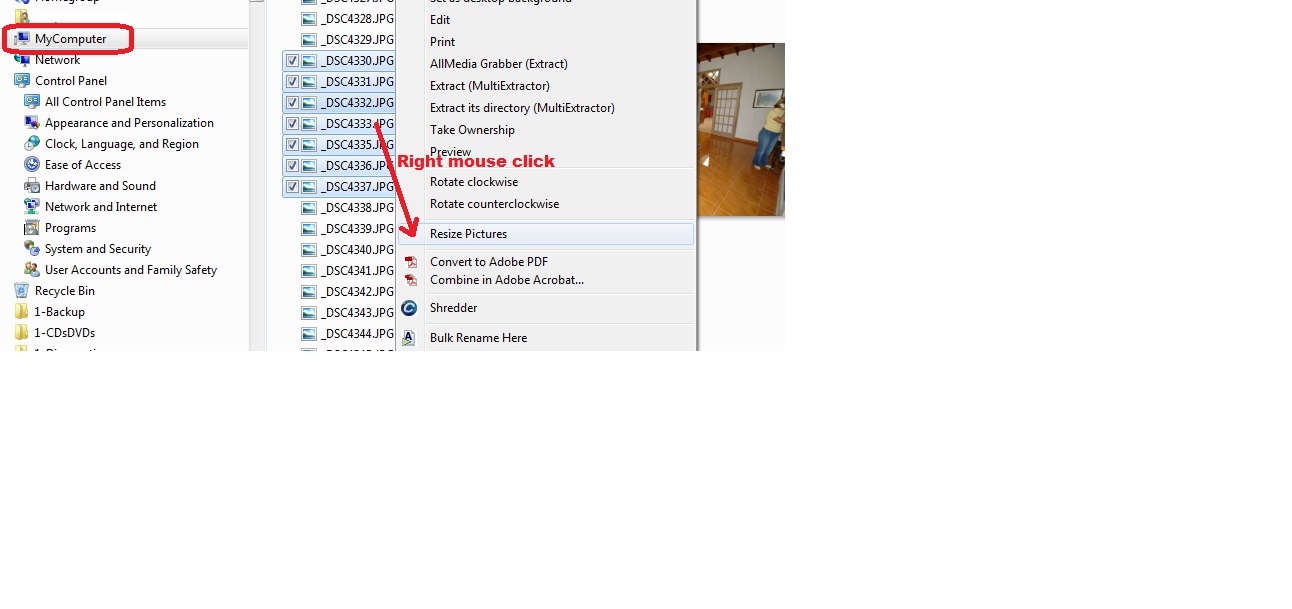
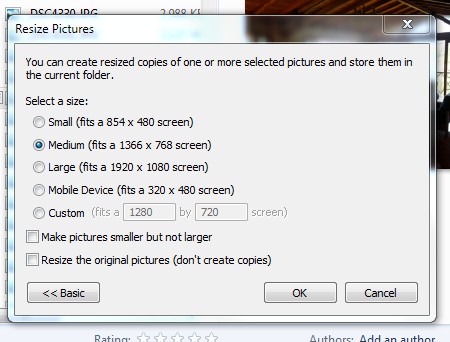
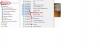
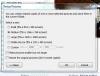
========================= Claudio, I have already responded to how I would reduce my video clips. I'd like to add now an easy way to reduce/resize single image files one at at time or in a batch. I can highlight a group of images in MyComputer and right-click on the highlighted group. Then I click on the 'Resize Pictures' button (I think this came from Windows7 and is standard--if not, I am not sure where this came from). Then I just choose from the size I want in the list. It is very quick and easy. Just another way of doing it. See the attached screenshots. Gary ADDED LATER: As I said, I am not sure if it comes with Win7 or I added it as another program. But I just found where you can get if if you don't have it. See this link: http://imageresizer.codeplex.com/
-
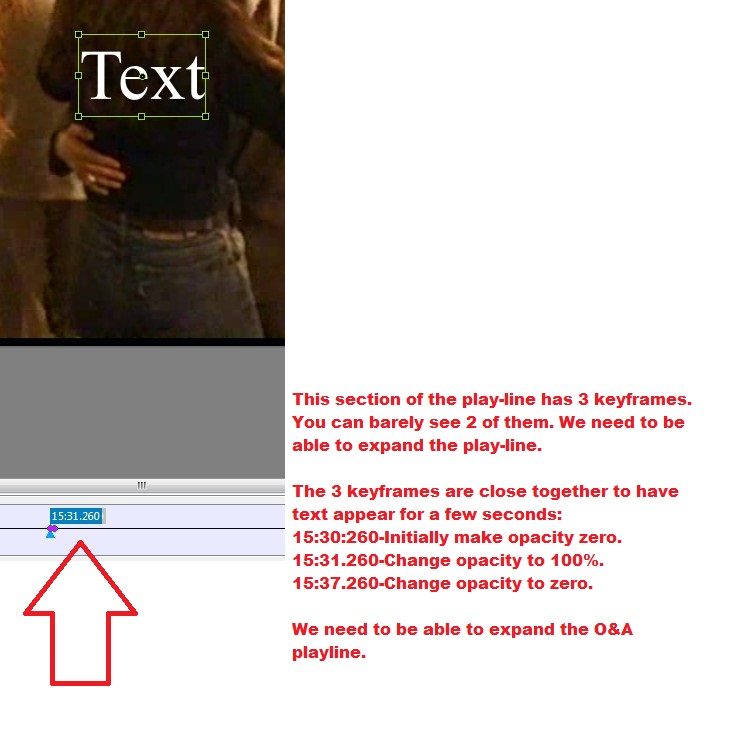
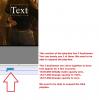
Igor, My suggestion is to be able to expand the O&A's play-line as we can do in the Timeline with the shift/mousewheel. This is especially helpful when you have a very long slide duration and you have to deal with keyframe placement or adjustments. When you enter keyframes in a slide with a very long duration, they can be sitting on top of each other because the entire length of the slide is compressed into a space that normally would have a duration of only a few seconds. Being able to expand the O&A's play-line will make it visually easier to deal with multiple keyframes. Gary
-
Adding Cloned Keyframes to a long video clip...
goddi replied to goddi's topic in General Discussion
======================= Peter, Yes, I have seen that the Key Frame Time box is a way of dealing with setting/adjusting keyframes in slide with a very long duration. I mentioned that in one of my previous posts above. But, it would be much easier to be able to expand the O&A's play-line (as we can in the Timeline) to get it close, and maybe use the Key Frame Time box to nudge it. When you have a very long duration slide, the keyframes practically can sit right on top of each other and it is difficult to deal with. Putting just one Text in the middle of a long duration slide will have at least 4 keyframes sitting on top of each other. Very hard to deal with. It's been a good discussion and I have learned some new things. Gary -
Adding Cloned Keyframes to a long video clip...
goddi replied to goddi's topic in General Discussion
=========================== Lin, No, I don't think I missed it at all. I understand all of what you are saying. My only point now is that it would be very helpful to be able to expand the O&A's play-line as we can in the Timeline. That would help to see and to place the keyframes more easily. Give it a try. Make one of the slides to be 35 minutes long. Put in a Text box to fade-in and to fade-out. The keyframes sit on top of each other in such a compressed state, it is difficult to work with them. I will put the suggestion in the Suggestion Forum. And thanks again for for your detailed explanation. Gary -
Adding Cloned Keyframes to a long video clip...
goddi replied to goddi's topic in General Discussion
===================== Lin, Thanks for the detailed explanation. I understand it now. My problem was that I have always started any text right at the beginning of the slide...so my brain was not getting the concept that you explained. I wanted it to start right at the beginning so it worked just fine. I never tried to put text in the middle of the slide's time as I am trying to do with my long inserted video clip. But...you did not get to my last question. Let's say I have the first Text's keyframe set at zero opacity. Then, I set its second keyframe to be 100% opacity to make it appear. Why is it slowly fading-in between these two keyframes? I have to put them almost on top of each other to minimize the fade-in time. The only control for the length of the fade-in is how close can I get the second keyframe to sit on top of the first keyframe without causing a problem. Is this the only way to control the transition from the zero-opacity-keyframe to the 100%-opacity-keyframe, by having to put the second keyframe right up tight to the first keyframe? What if I want some other transition of the text than fade-in? If this is true (having to put the 100% opacity keyframe right up next to the 0% opacity keyframe to reduce the fade-in), then we need to be able to expand/contract the O&A's play-line as we can do in the Timeline, using the shift-mouse wheel. With a long video (I am working with a single 35 minute video), the O&A's play-line is too compressed to make these fine adjustments or placements of the keyframes. When you are working with a 'normal' slideshow and the single image stays on for maybe 4-8 seconds, you have more 'room' to make these adjustments along the play-line. Same problem holds for the last two keyframe when you are trying to make the Text disappear. After all of this, I think my main points are that we need a way to 'expand' the play-line to help placement of the keyframes when you have a very long video for 35 minutes or if you even have a single image on for 35 minutes, for example. And, is there a way to not have the Text fade-in and fade-out in the beginning and in the end of the Text's keyframes? Not that it is bad, but I'd like more control or possible transitions available for the appearance and disappearance of the Text. Or am I missing something here? Gary -
Adding Cloned Keyframes to a long video clip...
goddi replied to goddi's topic in General Discussion
================== Thanks Peter, I had no idea. Gary