davegee
-
Posts
9,323 -
Joined
-
Days Won
59
Everything posted by davegee
-
Charles, Others are far more capable of answering this correctly, but in the case of the second question I don't think that you are right? The EXE is a set of instructions which have to be carried out on the various elements (objects) in a slide every time it is executed. If you take it a step further and make an MP4 from the project then the end result is "flattened" as you said. The MP4 can be thought of as a sequence of "flattened" frames which play at around 30 FPS. That's my understanding. DG
-
Hi Dave, Do you have Adobe PDF Reader? PC or MAC? If you are being asked which software you want them opened in chances are that you do not have the reader. Can you normally open PDF? I can read them from their current location using Adobe PDF Reader or DL them and open them locally. DG
-
You can split your show into sections devoted to the cities and then add the individual shows to the DVD menu. You can configure them to run consecutively or return to the menu but also choose a city from the menu to start from. But I think that they have to be individual shows for each city. DG
-
I think that I did set Fixed Aspect Ratio of 16:9? DG
-
Hi Igor, I just want to emphasise that the Style in Post #6 is meant for a 1920x1080 image in a 1920x1080 Project. When used on different sized images in different sized projects the effect is not the same. DG
-
Update. You can also "stream" video, images, PDFs and Audio wirelessly from the Mobilelite to the Tablet/ iPad without having to fill up the "Tablet's" memory. A USB or SD card is plugged into the Kingston Mobilelite and read wirelessly from your Tablet / iPAD. It does not work through your home Broadband - it uses its own wireless network so it will work anywhere. DG
-
The PDF Files in this Post in this Thread have now been replaced by the Online Help Manual. http://docs.picturestoexe.com/en/main DG
-
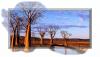
Hi Igor, Second try: Once again the mask is made to suit the user's image. This technique once again proves that being able to create (paint) the mask in PTE would be a HUGE advantage. Are we likely to have this soon? DAVEGEE 14_01_26.ptestyle DG
-
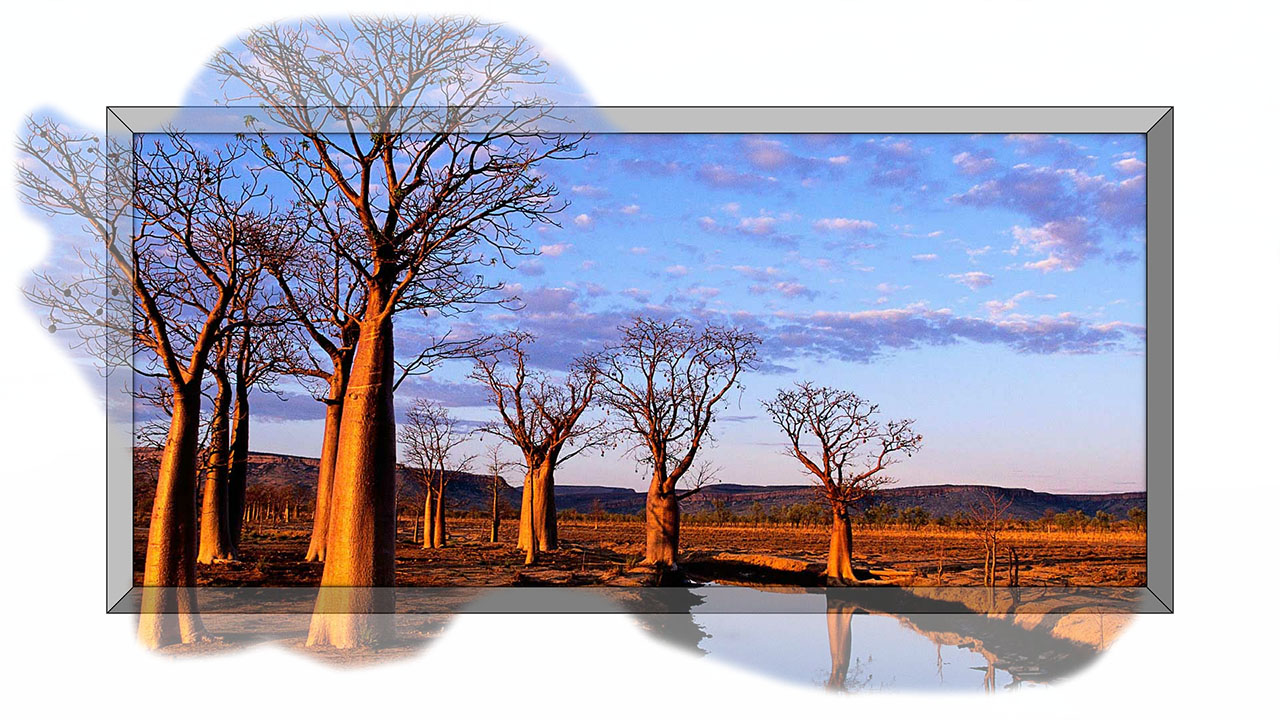
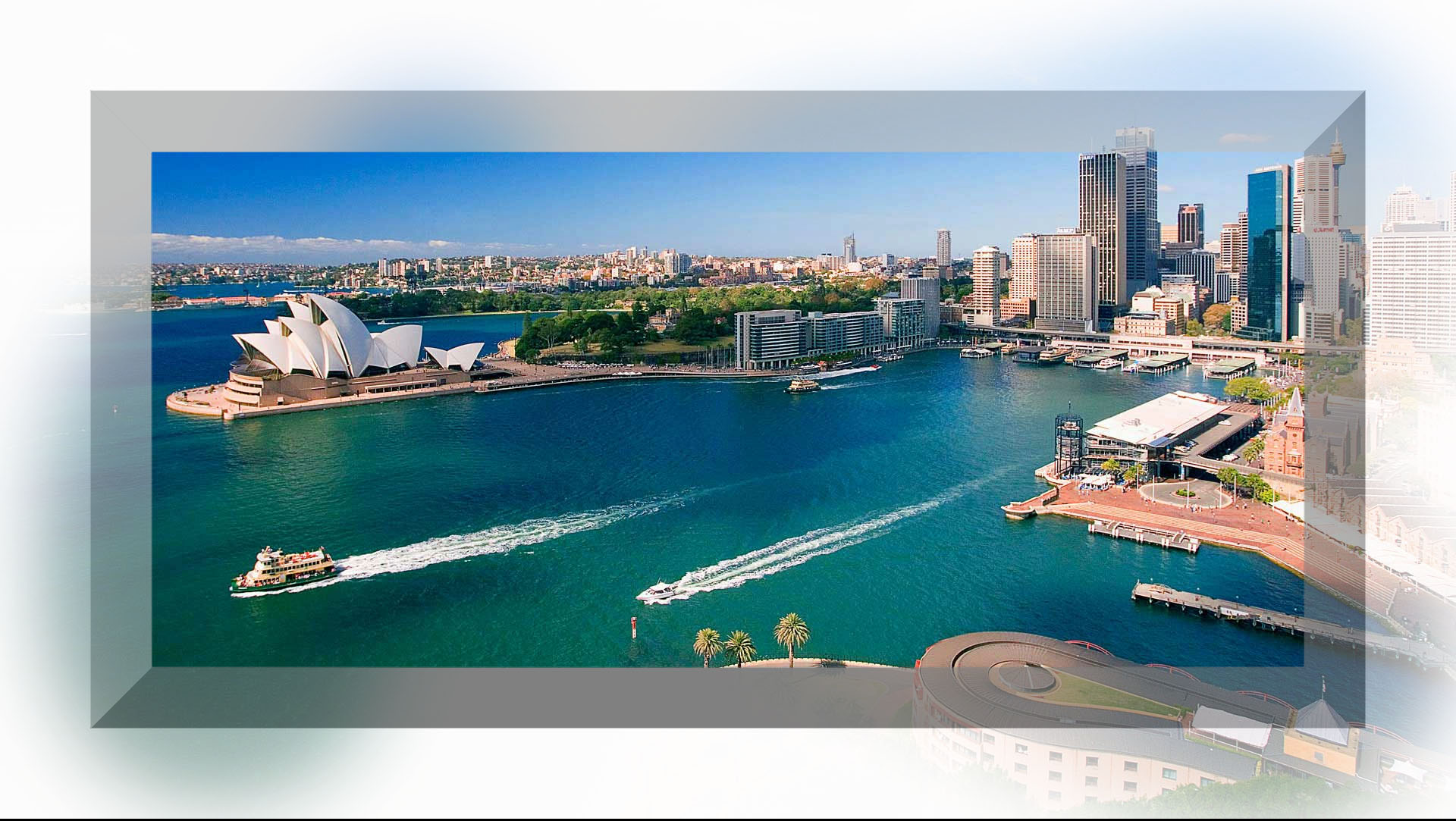
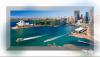
Igor, Something like this?? 1920x1080 image in 1920x1080 project. Set White Background. IGOR 25_1_14.ptestyle You can vary the opacity of the faded image outside of the frame in O&A.
-
ok, DG
-
Igor, Isn't the mask and the effect going to vary according to different images?? DG
-
Colour reproduction of PC Monitor and Projected image.
davegee replied to JEB's topic in Equipment & Software
In the full Adobe product, when using "Save for the Web" the sRGB option is a Tick Box - I'm not sure what the default is, but when I have used it in the past it has always been set to "ticked". I would recommend using "Save for the Web" because it allows you to adjust the quality setting to optimise the JPEG while viewing at 100%. I couldn't see the sRGB tick box in the "Save for the Web" utility in my version 10 of elements - it is probably elsewhere? DG -
Colour reproduction of PC Monitor and Projected image.
davegee replied to JEB's topic in Equipment & Software
John, What method do you use to present your images? We use PTE. and give a judge the PTE EXE. there is no point in giving the judge individual images. If the images in the show are1920 x 1080 max and the judge is viewing on a 1920x1080 monitor the judge is seeing the images at 100%. All members have been advised to use sRGB and this works. Maybe it is not "correct" but it works. I have often wondered if clubs need a "standard" jpg image which all members can download and compare on their own systems. An sRGB image in a PTE show works for me on both my own system and on the club's HD projector (whEn viewed in a PTE EXE). DG -
I am glad that it worked but it is a "heavy handed" approach to what seems to be a simple problem. Perhaps Igor should look at it. DG
-
Hubert, Did you UNINSTALL V8 before Installing again?? DG
-
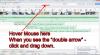
Try this: DG
-
Please read this post: http://www.picturest...es/#entry114591 DG
-
Project Options / Defaults / Insert Template. Choose from list. Apply to all slides. DG
-
The Animation Tab in the "Border and Canvas" Tool: I think that, if you search back far enough, you will find that Lin explained this a looooooong time ago. Animation, in this case, refers to the animation of things like "Animated GIFs"? (Question mark denotes "possibly").:)/> I'm sure that someone will correct me if I am wrong? DG
-
Anthony, The Canvas Control is essential for certain Custom Animations and Styles. This series: is totally dependent on the Canvas Control. DG
-
Gary, The Canvas Control in the Adobe Product (which I don't use) will also allow you to work in the same way as the PTE Canvas i.e. to Crop. (At least it did the last time I used it). WRT your last couple of paragraphs I can only suggest that you do a little more research into ASPECT RATIO. Couple that with what you are doing and the effect of it on Aspect Ratio, when you are fiddling with the Top, Bottom and Sides controls. Also consider the "Fit to Slide" Option. Try it out with Cover Slide as well? Work out the Aspect Ratio at the point when your image begins to move in a different direction? That will give you a hint as to WHY it does it. What you are seeing is perfectly logical if you consider all of these factors and bring them all together. PTE is beginning to be a complex bit of machinery with many interactive elements and you have to consider them all. DG
-
Hi Gary, One last try. Add a 1920x1080 image to a 1920x1080 16:9 project (FIT to slide Mode). In Canvas, remove 5% (96 Pixels) from the left and right. Remove 5% (54 Pixels) from the Top and Bottom. (The image is still a perfect fit?). Click on SIZE in the "Size/Position...." window. You should now have an un-equal Space/Border all around your Image? If you want an equal sized space/border all around your image, remove an equal amount from each side - e.g. 54 Pixels (or 2.8125% from the left and right and 5% from the Top and Bottom). DG
-
Gary, Your idea of what the Canvas Function does or should do is different to mine - so I can't really "agree" with you. I've been using Canvas extensively on the Custom Transitions and Styles and it "does what it says on the tin" from where I am sitting. Call it whatever you like it adjusts the size of the image you are working on by "cropping" or removing pixels from the top, bottom and sides. It adjusts the Canvas. The FIT function (100%) is giving you the effect you are seeing and not what you are doing to the Canvas. Try it on an image at 50% and see if it makes more sense? Make an image with a 10 pixel border in your image editor and then take away 10 pixels from each side in PTE / Canvas. Open up or Load this: http://www.picturest...322-davegee-15/ (Blocks - 64) Analyse it and perhaps it will give you a new insight into the possibilities of the Canvas Function. DG P.S.
-
Further information. If you do a little search you will find that I have covered this before. In order to put a line (border) around an image and maintain the aspect ratio you need to take (for instance) 5 pixels off all around in Canvas before applying a 5 pixels Border all around. Same principle. DG
-
In order to make the final image the same proportions on screen at 100% you have remove a % from the top, bottom and sides in the proportions according to the aspect ratio. You cannot take the same percentage off all around - you are altering the aspect ratio. It fits to the height of the screen according to the 100% setting of Zoom in Animation. It also might be better to use Pixels instead of percentage even though the pixels are converted to percentage "behind the scenes". A percentage could result in "parts of pixels" which have to be rounded up or down - if you start by taking off whole pixels the resulting percentage will be correct. DG P.S. Do it with a square image and it will behave as you want it to.