davegee
-
Posts
9,374 -
Joined
-
Days Won
61
Everything posted by davegee
-
Personally, I don't edit JPGs because of the compression issues. I prefer to go back to the original RAW file and edit that. It is just one of my foibles! HOWEVER, For the purposes of addressing this problem I edited a JPG using Ctrl+W and found that the edits are immediately recognised regardless of whether the file is animated or not. Because it is working for the non-animated slide I assume that you are correctly saving to the same folder and that you are getting the "replace" notice when saving from PS. Also, you are aware that Ctrl+w only works with Main Object Index 1 (from the Slide List). In Objects and Animation, Ctrl+W works with non-Main Object Index 1. When it returns to PTE the O&A screen needs to be refreshed (change to next or previous slide and back). The Slide list will not automatically refresh unless the image is Main Object Index 1. Are you working with the latest version 11.0.8? DG P.S. If you open the slide with animation in Objects and Animation, are you noticing that the Image has been updated in O&A but not in the Slide List?
-
Use UPPER case and a font which such as Arial. Replace the Text in BOTH instances of Text1. Text Effect Style.ptestyle
-
- 2
-

-
For future reference: Templates: https://docs.pteavstudio.com/en-us/11.0/how_to_v11/templates DG
-
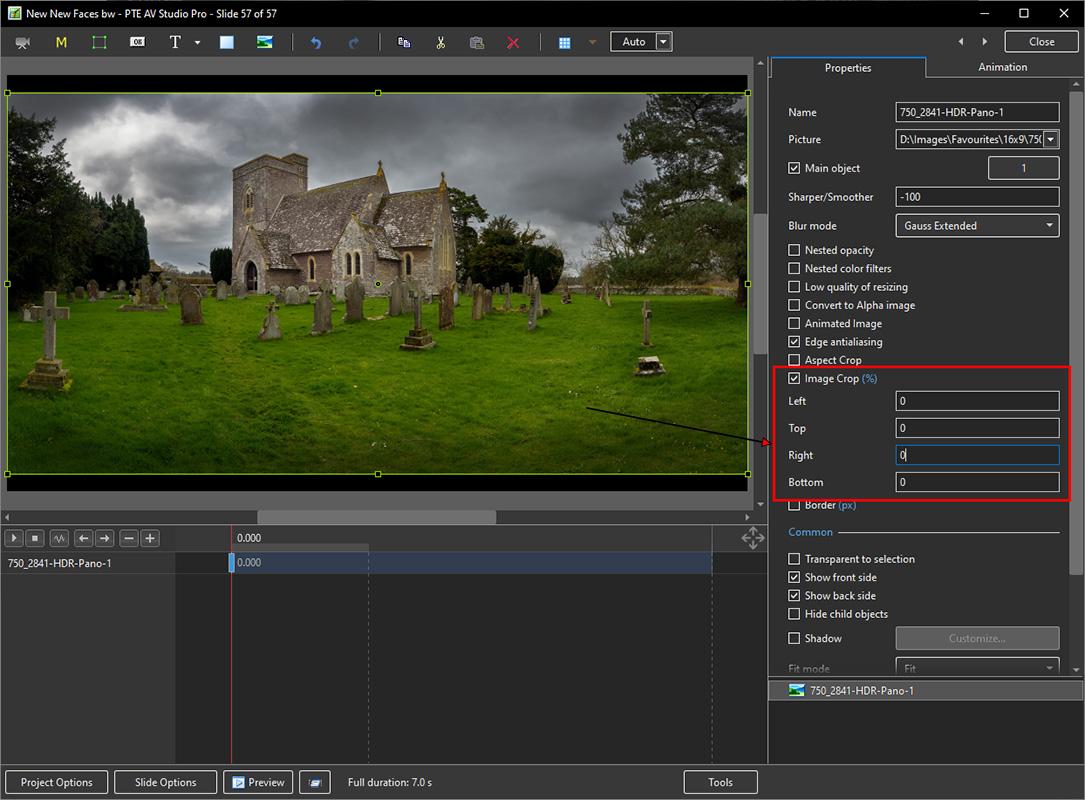
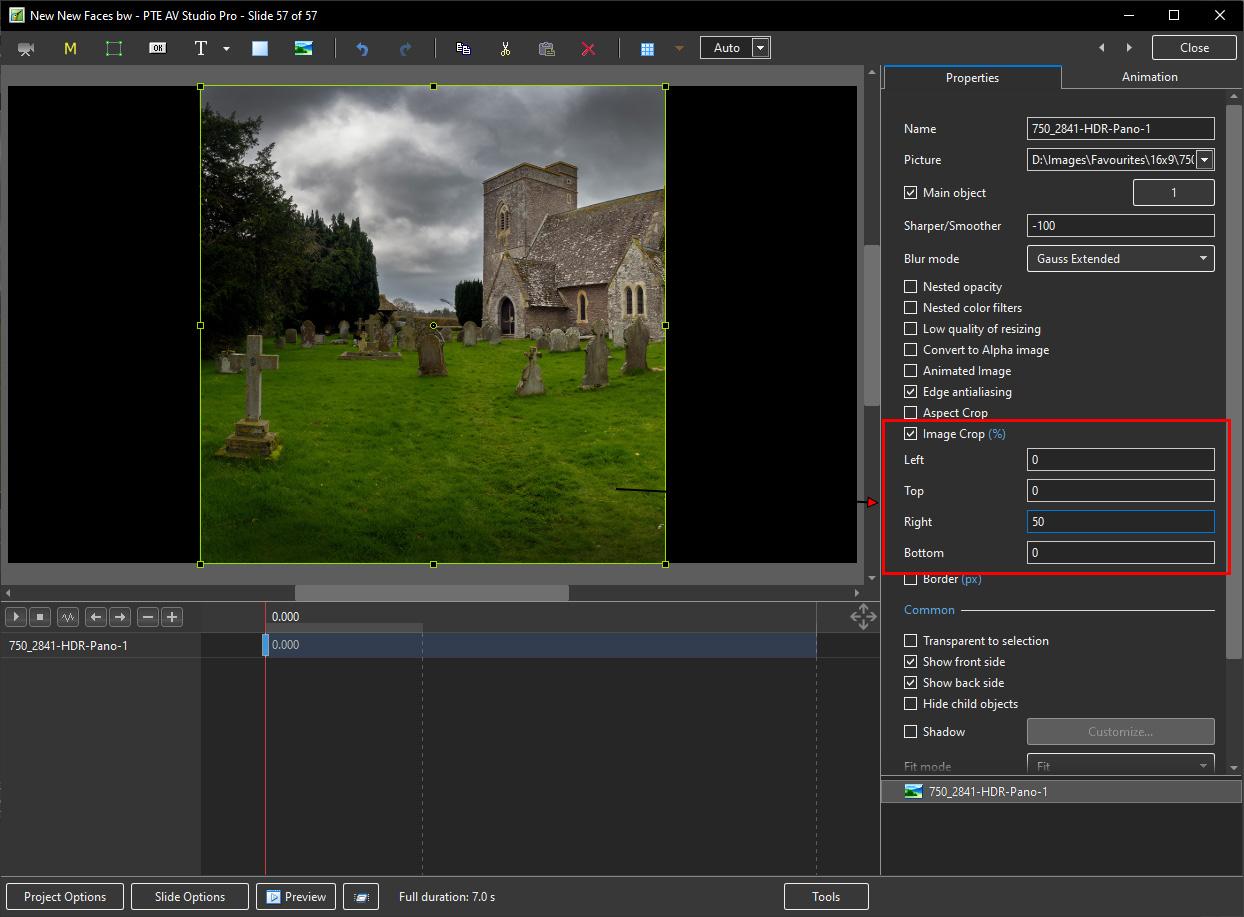
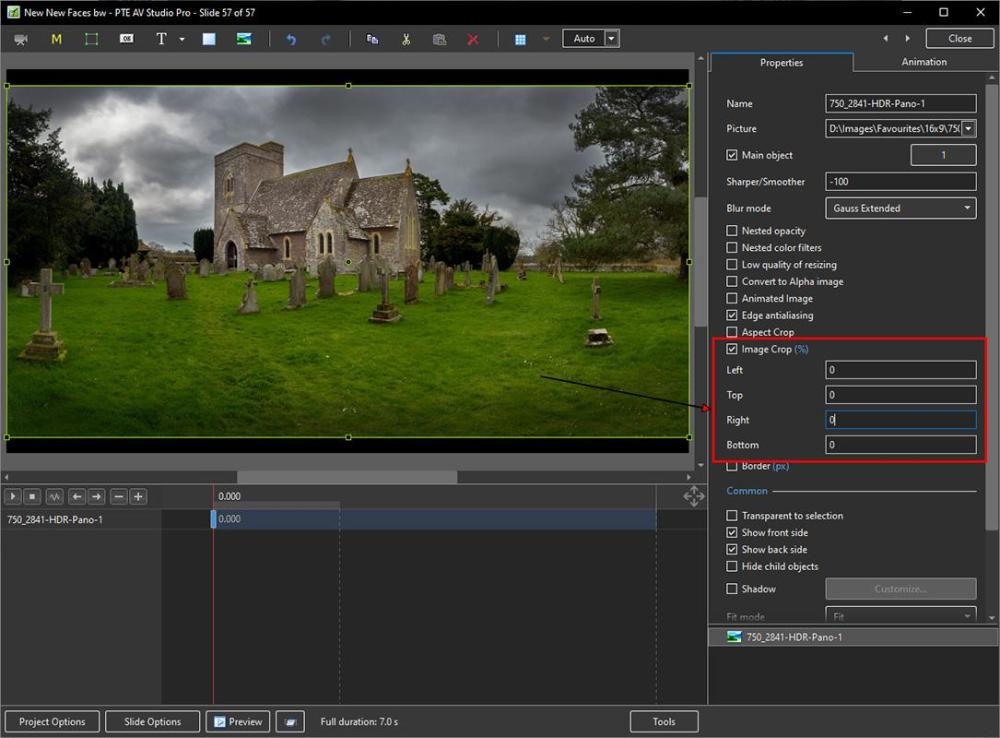
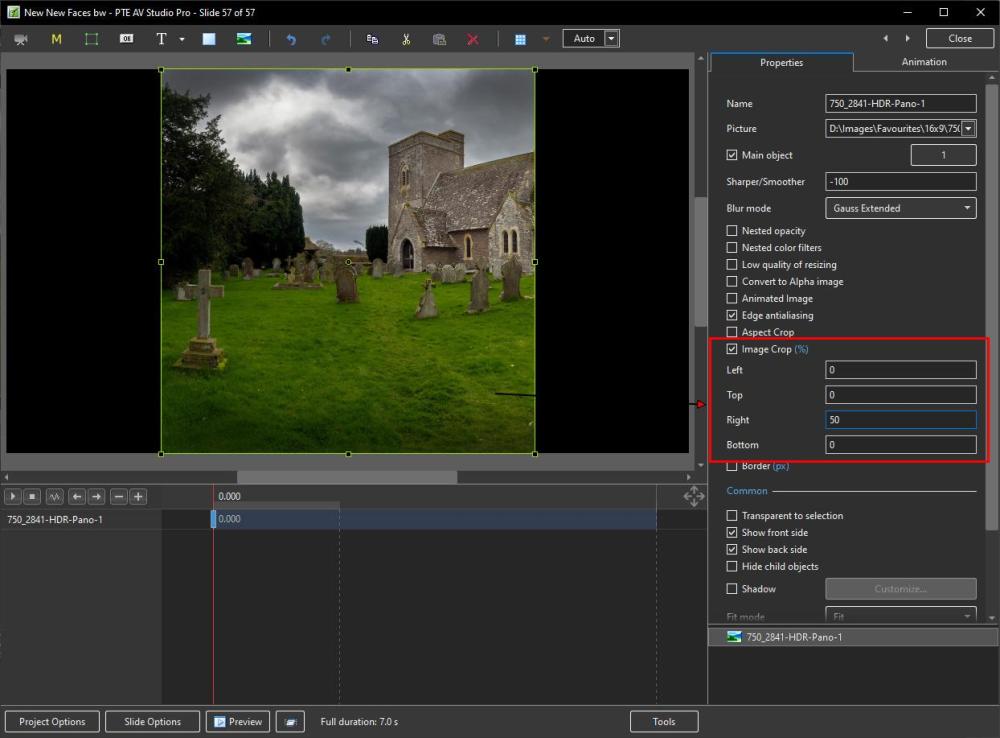
Use "Image Crop" in Objects and Animation/Properties. Use the same image twice. For the Left Hand side of the double page spread crop 50% from the right of the Image. For the Right Hand side of the double page spread crop 50% from the left of the Image. DG
-
Additional help: https://docs.pteavstudio.com/en-us/11.0/slide-styles/create DG
-
https://www.wnsoft.com/en/pte-av-studio/buy/ DG
-
They were created in v11. For that reason they will not work with v10.5. Sorry. DG
-
See Tom's answer here: https://www.pteavstudio.com/forums/topic/21450-pan-scan-solved/?do=findComment&comment=141483 DG
- 1 reply
-
- 1
-

-
Since no one else has asked - Why? DG
-
Include Fonts in .zip Project Backup
davegee replied to Jimcamel's topic in Suggestions for Next Versions
This has been discussed in the past. I am not sure if the following is relevant: https://www.google.com/search?sca_esv=556671154&sxsrf=AB5stBjzKCzrL3aAztSmLJF9xNMYOT4_-A%3A1691996917345&q=sharing+fonts&oq=sharing+fonts&aqs=heirloom-srp..0l5 DG -
Apply/copy animation of one slide to dozens of other slides.
davegee replied to rossb's topic in General Discussion
It is not available in the right-click menu for a slide. I was referring to the Main Menu Slide menu - top left of screen. I have already suggested to Igor that it be included in the Right Click Menu for a Slide. DG -
Apply/copy animation of one slide to dozens of other slides.
davegee replied to rossb's topic in General Discussion
In the Slide View, click on the Slide that you wish to Create a Quick Style from. Go to Slide/Create Quick Style or press Shift+Ctrl+N Highlight the Slide or Slides to which you wish to Apply the Quick Style. You can use Shift+Click to highlight multiple contiguous Slides or Ctrl+Click to highlight non-contiguous Slides. Go to Slide/Apply Quick Style or press Shift+Ctrl+Q. The "Main Object" status of the target Slides must be the same as the original slide from which the Quick Style was created. Quick Styles only work in the Pro Version. DG https://docs.pteavstudio.com/en-us/11.0/slide-styles/quickstyles -
In addition to Jill's advice read this thread:
-
-
Mark, Make your Menu Slide with a long Slide Duration or use "Loop this Slide" in the Slide Options. The Menu Slide will then sit there waiting for your Mouse Click. Take a look at this - it might also help: https://docs.pteavstudio.com/en-us/11.0/how_to_v10/create_menu DG
-
Added Floor and Ceiling. Room with 4 Photos-2.ptestyle DG
-
360 view of a room with 4 plain walls (16x9 Project). Apply the Style to a blank slide. Overlay the Red, Green, Blue and Magenta walls with a texture of your choice (16x9). Room.ptestyle 360 view of a room with a photo on each wall. Add four images to the Slide list - any AR (the photos will automatically adjust to 3x2). Apply the Style. Room with 4 Photos.ptestyle DG
-
Generative expand sounds great for turning a 3x2 into a 16x9. https://petapixel.com/2023/07/27/adobes-new-generative-expand-can-push-an-image-beyond-its-borders/ DG
-
-
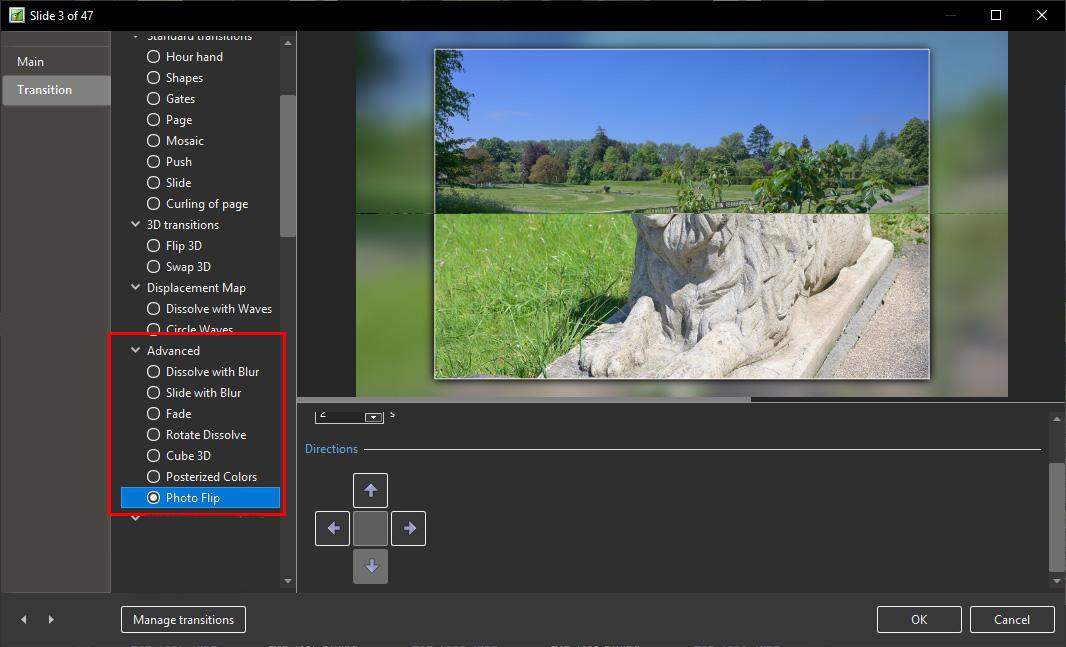
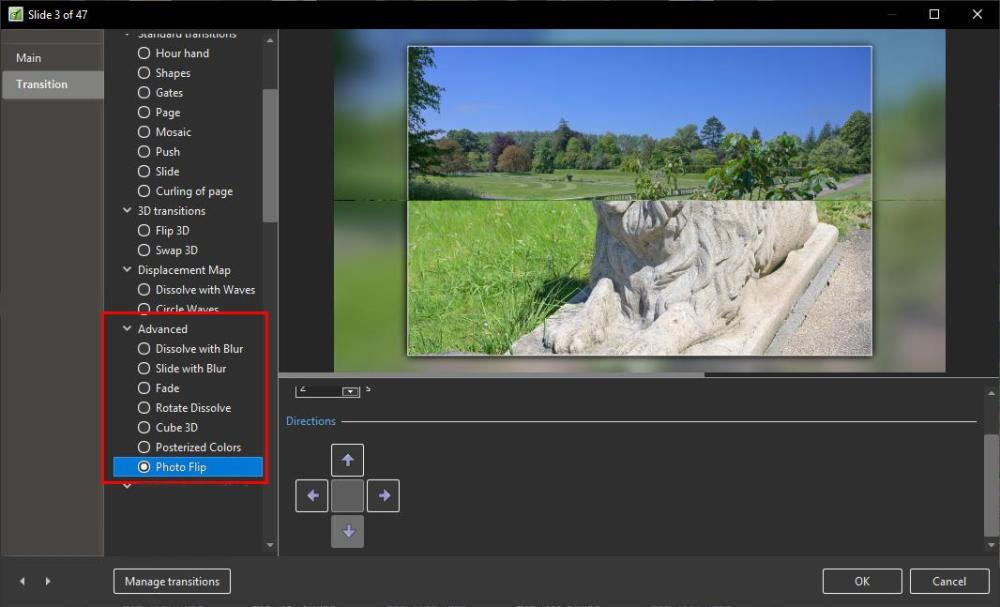
Georges, The "Photo Flip" Transition works OK for me in all directions. Try re-installing and if it still does not work , please get back to us so that Igor can comment. DG
-
You COULD Export the sound track as a high quality mp3 and use that as your new sound track linked to Slide 1. That would preserve the synchronisation. You could then introduce your new slide at the beginning and everything would move forward in sync. DG
-
Ken, I just did a quick test on three non-contiguous slides in a large project. Applied a Style to them without ticking the slide order box. Clicked Ctrl+Z and everything went back exactly as it was before. Can you be a little more specific with screen shots if possible? Have you upgraded or are you just assessing V 11? DG
-
Slide Style - applying to multiple individual slides
davegee replied to aplman's topic in General Discussion
This thread lists most bugs fixed by version number (scroll down): DG -
Slide Style - applying to multiple individual slides
davegee replied to aplman's topic in General Discussion
It was introduced in Version 11 along with many other cool new features to make your life easier. https://www.wnsoft.com/en/pte-av-studio/whats-new-11/ DG -
Slide Style - applying to multiple individual slides
davegee replied to aplman's topic in General Discussion
Use Ctrl+Click to select the non-contiguous slides. When applying the Style tick the box marked "Keep slide order". DG P.S. You might find it easier to use "Full Screen view of Slide List" to choose your non-contiguous slides (F4 or the small arrow next to "Slides" in the Slide list or "Settings").